# GAIA Installation Guide

{% hint style="info" %}
Applicable Versions: Alemba Service Manager GAIA (ASM Version 10.4)
{% endhint %}

Alemba no longer provides a Patch MSI or Setup EXE file for install or upgrade.

We have found that this process is out of sync with current trends and maintaining these install tools is preventing improvements in the design, development, test, release, and maintenance processes.

We believe that ASM will be easier to install, own and operate without the old install process. ASM Gaia (v10.4) marks the last release which supports the old installation process.<br>

{% hint style="warning" %}
Any screen designs used in this document are used to represent the solution and may differ from what is delivered.
{% endhint %}

## Summary of the Automated Installation Process

Below are the steps the automated installer performs. If monitoring the installation, you will be able to follow along with this list. Space is available for you to take notes during the process.

<table><thead><tr><th width="115.5">Item #</th><th>Detail</th></tr></thead><tbody><tr><td>1</td><td>Check for powershell 5 or later</td></tr><tr><td>2</td><td>Check current user is a member of the built in Administrator role</td></tr><tr><td>3</td><td>Find package.zip</td></tr><tr><td>4</td><td>Install Azure Platform Utilities if on Azure and that ASM KeyVault environment variable is set.</td></tr><tr><td>5</td><td><p>Validate install parameters. Parameters are gathered in the following order:</p><ul><li>from script arguments</li><li>from Azure Key Vault secrets (if ASM KeyVault is set for the environment)</li><li>environment variables (prefixed with ASM_)</li><li>user input (if interactive)</li></ul></td></tr><tr><td>6</td><td>Validate database connection string</td></tr><tr><td>7</td><td>Uninstall ASM Gaia or earlier</td></tr><tr><td>8</td><td>Disable Windows Defender Realtime monitoring</td></tr><tr><td>9</td><td>Extract files to ALEMBA_PATH\Staging</td></tr><tr><td>10</td><td>Stop ASM Services</td></tr><tr><td>11</td><td><p>Check if upgrade is supported</p><ul><li>Only if it’s a minor upgrade e.g. 10.5.1 to 10.5.2</li><li>If not, the existing version will be removed before the install continues</li></ul></td></tr><tr><td>12</td><td><p>Install Prerequisites</p><ul><li>Windows Features</li><li>.NET Core</li></ul></td></tr><tr><td>13</td><td>Uninstall existing versions of ASM if necessary</td></tr><tr><td>14</td><td>Copy files for each system</td></tr><tr><td>15</td><td>Remove existing files (if necessary)</td></tr><tr><td>16</td><td>Copy new files</td></tr><tr><td>17</td><td>Update Registry</td></tr><tr><td>18</td><td>Configure IIS</td></tr><tr><td>19</td><td>Configure IIS and Registry for each system</td></tr><tr><td>20</td><td>Install ASM Services</td></tr><tr><td>21</td><td>Configure connection string and update database for each system</td></tr><tr><td>22</td><td>Start Services</td></tr><tr><td>23</td><td>Verify Installation using health status page</td></tr><tr><td>24</td><td>Restore Windows Defender Realtime monitoring</td></tr><tr><td>25</td><td>Reboot to complete install of prerequisites if required</td></tr></tbody></table>

## Prerequisites Summary Checklist

* [ ] SQL 2019 - From EOS (10.5.X) , SQL 2019 or later is necessary if you wish to create a new database
* [ ] PowerShell >5.0
* [ ] User is Administrator
* [ ] Key Vault
* [ ] ADO net connection String
* [ ] Host Name
* [ ] System Name
* [ ] Certificate Thumbprint
* [ ] Download Prerequisites
* [ ] License Key Text
* [ ] **Ensure Outlook is not installed on the Application Server**
* [ ] Minimum 4GB RAM

## SQL Server 2019

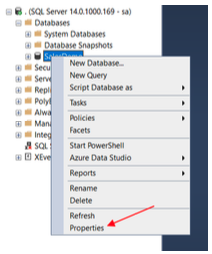
From EOS (10.5.X) , SQL 2019 or later is necessary if you wish to create a new database. You can check it by opening the Properties:

<figure><img src="https://content.gitbook.com/content/6Ckybwmt0tmi7y8MgYX4/blobs/2oVVfFgmcrG6M2KUzzgr/image.png" alt=""><figcaption></figcaption></figure>

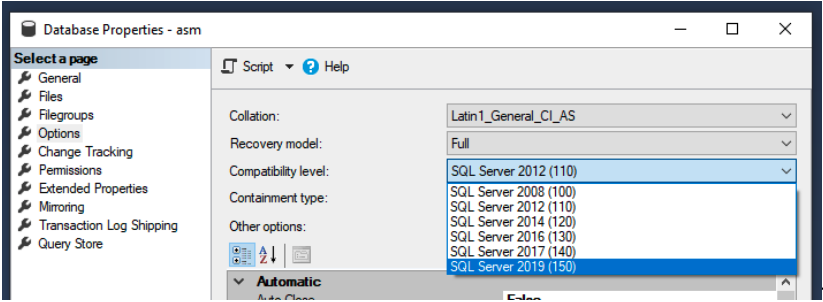
Go to Options and click on the Compatibility Level:

<figure><img src="https://content.gitbook.com/content/6Ckybwmt0tmi7y8MgYX4/blobs/BxYyEn5O8QYlBJGkxtUh/image.png" alt=""><figcaption></figcaption></figure>

There should be a SQL Server 2019 option. &#x20;

{% hint style="info" %}
You need the Full Text feature on the SQL Server.
{% endhint %}