> For the complete documentation index, see [llms.txt](https://docs.alemba.com/asm-gaia-10.4/llms.txt). Markdown versions of documentation pages are available by appending `.md` to page URLs; this page is available as [Markdown](https://docs.alemba.com/asm-gaia-10.4/use-asm/using-asm-core/knowledge-management/viewing-knowledge-entries.md).

# Viewing Knowledge Entries

If you are searching for an answer to a question or problem, use the Knowledge Search window or the Quick Search to view the knowledge entry.

There are three ways in which you can view knowledge entries:&#x20;

1. Via the Knowledge Search window
2. Via the Quick Search on the toolbar
3. Or via the Knowledge Admin Search window.&#x20;

The first two methods open the **Knowledge Entry** window which is in 'reading' mode. The third method opens the **Knowledge Entry Details** window which is in edit mode.

{% hint style="info" %}
Use the **Knowledge Admin Search** window if you need to update, moderate, or delete knowledge entries, or to find knowledge entries that are deleted or in draft. You will also find additional information about knowledge entries in the Information Panel, using this search.
{% endhint %}

## Searching for Knowledge Entries <a href="#searchin" id="searchin"></a>

{% hint style="info" %}

### Before you start

For text searching or external knowledge entries, the **ASM Core Indexing service** must be running.

If **moderated** is selected in the Knowledge Bank Settings, unmoderated knowledge entries will not be displayed.

You must have **Search** selected on the **Options** tab of your **Knowledge Management security role**.
{% endhint %}

### Quick Search

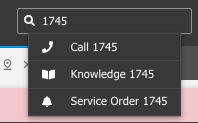
1. To the far right of the toolbar is the Quick Search box: ![](https://content.gitbook.com/content/xP0IZ1PKDWM22PFPFi0l/blobs/IEALI7kRs6Y2SPZgyy3R/image.png)
2. From the Quick Search menu, enter the knowledge article number and press Enter. A list of all entities in the system matching that number will appear.  Select the Knowledge article you want to view. &#x20;

   <figure><img src="https://content.gitbook.com/content/xP0IZ1PKDWM22PFPFi0l/blobs/qaAmg36NpVKLggcq4GIw/image.png" alt=""><figcaption></figcaption></figure>

### Knowledge Search

1. Select ≡ > **Search** > **Knowledge Bank**.

   The **Knowledge Search** window has two panes. The **Search Criteria** pane is on the left where you enter search options. The main pane on the right displays the results of a search.
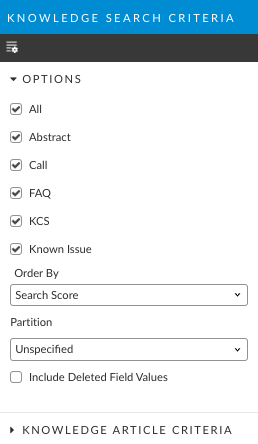
2. **Select your search criteria** in the Knowledge Search Criteria pane on the left.
   * The **Options** section contains fields that allow you to search on the following criteria:

{% hint style="info" %}
The available Article types will depend on what has been enabled in [System Administration](/asm-gaia-10.4/setup-and-configure-asm/setting-up-your-system/system-administration-settings/knowledge-bank/knowledge-base-types.md).
{% endhint %}

<figure><img src="https://content.gitbook.com/content/xP0IZ1PKDWM22PFPFi0l/blobs/y9JSJ7C48KvBhsQLCdoT/Screenshot%202023-03-09%20at%207.37.55%20AM.png" alt=""><figcaption></figcaption></figure>

<table data-header-hidden><thead><tr><th width="205.5"></th><th></th></tr></thead><tbody><tr><td>All</td><td>Select to search for all types of knowledge entries.</td></tr><tr><td>Abstract</td><td>Select to search for entries that have the type set to Abstract</td></tr><tr><td>Call</td><td>Select to search for entries that have the type set to Call.</td></tr><tr><td>Directory</td><td>Select to search for entries that are Directory type</td></tr><tr><td>FAQ</td><td>Select to search for entries that have the type set to FAQ.</td></tr><tr><td>KCS</td><td>Select to search for KCS knowledge entries.</td></tr><tr><td>Known Issue</td><td>Select to search for knowledge entries that are Known Issues.</td></tr><tr><td>Website</td><td>Select to search for knowledge entries that are websites.</td></tr><tr><td>Order By</td><td>Select an option from the list to specify how your search results will be displayed. The search results are sorted and displayed based on the option selected. You can order your search results by Search Score, Rating, Most Recent or Profile.</td></tr><tr><td>Include Deleted Field Values</td><td>Select to include deleted values in the search criteria fields, that is, to search for a knowledge entry based on a value that may have been deleted.  For example, if an Analyst who created a knowledge entry was deleted from the system, selecting this option adds the Analyst’s name to the list of people you can select in the Created By search field.</td></tr></tbody></table>

* The Knowledge Article Criteria section contains fields that allow you to search on the following criteria:

<table data-header-hidden><thead><tr><th width="194.5"></th><th></th></tr></thead><tbody><tr><td>Created By</td><td>Start typing to search for the Analyst who created the knowledge entry and use this person as the criteria for your search</td></tr><tr><td>Search Text</td><td><p>Select this criterion to search for Knowledge Entries by typing in words or text the entry may contain.</p><p>When you perform a knowledge search from a call, the call description is copied into the Search Text field, although the Search Text field itself is not selected as a criterion by which to search. This is by design, since running a search with a large number of words in the Search Text field will take a long time and most likely return no results. As such, if you want to use the call description in the knowledge search, you should review the words listed and then select the Search Text field so that it is used.</p></td></tr></tbody></table>

### Performing a Text Search

{% hint style="info" %}
You can choose between All Words and Any Words.

You can choose between Exact, Related, Logical and Regular Expression.
{% endhint %}

<table data-header-hidden><thead><tr><th width="204.5"></th><th></th></tr></thead><tbody><tr><td>All Words</td><td>Returns knowledge entries with words that match all the search text. However, it does not take into account the sequence of the words specified.</td></tr><tr><td>Any Words</td><td>Returns knowledge entries with one or more words that match the search text.</td></tr><tr><td>Exact</td><td><p>Returns knowledge entries in which the body text contains (any or all) words specified in the Search Text field, not necessarily in the same order.</p><p>This type of search does not include an exact phrase search. To search for an exact phrase, the words for which you are searching must be specified within quotation marks.</p><p>Nor will it retrieve text that has another form of the word or a synonym. For example, if you specify “Join” in text box, the search will not retrieve “Joined” as a match.</p></td></tr><tr><td>Related</td><td>Returns knowledge entries that contain synonyms or words that are similar to the search text. For example, if you search on “Cloning”, the search will locate entries such as “clone” and “cloned”.</td></tr><tr><td>Logical</td><td>Same behavior as Exact, however uses the SQL Server text searching engine instead of the vFire text search engine. Both require the vFire Indexing Service to be running.</td></tr><tr><td>Regular Expression</td><td><p>Returns knowledge entries with regular expressions associated with the search words, including wildcard characters such as an underscore (_) to represent one character or percentage (%) to represent zero or more characters.</p><p>Wildcard characters are ignored if the Regular Expression option is not selected.</p><p>Usage of regular expressions is specific to the database engine you are using: SQL Server or Oracle. Regular expressions are limited to searching for individual words and therefore exclude any punctuation and white space specified in the search text. The regular expression wildcard characters that ASM Core supports include:</p></td></tr></tbody></table>

|      |                                                                                                                                                                                                                                                                                                                          |
| ---- | ------------------------------------------------------------------------------------------------------------------------------------------------------------------------------------------------------------------------------------------------------------------------------------------------------------------------ |
| %    | <p>to search for any string of zero or more characters.<br>Use of this character at the beginning of a word by which you are searching is not supported. Furthermore, if using ‘%’ in the middle of a word, you should ensure that you always put ‘%’ at the end also. For example, col%r% will return color, colour</p> |
| \_   | Any single character                                                                                                                                                                                                                                                                                                     |
| \[]  | Any single character within the specified range. For example, in the range \[a-f] or in the set \[abcdef]                                                                                                                                                                                                                |
| \[^] | Any single character not within the specified range. For example, not in the range \[^a-f] or not in the set \[^abcdef]                                                                                                                                                                                                  |

3. [You can add more fields](#other_search_options_from_search_menu) to your search criteria. To do so, select  at the top of the Knowledge Search Criteria pane and configure your search criteria.
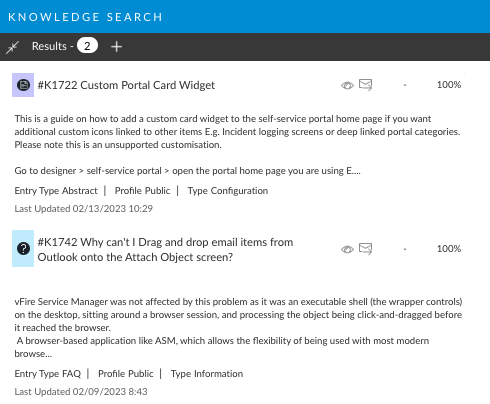
4. Select **Search**. The results are displayed in a browse table in the right hand pane, with the score (shown as a percentage) on the far right indicating how closely the entry matches the criteria. Each entry type is denoted by a specific icon. Searches for internal knowledge types (for example, Call, FAQ, etc) return a maximum of one result per entry. Searches for external knowledge types use the indexing process and return multiple entries or pages that are linked to the directory or website, respectively.  In this case, the entry itself is not returned in the search.

<figure><img src="https://content.gitbook.com/content/xP0IZ1PKDWM22PFPFi0l/blobs/sQVlTYFhYdZdG3lZaX1U/Screenshot%202023-03-09%20at%207.32.48%20AM.png" alt=""><figcaption></figcaption></figure>

{% hint style="info" %}
You may see entries that do not appear to contain any of the search keywords entered. This is because each knowledge entry has **Context**, which is the collection of all calls linked to it. The description of each call in the context is indexed along with the text in the knowledge entry. This enables Analysts to find entries that may be relevant to a call by searching for words featured in the description of other calls that these entries have previously helped solve.
{% endhint %}

5. Select the entry you want to view.

## Other Search Options <a href="#other_search_options_from_search_menu" id="other_search_options_from_search_menu"></a>

You can add additional search options by selecting  at the top of the Knowledge Search Criteria pane and configuring your search criteria. A description of some of the options (that is, attributes of knowledge entries) you can add is provided below.

<table data-header-hidden><thead><tr><th width="248.5"></th><th></th></tr></thead><tbody><tr><td>Knowledge Ref</td><td>Select to search for a knowledge entry by its Reference Number.</td></tr><tr><td>Call No</td><td>Select to search for all entries linked to the specified call number.</td></tr><tr><td>External Ref</td><td>Select to return all entries that have this external reference number in the search results.</td></tr><tr><td>Entry Type</td><td>Select to return knowledge entries with a selected <strong>Entry Type</strong>. Select the required entry from the list.</td></tr><tr><td>Profile</td><td>Select this option to return knowledge entries with a specified Knowledge Profile. Select <strong>Equal</strong> to search for knowledge entries where the entry’s profile is the same as the profile selected. Select <strong>Equal + Below</strong> to search for Knowledge Entries within the Profile you have specified as well as knowledge entries within the lower tiers for the profile.</td></tr><tr><td>CMDB Item</td><td>Select to return knowledge entries related to a specified CMDB item. <strong>Use the Q/D button</strong> to locate the CMDB item for which you want to base your search.</td></tr><tr><td>Call Type</td><td>Select to return knowledge entries related to a specific issue type. Select <strong>Equal</strong> to search for Knowledge Entries where the entry’s type is the same as the type selected. Select <strong>Equal + Below</strong> to include lower tiers for the selected type in your search.</td></tr><tr><td>Entry Status</td><td>Select to return knowledge entries based on the selected status. Select a status from the <strong>Status</strong> list.</td></tr><tr><td>Contributor</td><td>Select to return knowledge entries based on the Analyst who is a contributor to those entries. Use the <strong>Q/D</strong> button to locate the contributor.</td></tr><tr><td>Last Updated</td><td>Select to return knowledge entries based on a specified <strong>Last Updated</strong> date.</td></tr></tbody></table>

## Knowledge Entry Window

The knowledge entry window displays information about the question or issue you were searching for, and may also include links to relevant calls, websites, or other knowledge entries, and linked objects including CMDB Items.

#### Info Panel - reading mode

This contains the following information.

<table data-header-hidden><thead><tr><th width="233.5"></th><th></th></tr></thead><tbody><tr><td>Entry Type</td><td>One of the seven Knowledge Base types</td></tr><tr><td>Knowledge Ref</td><td>The unique reference number of the knowledge entry</td></tr><tr><td>Status</td><td>The status of the knowledge entry</td></tr><tr><td>Profile</td><td>The tiered knowledge profile</td></tr><tr><td>Type</td><td>The issue type linked to the knowledge entry</td></tr><tr><td>Service Desk Hits</td><td>The number of times the entry has been viewed by analysts</td></tr><tr><td>Portal Hits</td><td>The number of times the entry has been viewed by users</td></tr><tr><td>Feedback Responses</td><td>The number of people who have rated the entry for its quality and content</td></tr><tr><td>Feedback Rating</td><td>The overall rating of the entry in terms of quality and content</td></tr></tbody></table>

## Toolbar Buttons on the Knowledge Entry Window

A number of toolbar buttons are provided on this window, which enable you to print the entry, link it, etc.

## Feedback on a Knowledge Entry <a href="#feedback" id="feedback"></a>

You can give feedback on an entry, including rating for quality and content, flags for the entry to be reviewed and commented on. Any submitted feedback can be viewed via the Feedback Explorer Option on the **Knowledge Bank** window.

{% hint style="info" %}

### Before you start

You cannot give feedback on an entry if you have created or contributed to it.
{% endhint %}

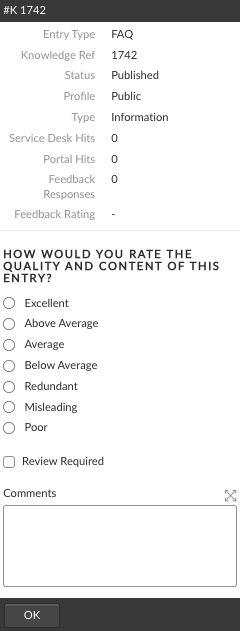
1. Scroll across/down to see the feedback area.

<figure><img src="https://content.gitbook.com/content/xP0IZ1PKDWM22PFPFi0l/blobs/Nlid1mn9eJyCzSm9GfCb/Screenshot%202023-03-09%20at%207.56.03%20AM.png" alt=""><figcaption></figcaption></figure>

3. In response to the question **How would you rate the quality and content of this entry?**, select one of the available ratings.
4. Select the **Review Required** checkbox if you would like the entry to be reviewed. Entries flagged for review are still be available for viewing and editing by analysts with appropriate permissions.
5. Once an entry has been flagged as requiring review, the **Review Required** checkbox will no longer be displayed.
6. Use the **Comments** box to provide more information on the feedback rating you have selected or the reason for selecting the **Review Required** option.
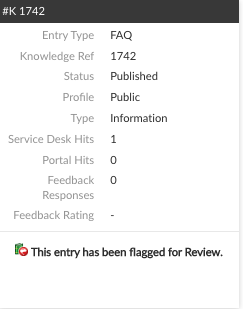
7. Select **OK** to save the feedback. The [information panel](/asm-gaia-10.4/use-asm/using-asm-core/getting-started/the-asm-core-window/the-information-panel.md) is updated with the feedback information. If you have requested a review, a flagged for review message appears at the bottom of the pane.

<figure><img src="https://content.gitbook.com/content/xP0IZ1PKDWM22PFPFi0l/blobs/hB7r4TS7RFFXri1mn2ZJ/Screenshot%202023-03-09%20at%207.58.33%20AM.png" alt=""><figcaption></figcaption></figure>