# Managing Services

{% hint style="success" %}
**Best Practice**

The goal is to build an easy to understand service catalog and that begins with an easy to understand service offering.  Try not to create a labrynth of services and instead think of these as umbrellas, or Lines of Service.  The service catalog stays simple and intuitive this way.
{% endhint %}

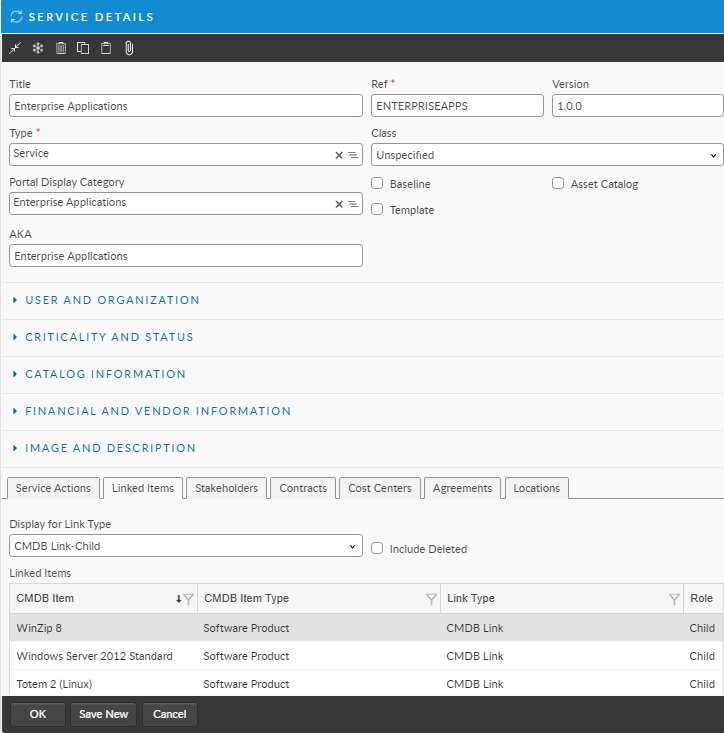
> For example: You could have a service called "Enterprise Applications".  This service would contain within it all the Enterprise apps as CI.  &#x20;

<figure><img src="https://content.gitbook.com/content/xP0IZ1PKDWM22PFPFi0l/blobs/AmCQ7ntHmqUu4TZ3r2t1/Screen%20Shot%202022-12-13%20at%2011.18.06%20AM.png" alt=""><figcaption><p>Example: Enterprise Applications linked to Enterprise Application Service</p></figcaption></figure>

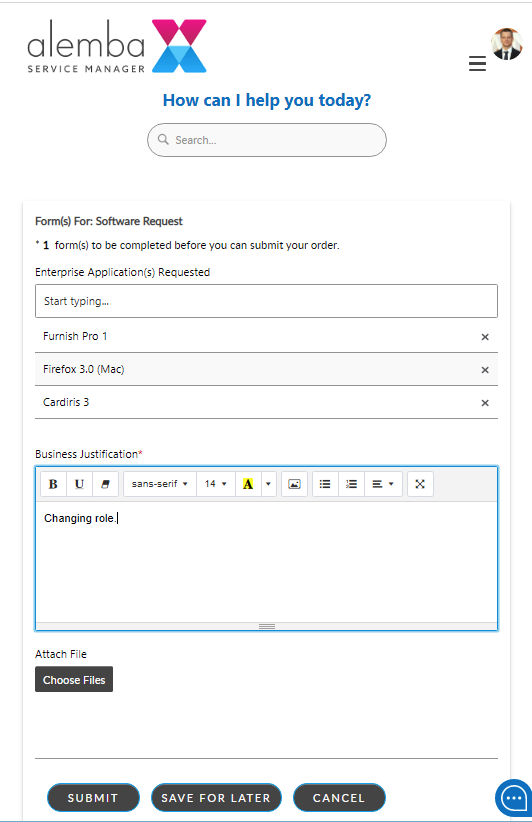
> Structured like this, the only service action needed for the Self Service Portal then would be an Software Request that has a CI Search field (multi or single select) allowing the users to select the enterprise Application(s) needed.&#x20;

<figure><img src="https://content.gitbook.com/content/xP0IZ1PKDWM22PFPFi0l/blobs/5kpCc9AtiH1NyHFMASFW/Screen%20Shot%202022-12-13%20at%2011.39.24%20AM.png" alt=""><figcaption></figcaption></figure>

## Adding a Service <a href="#adding" id="adding"></a>

{% hint style="info" %}
**Before you start**

You must have **CMDB Item New** selected in the CMDB Items tab of your **Configuration Management security role**.

**Display New Item in Wrapper** must be selected in the CMDB Item Type Details window for the **Service** CMDB Type.
{% endhint %}

1. Display a blank Service Details window in any of the following ways.
   * Select Menu and then **New**. From the submenu, select **Service** .
   * Select Menu and then **New**. From the submenu, select **CMDB Item...** and select **Service** as the **CMDB Item Type**. Use this option if the item type does not appear in the **New** submenu, you want to create a service from a template, or create a subtype of the services listed as default.
   * Use the **Add New** button in the CMDB Item Search window.
2. Complete the details about the service.
3. Link the Service Actions to the service.
4. You must link service actions to a service in order to use them.
5. Link other CMDB Items to the service.
6. Select **Ok** to save the details, or **Save New** to save the details and display a blank details window, ready for you to create another CMDB item.

### Service Details Explorer Options

The Service Details Explorer appears on the left-hand side of the Service Details window. It contains options or links to other windows and functionality that relate to the Service.

The following options are available:

<table><thead><tr><th width="220">Select</th><th>To...</th></tr></thead><tbody><tr><td>Agreements</td><td>view all the agreements where the service is specified in the agreement selection criteria</td></tr><tr><td>Availability</td><td>view or set Availability Settings for the service</td></tr><tr><td>Impact Criteria</td><td>specify the criteria that will be used to apply an outage to a service when CMDB items impacting it are experiencing an outage</td></tr><tr><td>Clone</td><td>copy a service in order to create a new one</td></tr><tr><td>Object</td><td>attach objects or files from Windows applications to the service</td></tr><tr><td>Attributes</td><td>type data into categories set up in the Administration module</td></tr><tr><td>Service Default Form</td><td>capture general, non-reportable, non-searchable information about the service</td></tr><tr><td>Audit</td><td>view an audit trail of the changes made to the details of the service</td></tr><tr><td>Version History</td><td>view the history of the service action, including relevant changes to each version of the service</td></tr><tr><td>Depreciation</td><td>view the depreciation information for the service</td></tr><tr><td>Linking</td><td>display a graphical view of the other CMDB items which are linked to the service</td></tr><tr><td>Components</td><td>display a graphical view of the components for a container service</td></tr><tr><td>Call Search</td><td>to display the Call Search window, where you can view all open calls logged against the service</td></tr><tr><td>Request Search</td><td>to display the Request Search window, where you can view all open requests logged against the service</td></tr><tr><td>External Resources</td><td>view external resources such as directory server users linked to the service</td></tr><tr><td>Discrepancy Reports</td><td>outstanding CMDB Resource Reports (reports to be reviewed) linked to the entity</td></tr></tbody></table>

## Updating a Service

You update service details in the same way as you would update any CMDB item.

## Deleting a Service

You delete a service in the same way as you would delete any CMDB item.

You can restore deleted CMDB items if you wish.