> This is part 1 of 9 of the full documentation (pages 1–100 of 847).
> The content is paginated: fetch every part to see all of it.
> Next part: https://docs.alemba.com/asm-hermes/llms-full.txt/1
> Page index: https://docs.alemba.com/asm-hermes/llms.txt

# Welcome to ASM HERMES!

Everything you need to know about Alemba Service Manager 10.6, HERMES. You'll love it..

## Getting Started with HERMES

We're busy adding new pages but if there's anything you'd like us to cover or expand on specifically, let us know by **Submitting Feedback**.  You will find links at the top and bottom of each page.

**Most Recent Content Updates, Changes, or Additions**

{% hint style="info" %}

* This list is not comprehensive.
* Multiple pages could be impacted in these documentation updates. &#x20;
* To see the content, simply type the keyword found in the "Search Term" column into the search option above.
  {% endhint %}

<table><thead><tr><th>Date of Change</th><th>Summary of Change</th><th>Search Term(s)</th><th width="143">Version/Release</th></tr></thead><tbody><tr><td>27 MAR 2025</td><td>ASM <strong>Polling Services</strong>: HTML Processor and Webhook</td><td>Windows Services, ASM Services, Services, Polling, Polling Services</td><td>10.6.8.13624</td></tr><tr><td>25 MAR 2025</td><td>IPK Workflow Rules and Call/Ticket Automation</td><td>IPK Workflow</td><td>All</td></tr><tr><td>11 MAR 2025</td><td>Numeric Field Calculations</td><td>Calculation, or<br>Calculations</td><td>FEB 2025 MR</td></tr><tr><td>26 FEB 2025</td><td>Connector Builder for MS Intune</td><td>Intune</td><td>10.6.5</td></tr><tr><td>26 FEB 2025</td><td>Connector Builder for AS Azure AD</td><td>Entra, Entra ID</td><td>10.6.5</td></tr><tr><td>20 FEB 2025</td><td>Followers</td><td>Follow</td><td>10.6.8.15038</td></tr><tr><td>20 FEB 2025</td><td>Purge Records</td><td>Purge</td><td>10.6.8.15038</td></tr><tr><td>19 FEB 2025</td><td>Configure Time Limited Approvals</td><td>Time Limited</td><td>All Releases</td></tr><tr><td>13 FEB 2025</td><td>MS Azure DevOps Connector Configuration</td><td>devops</td><td>10.6.8 GA</td></tr><tr><td>12 FEB 2025</td><td>Analytics Settings</td><td>Analytics</td><td>10.6.8.15038</td></tr><tr><td>31 JAN 2025</td><td>Stakeholder and CC Recipients (Email All) capability</td><td>Email All</td><td>10.6.8.14253</td></tr><tr><td>29 JAN 2025</td><td>User Update Functionality</td><td>User Update Status, Call Status Title</td><td>10.5.7</td></tr><tr><td>26 JAN 2025</td><td>Prevent Past Date Selection </td><td>"Disable Past Date" Field Property</td><td>10.6.8.15038</td></tr></tbody></table>

Not sure where to start? Look at our installation guide:

{% content-ref url="/pages/7MULr4hg4nZXUbUBhsiy" %}
[HERMES Installation Guide](/asm-hermes/setup-and-configure-asm/installation-and-patching/hermes-installation-guide)
{% endcontent-ref %}

Anything else? *Use that search function!* **Happy browsing!**


# HERMES 10.2025.Q4 Release Notes

ASM Hermes 10.2025.Q4 (former 10.6.9) General Availability Release Notes. Please Click on the link below for the full list of items in ASM HERMES 10.2025.Q4 General Availability Release

{% hint style="info" %}
We are currently in the process of providing different formats for the release notes
{% endhint %}

{% embed url="<https://alemba.aha.io/shared/03a9e593600dfc42d163e420af87dd0e>" %}


# 10.6.9.14735 OCT 24 RC Release Notes

Release notes for Hermes 10.6.9 October Release Candidate 10.6.9.14735

{% file src="/files/zExMtneYxS1HjMz73GTK" %}


# 10.6.9.14875 NOV 24 RC Release Notes

Release notes for Hermes 10.6.9 November Release Candidate 10.6.9.14875

{% file src="/files/TK9i7BNxgAY07oQU8tD1" %}


# HERMES 10.6.8 Release Notes

ASM Hermes 10.6.8 Release Notes. This release introduces What's New, Improvements, Bug Fixes, Deprecated features . Please Click on the link below for the full list of items in ASM Hermes 10.6.8

{% embed url="<https://alemba.aha.io/shared/88d76a211404097f1984254de9c4c97f>" %}


# 10.6.8.14379 AUG 24 MR Release Notes

Release Notes for What's New, Improvements, Bug Fixes, Deprecated Features in ASM Hermes 10.6.8 August 2024 Maintenance Release.

{% file src="/files/sjgEOIpDtXHclgR2b17K" %}


# 10.6.8.14627 SEPT 24 MR Release Notes

Release Notes for What's New, Improvements, Bug Fixes, Deprecated Features in ASM Hermes 10.6.8 September 2024 Maintenance Release.

{% embed url="<https://alemba.aha.io/shared/60f5bee84b2a800119648f0233326c6c>" %}


# 10.6.8.14701 OCT 24 MR Release Notes

Release Notes for What's New, Improvements, Bug Fixes, Deprecated Features in ASM Hermes 10.6.8 October 2024 Maintenance Release.

{% file src="/files/WmjVkWUrxJYu7KSdO2Xo" %}


# 10.6.8.14800 OCT 24 2 MR Release Notes

Release Notes for Bug Fixes in ASM Hermes 10.6.8 October 2 2024 Maintenance Release.

{% file src="/files/f0aoGQ8ruJHex5d5mKbm" %}


# 10.6.8.14879 NOV 24 MR Release Notes

Release Notes for Bug Fixes in ASM Hermes 10.6.8 November 2024 Maintenance Release.

{% file src="/files/xSWjeoBwA7Nht4n3rH1P" %}


# 10.6.8.14901 N0V 24 2 MR Release Notes

Release Notes for Bug Fixes in ASM Hermes 10.6.8 November 2 2024 Maintenance Release.

{% file src="/files/clyP2Af7LjmdIQG3VulO" %}


# 10.6.8.15038 DEC 24 MR Release Notes

Release Notes for New Features, Improvements and Bug Fixes in ASM Hermes 10.6.8 December 2024 Maintenance Release.

{% file src="/files/Cx6nqVC5v6qVQWjNb01M" %}


# 10.6.8.15097 JAN 25 MR Release Notes

Release Notes for Improvements and Bug Fixes in ASM Hermes 10.6.8 January 2025 Maintenance Release.

{% file src="/files/dcD4zy29VN31nRdl1br8" %}


# 10.6.8.15121 JAN 2 25 MR Release Notes

Release Notes for an additional bug fix in ASM Hermes 10.6.8 January 2 2025 Maintenance Release.

{% file src="/files/TAuuOK9xuCw3IzFRdJRW" %}


# 10.6.8.15289 FEB 25 MR Release Notes

Release Notes for an additional bug fix in ASM Hermes 10.6.8 February 2025 Maintenance Release.

{% file src="/files/D1lCWFfrgdQpe0tjFhq9" %}


# 10.6.8.15348 FEB 2 25 MR Release Notes

Release Notes for additional bug fixes in ASM Hermes 10.6.8 February 2 2025 Maintenance Release.

{% file src="/files/5BmVdbIdTHA8gaZelwJA" %}


# 10.6.8.15509 MAR 25 MR Release Notes

Release Notes for additional bug fixes in ASM Hermes 10.6.8 March 2025 Maintenance Release.

ASM Hermes 10.6.8 Latest Release has now been updated and published (Build Number 15509). This version is also now available for On Premise Customers.  This build contains 20 additional fixes compared to the last February 2 Maintenance Release (MR) Release (Build 15348) on the 19<sup>th</sup> of March 2025.<br>

{% file src="/files/gb8CWPOarRlTVE7lqeFF" %}

{% hint style="success" %}
The next ASM Software Release of Hermes 10.6.8 will be the APRIL 2025 Maintenance Release  (MR ), development ETA 24th of April 2025.
{% endhint %}

## PowerShell Installation

You can install this new version [using PowerShell as normal](/asm-hermes/setup-and-configure-asm/installation-and-patching/installation-powershell-parameters) (ASM Hermes 10.6.8.15509 is currently hermes8\_latest):

```
Invoke-WebRequest  
https://alembareleases.blob.core.windows.net/asm-core/hermes8_latest
 -OutFile Download.ps1; .\Download.ps1;
```

## Offline Installation

{% embed url="<https://docs.alemba.com/asm-hermes-10.6.8/setup-and-configure-asm/installation-and-patching/hermes-installation-guide/upgrading-installing-asm-to-hermes-step-by-step-guide>" %}


# 10.6.8.15572 APRIL 25 MR Release Notes

Release Notes for additional bug fixes in ASM Hermes 10.6.8 April 2025 Maintenance Release.

ASM Hermes 10.6.8 Latest Release has now been updated and published (Build Number 15572). This version is also now available for On Premise Customers.  This build contains 6 additional fixes compared to the last March Maintenance Release (MR) Release (Build 15509) on the 23rd of April 2025.<br>

{% file src="/files/ONlqLCtje9NI43LCUkZ5" %}

{% hint style="success" %}
The next ASM Software Release of Hermes 10.6.8 will be the MAY 2025 Maintenance Release  (MR ), development ETA 29th of May 2025.
{% endhint %}

## PowerShell Installation

You can install this new version [using PowerShell as normal](/asm-hermes/setup-and-configure-asm/installation-and-patching/installation-powershell-parameters) (ASM Hermes 10.6.8.15572 is currently hermes8\_latest):

```
Invoke-WebRequest  
https://alembareleases.blob.core.windows.net/asm-core/hermes8_latest
 -OutFile Download.ps1; .\Download.ps1;
```

## Offline Installation

{% embed url="<https://docs.alemba.com/asm-hermes-10.6.8/setup-and-configure-asm/installation-and-patching/hermes-installation-guide/upgrading-installing-asm-to-hermes-step-by-step-guide>" %}


# 10.6.8.15788 MAY 25 MR Release Notes

Release Notes for additional bug fixes in ASM Hermes 10.6.8 May 2025 Maintenance Release.

ASM Hermes 10.6.8 Latest Release has now been updated and published (Build Number 15788). This version is also now available for On Premise Customers.  This build contains 8 additional fixes compared to the last April Maintenance Release (MR) Release (Build 15572) on the 13th of May 2025.<br>

{% file src="/files/TkA2JkSMHObLoDBc7p8k" %}

{% hint style="success" %}
The next ASM Software Release of Hermes 10.6.8 will be the JUNE 2025 Maintenance Release  (MR ), development ETA 15th of August 2025.
{% endhint %}

## PowerShell Installation

You can install this new version [using PowerShell as normal](/asm-hermes/setup-and-configure-asm/installation-and-patching/installation-powershell-parameters) (ASM Hermes 10.6.8.15788 is currently hermes8\_latest):

```
Invoke-WebRequest  
https://alembareleases.blob.core.windows.net/asm-core/hermes8_latest
 -OutFile Download.ps1; .\Download.ps1;
```

## Offline Installation

{% embed url="<https://docs.alemba.com/asm-hermes-10.6.8/setup-and-configure-asm/installation-and-patching/hermes-installation-guide/upgrading-installing-asm-to-hermes-step-by-step-guide>" %}


# ASM Video Library

Browse the videos below for quick access.  Many videos will auto-run with a voice over, while others will require your interaction to advance. Flashing hotspots generally indicate input needed.

Most videos are under 10 minutes in length.  Some of the more advanced topics are longer, but no video is longer than 20 minutes as a general rule.

{% hint style="info" %}
**Videos span a number of ASM versions and all capabilities may not be fully represented.**&#x20;

We are busy adding new capabilities to ASM and new videos all the time!  If the capability you are interested in learning more about is not represented with a video or the video doesn't match your version, you can:

1. Contact Alemba Support for assistance or to request a video specific to your needs (*we will put that video at the top of our to-do list for you*)
2. Browse the ASM Product Documentation for your given version to get specific information relevant to your release. &#x20;

*The product documentation is always updated at release, but video series may be delayed for a number of reasons.* &#x20;
{% endhint %}

<details>

<summary>Capability Overviews</summary>

This section represents videos from various sources and including sales material used to demonstrate the given capability of ASM.  Some links represent dropbox shared links. *You may need to enable access in your browser to dropbox or, if your organization has blocked Dropbox you may not be able to access those videos.*

[***Browse all Videos***](https://app.arcade.software/share/collections/b7eMm7RRVK5LAvYrPGDo)

[Agent Overview](https://share.synthesia.io/d9f4bfbc-78ce-40d3-a62f-fa40b7a7e176)

[ASM NANO Overview](https://share.synthesia.io/7f4658d1-8555-4ae5-8fdc-39e40f471232)

[ASM Partitioning](https://share.synthesia.io/91c7f3f9-8fbf-4a94-ba1e-a0ed66eb1180)

[ASM Incident Management](https://app.arcade.software/share/K8aH0bYxuBDbD7AmCSgC)

[ASM Service Request Management](https://share.synthesia.io/947971b1-7c0f-48fc-be20-375176dc5d09)

[ASM Service Level Agreements (SLM)](https://app.arcade.software/share/UpVsWcvatVqbE2D6C3uj)

[ASM Problem Management](https://app.arcade.software/share/tJiSkDzImJbECCVygrsv)

[ASM Zero Code Configuration](https://share.synthesia.io/5ec0c303-fbcf-4395-a1f0-9f9758de1728)

[ASM Mobile Responsive Interfaces](https://share.synthesia.io/23395a42-25ab-4ee5-841c-e8dffd5c1493)

[ASM Testing and Validation Capability](https://app.arcade.software/share/wwOjkS4E7rIvZR9TUl8X)

[ASM Capacity Management Capability](https://app.arcade.software/share/PqBYFEfGakW2NwRLVh5E)
[ASM Resource Management](https://app.arcade.software/share/C21bUWQwv013BCqi8apB)

[ASM Data Purge, Automated and Manual](https://app.arcade.software/share/Z6bJVd0jFz1vBfUBvu3p)

### Recorded Demo's

[ASM Self Service](https://www.dropbox.com/scl/fi/h8t18uh86ngzcsvxcwrcg/ASM-Self-Service-Demonstration.mp4?rlkey=2rmgkhlit8lfb2hoa9mt1u6ho\&e=1\&st=74a1o5vz\&dl=0) (20 Minute Demo *Dropbox Link*)

[Azure Entra Connector Demo](https://www.dropbox.com/scl/fi/308bptudaxh24qrqzk9k8/Entra-ID-Integration.mp4?rlkey=dp03rxsh6vlyxwvdziztgpwpe\&e=1\&st=jrdhv3xe\&dl=0) (27 minute How-To *Dropbox Link*)

[MS Teams CoPilot ChatBot Integration](https://www.dropbox.com/scl/fi/bqny56w7q4j6znvmsjgzr/ASM-Microsoft-Teams-Copilot-Bot.mp4?rlkey=q1r0h06g7zjg9selij7y4vge9\&e=1\&st=65kfvubx\&dl=0) (2 minute Demo *Dropbox Link*)

[MS Teams Integration](https://www.dropbox.com/scl/fi/k3fevwtyfa4h9x89jzjgp/ASM-Teams-Integration.mp4?rlkey=sy0dhulmjhbpq76nvlsz1d0l4\&e=1\&st=btma95h8\&dl=0) (6 minute How-To *Dropbox Link*)

</details>

<details>

<summary>Getting Started with ASM</summary>

[Module 1 - Welcome to ASM](https://app.arcade.software/share/Tpvi82FajDXDOd5TNzAc)

[Module 2 - Incident Management](https://app.arcade.software/share/kFtaurOTzpaEbjERMcy2)

[Managing Your Queues](https://app.arcade.software/share/NsRrH3eIQu8sTJkZ2PYd)

[URL's and Access Parameters](https://app.arcade.software/share/LgXzHJKNdikIAhrTJRJR)

[Navigating the Main Menu](https://app.arcade.software/share/OfifHWD3440NCZwFFzOx)

[What happens when I Close Windows?](https://app.arcade.software/share/1ivrO9nRu81gmK0sD4A4)

[Wildcard Searching](https://app.arcade.software/share/6sjMpmbw0TSkxtnWwdLL)

</details>

<details>

<summary>Self-Service Portal</summary>

[**BROWSE ALL VIDEOS**](https://app.arcade.software/share/collections/SoUDT5Ack7mFVDl68nxj)

</details>

<details>

<summary>Nano</summary>

[Logging in to Nano and Managing your Workload](https://app.arcade.software/share/H2LomiEUSHzlXGMAs7IS)

[Nano Menus](https://app.arcade.software/share/vvfs5jW38FEPzpoZJoYy)

[Working with your Tickets in Nano](https://app.arcade.software/share/ZHE8knv793koK5rdKlOr)

[Managing Tasks in Nano](https://app.arcade.software/share/5A18jlwxGkyE0WYvpGyK)

[Viewing the Bulletin Board](https://app.arcade.software/share/tY2qczgUT7MUvZd86qio)

[Viewing Resource Manager from Nano](https://app.arcade.software/share/PbJpCJ8kxJUpQCGrseq3)

</details>

<details>

<summary>Managing your Calls/Tickets</summary>

[Actioning Tickets](https://app.arcade.software/share/uVz86AnEpCVzWljjjCoL)

[Enable Call Activities](https://app.arcade.software/share/dDW18la31TA77R4B78In) (Pre 10.6.8.14627)

[Using/Managing Call Activities](https://app.arcade.software/share/UklSD0qaB2N0HAyNvU9z) (Pre 10.6.8.14627)

[Grant Analysts Permission for Call Activities](https://app.arcade.software/share/cZ8MPXzdZLTxJod3uzp5)

[Link Quick Forms to Call Type](https://app.arcade.software/share/bZoDnDIXQB2xcoD6fwW5)

</details>

<details>

<summary>Workflow Management/Change Management</summary>

[**BROWSE ALL VIDEOS**](https://app.arcade.software/collections/8v1sGnu3CO9gPsXxUJAB/view)

[About Workflow - Getting Started](https://app.arcade.software/share/EkEDPdxq4TnzWWGoDCil)

[Managing Workflow Processes](https://app.arcade.software/share/aENKbgvOwD2y5PpcY6h4)

[Creating a New Workflow Template](https://app.arcade.software/share/pFUYwAdeMvYBaFRfwBpF)

[Linking Custom Screens to a Workflow Template](https://app.arcade.software/share/bBRkAQfMqA1UASBpcfuK)

[Configuring and Managing Change Calendars - FSC](https://app.arcade.software/share/1oqzXMf7ojtHjiAvS2Tm)

[Amendable Requests](https://app.arcade.software/share/CkpZnFPxyU8pqbk53Fmi)

#### Workflow Security

[Configuring Workflow Management Groups](https://app.arcade.software/share/ub7JaWbCZTG9hSTg6FPs)

[Workflow Management Security Role: Limit Request Takeover](https://app.arcade.software/share/el9jg5lyJXYrBgImz4qL)

[Grant Permission to See Resource Manager](https://app.arcade.software/share/QEPXAPxHAgawPkMHvj2B)

#### Risk

[Create and Add Custom Risk Questions](https://app.arcade.software/share/w3cOQxUJpISMyyRQRGBE)

[Request Risk Matrix](https://app.arcade.software/share/eULoe1zV1nSrnKLgZXWH)

#### Resource Management

[About Resource Manager](https://app.arcade.software/share/C21bUWQwv013BCqi8apB)

[Configure Tasks to be Resource Managed](https://app.arcade.software/share/4DCX5qzhzVDquDbuD97Q)

[Using Resource Manager](https://app.arcade.software/share/Zu9nIvU6uCrVbL5JYKqd)

[Allocating Resource Managers](https://app.arcade.software/share/jEP4Yi9ODuWgUV5YZstX)

</details>

<details>

<summary>Integrations</summary>

[CSV File Setup](https://app.arcade.software/share/v24nEL9Xq6fjhsVru5fi) (*Silent, interactive video short*)

[Azure Entra Connector](https://www.dropbox.com/scl/fi/308bptudaxh24qrqzk9k8/Entra-ID-Integration.mp4?rlkey=dp03rxsh6vlyxwvdziztgpwpe\&e=1\&st=jrdhv3xe\&dl=0) (27 minute How-To *Dropbox Link*)

#### MS Project Online/Managing Projects

[Using the MS Project Online Integration](https://app.arcade.software/share/v2aZ2x9AxyDeNCCDPDmW)

[Create a New MS Project Online Project](https://app.arcade.software/share/bqhFhwvJ5UkWVFlvq5zg)

[Viewing your MS Project Online/Project Portfolio](https://app.arcade.software/share/Or9RgYI2FZcCjGR6KIcV)

[Grant Permission to See Resource Manager](https://app.arcade.software/share/QEPXAPxHAgawPkMHvj2B)

[Allocating Resource Managers](https://app.arcade.software/share/jEP4Yi9ODuWgUV5YZstX)

[Using Resource Manager](https://app.arcade.software/share/Zu9nIvU6uCrVbL5JYKqd)

[Configure Tasks to be Resource Managed](https://app.arcade.software/share/4DCX5qzhzVDquDbuD97Q)

[Create a User Story](https://app.arcade.software/share/M1ZYaCJns5sD0jvWO5PM)

[Viewing User Stories](https://app.arcade.software/share/ppaQbKUwiPYEqsJ0EMPz)

[Viewing your Epics](https://app.arcade.software/share/dfR6u0OUVWJeAFE8tGwh)

</details>

<details>

<summary>The Alemba API</summary>

[About: The Alemba API](https://app.arcade.software/share/N8knAB6Ipu3GEzOFKgll)

[Building API Queries](https://app.arcade.software/share/afig14Wd87SRwdOjMJJx)

</details>

<details>

<summary>Surveys</summary>

[Building out your survey module ](https://app.arcade.software/share/eKL2wliI0aeZr9qHp6Yv)

For configuring Native and Custom Third-Party Survey Systems and integrations.

</details>

<details>

<summary>Knowledge Management</summary>

[Cloning Knowledge from a Call](https://app.arcade.software/share/YMcRbNjG5jbjRN8EszPp)

[Best Practices for Submitting Articles](https://app.arcade.software/share/spb6Wx9rO1J60skzBn1P)

[How to Create Knowledge in ASM](https://app.arcade.software/share/7bTHv53Mq4LiOk8dW2AX)

[Configure the SSP for Suggested Knowledge](https://app.arcade.software/share/txVq6j3BBBwfuhhzxDR9)

</details>

<details>

<summary>Role Based Access Security (RBAC)</summary>

[View the System Admin Audit Trail](https://app.arcade.software/share/f5jFOfkPET32jUOpDBL7)

[Assign Security Roles and Groups to a Person](https://app.arcade.software/share/wTh4DUPGiAPIvFXAqPRT)

[Configuring Workflow Management Groups](https://app.arcade.software/share/ub7JaWbCZTG9hSTg6FPs)

[Allocating Resource Managers](https://app.arcade.software/share/jEP4Yi9ODuWgUV5YZstX)

[Grant Permission to See Resource Manager](https://app.arcade.software/share/QEPXAPxHAgawPkMHvj2B)

[Grant Analysts Permission for Call Activities](https://app.arcade.software/share/cZ8MPXzdZLTxJod3uzp5)

</details>

<details>

<summary>Testing and Validation/Release Management</summary>

[ASM Testing and Validation Capability](https://app.arcade.software/share/wwOjkS4E7rIvZR9TUl8X)

</details>

<details>

<summary>Chat</summary>

[Chatting in ASM](https://app.arcade.software/share/db7B7ZyyyoK45chFrSdy)

[MS Teams CoPilot ChatBot Integration](https://www.dropbox.com/scl/fi/bqny56w7q4j6znvmsjgzr/ASM-Microsoft-Teams-Copilot-Bot.mp4?rlkey=q1r0h06g7zjg9selij7y4vge9\&e=1\&st=65kfvubx\&dl=0) (2 minute Demo *Dropbox Link*)

[MS Teams Integration](https://www.dropbox.com/scl/fi/k3fevwtyfa4h9x89jzjgp/ASM-Teams-Integration.mp4?rlkey=sy0dhulmjhbpq76nvlsz1d0l4\&e=1\&st=btma95h8\&dl=0) (6 minute How-To *Dropbox Link*)

</details>

<details>

<summary>Capacity Management</summary>

[ASM Capacity Management Capability](https://app.arcade.software/share/PqBYFEfGakW2NwRLVh5E)
</details>


# ASM Security & Compliance

### Our Commitment to Product Security

Protecting customer data and maintaining the integrity, availability, and confidentiality of our services is a core responsibility. Security is embedded into our product lifecycle through governance, secure engineering practices, and regular independent assurance activities.

As part of this commitment, we subject our products to **externally audited security assessments** to validate our security posture against established industry best practices and to continuously identify opportunities for improvement.


# Security Penetration Test Reports

### Independent Security Assessments

#### Regular Third-Party Penetration Testing

Our web applications undergo independent penetration testing by qualified external security specialists. These assessments are designed to evaluate real-world attack scenarios and identify potential vulnerabilities from both unauthenticated and authenticated perspectives. Our external security specialists hold up to date [CREST ](https://www.crest-approved.org/)Accreditations.

***

### Continuous Improvement

Security is not a one-time exercise. We operate a **continuous improvement approach** that includes:

* Periodic independent penetration testing
* Secure development and change management processes
* Risk-based remediation and validation of findings
* Ongoing review of emerging threats and attack techniques

Where appropriate, findings from independent assessments are incorporated into our development and operational roadmaps to further strengthen our security posture.

***

### Transparency and Customer Assurance

We believe transparency is an important part of building trust. Summary information from independent security assessments is made available to customers and prospective customers to support their own risk and compliance evaluations.

For customers requiring additional assurance or specific security documentation, further details may be provided under appropriate confidentiality arrangements.

***

### Learn More

If you would like more information about our product security practices or independent assurance activities, please contact your account representative or our security team.


# 2025

#### Scope of the 2025 Assessment

The 2025 penetration testing engagement included:

* **Authenticated web application testing** of the Self-Service application
* **Unauthenticated web application testing** of the Nano and Service Manager applications
* Assessment from the perspective of:
  * Unauthenticated internet users
  * Standard authenticated users

Testing was performed remotely across multiple phases between **September and November 2025**, in line with recognised penetration testing methodologies .

{% file src="/files/Lc73yGICGaPE19WfNUKT" %}

***

#### Assessment Outcomes

The independent assessment provided:

* An objective evaluation of application security strengths and weaknesses
* A prioritised list of identified findings
* Practical remediation guidance aligned with security best practices

All identified findings were reviewed and addressed promptly. At the conclusion of the assessment and retesting cycle:

* **No critical, high, or medium-severity findings remained**
* **One low-severity finding and two informational items** were recorded
* The overall **final severity rating was assessed as&#x20;*****Low***

These results demonstrate the effectiveness of our secure development practices and our commitment to timely remediation.


# Example Solutions - Best Practices for a Successful Outcome

On the following pages, you will find some common use cases and suggested solutions for implementing them.  Each use case will be outlined in ITIL v4 compliance.

This section is designed to show you how to take the capabilities of ASM and leverage them to solve your own business and process issues.  Each section gives a condensed, self-guided workshop on implementing the given capability.  Many times, the content will refer you to specific ASM Product Documentation pages, rather than repeat what has already been documented.&#x20;

Check back often, we are busy adding new use cases all the time. &#x20;

**We love collaboration with customers, administrators, and users!** If you have a new and novel solution to add or propose, please contact [**Knowledge@Alemba**](mailto:andria.bradac@alemba.com) and we can get it added!

{% hint style="info" %}
**Please note:** Some capabilities are version specific and may not be available in the version you are using.  If you are interested in an upgrade, please click the following link and we will reach out to you to discuss: [**ASM Upgrade**](https://alemba.help/production/Portal.aspx?Form=%20ServiceCatalogSearch\&Quantity5305=1\&MaxItems5305=1\&BTN_ADDTOCART5305=Order\&Portal=ASM%20Self%20Service)
{% endhint %}

## Intended Audience

* System Administrators - Your *In-House* Consultancy
* Vendor Consultancy
* Stakeholders - Parties with a vested interest in the outcome
* Agents - Your *Audience*

## Tips for Successful Implementation of any New Initiative

<mark style="color:green;">**How do you eat an elephant?**</mark> *<mark style="color:green;">**One bite at a time!**</mark>*

When embarking on the implementation of an ITSM project or introducing a new capability within an ITSM solution, it's crucial to pre-empt and avoid the common delays that can derail progress. Here are some strategic tips to keep your project on track:

1. **Clearly Define Objectives**: Start with clear, attainable objectives. Understanding what you want to achieve helps in making informed decisions and setting realistic timelines.
2. **Stakeholder Engagement**: Engage with all stakeholders early on. Their buy-in is critical for smooth implementation and adoption. Regular updates and feedback loops can foster support and help mitigate resistance.
3. **Effective Project Management**: Utilize project management principles to keep the project on schedule. This includes setting milestones, managing resources, and regularly reviewing progress against goals.
4. **Training and Support**: Ensure that all users have access to necessary training and support. Adequate training reduces implementation friction and accelerates adoption.
5. **Iterative Implementation**: Consider rolling out the project in phases. This allows for testing, feedback, and adjustments before full-scale implementation, reducing the risk of major delays.
6. **Risk Management**: Identify potential risks early and develop mitigation strategies. Being proactive about potential issues can save time and resources in the long run.

### **Watch out for Scope Creep**

Scope creep refers to the uncontrolled expansion of project scope without adjustments to time, resources, or budget. It can derail project timelines and lead to resource strain.&#x20;

**To avoid scope creep**

* **Set Clear Boundaries**: Clearly define project scope, objectives, and deliverables from the start. Ensure all stakeholders understand these limits.
* **Change Control Process**: Implement a formal change control process for handling any requests that alter the project's scope. This ensures that any scope changes are evaluated and approved methodically.
* **Stakeholder Communication**: Maintain open lines of communication with stakeholders to manage expectations and address scope changes promptly.
* **Avoid letting Stakeholders make design decisions.**  Letting stakeholders directly make design and configuration decisions on ITSM software can be problematic for several reasons:

  1. **Expertise Mismatch**: Stakeholders may not have the technical expertise or the in-depth understanding of ITSM capabilities required to make informed decisions about design and configuration. This can lead to choices that are not technically feasible or suboptimal in terms of performance and functionality.
  2. **Scope and Objectives Misalignment**: Stakeholders are experts in their domains and know their needs and expectations. However, incorporating these needs into the ITSM software requires a deep understanding of the software's capabilities and limitations. Allowing stakeholders to dictate design and configuration can result in a misalignment with the project's scope and objectives.
  3. **Increased Complexity and Over-customization**: Design and configuration decisions made without a thorough understanding of the ITSM system often lead to increased complexity and unnecessary customization. This can make the system harder to maintain, upgrade, or scale.
  4. **Inefficiency and Delays**: Involving stakeholders in the technical details can slow down the decision-making process, leading to inefficiencies and project delays. Decisions might be based on preferences rather than technical or functional requirements, causing further complications.

  Instead, stakeholders should focus on describing the desired outcomes and objectives. This allows the in-house consultants or vendor experts, who are intimately familiar with the ITSM system's capabilities, to translate these objectives into technical requirements and configurations. This approach leverages the expertise of both parties - stakeholders articulate what they need the system to achieve, and technical experts determine the best way to configure the ITSM software to meet those needs. This collaborative method ensures that the ITSM system is effectively tailored to the organization's needs while remaining technically sound and sustainable.
* **Continuous Monitoring**: Regularly review project progress to identify and mitigate scope expansion early.

You can significantly reduce the chances of delays and ensure the successful implementation of your ITSM project or new ITSM capabilities by following these tips.

## System Administrators as In-House Consultants

Your System Administrators for ASM are effectively, In-House Consultants. System Administrators play a pivotal role that extends beyond mere technical support. They are, in essence, the backbone of successful ITSM implementation and operation, acting as in-house consultants. Their multifaceted role and responsibilities include, but are not limited to:

* **Strategic Planning and Advice**: They provide vital insights into the planning, development, and strategic implementation of ITSM processes. Their deep understanding of the system's capabilities and organizational needs allows them to tailor solutions that align with business goals.
* **Customization and Optimization**: As in-house consultants, System Administrators customize the ITSM system to fit the unique processes and workflows of the organization. They continually optimize the system for efficiency, ensuring that it evolves with the business.
* **Training and Empowerment**: They conduct training sessions for users, empowering them to utilize the ITSM system effectively. This includes creating user guides, FAQs, and other training materials to enhance user adoption and proficiency.
* **Troubleshooting and Support**: Beyond initial implementation, they offer ongoing support and troubleshooting. Their expertise enables them to quickly identify and resolve system issues, minimizing downtime and ensuring business continuity.
* **Feedback Loop and Continuous Improvement**: System Administrators act as a bridge between users and ITSM system development. They gather user feedback, identify areas for improvement, and work on continuous system enhancements, ensuring the ITSM system remains aligned with business needs.

In performing these roles, System Administrators ensure the ITSM system is not just a tool but a strategic asset that propels the organization forward. Their role as in-house consultants is critical in translating technical capabilities into tangible business benefits, making them invaluable assets to any organization leveraging ITSM solutions.


# Managing Changes to your ASM Application

During implementation, you will likely be working with a consultant from Alemba to configure and deliver the ASM application.  It's reasonable to assume you would be making these initial configurations in Production, but what happens after it has been delivered and your organization is using it on a day-to-day basis?  How will you continue to keep the system updated and relevant, or even safely add new capabilities?

It is important when changing the ASM application configurations that all changes are captured.  ASM has a native Audit capability that will track changes to the system values, screens, workflows, tickets, and virtually all other entities.  You can even turn on field-level auditing to capture changes to individual fields in real-time.  **System Auditing is not the same as Change Management.**  Auditing merely captures changes as they occur, whereas Change Management will potentially stop changes before they occur. **For a complete solution, enable both System Audit and Change Management.**

{% embed url="<https://docs.alemba.com/asm-hermes-10.6.8/setup-and-configure-asm/configuring-your-system/best-practice-system-configuration-post-go-live>" %}


# Business Continuity Planning

Business and Service Continuity plans ensure the availabilty and performance of a given service is maintained at sufficient levels in case of disaster.

This section is designed to show you how to take the capabilities of ASM and leverage them to solve your own business and process issues.  Each section gives a condensed, self-guided workshop on implementing the given capability.  Many times, the content will refer you to specific ASM Product Documentation pages, rather than repeat what has already been documented.&#x20;

{% hint style="info" %}
Contact Professional Services at <info@alemba.com> if you want more information, details, or design specifics.
{% endhint %}

## Scope of BCP

The scope of Service Continuity Management includes:

1. Performing Business Impact Analysis to quantify the impact of service unavailability to the service provider and service consumers.&#x20;
2. Developing service continuity strategies and integrating them into the business continuity management strategy, if relevant. This should include elements of risk-mitigation measures as well as the selection of appropriate and comprehensive recovery options.&#x20;
3. Developing and managing service continuity plans and providing a clear interface to business continuity plans, if relevant.&#x20;
4. Performing exercises and testing the service continuity plans invocation in case of disaster.

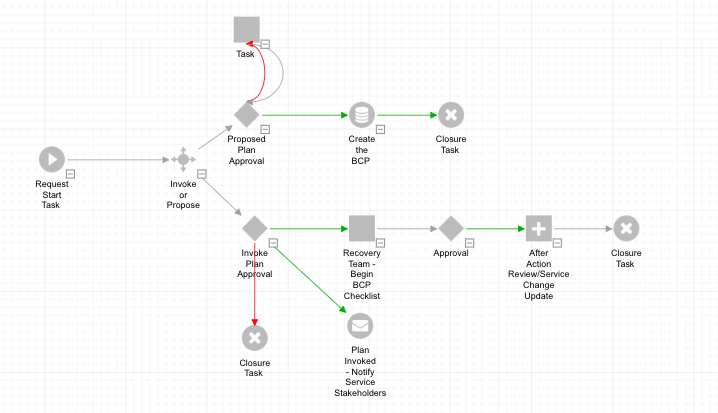
In ASM - You can create a Business Continuity Plan Document (Request) that will both invoke and propose plans.  These can be set to the services to which they apply and then will in turn, invoke the correct Service Continuity plan based on the details.  This will also work in reverse.  Below are some examples of this configuration.

**Workflow Administration Tasks:** Build a workflow according to your own processes.  Below is an example of the workflow:

<figure><img src="https://content.gitbook.com/content/hlW9jKl7dcDggHAPhNU9/blobs/vGJH6NTfbjdrkAqe1naa/Screenshot%202023-06-12%20at%2011.21.16%20AM.png" alt=""><figcaption></figcaption></figure>

## To communicate and Notify when plans have been enacted

[Managing Bulletins](/asm-hermes/use-asm/using-asm-core/the-bulletin-board/managing-bulletins)

## See Also

[Managing Service Actions](/asm-hermes/use-asm/using-asm-core/managing-your-cmdb/managing-your-service-portfolio/managing-service-actions)

[Workflow Template Administration](/asm-hermes/setup-and-configure-asm/configuring-your-system/workflow-template-administration)

[Building Screens in ASM Designer](/asm-hermes/setup-and-configure-asm/configuring-your-system/configuring-screens/building-screens-in-asm-designer)


# Capacity Planning

When planning your IT asset capacity requirements, it's important to consider various risk factors that may impact your operations.

This section is designed to show you how to take the capabilities of ASM and leverage them to solve your own business and process issues.  Each section gives a condensed, self-guided workshop on implementing the given capability.  Many times, the content will refer you to specific ASM Product Documentation pages, rather than repeat what has already been documented.&#x20;

{% @arcade/embed flowId="PqBYFEfGakW2NwRLVh5E" url="<https://app.arcade.software/share/PqBYFEfGakW2NwRLVh5E>" %}

{% hint style="info" %}
Contact Professional Services at <info@alemba.com> if you want more information, details, or design specifics.
{% endhint %}

## How to Assess Risk in Capacity Planning

Assessing risks in capacity planning for IT Service Management involves identifying potential threats or uncertainties that may impact the ability to meet service demands and deliver optimal performance.

By systematically assessing and addressing risks in capacity planning, IT Service Management can proactively mitigate potential issues, optimize resource allocation, and ensure the ability to meet service demands effectively.

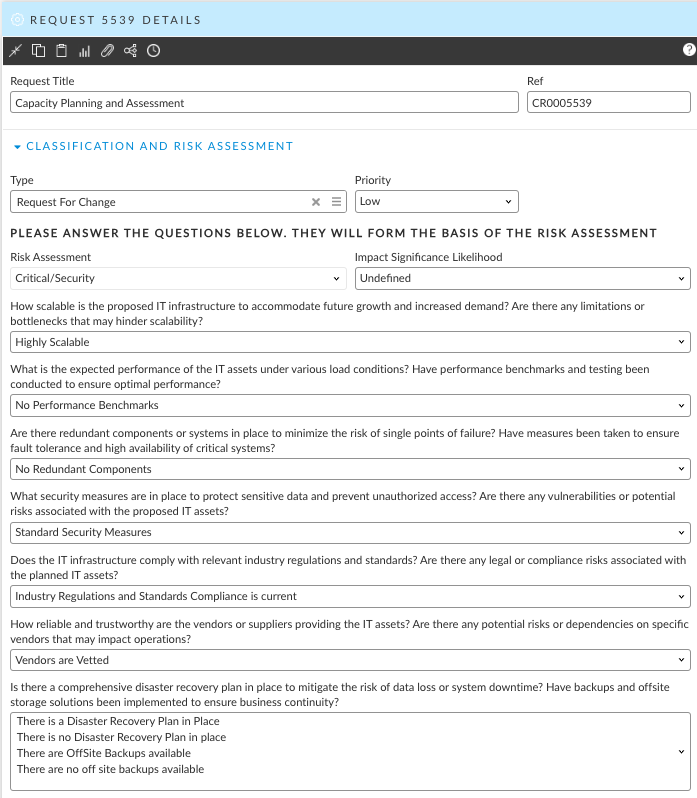
Here are some risk-related questions you should ask:

1. Scalability Risk:
   * How scalable is the proposed IT infrastructure to accommodate future growth and increased demand?
   * Are there any limitations or bottlenecks that may hinder scalability?
2. Performance Risk:
   * What is the expected performance of the IT assets under various load conditions?
   * Have performance benchmarks and testing been conducted to ensure optimal performance?
3. Redundancy and Fault Tolerance Risk:
   * Are there redundant components or systems in place to minimize the risk of single points of failure?
   * Have measures been taken to ensure fault tolerance and high availability of critical systems?
4. Security Risk:
   * What security measures are in place to protect sensitive data and prevent unauthorized access?
   * Are there any vulnerabilities or potential risks associated with the proposed IT assets?
5. Compliance and Regulatory Risk:
   * Does the IT infrastructure comply with relevant industry regulations and standards?
   * Are there any legal or compliance risks associated with the planned IT assets?
6. Vendor and Supplier Risk:
   * How reliable and trustworthy are the vendors or suppliers providing the IT assets?
   * Are there any potential risks or dependencies on specific vendors that may impact operations?
7. Disaster Recovery and Business Continuity Risk:
   * Is there a comprehensive disaster recovery plan in place to mitigate the risk of data loss or system downtime?
   * Have backups and offsite storage solutions been implemented to ensure business continuity?
8. Maintenance and Support Risk:
   * What maintenance and support arrangements are in place for the IT assets?
   * Are there any risks associated with extended downtime or delays in obtaining technical support?
9. Technology Obsolescence Risk:
   * Are the planned IT assets based on outdated or soon-to-be-obsolete technologies?
   * Is there a risk of rapid technology advancements making the assets outdated in a short period?
10. Budget and Cost Risk:
    * What are the financial risks associated with acquiring, maintaining, and upgrading the IT assets?
    * Are there any potential cost overruns or budget limitations that may impact the project?

By considering these risk questions, you can identify potential vulnerabilities and make informed decisions to ensure a robust and reliable IT asset capacity plan.

## Implement A Capacity Planning Process in ASM

To set up a Capacity Planning Workflow in Alemba Service Manager, you can follow these steps:

1. Identify Workflow Stages
2. Design Process Flows
3. Reporting and Analytics:  Define key performance indicators (KPIs) and metrics to monitor the effectiveness of capacity planning efforts.

## Example Capacity Planning Workflow Template

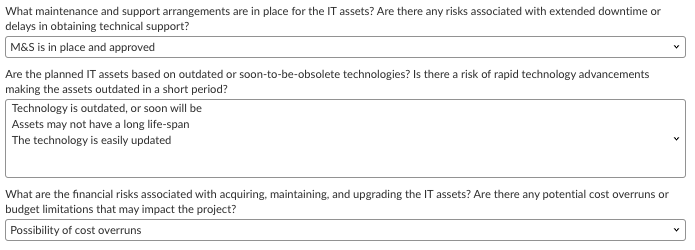
Your capacity Planning Workflow template will typically take the form of several questions tied to the risk calculator that will then formulate the overall risk. &#x20;

The workflow that sits behind the request and what you will do with the results, will be configured to follow your current process. &#x20;

{% hint style="info" %}
You can use the **Risk Calculator** to weight the questions in the impact analysis and have the system calculate a value in the risk field (here is it re-labeled "Risk Assessment).  Using the Risk Calculator removes the subjectivity that can sometimes bias these kinds of evaluations. &#x20;

You can also assign a negative value to some items in the list, thereby creating a "credit" situation.  See the Alemba Risk Calculator for more information.
{% endhint %}

[Field and Risk Calculations](/asm-hermes/setup-and-configure-asm/configuring-your-system/configuring-screens/dynamic-screens/field-calculations-and-risk-calculation)

<figure><img src="https://content.gitbook.com/content/hlW9jKl7dcDggHAPhNU9/blobs/e2Djq6akG7FqBH1QVWb7/Screenshot%202023-06-16%20at%201.49.37%20PM.png" alt=""><figcaption></figcaption></figure>

<figure><img src="https://content.gitbook.com/content/hlW9jKl7dcDggHAPhNU9/blobs/o4wZmMlmRqs5oDpLWJ8B/Screenshot%202023-06-16%20at%201.50.09%20PM.png" alt=""><figcaption></figcaption></figure>


# Change Management

IT Change Management is a systematic approach designed to manage changes in an organization's IT infrastructure and estate.

This section is designed to show you how to take the capabilities of ASM and leverage them to solve your own business and process issues.  Each section gives a condensed, self-guided workshop on implementing the given capability.  Many times, the content will refer you to specific ASM Product Documentation pages, rather than repeat what has already been documented.&#x20;

{% hint style="info" %}
Contact Professional Services at <info@alemba.com> if you want more information, details, or design specifics.
{% endhint %}

## IT Change Management (IT-CM)

IT-CM encompasses a wide range of activities, from planning and testing to implementation and review, with the primary aim of minimizing the impact of changes on service quality and ensuring smooth operations.

## **Importance of IT Change Management**

IT Change Management is crucial for several reasons:

* **Minimizing Disruptions:** By carefully planning and testing changes before implementing them, organizations can significantly reduce the risk of downtime and service disruptions.
* **Ensuring Compliance:** Change management processes help ensure that changes are made in compliance with regulatory standards, reducing the risk of violations and associated penalties.
* **Enhancing Security:** Properly managed changes reduce vulnerabilities that could be exploited by malicious actors, thus enhancing the overall security of the IT infrastructure.

## **The Law of Unintended Consequences**

The Law of Unintended Consequences states that actions, especially on a large scale, can have outcomes that were not foreseen or intended. In the context of IT, this can mean that a change intended to improve performance or add functionality might instead introduce problems or vulnerabilities.

**Examples:**

1. **Performance Degradation:** A server upgrade intended to improve processing speed inadvertently overloads the network, causing slowdowns across other services.
2. **Security Vulnerabilities:** Introducing a new software patch to fix a bug might open a security loophole, exposing the system to attacks.
3. **Feature Interactions:** Adding a new feature to an existing system could interfere with the operation of established features, leading to failures or unexpected behavior.

## **Saving Time and Money**

Implementing a structured IT Change Management process saves organizations time and money by:

* **Reducing Rework:** By ensuring changes are done right the first time, change management reduces the need for subsequent corrections, saving both time and resources.
* **Avoiding Downtime:** Minimizing the risk of service disruptions ensures that businesses can continue operating smoothly, safeguarding revenue and productivity.
* **Preventing Security Breaches:** By carefully managing changes, organizations can avoid the costly consequences of security incidents, including data breaches and compliance violations.

IT Change Management is a critical discipline that helps organizations safely navigate the complexities of modern IT environments, optimizing operations and safeguarding assets against the unintended consequences of change.


# Planning Change Management

Deciding to implement Change Management can be a daunting task. ASM is preconfigured to allow you to get the most out of your Change Management Implementation.

## Primary Considerations

When planning your implementation of Change Management (IT-CM) in your ITSM application and for the organization as a whole, several key considerations should be addressed to ensure both alignment with ITIL best practices and organizational compliance with the new processes. These include:

* **Scope and Objectives:** Clearly define the scope and objectives of the Change Management process, including what changes are covered and what outcomes are expected.
* **Policies and Procedures:** Develop comprehensive policies and procedures that are aligned with ITIL guidelines. This includes the process for logging, reviewing, approving, and implementing changes.
* **Roles and Responsibilities:** Clearly define roles and responsibilities for all stakeholders involved in the Change Management process. This includes the Change Manager, Change Advisory Board (CAB), and anyone responsible for implementing changes.
* **Risk Assessment and Prioritization:** Implement a systematic approach for assessing the risk and impact of changes. This will help in prioritizing changes based on their potential impact on business operations.
* **Communication Plan:** Develop a communication plan that outlines how changes will be communicated to relevant stakeholders, including what will be communicated, when, and by whom.
* **Training and Awareness:** Ensure that all stakeholders are aware of the Change Management process and understand their roles within it. Provide training where necessary.
* **Tools and Technologies:** Utilize appropriate ITSM tools that support the Change Management process, ensuring they are integrated with other ITSM processes like Incident and Problem Management.
* **Review and Continuous Improvement:** Establish a process for reviewing implemented changes to assess their success and identify areas for improvement. Use this feedback to continuously improve the Change Management process.
* **Compliance and Auditing:** Implement mechanisms for ensuring compliance with the Change Management process and for auditing changes to ensure procedures are followed.

By addressing these considerations, organizations can ensure a smooth implementation of IT-CM that aligns with ITIL best practices and achieves compliance with new processes across the organization.


# Build Your Workflow

## **Create a Workflow**

**ASM ships with a predefined Change Workflow.**  All you need to do is update it to reflect the settings you need (Status, assignments, etc) to support your specific Change Process.   [You can find out more about workflows here](https://docs.alemba.com/asm-hermes-10.6.8/setup-and-configure-asm/configuring-your-system/workflow-template-administration/steps-for-workflow-request-template-creation).

A workflow is the logic you build to support some level of automation of a request.  The request then, is merely the container.  It houses all the details of what the user is asking you for; a Change, some software or hardware, or something else they may want or need.  The real powerhouse is the workflow itself.  In the workflow are all the tasks, AKA "Work Items" or "Ticket", that form the body of work required to fulfill the request.  Because of this, you don't actually action or work a request, rather you work the tasks that it contains.  Some tasks may be automated, and some might be manual.  There are  17 task types available for you to use.

The task options are displayed in the **task palette** at the top of the diagram when you are in **Action** mode. Configuring the tasks is easy and intuitive.

<figure><img src="https://docs.alemba.com/~gitbook/image?url=https:%2F%2Fcontent.gitbook.com%2Fcontent%2FhlW9jKl7dcDggHAPhNU9%2Fblobs%2F3zEgwcv8waKdnxBxB9Un%2FScreen%2520Shot%25202022-12-14%2520at%25202.31.11%2520PM.png&#x26;width=768&#x26;dpr=4&#x26;quality=100&#x26;sign=37e251cbcba8ed08ed27ab43cfab754d7298bda7e5c807359c225fdefc6ee97f" alt=""><figcaption></figcaption></figure>

Best Practice: **Carefully consider the number of email messages you send during a given workflow**

Many tasks contain fields that only display whilst in the workflow template. Alemba recommends you do not hide these fields because you will need to configure them in the template. For example, Request Status on Completion is only visible when working with the task in the Workflow template.

### Available Task types <a href="#available-task-types" id="available-task-types"></a>

<table><thead><tr><th width="106">Icon</th><th width="131">Name</th><th width="322">Use</th><th>Automatic/Manual</th></tr></thead><tbody><tr><td><img src="https://1375663122-files.gitbook.io/~/files/v0/b/gitbook-x-prod.appspot.com/o/spaces%2FhlW9jKl7dcDggHAPhNU9%2Fuploads%2FbCeiQpfAG5BtQHWQkxxN%2Fimage.png?alt=media&amp;token=5709e4fa-1e45-49a0-8fc2-5b41f5478117" alt="" data-size="original"></td><td>Standard task</td><td>A basic task type when none of the specific tasks are appropriate</td><td>Automatic</td></tr><tr><td><img src="https://1375663122-files.gitbook.io/~/files/v0/b/gitbook-x-prod.appspot.com/o/spaces%2FhlW9jKl7dcDggHAPhNU9%2Fuploads%2FzpVCjrYoOJvx1OAl6BWp%2Fimage.png?alt=media&amp;token=17aaaddd-3b4a-49a0-b5af-e136799ba15f" alt="" data-size="original"></td><td>Approval task</td><td>Creating an approval that requires an officer to reject or approve it. Depending on the approval status, other linked tasks are executed.</td><td>Automatic</td></tr><tr><td><img src="https://1375663122-files.gitbook.io/~/files/v0/b/gitbook-x-prod.appspot.com/o/spaces%2FhlW9jKl7dcDggHAPhNU9%2Fuploads%2Fxk5WPimkhL5hrVAAuEva%2Fimage.png?alt=media&amp;token=7d86c498-2868-41ec-9a1b-e0af335ffe7b" alt="" data-size="original"></td><td>Messaging task</td><td>Sending out email and pager messages to various people</td><td>Both – Automatic by default</td></tr><tr><td><img src="https://1375663122-files.gitbook.io/~/files/v0/b/gitbook-x-prod.appspot.com/o/spaces%2FhlW9jKl7dcDggHAPhNU9%2Fuploads%2FOOzPlsSRHojwiqJxsGqo%2Fimage.png?alt=media&amp;token=7826d2ed-7fcb-4c40-b003-7ebfd6baf0d3" alt="" data-size="original"></td><td>Conditional branching task</td><td>Creating conditions and then performing actions based on the conditions. A Conditional Branching task consists of one or more rules</td><td>Automatic</td></tr><tr><td><img src="https://1375663122-files.gitbook.io/~/files/v0/b/gitbook-x-prod.appspot.com/o/spaces%2FhlW9jKl7dcDggHAPhNU9%2Fuploads%2F61ttBNq1OpOpL58GoBRd%2Fimage.png?alt=media&amp;token=4e8f01e5-7371-4795-b1e8-668b969ee647" alt="" data-size="original"></td><td>Manage CMDB task</td><td>Performing transactions on CMDB items (CI, service, service action, service bundle) and People such as creating, updating, deleting CMDB items/people (also fields associated with CMDB items/people), and links between CMDB items and/or stakeholders. Asset management transactions can also be executed.</td><td>Automatic</td></tr><tr><td><img src="https://1375663122-files.gitbook.io/~/files/v0/b/gitbook-x-prod.appspot.com/o/spaces%2FhlW9jKl7dcDggHAPhNU9%2Fuploads%2Fur5uuRZZS3MgI5b0p47z%2Fimage.png?alt=media&amp;token=5ef2801f-69aa-40e1-9ef5-f39532c8eb5b" alt="" data-size="original"></td><td>Create Request task</td><td>Creating a request as a result of this task being completed</td><td>Automatic</td></tr><tr><td><img src="https://1375663122-files.gitbook.io/~/files/v0/b/gitbook-x-prod.appspot.com/o/spaces%2FhlW9jKl7dcDggHAPhNU9%2Fuploads%2F95lNVaF1uZG1al8AM0Kt%2Fimage.png?alt=media&amp;token=edb7de67-1971-451f-b94b-367d7875d9d5" alt="" data-size="original"></td><td>User Approval task</td><td>Creating approval that is sent to a user via the Self Service Portal</td><td>Automatic</td></tr><tr><td><img src="https://1375663122-files.gitbook.io/~/files/v0/b/gitbook-x-prod.appspot.com/o/spaces%2FhlW9jKl7dcDggHAPhNU9%2Fuploads%2FpXCESlGSWmGmsJOnMtLW%2Fimage.png?alt=media&amp;token=400e728e-9ca8-43d9-adbb-8e840adcce12" alt="" data-size="original"></td><td>Delay task</td><td>Creating a delay in a workflow, this task remains open until a certain time is reached, and is then closed and moves on to the next point in the workflow.</td><td>Automatic</td></tr><tr><td><img src="https://1375663122-files.gitbook.io/~/files/v0/b/gitbook-x-prod.appspot.com/o/spaces%2FhlW9jKl7dcDggHAPhNU9%2Fuploads%2FK5jQKfwbr1VX3ia4X15l%2Fimage.png?alt=media&amp;token=8690c82e-d8cf-41b3-a076-e100f26e74ab" alt="" data-size="original"></td><td>Activation task</td><td>Creating an activation checkpoint in a workflow, providing the ability to wait until a certain amount of “activation points” have been generated before the task is activated.</td><td>Automatic</td></tr><tr><td><img src="https://1375663122-files.gitbook.io/~/files/v0/b/gitbook-x-prod.appspot.com/o/spaces%2FhlW9jKl7dcDggHAPhNU9%2Fuploads%2Fn2Q5deEyqCvVsLHI65Ia%2Fimage.png?alt=media&amp;token=efdd9172-eff4-4c2b-bb85-d0405803a3d5" alt="" data-size="original"></td><td>Closure task</td><td>Marking the end of a request</td><td>Both - Manual by default</td></tr><tr><td><img src="https://1375663122-files.gitbook.io/~/files/v0/b/gitbook-x-prod.appspot.com/o/spaces%2FhlW9jKl7dcDggHAPhNU9%2Fuploads%2F0GCpJNxLciQVMjMoq532%2Fimage.png?alt=media&amp;token=40dd8975-9efe-4a1d-a968-e407b7e88a98" alt="" data-size="original"></td><td>Define Change window</td><td>Defining change windows to be applied to the CMDB items liked to a request</td><td>Manual</td></tr><tr><td><img src="https://1375663122-files.gitbook.io/~/files/v0/b/gitbook-x-prod.appspot.com/o/spaces%2FhlW9jKl7dcDggHAPhNU9%2Fuploads%2FAH5O3qxIBQQs2bciOqY8%2Fimage.png?alt=media&amp;token=21d83dfa-e868-48a2-b502-22717f8fe6a4" alt=""></td><td>Run External Procedure</td><td>Automatically running an external procedure, i.e. an application outside of ASM, optionally with parameters passed to it.</td><td>Automatic</td></tr><tr><td><img src="https://1375663122-files.gitbook.io/~/files/v0/b/gitbook-x-prod.appspot.com/o/spaces%2FhlW9jKl7dcDggHAPhNU9%2Fuploads%2FbgyupgggAj4Mma2bnM36%2Fimage.png?alt=media&amp;token=7a65a3d4-4ae2-4924-9e5b-ee4cfb53a0ae" alt="" data-size="original"></td><td>External Supplier task</td><td>Creating tasks to be completed by external officers on the portal</td><td>Automatic</td></tr><tr><td><img src="https://1375663122-files.gitbook.io/~/files/v0/b/gitbook-x-prod.appspot.com/o/spaces%2FhlW9jKl7dcDggHAPhNU9%2Fuploads%2FRahTFmkwGwiO9DiZbAXA%2Fimage.png?alt=media&amp;token=ab9c6ea1-8bc2-4df5-8daf-a5a0de46f64a" alt="" data-size="original"></td><td>SLM Start task</td><td>Starting or resuming events on the SLA that is currently linked to the request. This is equivalent to the button on the Request Service window.</td><td>Automatic</td></tr><tr><td><img src="https://1375663122-files.gitbook.io/~/files/v0/b/gitbook-x-prod.appspot.com/o/spaces%2FhlW9jKl7dcDggHAPhNU9%2Fuploads%2F2kXLz9XHn90hG7wlhY45%2Fimage.png?alt=media&amp;token=49830473-7a2d-435c-9103-e69daec93e61" alt="" data-size="original"></td><td>SLM Stop task</td><td>Suspending events on the SLA that is currently linked to the request. This is equivalent to the button on the Request Service window.</td><td>Automatic</td></tr><tr><td><img src="https://1375663122-files.gitbook.io/~/files/v0/b/gitbook-x-prod.appspot.com/o/spaces%2FhlW9jKl7dcDggHAPhNU9%2Fuploads%2F7ReHZMMqeBFCEyEuvbUy%2Fimage.png?alt=media&amp;token=84d90837-caf1-4449-83a3-7b8b47f30e9b" alt="" data-size="original"></td><td>Outbound Action task</td><td>Outbound actions for integrating ASM with a third party application</td><td>Automatic</td></tr></tbody></table>


# Dynamic Ticket Routing

The Ask a Question Feature is one of several ways you can configure Dynamic Call routing where the Organization does not want the user to choose from many options, but rather only have 1.

This section is designed to show you how to take the capabilities of ASM and leverage them to solve your own business and process issues.  Each section gives a condensed, self-guided workshop on implementing the given capability.  Many times, the content will refer you to specific ASM Product Documentation pages, rather than repeat what has already been documented.&#x20;

{% hint style="info" %}
Contact Professional Services at <info@alemba.com> if you want more information, details, or design specifics.
{% endhint %}

<figure><img src="https://1375663122-files.gitbook.io/~/files/v0/b/gitbook-x-prod.appspot.com/o/spaces%2FhlW9jKl7dcDggHAPhNU9%2Fuploads%2Fpu7OuUJBcGAhWoSgYO70%2FScreenshot%202024-03-20%20at%2011.08.32%20AM.png?alt=media&amp;token=e57c94fa-9df9-4872-93de-c384aa1b1cb5" alt=""><figcaption></figcaption></figure>

**With Question Mappings you simply ask the user to tell you what is wrong and nothing more. The mappings you specify do all the work for support and the user!**

*For example*, say you have a question map setup for Printer issues.  If a user Asks a Question and selects that the issue is related to a hardware issue and selects the service is Printing and Copying, this can automatically log the correct kind of call (Break/Fix vs. Service Request) and route it to the selected team.&#x20;

It will also apply the correct SLA, notify the relevant parties, and trigger any other Workflow rules you have in place.  You can even have these queries log requests for specific Service Actions.

**With this feature, you can:**

1. **Relabel&#x20;*****Ask a Question*** to anything you would like, such as *Contact Support*, for example
2. **Reconfigure** the ***Ask a Question*** screen to remove fields you do not want, such as Knowledge Profile or service.&#x20;
   * If you have implemented Knowledge Profiles according to Best Practice and you only have Public and Internal as your profiles, you can remove this field from the screen.
   * You may only want users to tell you what the Symptom of their issue is (the Type/Tier) and if this is the case, you can also hide the Service Field.
3. **Configure Question maps** to correspond to all of your IPK Type Tiers and attach to the correct Call template
4. **Configure IPK Workflow rules** to automatically create Requests based on specified criteria

&#x20;**You can not:**

1. Add fields to the Screen
2. Make Fields Required
3. Add Rules to the Screen

For more information on how to configure Ask a Question, **please see Question Mappings** and for more information on modifying the screen, **see Screen Designer** (Use the global search to find it easily).


# Environmental Impact Analysis (for TBL Accounting)

EIA is a method used to measure and account for the environmental impact of business operations alongside social and economic factors.

This section is designed to show you how to take the capabilities of ASM and leverage them to solve your own business and process issues.  Each section gives a condensed, self-guided workshop on implementing the given capability.  Many times, the content will refer you to specific ASM Product Documentation pages, rather than repeat what has already been documented.&#x20;

{% hint style="info" %}
Contact Professional Services at <info@alemba.com> if you want more information, details, or design specifics.
{% endhint %}

## Scope of EIA in TBL Accounting

In TBL (Triple Bottom Line) accounting, an Environmental Impact Analysis (EIA) refers to the process of assessing and evaluating the environmental effects and consequences of an organization's activities, products, or services.&#x20;

The purpose of conducting an EIA within TBL accounting is to quantify and understand the environmental implications of business practices, enabling organizations to make informed decisions and take appropriate actions to minimize negative environmental impacts. It involves analyzing various aspects of an organization's operations, including resource consumption, emissions, waste generation, and ecological footprint.

## Required Parts/Components

The steps involved in conducting an EIA in TBL accounting may include:

1. Identification and Scope:
   * Identify the activities, processes, or projects to be assessed.
   * Define the boundaries and scope of the analysis.
2. Data Collection:
   * Gather relevant data related to resource usage, energy consumption, emissions, waste generation, and other environmental indicators.
   * Use tools such as life cycle assessments, environmental audits, and carbon footprint calculations to collect accurate and comprehensive data.
3. Impact Assessment:
   * Evaluate the collected data to assess the environmental impact of the organization's activities.
   * Identify potential environmental risks, hotspots, and areas of concern.
4. Quantification and Valuation:
   * Quantify the environmental impacts using appropriate metrics and units.
   * Assign values or costs to the impacts to reflect their significance and enable comparison.
5. Interpretation and Reporting:
   * Analyze the results of the EIA to gain insights into the organization's environmental performance.
   * Prepare comprehensive reports and communicate the findings to stakeholders.
6. Mitigation and Improvement:
   * Develop strategies and initiatives to mitigate the identified environmental impacts.
   * Set targets and implement measures to improve the organization's environmental performance.

By conducting an Environmental Impact Analysis as part of TBL accounting, organizations can assess their environmental performance, identify areas for improvement, and align their operations with sustainable practices. It helps integrate environmental considerations into decision-making processes and supports the goal of achieving environmental sustainability alongside social and economic objectives.

## Implement Environmental Impact Analysis in ASM

To set up an Environmental Impact Analysis (EIA) workflow in Alemba Service Manager, you can follow these steps:

1. Define the Workflow Stages
2. Configure Custom Forms and Templates
3. Design Process Flows
4. Integrate Document Management
5. Reporting and Analytics: Define key performance indicators (KPIs) and metrics to measure the effectiveness of the workflow.

By following these steps, you can establish an Environmental Impact Analysis workflow within Alemba Service Manager, enabling efficient management of the EIA process and facilitating environmental sustainability initiatives within your organization.

## Example Workflow Template for Environmental Impact Analysis

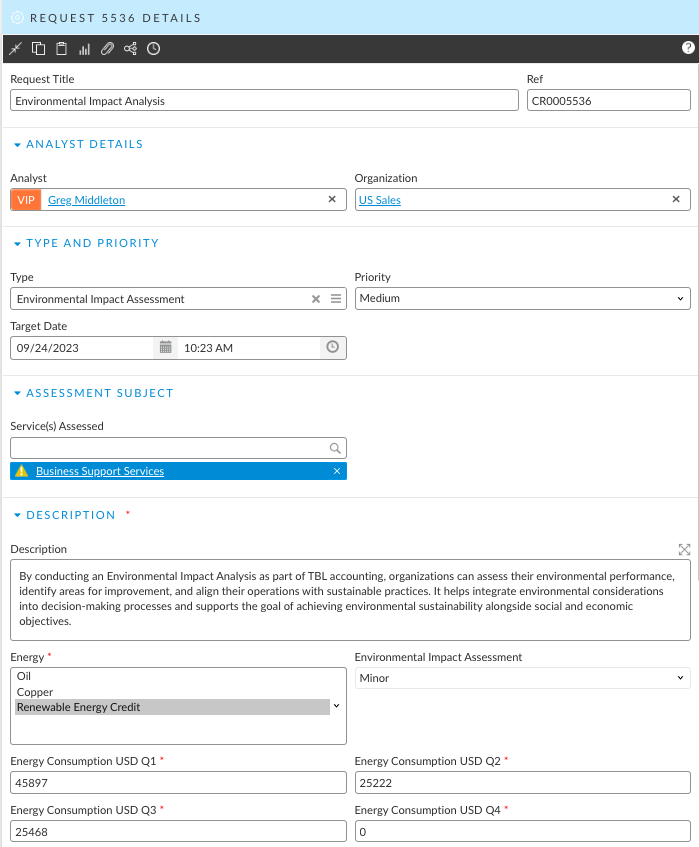
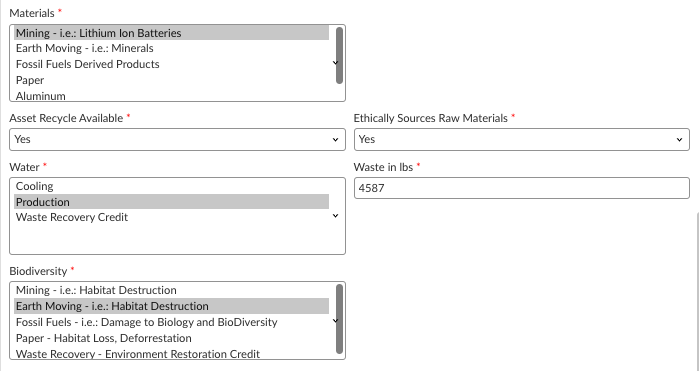
The workflow template will gather and perform the assessment.  The results can be captured on the request and then written to the CMDB Items assessed using a Manage CMDB task.  See also:

[Adding Transactions to a Manage CMDB Task](/asm-hermes/setup-and-configure-asm/configuring-your-system/workflow-template-administration/managing-tasks-adding-tasks-to-the-dependency-diagram/task-types-in-the-task-palette/creating-a-manage-cmdb-task/adding-transactions-to-a-manage-cmdb-task)

[Mapping Fields to be updated by a Transaction](/asm-hermes/setup-and-configure-asm/configuring-your-system/workflow-template-administration/managing-tasks-adding-tasks-to-the-dependency-diagram/task-types-in-the-task-palette/creating-a-manage-cmdb-task/mapping-fields-to-be-updated-by-a-transaction)

[Field Calculations and Risk Calculation](/asm-hermes/setup-and-configure-asm/configuring-your-system/configuring-screens/dynamic-screens/field-calculations-and-risk-calculation)

{% hint style="info" %}
You can use the Risk Calculator to weight the questions in the impact analysis and have the system calculate a value in the risk field (here is it re-labeled "Environmental Impact Assessment).  Using the Risk Calculator removes the subjectivity that can sometimes bias these kinds of evaluations. &#x20;

You can also assign a negative value to some items in the list, thereby creating a "credit" situation.  See the Alemba Risk Calculator for more information.
{% endhint %}

<figure><img src="https://content.gitbook.com/content/hlW9jKl7dcDggHAPhNU9/blobs/Z2XH0Hg2qnMj04DhE7ju/Screenshot%202023-06-16%20at%201.21.04%20PM.png" alt=""><figcaption></figcaption></figure>

<figure><img src="https://content.gitbook.com/content/hlW9jKl7dcDggHAPhNU9/blobs/Z67QI1TFbtKZG6W6qXjz/Screenshot%202023-06-16%20at%201.21.45%20PM.png" alt=""><figcaption></figcaption></figure>

## Example Service with an EIA attached

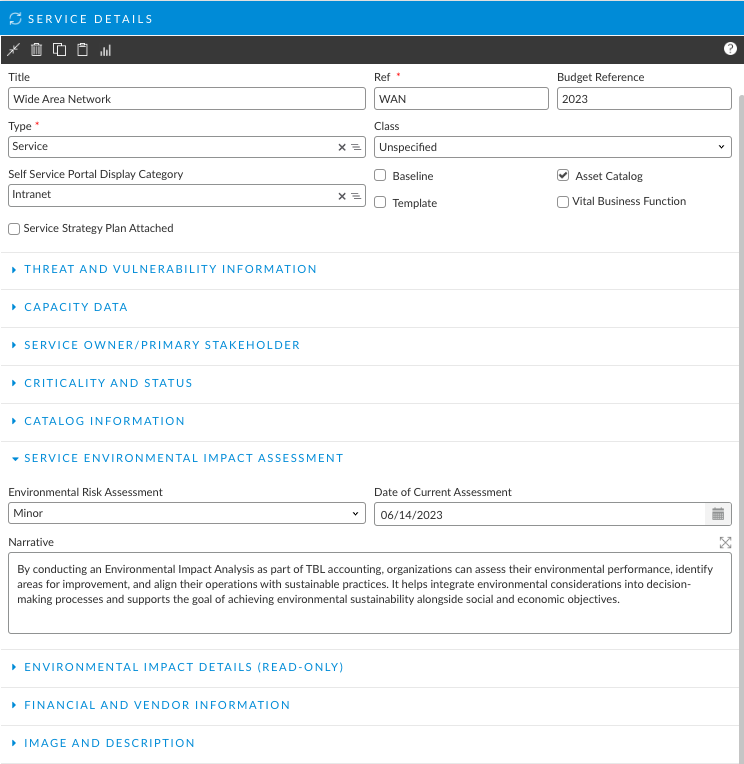
You can update the results of the Environmental Impact analysis directly to the service and therby closing the loop on the assessment.  This also exposes the data to the service and allows you to use it for reporting and additional analytics that you will need for your TBL Accounting program.

<figure><img src="https://content.gitbook.com/content/hlW9jKl7dcDggHAPhNU9/blobs/VbjaV9D7iPQP3g43r6H0/Screenshot%202023-06-16%20at%201.31.12%20PM.png" alt=""><figcaption></figcaption></figure>

{% hint style="info" %}
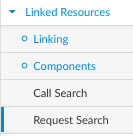
**TIP #1:** When you do a **request search** from the CI, in this case the Service, you can see all requests ever logged against this service, including the EIAs. &#x20;

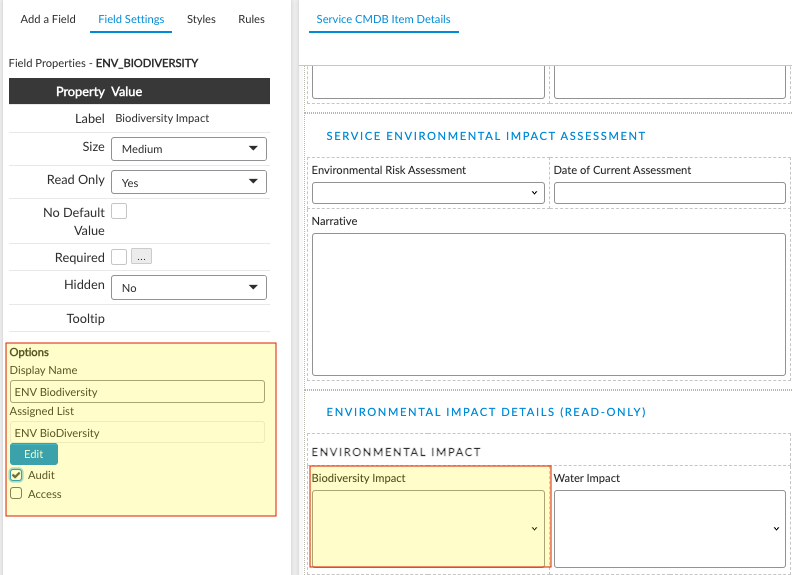
**TIP #2:** If you put **auditing** on the fields (this is done in Screen Designer) you can also capture historical changes in the assessment values and use them for trending and even forecasting in your reports.
{% endhint %}

<figure><img src="https://content.gitbook.com/content/hlW9jKl7dcDggHAPhNU9/blobs/GH9qgwj0JZDPTeFCmswP/Screenshot%202023-06-16%20at%201.34.19%20PM.png" alt=""><figcaption><p>Request Search from the CI/Service Screen</p></figcaption></figure>

<figure><img src="https://content.gitbook.com/content/hlW9jKl7dcDggHAPhNU9/blobs/o5o09PVGhMLbJxSQyxdf/image.png" alt=""><figcaption><p>Add Auditing to a field(s)</p></figcaption></figure>


# Knowledge Management

Your organization can implement Knowledge Management using ASM, and quickly realize lower Total Cost of Support (TCoS), First Call Close Rates (FCCR), and improvement in many other metrics and KPI.

This section is designed to show you how to take the capabilities of ASM and leverage them to solve your own business and process issues.  Each section gives a condensed, self-guided workshop on implementing the given capability.  Many times, the content will refer you to specific ASM Product Documentation pages, rather than repeat what has already been documented.&#x20;

The videos below will give you an overview of the KB Capability, and the pages that follow will walk you through planning and configuring your implementation.

{% hint style="info" %}
Contact Professional Services at <info@alemba.com> if you want more information, details, or design specifics.
{% endhint %}

## Ways to Create Knowledge in ASM

{% @arcade/embed flowId="7bTHv53Mq4LiOk8dW2AX" url="<https://app.arcade.software/share/7bTHv53Mq4LiOk8dW2AX>" %}

## Suggested Knowledge and the Self Service Portal

{% @arcade/embed flowId="txVq6j3BBBwfuhhzxDR9" url="<https://app.arcade.software/share/txVq6j3BBBwfuhhzxDR9>" %}

## An Overview of the fields and Configuration of the Knowledge Screens

{% @arcade/embed flowId="spb6Wx9rO1J60skzBn1P" url="<https://app.arcade.software/share/spb6Wx9rO1J60skzBn1P>" %}


# Planning Knowledge Management

Deciding to implement Knowledge Management can be a daunting task. ASM is preconfigured to allow you to get the most out of Knowledge Management

{% hint style="info" %}
Contact Professional Services at <info@alemba.com> if you want more information, details, or design specifics.
{% endhint %}

The main things to consider when planning to implement KM is:

* [ ] Will any of the content be available to the customer/user community?
* [ ] Will there be a KM team and moderators or will it be self-documenting
* [ ] What kinds of articles will I want?
* [ ] Will we need to import articles (contact Alemba Support)?
* [ ] How will it be maintained - what is the frequency that articles will need to be reviewed
* [ ] How will we handle notifications, Feedback and updates?


# Major Incident Management

You can setup Major Incident management easily in ASM

This section is designed to show you how to take the capabilities of ASM and leverage them to solve your own business and process issues.  Each section gives a condensed, self-guided workshop on implementing the given capability.  Many times, the content will refer you to specific ASM Product Documentation pages, rather than repeat what has already been documented.&#x20;

{% hint style="info" %}
Contact Professional Services at <info@alemba.com> if you want more information, details, or design specifics.
{% endhint %}

## Major Incidents from an ITIL V4 Perspective

In the framework of ITIL V4, a **Major Incident** is categorized as any event that results in a significant interruption to the business and necessitates immediate attention and resolution practices beyond the routine operational processes. The goal is to restore normal service operations as quickly as possible to minimize adverse impacts on business activities and customer relations.

## The Importance of a Formal Major Incident Process

Implementing a formal major incident management process within an organization is crucial for several reasons:

* **Swift Recovery:** A predefined process ensures that major incidents are quickly identified, categorized, assessed, and addressed, facilitating a faster return to normal operations.
* **Impact Minimization:** A systematic approach to managing major incidents helps in significantly reducing their potential negative impact on business continuity and customer satisfaction.
* **Communication Efficiency:** Formal processes aid in establishing clear communication channels and protocols, enabling timely and effective dissemination of information to all relevant parties.
* **Continuous Improvement:** The inclusion of post-incident analysis within the process fosters an environment of learning and continuous improvement, allowing organizations to mitigate the risk of future incidents through proactive measures.

## Best Practices for Notification, Procedure, and Implementation

To effectively manage major incidents, organizations should adopt the following best practices:

1. **Defined Escalation Procedures:** Clear and concise escalation paths must be established to ensure that incidents are promptly escalated to the appropriate levels of management for quick decision-making.
2. **Strategic Communication Plan:** An effective communication plan is essential for major incident management. This plan should detail the communication strategy, including the methods, frequency, and templates for communication to internal staff, external stakeholders, and customers as applicable.
3. **Utilization of Robust Incident Management Tools:** Employ comprehensive tools designed to support the complexities of major incident management. These tools should facilitate incident logging, tracking, analysis, and reporting to streamline the process.
4. **Regular Training and Awareness Programs:** Ensure that all stakeholders, especially the incident management team, receive regular training on the major incident management process, tools, and their specific responsibilities. Awareness programs can also help in reinforcing the importance of the process across the organization.
5. **Conducting Simulation Drills:** Simulation exercises mimic real-world major incidents, providing a valuable opportunity for the incident management team and relevant stakeholders to practice and refine their response strategies in a controlled environment.
6. **Thorough Post-Incident Review:** Conduct a comprehensive review after the resolution of a major incident to evaluate the effectiveness of the response, the adequacy of communication, and the overall handling of the incident. This review should identify lessons learned, highlight successes, and pinpoint areas for improvement.
7. **Preventive Measures and Continuous Improvement:** Utilize insights gained from post-incident reviews to implement preventive measures against future incidents. Continuous improvement should be an integral part of the major incident management process, aimed at enhancing the maturity of procedures and responses over time.

Incorporating these best practices into the organization's approach to managing major incidents, in alignment with ITIL V4 guidelines, ensures the resilience and preparedness of the business to effectively and efficiently deal with incidents that could otherwise have severe consequences for operations and customer trust.


# Configure Major Incident Management

You can setup Major Incident management easily in ASM

To setup MI Management you simply need to&#x20;

1. Create an MI template (Call Template)
2. Configure notifications (message templates), if you will not be using the defaults
3. To allow users to subscribe:
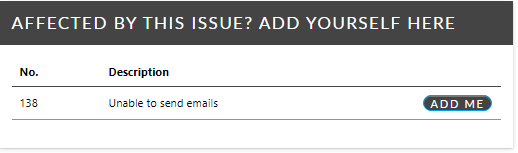
   * [ ] Configure the MI IPK Status as an Add-Me Status
   * [ ] Ensure the Add Me widget is visible on the SSP
   * [ ] Enable access to selected Self Service Portal Security Roles

## Configure notifications (message templates), if you will not be using the defaults

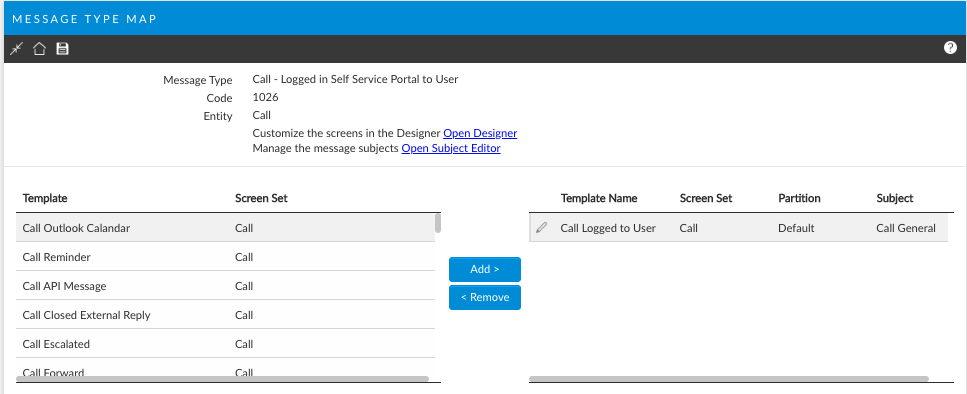
By default ASM has preconfigured message templates.  The message that will go out to users is **Call- Logged to User.**

<figure><img src="https://content.gitbook.com/content/hlW9jKl7dcDggHAPhNU9/blobs/txZTeCUDAlzkrAf9bKnA/Screenshot%202023-05-02%20at%209.09.16%20AM.png" alt=""><figcaption></figcaption></figure>

You can update them for your organization's specific branding and language. &#x20;

You can create a custom Major Incident Message template and then add it to the message type mapping so that it will be used instead of the default call logged template.

{% hint style="info" %}
You may want to also configure message templates for update and closure notifications as well.
{% endhint %}

## Managing MI

Managing an MI is a centralized process.  Because users can add themselves, support need only work a single ticket, that is, the MI itself.  All related tickets will be linked as children to the MI.  When the MI is closed, support will be able to simultaneously close and notify all impacted users.

See the following for more information on managing linked tickets, converting incidents, KE and Problems to Major Incidents and Cloning to MI:

[Linking Explorer Option](/asm-hermes/use-asm/using-asm-core/managing-your-tickets-calls-and-ipk/call-details-explorer-options/linking-explorer-option)

[Change a Call from an Incident to a MI](/asm-hermes/use-asm/using-asm-core/managing-your-tickets-calls-and-ipk/working-with-calls/change-a-call-from-an-incident-to-a-problem-known-error-major-incident-or-service-request)

[Cloning Option](/asm-hermes/use-asm/using-asm-core/managing-your-tickets-calls-and-ipk/working-with-calls/cloning-option)

[Global Update Option](https://docs.alemba.com/asm-hermes-10.6.8/use-asm/using-asm-core/managing-your-tickets-calls-and-ipk/global-updates)


# Allow Users to Subscribe to MI

Users can subscribe to any type of issue you configure, including Major Incidents.  For more information on configuring this feature, please access:

{% embed url="<https://docs.alemba.com/asm-hermes-10.6.8/setup-and-configure-asm/configuring-your-system/customizing-options-for-the-self-service-portal/add-me-set-up-add-me-for-subscribing-to-or-following-issues>" %}


# Project Management

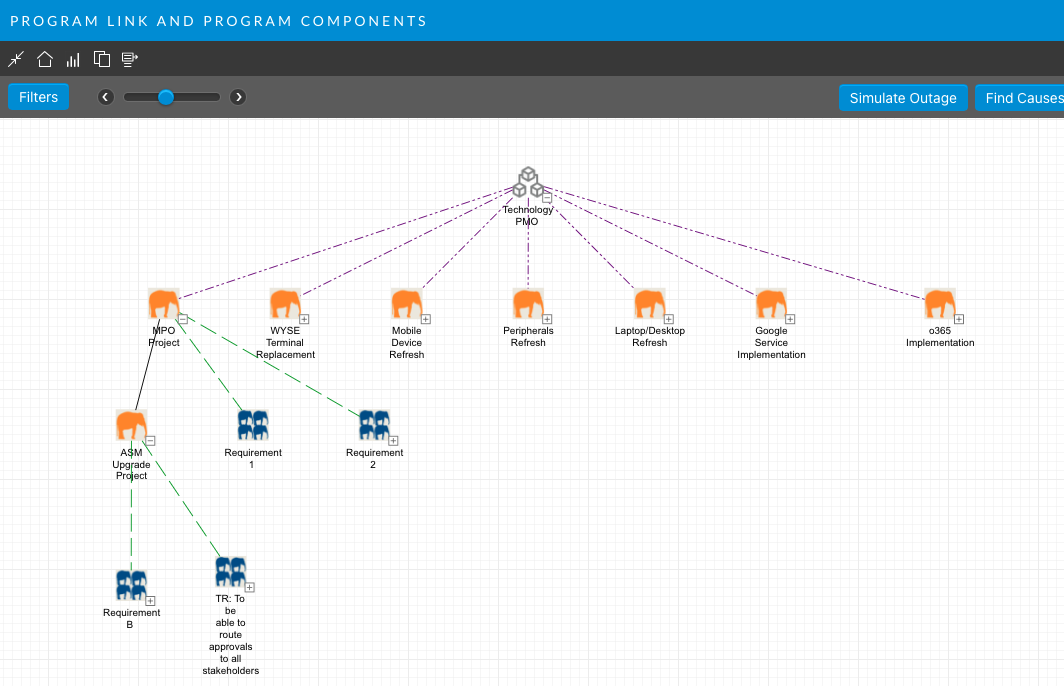
ASM can link Programs and Projects in several ways depending on your organization's specific need. You can perform Project Management with or without the MPO Integration.

This section is designed to show you how to take the capabilities of ASM and leverage them to solve your own business and process issues.  Each section gives a condensed, self-guided workshop on implementing the given capability.  Many times, the content will refer you to specific ASM Product Documentation pages, rather than repeat what has already been documented.&#x20;

{% hint style="info" %}
**Before you Start**

You should be familiar with [<mark style="color:blue;">IPK Management</mark>](/asm-hermes/setup-and-configure-asm/configuring-your-system/system-administration-settings/ipk-and-workflow/incident-problem-and-known-error-ipk-management/ipk-settings-partitioned)<mark style="color:blue;">,</mark> [<mark style="color:blue;">Workflow Management</mark>](/asm-hermes/setup-and-configure-asm/configuring-your-system/system-administration-settings/ipk-and-workflow/workflow-management)<mark style="color:blue;">,</mark> [<mark style="color:blue;">System Administration</mark>](/asm-hermes/setup-and-configure-asm/licensing) settings and configuration and [<mark style="color:blue;">CMDB configuration</mark>](/asm-hermes/setup-and-configure-asm/configuring-your-system/system-administration-settings/cmdb-configuration-management-database/cmdb-settings).  You should also be familiar with the [<mark style="color:blue;">MPO Integration Settings</mark>](/asm-hermes/integrate/managing-integration/microsoft-project-integration) and behaviors.

Alemba recommends you seek the assistance of Alemba Professional Services to configure Project Management if you are not familiar with all of these topics.
{% endhint %}

{% hint style="info" %}
Contact Professional Services at <info@alemba.com> if you want more information, details, or design specifics.
{% endhint %}

## The CMDB's role in Project Management

The CMDB should be used to capture programs and projects, requirements and associated contracts - where parent child relationships are easily managed. All project documentation can be attached to its relevant CI and maintained in perpetuity.  By using the CMDB you can link associated stakeholders, contracts, and related CI and financials.&#x20;

These data can then be easily added to either implementation method below (with workflow or without workflow) to form a cohesive PM capability.

{% hint style="info" %}
The inclusion of templates for Project Initiation, Chartering, PIR, and Requirements Definition make the project management process in ASM effective from cradle to grave.  It will also keep all project artifacts together, which will make managing all aspects of the project efficient.&#x20;

ASM is able to track financials, contracts, MOSCOW, RAG, RAID, and all other project related data elements.
{% endhint %}

<figure><img src="https://content.gitbook.com/content/hlW9jKl7dcDggHAPhNU9/blobs/0e6yeysFK837imkJUzvM/Screen%20Shot%202022-12-12%20at%203.09.53%20PM.png" alt=""><figcaption></figcaption></figure>

## Suggested Implementation Models

<details>

<summary>Model 1: Using IPK</summary>

You can use IPK Screen sets for basic tasks. ASM ships with the following:

* Project Template – to hold the details of the project itself
* Project Task Template – These are created for each project task.
* A default project template is available where the controlling Program can be linked to a project with a filtered field linked to the CMDB.

If you implement the MPO integration, Microsoft project will create the project tasks and assign them automatically.

</details>

<details>

<summary>Model 2: Using Workflow</summary>

You can use the ASM workflow capability.  This will allow you to build your project and program processes in a codeless environment.

* The MPO integration will automatically call any workflow tied to work packages.
* Rather than create a basic project task, instead, ASM will call the relevant workflow.

For example: If your project calls for provisioning a new environment, you can select the new environment workflow from the pick-list in Microsoft Project and it will be added as a work package.  The request will be submitted in ASM using the Project’s data.  Effectively this provides the project manager with one task to manage in the project, but in ASM all the requisite tasks for provisioning a new environment are triggered as with any other workflow.

**This data is also reportable and captures key project information as mentioned above.**

</details>

<details>

<summary>Model 3: Hybrid Approach</summary>

The hybrid approach allows you to incorporate both Model 1 and 2 to form a comprehensive solution allowing not only project tasks, but the addition of work packages.  This is the most common implementation model.
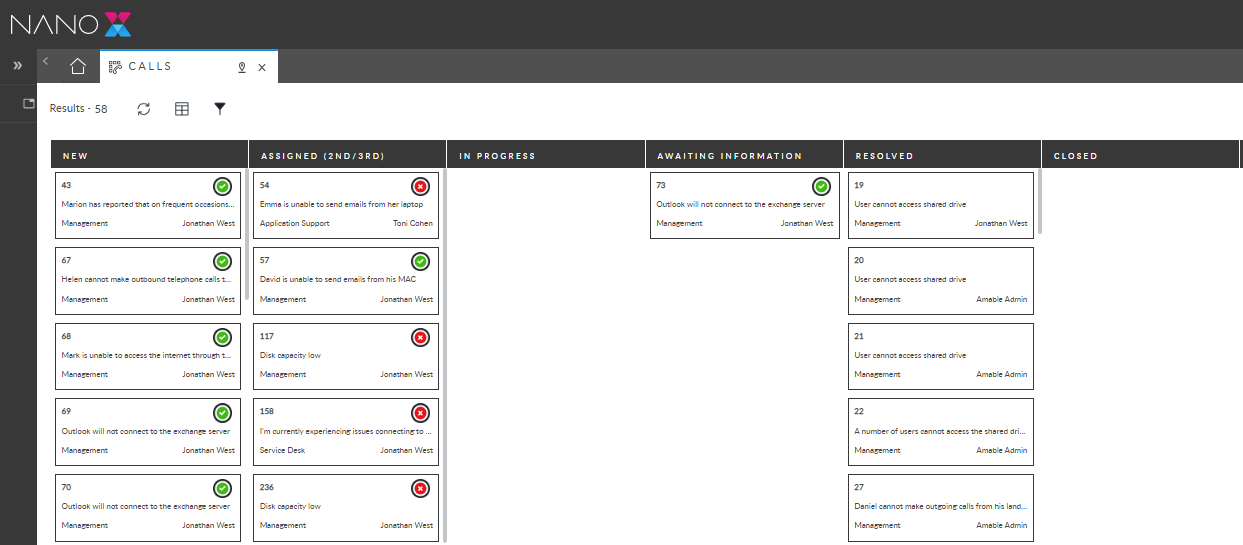
</details>

<figure><img src="https://content.gitbook.com/content/hlW9jKl7dcDggHAPhNU9/blobs/RxUflbCZg8B1uqaycVlm/Screen%20Shot%202022-12-14%20at%201.46.23%20PM.png" alt=""><figcaption><p>Example: KanBan from Nano displaying IT status.  In the KanBan, agents can drag and drop tickets from one status to another without opening the ticket.</p></figcaption></figure>

## Project Methodology

ASM supports both traditional and agile project management methodologies.  It can also easily support a combined approach. Utilising the workflow module, any project management approach can be instantiated through a drag and drop zero code workflow builder.

Project Management in ASM is preconfigured to a basic agile approach for a standard project initiation, and then is handed off to the Microsoft Project online via integration (when enabled) where the project is actively managed. The integration maintains the status of tasks as they are assigned within ASM for the work that must be accomplished.

{% hint style="info" %}
For clients electing not to use the included integration to Microsoft Project, the workflow processes needed to control a project from start to finish are provided, are easily configured, and easily maintained with workflow management.
{% endhint %}

{% hint style="success" %}
Project Managers need only drop the tasks onto the palette and then complete the details as they would in Microsoft Project.
{% endhint %}

## Resource Management

ASM has a native [<mark style="color:blue;">resource management</mark>](/asm-hermes/use-asm/using-asm-core/requests-and-tasks/managing-resources) module that can be used to allocate resources by availability, skill set and overall workload. Simply drag an open task up to the line that corresponds with the resource and date(s) the task should be scheduled.

## Portfolio Management

ASM provides portfolio management and integrates to MS Project to manage multiple project plans and provides the ability to link multiple projects to portfolios.

1. ASM can track corporate objectives tangibly, allowing all related projects to be linked, thus provided quality and useful reporting against each.
2. ASM provides 360-degree view of the entire project portfolio allowing quick, informed decision making.
3. ASM’s resource management module, included, means it is easy to manage the workload of teams and individuals whilst taking into consideration availability, skills, and capacity. a. ASM has skills based assignment and workflow built into all person and task records.

## Risk Management

ASM can manage, calculate, and assign risk in any manner or method the client requires and the [<mark style="color:blue;">calculation</mark> <mark style="color:blue;">criteria</mark>](/asm-hermes/setup-and-configure-asm/configuring-your-system/system-administration-settings/ipk-and-workflow/workflow-management/request-risks) can be configured individually by each client.

## Change Management

ASM is fully integrated throughout with [<mark style="color:blue;">change</mark> <mark style="color:blue;">management</mark>](/asm-hermes/setup-and-configure-asm/configuring-your-system/workflow-template-administration)<mark style="color:blue;">.</mark>  You can submit a change from within any project entity, task, CI or call.


# ASM Project Management How-To Videos

## Create a New Project in Microsoft Online

{% @arcade/embed flowId="bqhFhwvJ5UkWVFlvq5zg" url="<https://app.arcade.software/share/bqhFhwvJ5UkWVFlvq5zg>" %}

## Update a Project in Microsoft Online

{% @arcade/embed flowId="v2aZ2x9AxyDeNCCDPDmW" url="<https://app.arcade.software/share/v2aZ2x9AxyDeNCCDPDmW>" %}

## Viewing your Project Portfolio

{% @arcade/embed flowId="Or9RgYI2FZcCjGR6KIcV" url="<https://app.arcade.software/share/Or9RgYI2FZcCjGR6KIcV>" %}

## Viewing your Programs

{% @arcade/embed flowId="02p9aaBgM3g5IdSoCskC" url="<https://app.arcade.software/share/02p9aaBgM3g5IdSoCskC>" %}

## Viewing Epics

{% @arcade/embed flowId="dfR6u0OUVWJeAFE8tGwh" url="<https://app.arcade.software/share/dfR6u0OUVWJeAFE8tGwh>" %}

## Working with User Stories

{% @arcade/embed flowId="ppaQbKUwiPYEqsJ0EMPz" url="<https://app.arcade.software/share/ppaQbKUwiPYEqsJ0EMPz>" %}

## Creating a New User Story

{% @arcade/embed flowId="M1ZYaCJns5sD0jvWO5PM" url="<https://app.arcade.software/share/M1ZYaCJns5sD0jvWO5PM>" %}


# Service Validation and Testing

The purpose of Service Validation and Testing is to ensure that new or changed products and services meet defined requirements.

This section is designed to show you how to take the capabilities of ASM and leverage them to solve your own business and process issues.  Each section gives a condensed, self-guided workshop on implementing the given capability.  Many times, the content will refer you to specific ASM Product Documentation pages, rather than repeat what has already been documented.&#x20;

{% hint style="info" %}
Contact Professional Services at <info@alemba.com> if you want more information, details, or design specifics.
{% endhint %}

## Scope of Service Validation and Testing

The scope of the service validation and testing practice includes:&#x20;

* Translating the requirements for products or services into deployment and release management acceptance criteria
* Establishing test approaches and defining test plans for new or changed products and services
* Eliminating risk and uncertainty of new or changed products and services by testing
* Discovering new information about new or changed products and services by testing
* Continually reviewing test approaches and methods to improve the efficiency of the tests

ASM accommodates Service Validating and Testing by ensuring the testing approach and models are managed effectively and that validation of services, releases and updates is controlled.  ASM acts as the orchestrator (bi-directionally) and record keeper of all the testing inputs, outputs, artifacts and related records. &#x20;

## How ASM Supports Service Validation and Testing

ASM Contains several capabilities that will allow you to plan your Service Validation and Testing program to alter or manage the configuration, see the applicable documentation for that section:

1. [Workflow Automation](/asm-hermes/setup-and-configure-asm/configuring-your-system/system-administration-settings/ipk-and-workflow/workflow-management)- Workflow automation can send messages to and receive messages from automated test systems and test harnesses.  See also [Workflow Template Administration.](/asm-hermes/setup-and-configure-asm/configuring-your-system/workflow-template-administration)
2. [RestFul API](/asm-hermes/integrate/apis/alemba-restful-api) and [Webhook](/asm-hermes/integrate/managing-integration/webhooks)
3. Integrated Collaboration through Teams, Chat or any channel you prefer.
4. Fully built upon a [federated CMDB](/asm-hermes/integrate/managing-integration/managing-the-federated-cmdb) and integrated to all other modules including Change, Problem, Incident, and AI Operations.
5. [Secure Document Storage](/asm-hermes/setup-and-configure-asm/faq/limited-support-end-of-life-capabilities/alemba-classic-api/api-transactions/system-transactions/object-transactions) and Test Data repository.
6. [Calendar](/asm-hermes/use-asm/using-asm-core/requests-and-tasks/managing-change-calendars).
7. [Resource Manager](/asm-hermes/use-asm/using-asm-core/requests-and-tasks/managing-resources/using-resource-manager).
8. Fully customizable Test [phases](/asm-hermes/setup-and-configure-asm/configuring-your-system/system-administration-settings/ipk-and-workflow/workflow-management/request-phases-nano).
9. Interactive drag and Drop [Kanban](/asm-hermes/use-asm/using-nano).
10. Testing and Validation Workflows are grouped into Functional and Non-Functional Testing including Security, Unit, Regression, UAT, Load, Performance and Stress, Usability and General testing.  Each of these workflows can be cloned to create as many additional workflows as needed.


# Example Configuration

Below is a sample Configuration for Service Validation and Testing

To implement Service Validation and Testing, you will need to plan out your program.  It is perhaps best to start with a checklist and then compare that against what you already have In ASM.  Below is the configuration that was placed in the product for ITIL V4 compliance.  It may not all work for your organization and that is OK!  Pull from it what is useful.

<details>

<summary>Part 1: Planning Checklist</summary>

* [ ] What are your Test Phases?
* [ ] What Testing will be automated? Does the automated testing tool accept transactions from ASM and can it pass data back to ASM?
* [ ] Will you test in Cycles or Sprints?  What methodology will you use?
* [ ] Who is on the test team?
* [ ] Who has Go-No Go authority?
* [ ] What data is required in each test plan - the standard data that is repeatable across all tests?  This is information we can collect on the screens and validate.
* [ ] What Data is required for the defect log and will you want to automate sending these defects to another system such as Jira?

</details>

<details>

<summary>Part 2: System Administration Settings to Support Testing and Validation</summary>

Once you have roughed in a plan for all the specific information you need for your testing strategy, its time to set the system up to accommodate it.  In our test system, we updated the following:

1. CMDB Item Types.  This is critical since you can then link tests directly to individual requirements along with any defects found against them.
2. In Workflow Management, we created the request screen sets for each kind of test, Functional and non functional along with a screen set for the Test Planning Strategy.&#x20;
3. We also set up the request, or testing, phases in workflow management.
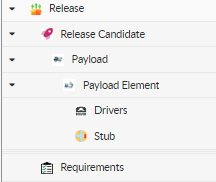
</details>

<figure><img src="https://content.gitbook.com/content/hlW9jKl7dcDggHAPhNU9/blobs/r9jN3XmMAXZZKL4LZKgq/image.png" alt=""><figcaption><p>Example: CMDB Item Types for Testing and Release</p></figcaption></figure>

<details>

<summary>Part 3: Screens to Support Testing and Validation</summary>

After you have configured your system, you can begin building your screens to support your test strategy. The basic elements are provided, but using Designer, you can fit them to your organization, specifically.
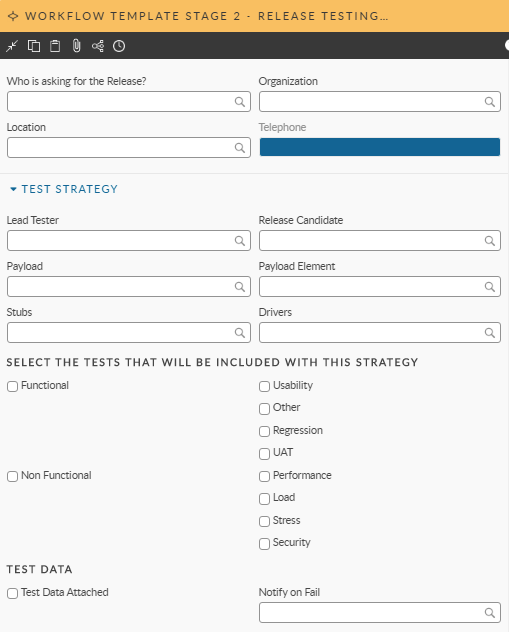
</details>

<figure><img src="https://content.gitbook.com/content/hlW9jKl7dcDggHAPhNU9/blobs/ErOSpKzK5Ne511jC30ND/image.png" alt=""><figcaption><p>Example - Test Strategy Request.  This will initiate a new Service Validation and Testing Action.</p></figcaption></figure>

<details>

<summary>Part 4: Workflows to Support Testing and Validation</summary>

Several workflows are already configured to support Service Validation and testing, but you will need to visit each one and alter it to suit your organization and your potential integrations.
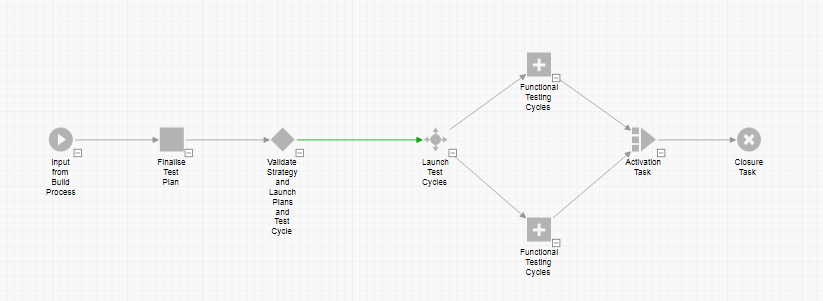
</details>

<figure><img src="https://content.gitbook.com/content/hlW9jKl7dcDggHAPhNU9/blobs/5xGeQvpk5pUloJ3BuK0M/image.png" alt=""><figcaption><p>Example: Workflow Template for the Test Strategy - Illustrates how upon approval, the correct sets of tests are initiated</p></figcaption></figure>

<details>

<summary>Part 5: Configuring your Defect Registry and RAID logs</summary>

Following along from screens and System Settings above, if you will track defects in ASM, you will need to configure a screen to do so.  These need not be complicated.  Since the CMDB is tracking Releases, Candidates, Requirements, etc., you can easily use any existing IPK Screen you may have configured and log the ticket against the CI(s) and select the correct Testing Type tier to go with it.  These data are then easily passed to any other external system you may be using.

</details>

<details>

<summary>Part 6: Integrations and Automations</summary>

Planning for your integrations and automation is likely the most extensive part of work you will have when decididing to implement your testing and service validation strategy.  Familiarise yourself with the [R](/asm-hermes/integrate/apis/alemba-restful-api)[estFul API](/asm-hermes/integrate/apis/alemba-restful-api), and then as above, make a plan for the data that will passed to and from ASM. &#x20;

</details>


# User Survey Systems

ASM ships with a fully developed survey capability.  Surveys can be automated, or sent manually/Ad-hoc.

There is no limit to the number and kind of survey systems you can have and you can do:

* Quantitative Surveys
* Qualitative Surveys
* Mixed/Hybrid Surveys

{% hint style="info" %}
Contact Professional Services at <info@alemba.com> if you want more information, details, or design specifics.
{% endhint %}

## Benefits

Conducting surveys directly from your ITSM system offers several benefits:

1. **Direct Feedback for Service Improvement**: It allows you to gather firsthand feedback on IT services, identifying areas of excellence and those requiring improvement.
2. **Measuring User Satisfaction**: Surveys serve as a tool to measure the satisfaction levels of your users, helping you understand their expectations and experiences.
3. **Alignment with ITIL Practices**: Integrating surveys within your IT service management processes aligns with ITIL best practices, enabling continuous service improvement.

## Best Practices for Survey Frequency and Question Number

1. **Frequency**: Aim for a balanced frequency that gathers enough feedback without overwhelming respondents. Post-service resolution or quarterly surveys are effective strategies.
2. **Number of Questions**: Keep surveys short and focused. Ideally, 5-10 questions are sufficient to gather meaningful insights without causing survey fatigue.

## Example Questions to Measure Specific Aspects of Your Services Delivery

Here are some example questions to include in your ITSM surveys, aimed at measuring specific areas:

* **Service Delivery Satisfaction**: "How satisfied were you with the resolution time of your recent support request?"
* **Quality of Support**: "On a scale of 1-10, how would you rate the knowledge and helpfulness of the support team?"
* **Ease of Access to Services**: "How easy is it to request IT support through our portal?"
* **Overall Satisfaction**: "Overall, how satisfied are you with the IT services provided?"
* **Improvement Areas**: "What is one thing we could do to improve our IT services?"

Including these types of questions in your surveys will help you accurately gauge user satisfaction, identify areas for improvement, and align IT services with user expectations.

## Analyzing Survey Questions: Quantitative vs. Qualitative

### **Quantitative Questions**

* **Quality of Support**: "On a scale of 1-10, how would you rate the knowledge and helpfulness of the support team?"

  *This question asks respondents to provide a numeric rating, making it quantitative as it yields measurable data.*

### **Qualitative Questions**

* **Improvement Areas**: "What is one thing we could do to improve our IT services?"

  *This open-ended question encourages descriptive answers, collecting subjective data, thus it is qualitative.*

### **Mixed/Hybrid Approach Questions**

* **Service Delivery Satisfaction**: "How satisfied were you with the resolution time of your recent support request?"
* **Ease of Access to Services**: "How easy is it to request IT support through our portal?"
* **Overall Satisfaction**: "Overall, how satisfied are you with the IT services provided?"

  *These questions, while appearing to seek ratings (suggesting a quantitative approach), depend on the survey's response options. If they're based on a numeric scale or Likert scale (e.g., dissatisfied to satisfied), they're quantitative. If they solicit open-ended feedback, they become qualitative.*

### **Combining Quantitative and Qualitative Questions in Surveys**

Having both types of questions in the same survey can provide a balanced view, integrating measurable data with rich, descriptive insights for a comprehensive understanding.

Segregating them into different surveys might be beneficial when targeting specific feedback types separately, but generally, a mixed approach within the same survey enriches the data and actionable insights.

## Workshop Video

The video below is 20 minutes long and will cover the basics of setting up survey systems and survey forms.

{% @arcade/embed flowId="eKL2wliI0aeZr9qHp6Yv" url="<https://app.arcade.software/share/eKL2wliI0aeZr9qHp6Yv>" %}


# Planning and Implementing Surveys

ASM Ships with 96 fields for conducting both quantitative and qualitative surveys.

<details>

<summary>Planning Considerations for Your Survey System</summary>

Before you dive into building your survey system, it's crucial to have a well-thought-out plan. You can use anything to plan your system from a simple excel spreadsheet or Word document, to a scrap piece of paper!  The idea is to take the time to consider the following before you begin so that your efforts are maximized:

1. **Objective**
   * [ ] Clearly define the purpose of your survey.&#x20;
   * [ ] What insights are you hoping to gain?&#x20;
   * [ ] List the Survey Questions that will support this data.
2. **Target Audience**
   * [ ] Identify who will be taking your survey. Understanding your audience can help tailor the survey to their needs.&#x20;
   * [ ] List the user groups or organizations that you will target and the frequency they should receive the surveys.
3. **Survey Type**
   * [ ] Decide between a qualitative or quantitative survey based on your objectives and the kind of data you wish to collect. &#x20;
   * [ ] Will you need a hybrid type? &#x20;
4. **Questions Crafting**
   * [ ] Ensure your questions are clear, unbiased, and designed to elicit the most valuable responses.
   * [ ] Ensure your survey is not too long. &#x20;
5. **Distribution Method**
   * [ ] Consider how you will distribute your survey for maximum reach and response rate. ASM will email a Survey notification that includes a link to the self service portal. &#x20;
   * [ ] Will you want ASM to send survey reminders for incomplete surveys?  If so, how many times?
   * [ ] Will you link with a third party survey utility instead?  You will need to collect the URL for the Third party system and connect it the survey system in ASM.
6. **Data Analysis Plan**
   * [ ] Have a plan in place for how you will analyze the survey results to draw meaningful conclusions.
   * [ ] How will you report against the data? Will you use ASM's native dashboard utility or connect in to Tableau or Bold BI?

### Documenting Your Survey System&#x20;

When it comes to documenting the setup and deployment of your survey system in Alemba Service Manager, a systematic approach ensures clarity and compliance:

1. **Change Request**: Creating a Change Request in Alemba Service Manager is advisable. This allows you to document the implementation process, associated risks, and approval steps. It ensures that changes to the system are managed in a controlled manner.
2. **Documentation**: Draft detailed documentation of your survey system’s architecture, including its integration points, survey distribution mechanisms, and data collection methods. This documentation should be accessible for future reference and updates.
   * Attach the Documentation to your change request
3. **Communication Plan**: Develop a communication plan for stakeholders and potential survey respondents. This could include:
   * **Pre-implementation Notice**: An email to all users informing them about the upcoming survey system, its purpose, and how it will impact them.
   * **Implementation Notice**: A notification at the time of rollout, with instructions on how the survey system will be used and support contacts for questions or issues.
   * **Feedback Mechanism**: Establish a way for users to provide feedback on the survey system, helping you to make continuous improvements.

<mark style="color:green;">**Taking the time to methodically plan your survey system and document its implementation in Alemba Service Manager, followed by clear communication, will lead to a smoother rollout and higher engagement from your target audience.**</mark>

</details>

<details>

<summary>Qualitative vs. Quantitative Surveys</summary>

When you build a survey screen, you need to determine if this will be a qualitative survey, or quantitative. &#x20;

### Qualitative Surveys

Qualitative surveys focus on gathering non-numerical data to understand concepts, thoughts, or experiences. Through open-ended questions, they allow for in-depth insights into the subject matter.

Use **Qualitative Surveys** when aiming to improve or innovate IT services. They help understand user experiences, pain points, and satisfaction levels in depth. For instance, when launching a new IT tool within the organization, qualitative surveys can provide rich insights into how users interact with the tool and any challenges they face.

A qualitative survey is just as important as a quantitative because it allows for users to communicate directly with you, the organization in plain language.  This can often be far more revealing than quantitative surveys.  Have you ever taken a survey and just put the neutral answers on every question just so you could be done with it?

The data from these surveys is available from ASM and can easily be sent to the tool of your choice for advanced analysis such as word mapping.

#### Fields available for qualitative analysis:

1. Data String 1-12. These are string fields, limited to 255 Characters.&#x20;
2. Data Int 1-12.  Numbers only – no text.  Negative numbers are allowed.
3. Data Float 1-12. This field can store fractional data.
4. Data Memo 1-12.  A memo field, sometimes referred to as a text field or a memo data type, is used to store large amounts of textual data. Unlike string fields, which have a fixed length, a memo field can store variable-length text data, typically allowing for much longer content to be stored. Memo fields are often used for storing paragraphs of text, notes, or other lengthy descriptions.
5. Data Date 1-12. Displays a date control to capture key date values from the Survey participant.

**Benefits:**

* **Deep Understanding**: Provides comprehensive insights into feelings, attitudes, and behaviors.
* **Flexibility**: Respondents can express their thoughts freely, offering unexpected insights.

**Drawbacks:**

* **Analysis Complexity**: Responses are harder to categorize and quantify for analysis.
* **Time-Consuming**: Collection and analysis of data require more time and resources.

### Quantitative Surveys

A quantitative survey is perhaps what you are most familiar. Quantitative surveys capture responses on a scale of 1-10, generally, and you are then able to build reports and dashboards that quantitatively aggregate responses to give you a very good idea of the results of what you are measuring. Typically, we call this the CSAT, or Customer Satisfaction Score.

Quantitative surveys collect numerical data that can be quantified. Use **Quantitative Surveys** for measuring the performance of IT services, compliance with SLAs, or tracking improvements over time. They are valuable in assessing the effectiveness of IT interventions, user satisfaction scores, or adoption rates across a large user base. For example, after implementing a change in the IT help desk process, a quantitative survey can quantify the impact on resolution times and user satisfaction.

1. Data Scale 1-12
2. Data Yes/No (String) 1-12. This data is stored as a string in the Database
3. Data Checkbox 1-12. This data is stored as a 1 or 0 value (True or False) in the Database

**Benefits:**

* **Statistical Significance**: Enables the measurement of data statistically to represent the larger population.
* **Quick and Cost-Effective**: Easier to administer to a large group and straightforward in analysis.

**Drawbacks:**

* **Limited Depth**: May not provide deep insights into the respondents' feelings and motivations.
* **Inflexibility**: Fixed responses may not capture the full range of respondent opinions.
</details>


# Survey Fields and Configuration

## The Default Quantitative Scale

When working with quantitative survey questions, the scale cannot be changed.  You can remove options from the control in screen designer that you do not want to use.  **ASM enters the value selected into the relevant column in the database.** &#x20;

By default, the quantitative scale values (Data Scale 1-10) represent a numerical value from 1-10.  The value selected by the user/survey participant for that question on that survey is entered into the database Survey results table.  So, if you remove options 6-10, the highest value you will ever see in your data would be, 5.  **You cannot change the default scale, you can only remove options from the scale in designer so they cannot be picked**.

<figure><img src="https://1375663122-files.gitbook.io/~/files/v0/b/gitbook-x-prod.appspot.com/o/spaces%2FhlW9jKl7dcDggHAPhNU9%2Fuploads%2F0HVOaQas0GgyTvq22SCj%2FScreenshot%202024-04-25%20at%2012.59.18%20PM.png?alt=media&amp;token=fd37f79b-6455-4f45-98c7-b7ddb164a1e0" alt=""><figcaption><p>For data Scale 1 - User answered 7.  The mean score for this question is 6.4</p></figcaption></figure>

{% hint style="danger" %}
Keep this in mind if you alter quantitative surveys at a later date.  Changing the parameters of the quantitative questions could negatively impact your aggregations and analysis if the values of the scale change.  It would be best to create a new survey system and deprecate the old one.
{% endhint %}

{% hint style="info" %}
Ensure that when you build your Dashboards and Reports for CSAT, you prepare aggregations that are illustrating the actual weight of responses.  A 3 on a scale of 1-10 is very different from a 3 on a scale of 1-4.
{% endhint %}

## Building a Survey Screen

When you build a survey screen, you need to determine if this will be a qualitative survey, or quantitative.  Apart from the different field types, building a survey screen is the same as building any other screen. &#x20;

{% @arcade/embed flowId="eKL2wliI0aeZr9qHp6Yv" url="<https://app.arcade.software/share/eKL2wliI0aeZr9qHp6Yv>" %}

&#x20;


# Workforce and Talent Management

The purpose of Workforce and Talent Management is to ensure the organization has the right people, with the appropriate skills and knowledge, in the correct roles to support its business objectives.

This section is designed to show you how to take the capabilities of ASM and leverage them to solve your own business and process issues.  Each section gives a condensed, self-guided workshop on implementing the given capability.  Many times, the content will refer you to specific ASM Product Documentation pages, rather than repeat what has already been documented.&#x20;

## Making the Case for Workforce and Talent Management

Integrating Workforce and Talent Management with an ITSM System like Alemba Service Manager (ASM) offers numerous advantages that align with the strategic and operational needs of modern organizations. Below are key reasons this integration is ideal:

1. **Centralization of Data and Processes - Holistic View:**  ASM provides a central repository for all organizational data, including roles, employee records, skills, and qualifications. This centralization facilitates a holistic view of the organization's workforce and talent capabilities, ensuring that decision-making is informed and strategic.
2. **Enhanced Collaboration and Communication - Cross-Departmental Integration:** By using an ITSM system for workforce and talent management, departments across the organization can easily share data and collaborate on initiatives. This seamless integration supports effective onboarding, offboarding, and the management of employee journeys.
3. **Streamlined Workflows - Automated Processes:** The workflow management capabilities within ASM allow for the automation of numerous workforce management processes, from recruitment to succession planning. This automation reduces manual effort, minimizes errors, and ensures consistent application of policies.
4. **Customization and Flexibility - Adaptability to Organizational Needs:** With features like dynamic screens and custom fields, ASM can be tailored to fit the unique structure, culture, and requirements of your organization. This flexibility supports effective management of diverse talent pools and complex organizational hierarchies.
5. **Resource Optimization - Skills and Qualification Management:** The system's capacity to manage and track employee skills, qualifications, and certifications supports effective resource allocation and scheduling. This ensures that the right personnel are assigned to the right tasks, optimizing operational efficiency.
6. **Continuous Improvement and Adaptability - Data-Driven Decision Making:** ASM's reporting and analytics capabilities provide valuable insights into workforce and talent management performance. This data enables continuous evaluation and improvement of processes based on actual outcomes and evolving business needs.
7. **Integration Capabilities - Extensibility with Other Systems:** Although ASM offers extensive functionalities, its integration capabilities with other specialized systems (using Logic Apps, Webhooks, or the Alemba API) mean that any gaps in workforce and talent management can be bridged, offering a comprehensive solution without compromising on the specificity or functionality of additional HR tools.

### **Leveraging an ITSM System for Workforce and Talent Management**

Leveraging an ITSM System like ASM for Workforce and Talent Management not only streamlines operational processes but also empowers strategic decision-making and fosters a dynamic, adaptable organizational culture. This integrated approach positions organizations for success in an increasingly complex and competitive landscape.

This use case covers a broad set of activities focused on successfully engaging with the organization’s employees and people resources that include planning, recruitment, onboarding, learning and development, performance measurement, and succession planning.

**According to ITIL v4, the scope of Workforce and Talent Management covers**:

* Holistic organizational planning that includes the organizational structure, culture, competencies, and other factors
* Managing and improving the organization’s identity and image
* Managing the organization’s workforce
* Managing the organization’s talents
* Managing and improving employee journeys and experiences
* Ensuring ongoing oversight of people’s roles, behaviors, and experiences in the organization

ASM fulfills this use case by incorporating a number of capabilities.

1. [<mark style="color:blue;">**Partitioning**</mark>](/asm-hermes/setup-and-configure-asm/configuring-your-system/system-administration-settings/system-settings-menu/partitioning)<mark style="color:blue;">**.**</mark>  Partitioning allows HR to segregate these activities from the IT Service and Support Organization whilst easily allowing sharing of data and work items where necessary (onboarding, offboarding etc.)
2. [<mark style="color:blue;">**Federated CMDB**</mark>](/asm-hermes/integrate/managing-integration/managing-the-federated-cmdb)<mark style="color:blue;">**,**</mark> [<mark style="color:blue;">**Service Catalog**</mark>](/asm-hermes/use-asm/using-asm-core/managing-your-cmdb/managing-your-service-portfolio/managing-service-actions)**, and** [<mark style="color:blue;">**CMDB Item Types**</mark>](/asm-hermes/setup-and-configure-asm/configuring-your-system/system-administration-settings/cmdb-configuration-management-database/cmdb-item-types)**.**  You can use the CMDB to hold all roles, Candidates (Candidates are CI until the point of hire), Employee Records, Training Catalogues and different Employee Journeys.
3. [<mark style="color:blue;">**Workflow Management**</mark>](/asm-hermes/setup-and-configure-asm/configuring-your-system/system-administration-settings/ipk-and-workflow/workflow-management)<mark style="color:blue;">**.**</mark> <mark style="color:blue;"></mark> You can use the workflow management module to manage the end to end Employee Journey.
4. [<mark style="color:blue;">**Dynamic Screens.**</mark>](/asm-hermes/setup-and-configure-asm/configuring-your-system/configuring-screens/dynamic-screens)  Dynamic Screens allow you to fit the model to your organization exactly.

## Planning your Implementation

To implement workforce and talent management in Alemba Service Manager, you can follow these general steps:

1. **Define your requirements:** Determine the specific workforce and talent management needs of your organization. This may include areas such as resource allocation, skills management, capacity planning, performance management, training, and development.
2. **Configure the system:** In Alemba Service Manager, configure the application to align with your organization's requirements. This may involve creating custom fields, forms, and workflows to capture and manage relevant information.
3. **Define resource roles:** Identify the different roles and job profiles within your organization. Assign appropriate permissions and access levels to each role based on their responsibilities.
4. **Manage skills and qualifications:** Create a skills inventory and define the qualifications and certifications required for each role. Capture this information within the Alemba Service Manager system CMDB for each 'Role'.
5. **Resource allocation and scheduling:** Utilize the resource management capabilities of Alemba Service Manager to assign resources to specific tasks, projects, or incidents. Ensure that resource availability and skill matching are taken into account during the scheduling process.
6. **Training and development:** Utilize the CMDB and Workflow capabilities within Alemba Service Manager to manage training programs, track employee progress, and ensure the development of necessary skills.
7. **Reporting and analytics:** Leverage the reporting and analytics features of Alemba Service Manager to gain insights into your workforce and talent management processes. Monitor key metrics such as resource utilization, skills gaps, and training effectiveness.
8. **Continuous improvement:** Regularly review and refine your workforce and talent management processes based on feedback, analytics, and changing business needs. Continuously update the system configuration and adapt your practices to optimize performance.

It's important to note that ASM provides a flexible platform for IT Service Management (ITSM) and Enterprise Service Management (ESM), and while it may have some capabilities related to workforce and talent management, it might not provide all the features required for a comprehensive solution. In such cases, you may need to integrate with other specialized workforce management or human resources systems to meet your specific needs using Logic Apps, Webhooks, or the Alemba API.


# Example Configuration

Below is a sample configuration for Workforce and Talent Management

To implement Workforce and Talent management, you will need to plan your program well before you begin building.  It is perhaps best to start with a checklist and then compare that against what you already have In ASM.  Below is the configuration that was placed in the product for ITIL V4 compliance in 2023.  It may not all work for your organization and that is OK!  Pull from it what is useful.

{% hint style="info" %}
Contact Professional Services at <info@alemba.com> if you want more information, details, or design specifics.
{% endhint %}

<details>

<summary>Part 1: Planning Checklist</summary>

* [ ] What does the Employee Journey look like?  Will you want to manage all of it in ASM?
* [ ] What will be automated? Candidate Qualifications review (checklists?)
* [ ] Will you publish open roles to the internet or only to the portal? &#x20;
* [ ] Who is on the hiring team(s)?
* [ ] Will you allow anonymous access to open roles?
* [ ] What data is required for an applicant to apply for an open role?  This is information we can collect on the screens and validate.
* [ ] What training is required for each kind of role and where will the LMS be housed?
* [ ] Will you integrate to the LMS?
* [ ] How will you validate employment, education and perform background checks.  If you want this automated, you will need to gather inputs from the source systems.
* [ ] What PII (Personally Identifiable Information) should be secured in the system and who should be able to see the PII, and who should not?

</details>

<details>

<summary>Part 2: System Administration Settings</summary>

Once you have roughed in a plan for all the specific information you need for your strategy, its time to set the system up to accommodate it.  In our system, we updated the following:

1. **Partitioning.**  We setup partitioning and partitioned screens, call templates, workflow templates and the bulletin board (to send public notices to non-employees) in addition to all the other standard partition setting&#x73;**.** &#x20;
2. **Security Profile.**  We setup a security profile for HR in order to be able to selectively hide PII on screen from everyone but H&#x52;**.**
3. **CMDB Item Types**.  **It is important to not get confused between** Employees, Candidates, and Mentors and Mentees as *<mark style="color:red;">**CI**</mark>* *and those same individuals as <mark style="color:red;">**People**</mark>***&#x20;in the system.**  The *<mark style="color:red;">**Person**</mark>* record created is merely there to facilitate access to the Portal and to ASM for logging issues and requests, and nothing more.  The records of these individuals in the Federated CMDB as a '*<mark style="color:red;">**CI**</mark>*" is where all of the data is housed and where the journey is actually managed.  This is critical because we are able to create the kinds and types of dependencies and relationships we would not otherwise be able to accomplish by only using a person type entity.  **The&#x20;**<mark style="color:red;">**Person**</mark>**&#x20;entity in ASM is an account record, and nothing more.**
4. **Self Service Portal Systems**: Do you need a new Portal? One for HR and a public "Careers" Portal for prospective candidates to browse open positions and apply for listed roles, is one possible solution.
5. In **Workflow Management**, we created the request screen sets for publishing Roles and for onboarding new candidates.  Consider each screen and the data you want on each.  You will need to configure the correct system values before you build your screens.

* You might also want to:
  * Create a screen set for requesting training and Professional Development.&#x20;
  * Create screens for managing Reviews, time off, sick leave and off-boarding.
  * Set up the relevant **Employee Journey phase** and **status** values in **Workflow Management**. &#x20;

</details>

<details>

<summary>Part 3: Screens </summary>

After you have configured your system, you can begin building your screens to support your Employee Journey Strategy.  You will have several.  Below is an example of the screen build for an open Job Posting (AKA WF-Role CMDB Item Type). The basic elements are provided for all the listed screens, but using Designer, you can fit them to your organization, specifically.

In **Screen Designer,** we built all of our screens for each Screen set.  As you can see, there will be a lot of screens.  This list will increase if you plan to use NANO (and Alemba recommend's you give it serious consideration).

For each screen set defined above you will need (*and for this reason, it is recommended you engage Professional Services*):

* Request Details
* Request Review
* Request Submission
* Request Message Templates: Submission, Update, Complete, Rejected, Training Due, Training Complete and New Hire Approval and Offer Letter
* Task Details
* Approval Details
* Approval Review
* CI Details for each CI Type
* Service Request Details
* Service Request Submission
* Service Request Review
* Service Request Message Templates
* Incident Submission
* Incident Review
* Incident Details
* Incident Message Templates
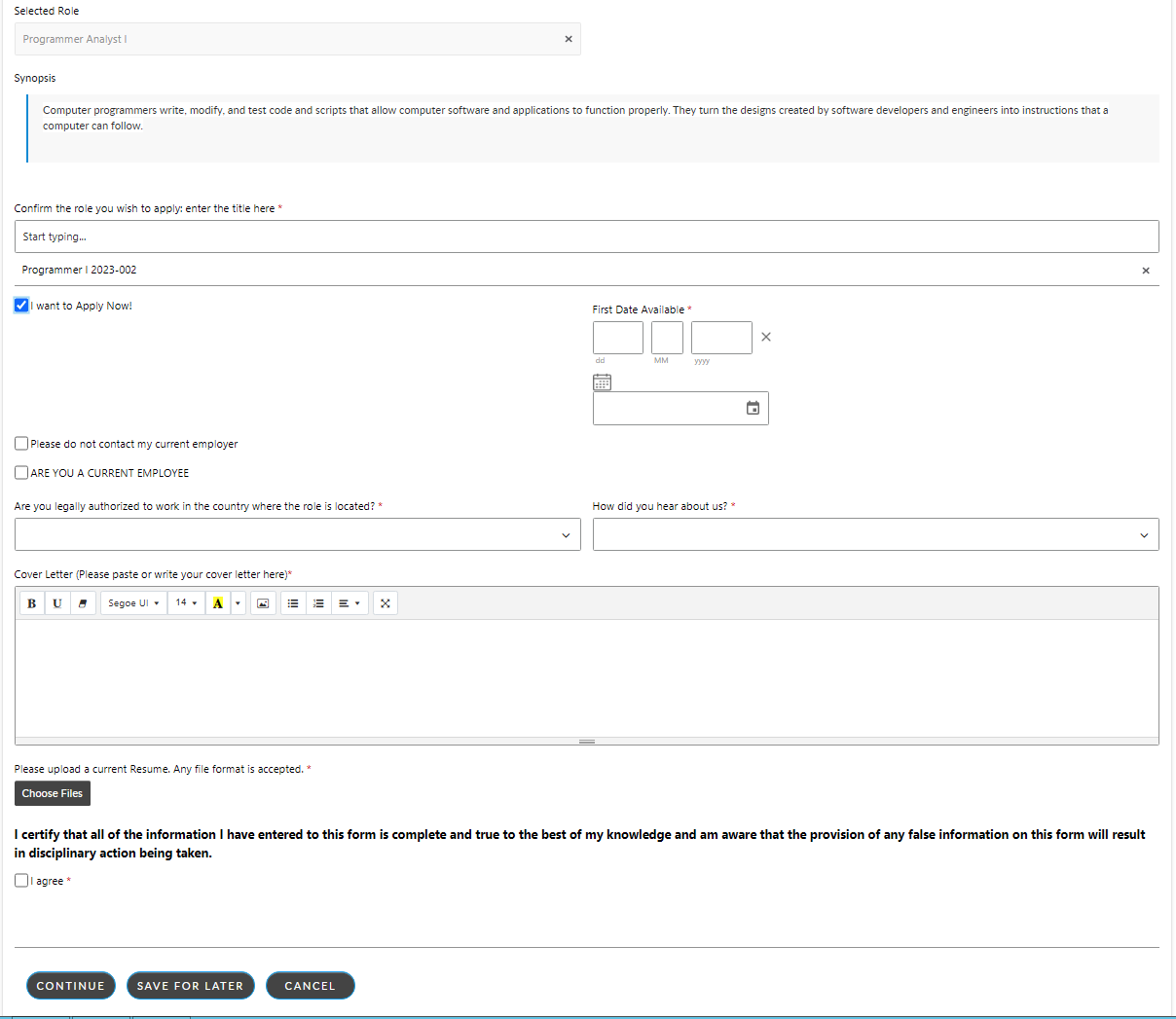
</details>

<figure><img src="https://content.gitbook.com/content/hlW9jKl7dcDggHAPhNU9/blobs/OvbkIdZaHYZhJWJm11lU/image.png" alt=""><figcaption></figcaption></figure>

<details>

<summary>Part 4: Workflows </summary>

Several workflows (and related screens) were configured to support Workforce and Talent Management. They include:

1. Employee Management
   * Disciplinary
   * Sickness
   * EPR - Master Request
     * EPR - 360
     * EPR - MBO ( Management By Objectives)
2. Employee Journey &#x20;
   * Prospective Employee
   * New Starter
   * Employee Off Boarding
3. Training
   * Training Request (General)
   * Group Cyber Security Training Request
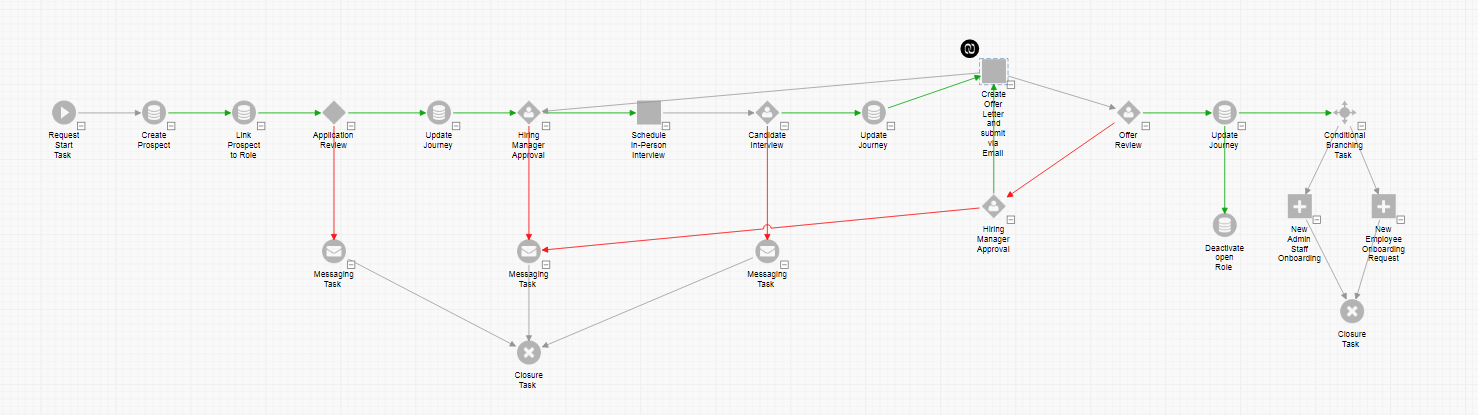
</details>

<figure><img src="https://content.gitbook.com/content/hlW9jKl7dcDggHAPhNU9/blobs/RWyKxeGZFCWRIgKTJLEt/image.png" alt=""><figcaption><p>Example: Employee Journey - Prospective Employee Workflow</p></figcaption></figure>

<details>

<summary>Part 5: Integrations and Automations</summary>

Planning for your integrations and automation is likely the most extensive part of work you will have when deciding to implement your strategy.  Familiarise yourself with the [R](/asm-hermes/integrate/apis/alemba-restful-api)[estFul API](/asm-hermes/integrate/apis/alemba-restful-api), and then as above, make a plan for the data that will passed to and from ASM. &#x20;

</details>


# 2-Part Call Close Process

2 part, or 2 stage ticket closure ensures that although the issue has been resolved, it is reviewed and formally closed by an analyst with the appropriate closing permissions.

## What is 2 Part Call Closure?

The term 2 part call closure refers to a two-stage process for closing tickets (Incidents, Problems, MI, etc).  It will apply to all calls in each partition where it is configured.  If your system is not partitioned, then it will simply apply to all calls (tickets). &#x20;

### Part 1: Resolution Stage

Initially, a call is "Resolved" by an analyst.  In this stage, analysts have the permission only to resolve the call, not to close it. This ensures that all issues are methodically addressed before proceeding to the final closure.

### Part 2: Closure Stage

After the resolution, the call moves to a Closure Stage rather than being closed by the initial analyst. It is then directed to:

* A designated closing analyst, Call status = **Forward to You for Close**
* The original logging analyst, Call Status = **Forward to You for Close**
* A specified closure group for final approval and completion, Call Status = **Forward for Closure**&#x20;

## Planning your 2-Part Call Close Process

Determine what your 2-part closure rules will be (carefully consider analyst and group overhead):&#x20;

* **Logged by** to send the ticket back to the logging analyst to complete the closure process
* **Log Group** to send it back to the group queue that logged the ticket
* **Closure Group** to send it to a predefined Call Close Group that will carry out the closure actions.

## Implementing your 2-part closure process

Configure the System Administration settings to support your 2 part close process (the links below will take you to the correct product documentation page).

[System Admin Settings/Closure Group and Closure Setup](https://docs.alemba.com/asm-hermes/setup-and-configure-asm/configuring-your-system/system-administration-settings/ipk-and-workflow/incident-problem-and-known-error-ipk-management/ipk-settings-partitioned)

* [Closure Method Options](https://docs.alemba.com/asm-hermes/setup-and-configure-asm/configuring-your-system/system-administration-settings/ipk-and-workflow/incident-problem-and-known-error-ipk-management/ipk-settings-partitioned#closure-method-options)
* [Closure Rules Options](< https://docs.alemba.com/asm-hermes/setup-and-configure-asm/configuring-your-system/system-administration-settings/ipk-and-workflow/incident-problem-and-known-error-ipk-management/ipk-settings-partitioned#closure-rules-options>)
* [Closure Reason Linking](< https://docs.alemba.com/asm-hermes/setup-and-configure-asm/configuring-your-system/system-administration-settings/ipk-and-workflow/incident-problem-and-known-error-ipk-management/ipk-settings-partitioned#closure-rules-options>)
* [If using a Closure Group, specify a closure group](https://docs.alemba.com/asm-hermes/setup-and-configure-asm/configuring-your-system/system-administration-settings/ipk-and-workflow/incident-problem-and-known-error-ipk-management/closure-groups)

{% hint style="info" %}
I**f you select “Comments” as the option**, ensure you have given “Closure Comments” to the analysts IPK Security roles that will be responsible for closing calls.  If no one has this permission, there will be no one to review and close the calls. &#x20;

**New Call statuses** relating to this option on the Calls Outstanding window are **Forward for Closure** and **Forward to You for Close**
{% endhint %}


# Incident Management

Implementing Incident Management in ASM - From the beginning

Audience: Incident Manager, Service Desk Manager, Service Delivery Manager, Alemba Service Manager Administrator(s)

Time to Complete: *Varies*, Average 3-5 days (Including screens build and UAT)

{% hint style="info" %}
This topic covers configuring ASM for Incident Management. For help performing actions related to Incident management, please see:

[**Overview of ASMs Incident Management Capability**](https://app.arcade.software/share/K8aH0bYxuBDbD7AmCSgC) **(Video)**

{% embed url="<https://docs.alemba.com/asm-hermes/use-asm/using-asm-core>" %}

{% embed url="<https://docs.alemba.com/asm-hermes/use-asm/using-asm-core/managing-your-tickets-calls-and-ipk>" %}
{% endhint %}

## Incident Management in ITIL V4

Incident Management in ITIL V4 aims to restore normal service operation as quickly as possible while minimizing the impact on the business. It emphasizes a systematic approach where incidents are logged, prioritized based on urgency and impact, and resolved or escalated as needed. Key stages in the Incident Management process include identification, recording, analysis and diagnosis, resolution and recovery, and closure.

<figure><img src="https://1375663122-files.gitbook.io/~/files/v0/b/gitbook-x-prod.appspot.com/o/spaces%2FhlW9jKl7dcDggHAPhNU9%2Fuploads%2FcK2WJlffwK4KdE9xXLio%2Fimage.png?alt=media&amp;token=94c11933-625b-4ef7-8471-c7bce594e2dc" alt=""><figcaption></figcaption></figure>

## Understanding Ticket Types in Incident Management

Incident Management involves more than just handling individual incidents; it encompasses a spectrum of related ticket types, including Problems, Known Errors, and Major Incidents.&#x20;

Here's why these are included:

* **Unified Approach**: By managing all related ticket types within a single framework, organizations can ensure consistency and thoroughness in their incident response strategies.
* **Root Cause Analysis**: Problems are investigated to find the root cause of Incidents, facilitating long-term solutions rather than temporary fixes.
* **Proactive Management**: Known Errors allow for preemptive identification and documentation of issues, improving response times for recurring incidents.
* **High Impact Incidents**: Major Incidents represent a collection of related incidents with significant business impact, necessitating prioritized and coordinated response efforts.

Implementing and configuring these ticket types in Incident Management processes streamlines workflow, enhancing efficiency and ensuring comprehensive service delivery.

### ASM IPK Tiers

The IPK Tiers in ASM align with ITIL V4 by structuring incidents into manageable categories—Incidents, Problems, Major Incidents, and Known Errors primarily (**I-P-K**), but you are also able to define your own. ASM supports incident management through its integration of IPK tiers, enabling efficient tracking, matching, and resolving of incidents. Moreover, it enables the identification of potential problems early, thus facilitating proactive measures.

To understand this system better, you should have an understanding of the tiers, specifically, Incidents and Problems as this is where most organizations choose to start.

1. **Incidents** are call records ("tickets") where a fault (about a service) reported by a User is logged. The objective is to get the User’s issue resolved.
   * When a number of Incidents pertaining to the same service is logged, one of them is promoted to a **Major Incident**.&#x20;
   * A Major Incident occurs when the impact of a fault affects a number of Users.
2. **Problems** are logged when they require an investigation to determine the cause of an Incident. The objective is to get the service operational. Problems can also be logged proactively, before there is an impact to your user(s).
   * When the cause is identified and a **Request for Change** is initiated to rectify the issue if appropriate,&#x20;
   * a Problem record can be converted to or cloned to a **Known Error**.

Using this concept, when an Analyst logs a new Incident, the Incident is matched against existing Incidents, Problems, and Known Errors. Available workarounds are applied to ensure that the Incident is resolved quickly. The benefits that this approach provides include an improvement in the quality of service provided by the service desk, a reduction in the turnaround time in providing a resolution, and subsequently reducing the volume of Incidents logged.

{% hint style="info" %}
In ASM, any IPK Tier can be converted, copied, or cloned to any other type tier or request and workflow, for that matter, and either linked, or not.  So while the typical flow is from Incident to MI, to Problem, to KE; this is only a suggested structure.  Each organization is uniquely different and as with all things ITIL, there is no "One Size fits all" approach.  This is merely a good place to start!
{% endhint %}

### IPK Streams

IPK Streams take the Tiers one step further.  You can define your IPK Streams (such as "Support", "Cyber-Security", "Facilities", and/or "HR") and link them to IPK Statuses (including Incident, Major Incident and Problem).  You would then have Security Incidents, HR Incidents, Support Incidents, or Facilities Incidents.  If this level of separation is not necessary, you need not configure them.  One stream is typically sufficient and most organizations use the ASM Field for 'Type Tier' instead to further classify the ticket.

{% hint style="info" %}
Configuring IPK Streams is optional and not always necessary.
{% endhint %}

When Analysts log a call in ASM Core, they can select the IPK status and a corresponding stream for the call. For example, if you create two IPK streams, Cyber-Security, and Support, and link both streams to the IPK status, Incident, when an analyst logs a call as an Incident, they will be able to select either Cyber-Security or Support as the stream.&#x20;

The purpose of defining streams and linking them to statuses is the following:

* to make only specific streams available to particular IPK statuses
* to simplify the call logging process by allowing you to configure your call logging screen based on an IPK status/stream/type combination
* to allow you to restrict access to the streams to which an Analyst has access through their IPK security role

For a specific call screen to be displayed for an IPK Stream, the call screen set must be linked to the IPK stream through the matrix on either the Link Stream/Status to Call Screen Set, or Link Type/Stream/Status to Call Screen Set window. The matrix you will use will depend on your IPK Settings.


# Planning Your Incident Management Implementation

Audience: Incident Manager, Service Desk Manager, Service Delivery Manager, Alemba Service Manager Administrator(s)

Time to Complete: *Varies*, Average 3-5 days (Including screens build and UAT)

{% hint style="info" %}
This topic covers configuring ASM for Incident Management. For help performing actions related to Incident management, please see:

[**Overview of ASMs Incident Management Capability**](https://app.arcade.software/share/K8aH0bYxuBDbD7AmCSgC) **(Video)**

{% embed url="<https://docs.alemba.com/asm-hermes/use-asm/using-asm-core>" %}

{% embed url="<https://docs.alemba.com/asm-hermes/use-asm/using-asm-core/managing-your-tickets-calls-and-ipk>" %}
{% endhint %}

## Planning Checklist&#x20;

(You can print this page if you would like a hard copy)

To prepare for Incident Management, or for your Incident Management workshop if you are receiving assistance from Alemba's Professional Services team, consider the following before you begin configuring ASM.  This step may require several meetings with relevant stakeholders.  **You should not attempt to implement Incident Management until you have completed this checklist.**

As you will see, there is a lot to think about not the least of which is Security and Access considerations for your analysts, users, and the ASM system itself.  Depending on your decisions below you may very well need to also secure system and service accounts, certificates, and other access permissions that will allow the Alemba API to integrate to other applications to receive and distribute data such as user accounts, configuration items, event alerts, and email messages.

{% hint style="success" %}
Write down what you hope to achieve by implementing Incident management for your: **Users, Support Staff, and for the Organization(s).**

* **S**pecific – The goal should be clear and well-defined.
* **M**easurable – You should be able to track your progress and know when it’s achieved.
* **A**chievable – It should be realistic and attainable, not impossible.
* **R**elevant – The goal should matter to you and align with broader objectives.
* **T**ime-bound – There should be a clear deadline or timeframe.
  {% endhint %}

### Reporting

* [ ] What Information is needed for Call Logging - **Minimum required data is: User, Affected Configuration Item(s), Affected Service, and Type/Tier:**
  * For Reporting
  * For KPI
  * For Troubleshooting
  * For Assignment
  * For Resolution
  * For Knowledge Capture
  * For Escalations and Chases

### Integrations

* [ ] Are your **Users** already in ASM? Will you need to [connect to a directory service](https://docs.alemba.com/asm-hermes/integrate/integration-overview)?
* [ ] How will tickets be logged? [Email](https://docs.alemba.com/asm-hermes/setup-and-configure-asm/setting-up-your-system/setup-email/setting-up-incoming-and-outgoing-email/about-incoming-email), [Chat](https://docs.alemba.com/asm-hermes/use-asm/using-the-self-service-portal/chat), Phone Call, [Self Service](https://docs.alemba.com/asm-hermes/use-asm/using-the-self-service-portal) (how will users log in?)
* [ ] How will you get [**Configuration Items**](https://docs.alemba.com/asm-hermes/use-asm/using-asm-core/managing-your-cmdb) into ASM? &#x20;

  * Option 1: No Integration or CI Imports.  You will create generic CI such as Laptop, Mobile Device, or MS Outlook
  * Option 2: Import or link to another repository (or multiple repositories) such as Intune
  * Option 3: Bring in raw data from a .CSV
  * Option 4: A mixture of 1 or more options

  <div data-gb-custom-block data-tag="hint" data-style="info" class="hint hint-info"><p>While ASM has a very comprehensive Software, Asset, and Configuration Management capability that is fully integrated throughout the application, you really only need to bring over CI if it makes sense for YOU.  It is possible to use Generic CI, and still pull meaningful metrics.  </p><p>e.g., All Incidents for O365, all incidents for Printers, all Incidents for Mobile Devices, etc...</p><p><strong>Note:</strong> You will need to bring in CI if you plan to do Asset Management or other Inventory Management activities but, strictly speaking, you do not necessarily need to manage individual CI in ASM simply to do Incident Management if this is not part of your journey thus far, or if your Asset Management Software is working well for you and the data is not needed for your KPI or other reporting and troubleshooting.</p></div>

### Metrics and Data

* [ ] [What **Services** ](https://docs.alemba.com/asm-hermes/use-asm/using-asm-core/managing-your-cmdb/managing-your-service-portfolio/managing-services)do you provide? Most organizations do not have more than 5-10 Services they provide their end-users.    *Example:*&#x20;

  &#x20; Email and Messaging is a service

  &#x20; MS Outlook is a configuration item (it is software)&#x20;
* [ ] How do you [**categorize**](https://docs.alemba.com/asm-hermes/setup-and-configure-asm/configuring-your-system/system-administration-settings/ipk-and-workflow/incident-problem-and-known-error-ipk-management/type-tiers) your tickets?  Will this change or is it working? &#x20;
  * The Categorization describes an action, condition or experience e.g. 'performance degradation', 'monitor flicker’, ‘Access Errors’, or ‘functionality change’. &#x20;
  * This is your Type, **Type/Tier in ASM,** or more commonly referred to in plain language as the category.
  * Type should describe generally what the issue is – action!
* [ ] What are your [Service Level Agreements (SLAs) ](https://docs.alemba.com/asm-hermes/setup-and-configure-asm/configuring-your-system/system-administration-settings/service-level-management/agreement-types)for acknowledging a ticket, resolving/closing
  * Who will get breach notifications
  * How often will these go out?
* [ ] Define your [Impact, Urgency, and Priority Matrix](https://docs.alemba.com/asm-hermes/setup-and-configure-asm/configuring-your-system/system-administration-settings/ipk-and-workflow/incident-problem-and-known-error-ipk-management/priority-matrix).  *ASM can automatically assign the priority based on the impact and urgency of the ticket.*

{% embed url="<https://wiki.en.it-processmaps.com/index.php/Checklist_Incident_Priority>" %}

<figure><img src="https://1375663122-files.gitbook.io/~/files/v0/b/gitbook-x-prod.appspot.com/o/spaces%2FhlW9jKl7dcDggHAPhNU9%2Fuploads%2FCYDnyHvGTvjZR6U3TRo1%2FScreenshot%202025-04-09%20at%2014.09.53.png?alt=media&amp;token=935b8c1a-333f-4ac2-80ea-64d8b64001ce" alt=""><figcaption><p>Priority Matrix using the number of affected users as the impact.  This can be any set of values you need it to be, however.</p></figcaption></figure>

### Communications

* [ ] Do you have a [dedicated email address(s) ](https://docs.alemba.com/asm-hermes/setup-and-configure-asm/setting-up-your-system/setup-email/setting-up-incoming-and-outgoing-email/email-server-configuration)for users to email to ASM and for ASM to send through?
* [ ] [What will or should the emails to the customer say ](https://docs.alemba.com/asm-hermes/setup-and-configure-asm/configuring-your-system/configuring-screens/building-screens-in-asm-designer/configuring-message-templates)when (& what specific data points should be included with the text?)
  * A new ticket is logged
  * A ticket is resolved/Closed
  * A ticket is updated

### Role Based Access Security

* [ ] What restrictions will [Analysts](https://docs.alemba.com/asm-hermes/setup-and-configure-asm/configuring-your-system/system-administration-settings/security-roles/ipk-management-security-roles) have? &#x20;
  * Can they close tickets or simply resolve them?  Who will close them?
  * Can they escalate or do they need to follow a script first?
  * Is any PII (sensitive or personally identifiable information) present that needs to be masked?
* [ ] What [support groups](https://docs.alemba.com/asm-hermes/setup-and-configure-asm/configuring-your-system/system-administration-settings/security/ipk-groups) do you have - these are the groups where tickets will be assigned.  Each group must have at least 1 member.

### Training and Socialization

* [ ] How do you plan to socialize your customers/users and your Analysts to Incident Management in ASM?


# Setup IPK Management

Audience: Incident Manager, Service Desk Manager, Service Delivery Manager, Alemba Service Manager Administrator(s)

Time to Complete: *Varies*, Average 3-5 days (Including screens build and UAT)

{% hint style="info" %}
This topic covers configuring ASM for Incident Management. For help performing actions related to Incident management, please see:

[**Overview of ASMs Incident Management Capability**](https://app.arcade.software/share/K8aH0bYxuBDbD7AmCSgC) **(Video)**

{% embed url="<https://docs.alemba.com/asm-hermes/use-asm/using-asm-core>" %}

{% embed url="<https://docs.alemba.com/asm-hermes/use-asm/using-asm-core/managing-your-tickets-calls-and-ipk>" %}
{% endhint %}

### Setting up your System for IPK Management

{% embed url="<https://docs.alemba.com/asm-hermes/setup-and-configure-asm/configuring-your-system/system-administration-settings/ipk-and-workflow/incident-problem-and-known-error-ipk-management>" %}

The standard steps for setting up your system for optimal service desk operation are as follows, and they are typically carried out by the system administrator:

1. Configure the IPK settings.
2. Set up the entities that will be partitioned.
3. Set up IPK tiers or IPK Statuses.
4. For each status, your organization may choose to set up streams, if required.
5. If you are not using IPK tiers for your organization’s service desk, you can set up different call screens based on issue type so that a specific screen appears depending on the type of incident being logged. Values can be specified for call statuses, impact, urgency, and priority. Call screens may be configured through the ASM Designer, and Call Templates can be created to configure the screens used for different call types.

{% hint style="info" %}
Remember: While almost anything is possible in ASM Screen Designer and you can be as detailed as you need to be, someone will need to maintain your system and your screens for many years.  Avoid overly complex configurations and screens and capture only what is truly required.  Your future System Administrators will thank you!
{% endhint %}

6. Analyst access to different areas of IPK Management can be restricted through the IPK Management Security Role settings.

{% hint style="danger" %}
As some parameters are read from the database at application start-up, you should always make changes to settings when there are no Analysts logged onto the system. You may need to log out of the application then log in again before the changes take effect.
{% endhint %}


# Build Screens to Support IPK

Audience: Incident Manager, Service Desk Manager, Service Delivery Manager, Alemba Service Manager Administrator(s)

Time to Complete: *Varies*, Average 3-5 days (Including screens build and UAT)

{% hint style="info" %}
This topic covers configuring ASM for Incident Management. For help performing actions related to Incident management, please see:

[**Overview of ASMs Incident Management Capability**](https://app.arcade.software/share/K8aH0bYxuBDbD7AmCSgC) **(Video)**

{% embed url="<https://docs.alemba.com/asm-hermes/use-asm/using-asm-core>" %}

{% embed url="<https://docs.alemba.com/asm-hermes/use-asm/using-asm-core/managing-your-tickets-calls-and-ipk>" %}
{% endhint %}

## ASM Screen Designer

{% hint style="success" %}
**Remember:** While almost anything is possible in ASM Screen Designer and you can be as detailed as you need to be, someone will need to maintain your system and your screens for many years.  Avoid overly complex configurations and screens and capture only what is truly required.  Your future System Administrators will thank you
{% endhint %}

{% embed url="<https://docs.alemba.com/asm-hermes/setup-and-configure-asm/configuring-your-system/system-administration-settings/ipk-and-workflow/incident-problem-and-known-error-ipk-management/call-screen-sets>" %}

{% hint style="danger" %}
Do not delete system fields, you may hide them using the Field Properties in Screen Designer
{% endhint %}

{% embed url="<https://docs.alemba.com/asm-hermes/setup-and-configure-asm/configuring-your-system/configuring-screens/building-screens-in-asm-designer/deleting-fields/asm-system-fields-for-call-screens>" %}

If Enable Call Screen Set on Explorer is selected in the IPK Settings window, analysts can switch between the defined screen sets when logging or updating a call.

You can link screen sets to IPK statuses/streams, or link screen sets to a statuses/types/streams.&#x20;

{% embed url="<https://docs.alemba.com/asm-hermes/setup-and-configure-asm/configuring-your-system/configuring-screens/building-screens-in-asm-designer/configuring-fields>" %}

{% embed url="<https://docs.alemba.com/asm-hermes/setup-and-configure-asm/configuring-your-system/configuring-screens/building-screens-in-asm-designer/creating-a-custom-field>" %}

{% embed url="<https://docs.alemba.com/asm-hermes/setup-and-configure-asm/configuring-your-system/configuring-screens/dynamic-screens>" %}


# About the Alemba Service Manager Family

We offer a range of products to meet the needs of our customers.  All ASM products and capabilities ship standard with the product and are included with each license.

## Alemba Service Manager Products

<details>

<summary>Self-Service Portal</summary>

***Target Audience:*** End Users, or those needing to simply login and complete approvals, order from the catalog, or get help.

Self Service Portal allows end users to log calls and requests, and place orders.

They can also monitor existing calls, requests and orders, and, if they have the correct permissions, approve requests.

The Add Me widget allows users to easily add themselves to any published issue in 2 clicks.  *Often used for Major Incidents, as shown below, it can be used for any incident type(s) you decide.*
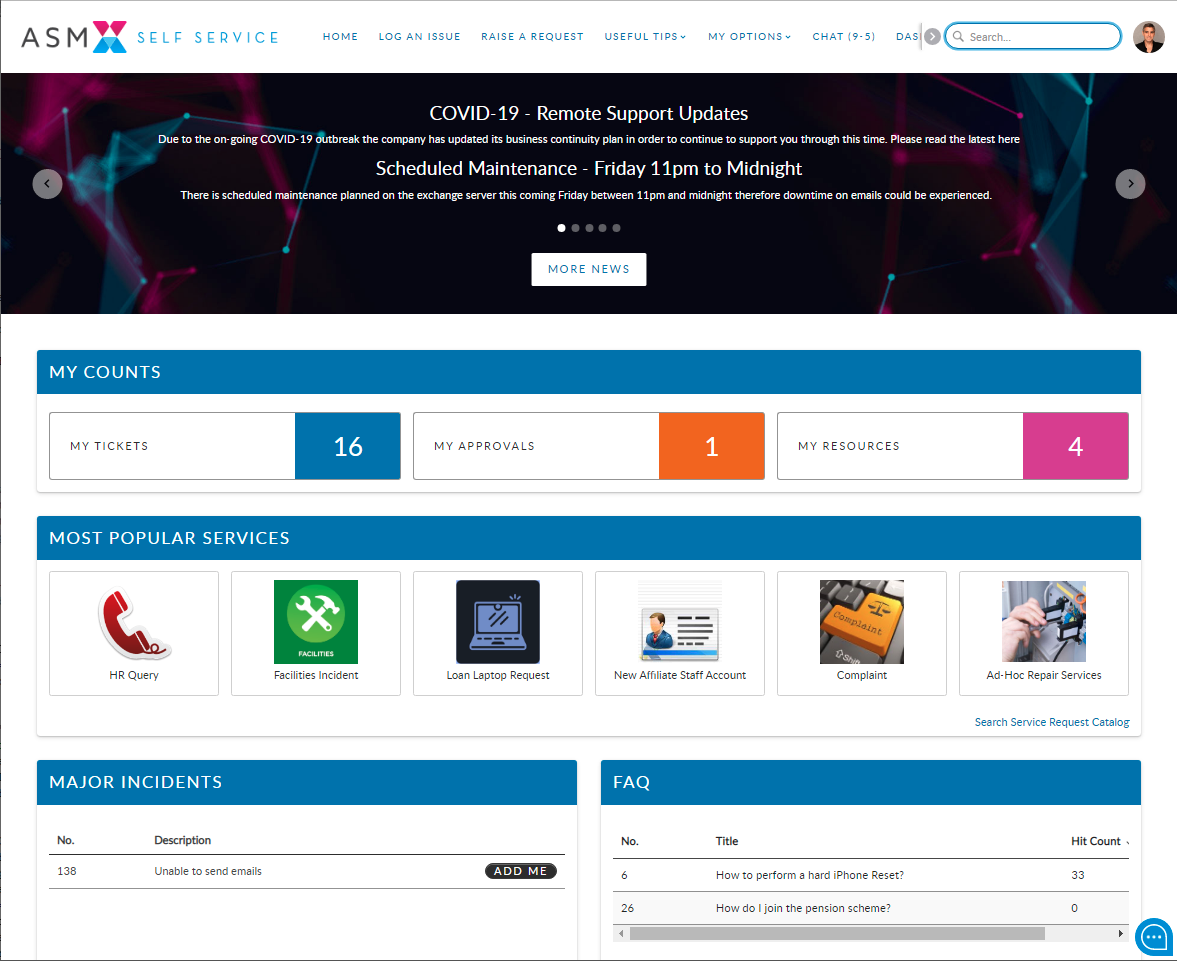
</details>

<figure><img src="https://content.gitbook.com/content/hlW9jKl7dcDggHAPhNU9/blobs/hXW51PgPvVYUJRbQMIOI/image.png" alt=""><figcaption></figcaption></figure>

<details>

<summary>Nano</summary>

***Target Audience:*** Nano is excellent for the agent that may merely be triaging calls, logging calls, or updating calls. In fact, apart from System Administrative functions and a few other more advanced activities found only in the Core application (AKA "Core"), most analysts/agents and team leads prefer to use Nano!

It is perfect for those that only ever login and, for example, update the status, add a note or action item, or perhaps reassign a ticket. It supports well the actual business of working your queue without all the added features and "noise" of the full application. The included drag and drop Kan Ban view makes it quick and easy to manage the entire estate.

Nano provides a simplified interface and functions for those who:

* Work with calls - creating, updating and closing calls
* Work with requests - creating, updating, and completing requests
* Work with tasks and approvals - updating and completing tasks and approvals
* Send emails from calls, requests, or tasks
* Manage their workload using the Outstanding windows
* Review and edit Knowledge Articles, CMDB Items, and Person records
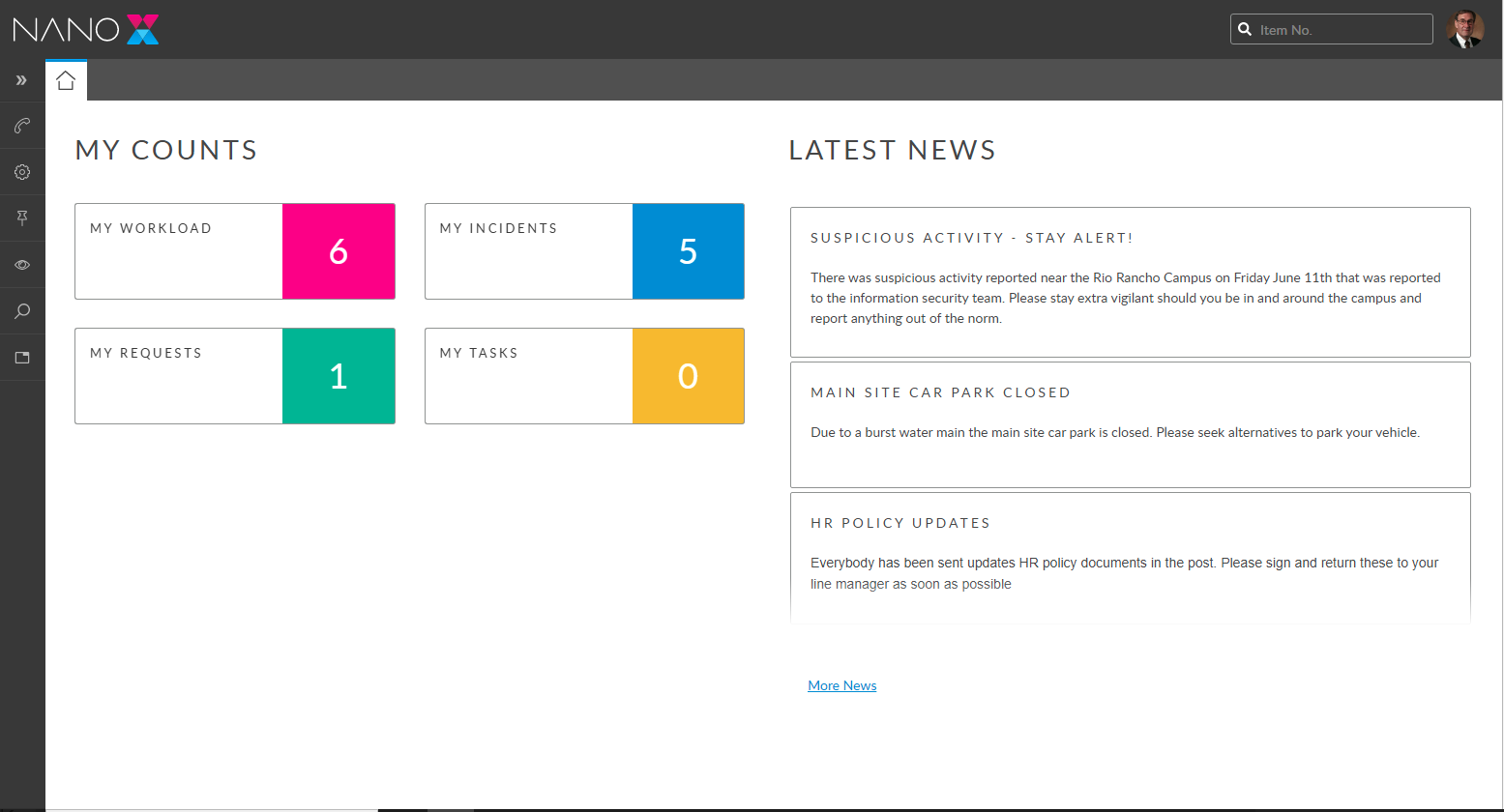
</details>

<figure><img src="https://content.gitbook.com/content/hlW9jKl7dcDggHAPhNU9/blobs/lD3YOUl3o5YqQiGGk0gS/image.png" alt=""><figcaption></figcaption></figure>

<details>

<summary>ASM Core</summary>

***Target Audience:*** System Admins, or those configuring screens, the Self-service portal, workflows and performing other advanced activities. Core has all of the capabilities of Nano, and then some.

This is used largely by system administrators, and people in the organization who are responsible for configuring the system, creating users and CMDB items, developing workflows and establishing security and self service portal settings.

It is also used by service desk analysts processing calls and requests on behalf of users.
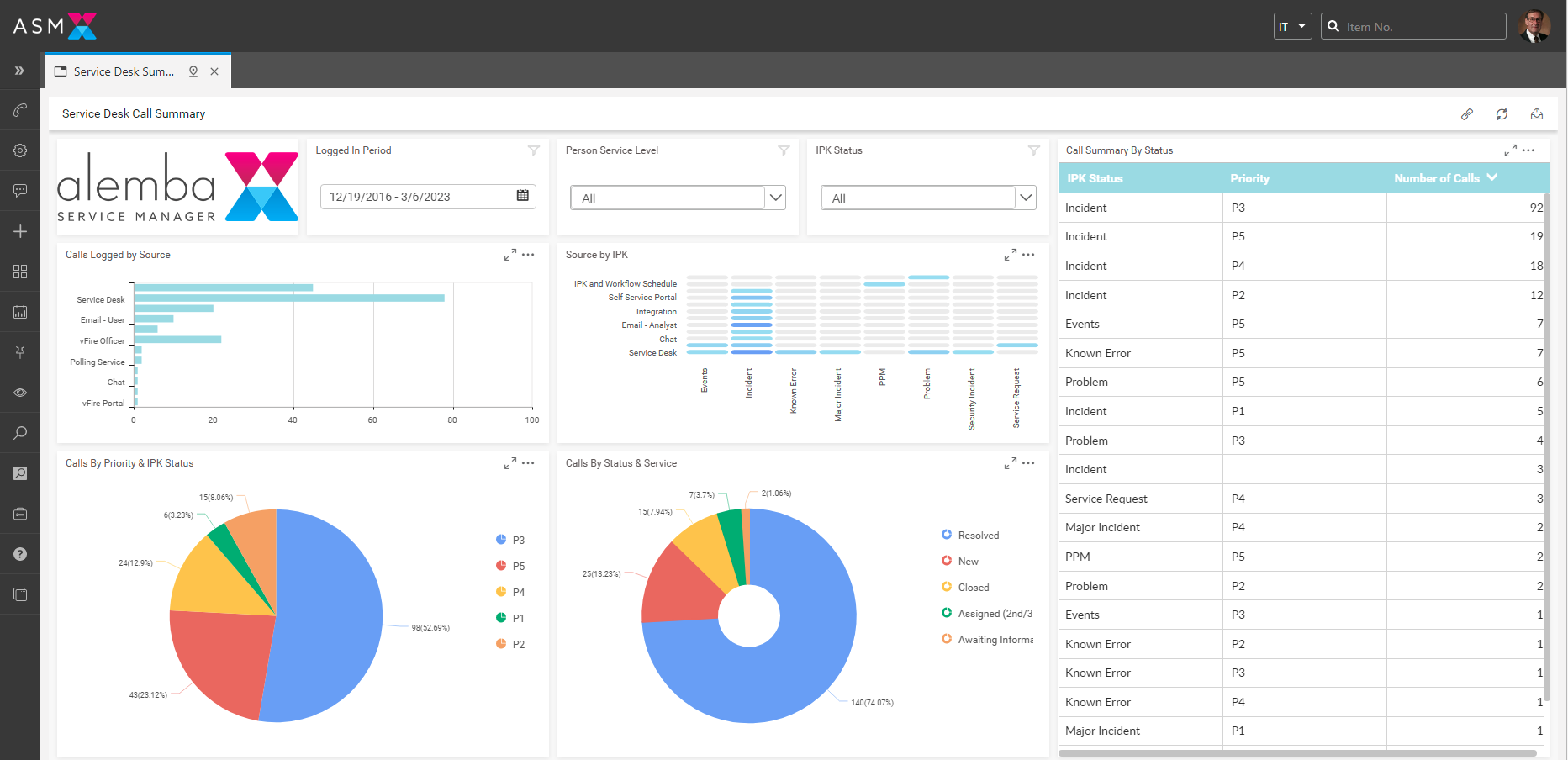
</details>

<figure><img src="https://content.gitbook.com/content/hlW9jKl7dcDggHAPhNU9/blobs/WKB7w19b3xRQjW55CwEU/image.png" alt=""><figcaption></figcaption></figure>

<details>

<summary>RapidStart!</summary>

***Target Audience:*** Organizations that need to get up and running quickly and do not want to start with a "blank" system.

Rapid Start offers a quick and easy installation solution. It delivers a set of pre-configured data and configurations that are designed to get you started with the key processes that you need to move from Service Transition to Service Operation.
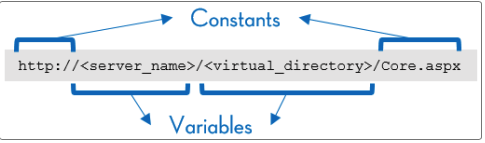

</details>

## Fully Pink Verified for 19 ITIL v4 Practices, key capabilities

{% embed url="<https://www.pinkelephant.com/en-US/pinkverify/pinkverify-certification>" %}

## Included out of the box capabilities

ASM is a fully Browser agnostic set of applications. This means that all products are available across all platforms, devices and browsers! ASM also ships with a fully configured and populated database, including a service catalog and Self Service portal ready to go!

{% hint style="info" %}
This list is not exhaustive. Because of the code-free nature and highly configurable options within ASM, all of the following and more is easily achieved. Click on each item for more information.
{% endhint %}

{% embed url="<https://docs.alemba.com/asm-hermes-10.6.8/setup-and-configure-asm/setting-up-your-system/system-administration-settings/ipk-and-workflow/incident-problem-and-known-error-ipk-management>" %}

{% embed url="<https://docs.alemba.com/asm-hermes-10.6.8/use-asm/using-asm-core/requests-and-tasks>" %}

{% embed url="<https://docs.alemba.com/asm-hermes-10.6.8/use-asm/using-asm-core/managing-your-cmdb>" %}

{% embed url="<https://docs.alemba.com/asm-hermes-10.6.8/use-asm/using-asm-core/managing-your-cmdb/managing-your-assets>" %}

{% embed url="<https://docs.alemba.com/asm-hermes-10.6.8/setup-and-configure-asm/designing-configuring-your-system/planning-knowledge-management>" %}

{% embed url="<https://docs.alemba.com/asm-hermes-10.6.8/setup-and-configure-asm/designing-configuring-your-system/common-asm-use-cases-and-solutions/use-cases-project-management>" %}

{% embed url="<https://docs.alemba.com/asm-hermes-10.6.8/setup-and-configure-asm/designing-configuring-your-system/common-asm-use-cases-and-solutions/use-cases-service-validation-and-testing>" %}

{% embed url="<https://docs.alemba.com/asm-hermes-10.6.8/setup-and-configure-asm/designing-configuring-your-system/common-asm-use-cases-and-solutions/use-cases-workforce-and-talent-management>" %}

{% embed url="<https://docs.alemba.com/asm-hermes-10.6.8/integrate/managing-integration/managing-events>" %}

{% embed url="<https://docs.alemba.com/asm-hermes-10.6.8/use-asm/dashboards-and-reporting>" %}

{% embed url="<https://docs.alemba.com/asm-hermes-10.6.8/setup-and-configure-asm/setting-up-your-system/system-administration-settings/service-level-management>" %}

{% embed url="<https://docs.alemba.com/asm-hermes-10.6.8/setup-and-configure-asm/setting-up-your-system/system-administration-settings/ipk-and-workflow/incident-problem-and-known-error-ipk-management/user-survey>" %}

{% embed url="<https://docs.alemba.com/asm-hermes-10.6.8/use-asm/using-the-self-service-portal/chat>" %}

{% embed url="<https://docs.alemba.com/asm-hermes-10.6.8/use-asm/using-asm-core/managing-your-cmdb/managing-your-service-portfolio>" %}

{% embed url="<https://docs.alemba.com/asm-hermes-10.6.8/integrate/managing-integration/connectors-to-asm-core/generic-connectors-to-asm-core/ms-azure-devops-connector>" %}

{% embed url="<https://docs.alemba.com/asm-hermes-10.6.8/use-asm/using-asm-core/managing-your-tickets-calls-and-ipk/call-details-explorer-options/ai-ops-explorer-option>" %}

{% embed url="<https://docs.alemba.com/asm-hermes-10.6.8/setup-and-configure-asm/setting-up-your-system/system-administration-settings/preview-features-advanced-options/settings/multi-language>" %}

{% embed url="<https://docs.alemba.com/asm-hermes-10.6.8/setup-and-configure-asm/setting-up-your-system/system-administration-settings/dashboards>" %}

{% embed url="<https://docs.alemba.com/asm-hermes-10.6.8/use-asm/using-asm-core/requests-and-tasks/managing-resources>" %}

{% embed url="<https://docs.alemba.com/asm-hermes-10.6.8/setup-and-configure-asm/setting-up-your-system/system-administration-settings/ipk-and-workflow/workflow-management/workflow-processes>" %}

{% embed url="<https://docs.alemba.com/asm-hermes-10.6.8/integrate/integration-overview>" %}


# URLs and Access Parameters

Use URLs to access the main application, the Self Service and Catalog Portals, the External Supplier Portal and other ASM Core interfaces.

## Overview of ASM Core URLs

{% @arcade/embed flowId="LgXzHJKNdikIAhrTJRJR" url="<https://app.arcade.software/share/LgXzHJKNdikIAhrTJRJR>" %}

ASM Core URLs are used to access different interfaces, like the Self Service Portal, and also to perform complex functions such as launch searches, open incident forms, view service orders, and even to pre-populate fields on submission forms or search criteria windows, and then to submit those forms or searches.

Complex functions are performed through the URL by appending http query strings to the base URL.

The URL structure consists of the base URL, the interface parameter, the target page parameter, and the query parameters.

URLs are made up of constant and variable parameters. Some parameters vary from system to system while others are static values. The following convention has been used to denote parameters:

* Variables within URLs are denoted within angular brackets.
* Constants are denoted in the regular text without brackets.

### Structure of the base URL

<figure><img src="https://content.gitbook.com/content/hlW9jKl7dcDggHAPhNU9/blobs/SfFDwo17q3rK1VeNHDkM/Screen%20Shot%202022-12-06%20at%203.32.26%20PM.png" alt=""><figcaption></figcaption></figure>

### Example of a http query string:

{% code overflow="wrap" %}

```
http://<server_name>/<virtual_directory>/portal.aspx&Form=KnowledgeSearchCriteria&Search_Query=cracked laptop screen&All_Words=Y
```

{% endcode %}

<figure><img src="https://content.gitbook.com/content/hlW9jKl7dcDggHAPhNU9/blobs/WbyMm4hZo1I2Tomq6nn4/Screen%20Shot%202022-12-06%20at%203.33.09%20PM.png" alt=""><figcaption></figcaption></figure>

When constructing URLs for use in ASM Core, note that:

* All following parameters must be preceded by **&**
* Parameters and their values are joined by **=**
* Characters entered after **=** and before **&** are treated as a value and therefore can contain spaces

Here is an example of how these are strung together based on the example URL above.

## To launch ASM Core

```
http://<server_name>/<virtual_directory>/Core.aspx
```

## To launch the Self Service Portal

```
http://<server_name>/<virtual_directory>/Portal.aspx
```

## To Launch Nano

```
http://<server_name>/<virtual_directory>/Nano.aspx
```

## To launch the portal Knowledge Search Criteria page

```
http://<server_name>/<virtual_directory>/Portal.aspx&Form=KnowledgeSearchCriteria
```

### To launch the portal Knowledge Search Criteria page with the words “cracked laptop screen” in the  Search Text field, and the All Words checkbox selected

{% code overflow="wrap" %}

```
http://<server_name>/<virtual_directory>/Portal.aspx&Form=KnowledgeSearchCriteria&Search_Query=cracked laptop screen&All_Words=Y
```

{% endcode %}

## API URLs

### Admin

```
https://{host-name}/{core-system-name}/Alemba.Web/alemba/admin
```

### Agent/User Role

```
https://{host-name}/{core-system-name}/Alemba.Web/alemba/api-explorer-choose
```

## URLs and Access Parameters

### Use base URLs to:

* Access ASM Core
* Access the Self Service Portal
* Access the HTML Only Interface
* Access the Catalog Portal
* Access ASM Core through WSRP

### Use http query strings for the Self Service Portal to:

* Automatically Log into the Self Service Portal
* Retrieve a Password
* Change a Password
* View a specified knowledge article, or access the search page for Knowledge Bank
* View a specified incident, or access the search page for Incidents
* View a specified request, or access the search page for Requests
* View a specified service action or service bundle, or access the search page for Browsing the Service Request Catalog
* View a specified service order, or access the search page for Service Order

### Pre-populate search fields and automate searches in the Self Service Portal using http query strings for:

* Knowledge Search
* Incident Search
* Request Search
* Browse the Service Request Catalog
* Service Order Search


# System Access URLs

In all URLs, **core.aspx**, is the name of the page that launches ASM Core.

## Access ASM Core <a href="#access5" id="access5"></a>

```
URL: http://<server_name>/<virtual_directory>/Core.aspx
```

<table data-header-hidden><thead><tr><th width="235"></th><th></th></tr></thead><tbody><tr><td>Description of the URL</td><td>Description of Variable Parameters</td></tr><tr><td>Use this URL to launch the ASM Core application.</td><td><p>&#x3C;server_name> = replace with the name, domain name or IP address of the web server</p><p>&#x3C;virtual_directory> = replace with the name of the virtual directory specified in the Server Console</p></td></tr></tbody></table>

### Access ASM Core and Go To a Specific Database

```
URL: http://<server_name>/<virtual_directory>/Core.aspx?Database=<name>
```

<table data-header-hidden><thead><tr><th width="236"></th><th></th></tr></thead><tbody><tr><td>Description of the URL</td><td>Description of Variable Parameters</td></tr><tr><td>Use this URL to launch the ASM Core Application for a specific ASM System. This can be used if you have multiple systems and wish to access a specific one.</td><td><p>&#x3C;server_name> = replace with the name, domain name or IP address of the web server</p><p>&#x3C;virtual_directory> = replace with the name of the virtual directory specified in the Server Console</p><p>&#x3C;name> = replace with the name of the ASM System you wish to access from the ASM Core Application</p></td></tr></tbody></table>

### Access ASM Core and Bypass Windows Authentication

```
URL: http://<server_name>/<virtual_directory>/Core.aspx?NOAUTH=<Y>
```

<table data-header-hidden><thead><tr><th width="266"></th><th></th></tr></thead><tbody><tr><td>Description of the URL</td><td>Description of Variable Parameters</td></tr><tr><td><p>Use this URL to ignore single sign-on when Windows Authentication is enabled for ASM Core. There may be situations where you have authentication enabled but you need to manually log onto the system as the administrator account.</p><p>This URL is valid only for the account with the login ID “admin”.</p></td><td><p>&#x3C;server_name> = replace with the name, domain name or IP address of the web server</p><p>&#x3C;virtual_directory> = replace with the name of the virtual directory specified in the Server Console</p><p><strong>&#x3C;Y></strong> = replace with “Y” or “true” to display a login prompt. This prompt only accepts the default ADMIN account.</p><p>Constant Parameter:</p><p>NOAUTH = denotes bypass of authentication</p></td></tr></tbody></table>

### Access ASM Core and Go To a Specific Entity/Page

&#x20;To access ASM Core and go directly to a specific entity, such as you might require for deep linking, enter:

{% code overflow="wrap" %}

```
https://<servername>/<virtualdirectory>/core.aspx?link=<ENTITY><REFNUMBER> 
```

{% endcode %}

&#x20;Valid Entity Types are:

* ReviewWorkflowGroup
* ReviewAgreement
* ReviewBulletin
* ReviewCall
* ReviewCI
* ReviewCMDBLink
* ReviewContract
* ReviewCostCentre
* ReviewIPKGroup
* ReviewJurisdiction
* ReviewKnowledgeEntry
* ReviewLocation
* ReviewOrganization
* ReviewPerson
* ReviewRequest
* ReviewServiceOrder
* ReviewSubscriberGroup
* ReviewTask
* ReviewThreshold&#x20;

## Access the Self Service Portal <a href="#access4" id="access4"></a>

The inclusion of **Lite** in a URL denotes the Self Service Portal interface. However, in all URLs, **portal.aspx**, launches ASM Self-Service portal.

<pre><code>URL: http://&#x3C;server_name>/&#x3C;virtual_directory>/Core.aspx?Lite
<strong>OR
</strong><strong>URL: http://&#x3C;server_name>/&#x3C;virtual_directory>/portal.aspx
</strong></code></pre>

<table data-header-hidden><thead><tr><th width="273"></th><th></th></tr></thead><tbody><tr><td>Description of the URL</td><td>Description of Variable Parameters</td></tr><tr><td>Use this URL to launch the Self Service Portal.</td><td><p>&#x3C;server_name> = replace with the name, domain name or IP address of the web server</p><p>&#x3C;virtual_directory> = replace with the name of the virtual directory specified in the Server Console</p></td></tr></tbody></table>

### Access the Self Service Portal and Go To a Specific Database

```
URL: http://<server_name>/<virtual_directory>/Core.aspx?Lite&Database=<name>
OR
URL: http://<server_name>/<virtual_directory>/portal.aspx?Database=<name>
```

<table data-header-hidden><thead><tr><th width="276"></th><th></th></tr></thead><tbody><tr><td>Description of the URL</td><td>Description of Variable Parameters</td></tr><tr><td>Use this URL to launch the Self Service Portal for a specific ASM System. This can be used if you have multiple systems, and wish to access a specific one.</td><td><p>&#x3C;server_name> = replace with the name, domain name or IP address of the web server</p><p>&#x3C;virtual_directory> = replace with the name of the virtual directory specified in the Server Console</p><p>&#x3C;name> = replace with the name of the ASM System you wish to access from the Self Service Portal</p></td></tr></tbody></table>

To learn about complex http queries for the Self Service Portal, refer to ASM Self Service Portal URLs.

## Access Nano

Replacing core.aspx with Nano.aspx launches the Nano interface.

<figure><img src="https://content.gitbook.com/content/hlW9jKl7dcDggHAPhNU9/blobs/r81LSMLPKpvUL7aH5Puf/Screen%20Shot%202023-01-09%20at%202.36.48%20PM.png" alt=""><figcaption><p>Example: Nano interface</p></figcaption></figure>

```
URL: http://<server_name>/<virtual_directory>/Nano.aspx
```

<table data-header-hidden><thead><tr><th width="285"></th><th></th></tr></thead><tbody><tr><td>Description of the URL</td><td>Description of Variable Parameters</td></tr><tr><td>Use this URL to launch ASM Nano.</td><td><p>&#x3C;server_name> = replace with the name, domain name or IP address of the web server</p><p>&#x3C;virtual_directory> = replace with the name of the virtual directory specified in the Server Console</p></td></tr></tbody></table>

### Access Nano and Go To a Specific Database

```
URL: http://<server_name>/<virtual_directory>/Nano.aspx?Database=<name>
```

<table data-header-hidden><thead><tr><th width="283"></th><th></th></tr></thead><tbody><tr><td>Description of the URL</td><td>Description of Variable Parameters</td></tr><tr><td>Use this URL to launch ASM Core HTML. This can be used if you have multiple systems, and wish to access a specific one.</td><td><p>&#x3C;server_name> = replace with the name, domain name or IP address of the web server</p><p>&#x3C;virtual_directory> = replace with the name of the virtual directory specified in the Server Console</p><p>&#x3C;name> = replace with the name of the ASM System you wish to access from Nano</p></td></tr></tbody></table>

## API URLs

Accessing the API allows for programmatic interaction with the system, enabling automation, data integration, and retrieval of information without manual intervention. It provides flexibility to query data, automate workflows, and integrate with other systems efficiently, which can save time and reduce errors compared to manual use of the application.

### Admin

```
https://{host-name}/{core-system-name}/Alemba.Web/alemba/admin
```

### Agent/User Role

```
https://{host-name}/{core-system-name}/Alemba.Web/alemba/api-explorer-choose
```


# ASM Self Service Portal URLs

This section lists the areas of the Self Service Portal that can be accessed using a URL from an external source, such as a website, or from within the Self Service Portal, such as from My Options.

Create links to the Self Service Portal to perform a wide range of actions, such as opening specific submission forms, pre-populating fields, submitting forms, and retrieving data.

{% hint style="success" %}
This is particularly useful if you want to access functions of the Self Service portal without the need to have users go into the portal.
{% endhint %}

> Example: An organisation has a well established intranet and would like to integrate specific portal functions into it instead of building and subsequently launching a separate portal for users. &#x20;

Portal URLs have various Form parameters which can be set to a particular portal page; for example, the page for reviewing calls, requests, tasks, or knowledge articles.

All URLs that follow contain the minimum parameters required to achieve the documented goal. Additional optional parameters can be added to the URL.

## My Options

When using these URLs in My Options the full address is not required. Include only the portion of the URL that follows \<portal.aspx>

For example, the full address for the Self Service Portal Knowledge Search page is http\://\<server\_name>/\<virtual\_directory>/portal.aspx?\&Form=KnowledgeSearchCriteria so you would enter **?\&Form=KnowledgeSearchCriteria** into the URL field in My Options.

## Access the Self Service Portal

Replace "**core.aspx**" with "**portal.aspx**" in any URL denotes the Self Service Portal interface.

```
URL: http://<server_name>/<virtual_directory>/portal.aspx
```

<table data-header-hidden><thead><tr><th width="224"></th><th></th></tr></thead><tbody><tr><td>Description of the URL</td><td>Description of Variable Parameters</td></tr><tr><td>Use this URL to launch the Self Service Portal</td><td><p>&#x3C;server_name> = replace with the name, domain name or IP address of the web server</p><p>&#x3C;virtual_directory> = replace with the name of the virtual directory specified in the Server Console</p></td></tr></tbody></table>

### Generic Parameters for Self Service Portal URLs

The following parameters can be added as an extension to the URL used to launch the Self Service Portal:

<table data-header-hidden><thead><tr><th width="353"></th><th></th></tr></thead><tbody><tr><td>Parameter</td><td>Description</td></tr><tr><td><p><strong>Partition</strong></p><p>http://&#x3C;server_name>/&#x3C;virtual_directory>/portal.aspx?&#x26;<strong>Partition=&#x3C;X></strong></p><ul><li>where <strong>&#x3C;X></strong> is the unique reference number of the partition</li></ul><p>http://localhost/test/portal.aspx?&#x26; Form=KnowledgeSearchCriteria&#x26;<strong>Partition=2</strong></p></td><td><p>If using a partitioned system, you can define portal URLs to refer to a specific partition.</p><p>The example launches a knowledge search submission window in the HR partition that has the REF value of 1 in the database.</p><p>Partitions are created in System Administration.</p><p>The unique reference is found in <strong>REF.SU_PARTITIONS</strong> in the database.</p><p>Specifying a partition in a URL does not bypass normal partition permission behaviors. </p><p></p><p>Access to partitioned data is controlled by the partition settings configured for the system, and the partition permissions assigned to each person.</p></td></tr><tr><td><p><strong>Database</strong></p><p>http://&#x3C;server_name>/&#x3C;virtual_directory>/portal.aspx?&#x26;<strong>database=&#x3C;X></strong></p><ul><li>where <strong>&#x3C;X></strong> is the name of the ASM System</li></ul><p>http://localhost/test/portal.aspx?&#x26; Form=KnowledgeSearchCriteria&#x26;<strong>Database=test</strong></p></td><td><p>If multiple systems exist on the server, you can define portal URLs to refer to a specific system.</p><p>The example launches a knowledge search submission window in the Test system.</p><p>Systems are created in the ASM Core Server Console.</p></td></tr><tr><td><p><strong>Portal</strong></p><p>http://&#x3C;server_name>/&#x3C;virtual_directory>/portal.aspx?&#x26;<strong>portal=&#x3C;X></strong></p><ul><li>where &#x3C;X> is the portal system key</li></ul><p>http://localhost/test/portal.aspx?&#x26; Form=KnowledgeSearchCriteria&#x26;<strong>portal=NY</strong></p></td><td><p>If there are multiple portal systems, you can define portal URLs to refer to a specific portal system.</p><p>This example launches a knowledge search submission window in the New York portal system.</p><p>Self Service Portal Systems are configured in System Administration.</p></td></tr></tbody></table>

## Automatically Log into the Self Service Portal <a href="#automati" id="automati"></a>

{% code overflow="wrap" %}

```
URL: http://<server_name>/<virtual_directory>/portal.aspx?&user_id=<user>&pass_word=<pwd>&BTN_OK=OK
```

{% endcode %}

<table data-header-hidden><thead><tr><th width="297"></th><th></th></tr></thead><tbody><tr><td>Description of the URL</td><td>Description of Variable Parameters</td></tr><tr><td><p>Use this URL to log on to Self Service Portal automatically. By supplying the login ID, password, and database name in the URL, the login screen can be bypassed.</p><p>This URL is only valid if Integrated Security is disabled for the portal.</p></td><td><p><strong>&#x3C;server_name></strong> = replace with the name, domain name or IP address of the web server</p><p><strong>&#x3C;virtual_directory></strong> = replace with the name of the virtual directory specified in the Server Console</p><p><strong>&#x3C;user></strong> = replace with the login ID</p><p><strong>&#x3C;pwd></strong> = replace with the password that corresponds to the user_id</p><p><strong>Constant Parameter:</strong></p><p><strong>BTN_OK=OK</strong>  is required to simulate the action of selecting the OK button on the login window.</p></td></tr></tbody></table>

## Retrieve a Password <a href="#retrieva" id="retrieva"></a>

{% code overflow="wrap" %}

```
URL: http://<server_name>/<virtual_directory>/portal.aspx?&Form=ForgotPassword&email_id=<email>&BTN_OK=OK
```

{% endcode %}

<table data-header-hidden><thead><tr><th width="294"></th><th></th></tr></thead><tbody><tr><td>Description of the URL</td><td>Description of Variable Parameters</td></tr><tr><td>Use this URL to have your password emailed to your email address. A person record must exist with that email address.</td><td><p><strong>&#x3C;server_name></strong> = replace with the name, domain name or IP address of the web server</p><p><strong>&#x3C;virtual_directory></strong> = replace with the name of the virtual directory specified in the Server Console</p><p><strong>&#x3C;email></strong> = replace with the email address of the person</p><p><strong>Constant Parameters:</strong></p><p><strong>ForgotPassword</strong> is the function to retrieve a password</p><p><strong>BTN_OK=OK</strong>  is required to simulate the action of selecting the OK button on the login window.</p></td></tr></tbody></table>

## Change a Password <a href="#change" id="change"></a>

{% code overflow="wrap" %}

```
URL: http://<server_name>/<virtual_directory>/portal.aspx?&Form=ChangePassword&user_id=<user>&old_pass_word=<old>&new_pass_word_1=<new>&new_pass_word_2=<new>&BTN_OK=OK
```

{% endcode %}

| Description of the URL                                                                                                                                                                                                                                                                                                                                              | Description of Variable Parameters                                                                                                                                                                                                                                                                                                                                                                                                                                                                                                                                                                                                                                                                                                |
| ------------------------------------------------------------------------------------------------------------------------------------------------------------------------------------------------------------------------------------------------------------------------------------------------------------------------------------------------------------------- | --------------------------------------------------------------------------------------------------------------------------------------------------------------------------------------------------------------------------------------------------------------------------------------------------------------------------------------------------------------------------------------------------------------------------------------------------------------------------------------------------------------------------------------------------------------------------------------------------------------------------------------------------------------------------------------------------------------------------------- |
| <p>Use this URL to change your password.</p><p>You will be prompted to log in, do so with your old password. After you have successfully logged in with your old password, a message will appear at the top of the page confirming your password has been successfully changed.</p><p>This URL is only valid if Integrated Security is disabled for the portal.</p> | <p><strong>\<server\_name></strong> = replace with the name, domain name or IP address of the web server</p><p><strong>\<virtual\_directory></strong> = replace with the name of the virtual directory specified in the Server Console</p><p><strong>\<user></strong> = replace with the login ID</p><p><strong>\<ol</strong>d> = replace with the password that corresponds to the login ID</p><p><strong>\<new></strong> = replace with the new password you wish to change to.</p><p><strong>Constant Parameters:</strong></p><p><strong>ChangePassword</strong> is the function to change a password</p><p><strong>BTN\_OK=OK</strong> is required to simulate the action of selecting the OK button on the login window.</p> |

## Knowledge Bank <a href="#knowledg" id="knowledg"></a>

### Access Knowledge Bank Search

```
URL: http://<server_name>/<virtual_directory>/portal.aspx?&Form=KnowledgeSearchCriteria
```

| Description of the URL                                                                                                                                                                                     | Description of Variable Parameters                                                                                                                                                                                                                                                                                                                                            |
| ---------------------------------------------------------------------------------------------------------------------------------------------------------------------------------------------------------- | ----------------------------------------------------------------------------------------------------------------------------------------------------------------------------------------------------------------------------------------------------------------------------------------------------------------------------------------------------------------------------- |
| <p>Use this URL to access the Portal Knowledge Search criteria page.</p><p><strong>KnowledgeSearchCriteria</strong> is not valid for the Catalog Portal. It is only valid for the Self Service Portal.</p> | <p><strong>\<server\_name></strong> = replace with the name, domain name or IP address of the web server</p><p><strong>\<virtual\_directory></strong> = replace with the name of the virtual directory specified in the Server Console</p><p><strong>Constant Parameter:</strong></p><p><strong>KnowledgeSearchCriteria</strong> is the name of the Knowledge Search page</p> |

The Knowledge Search page in the Self Service Portal can be pre-populated by appending parameters to the basic Knowledge Search URL. For a list of parameters available for the search window, refer to Knowledge Search.

### View a Knowledge Article

{% code overflow="wrap" %}

```
URL: http://<server_name>/<virtual_directory>/portal.aspx?&TemplateName=LiteKnowledgeSearchResults&BTN_SELECT<ref>=View
```

{% endcode %}

<table data-header-hidden><thead><tr><th width="325"></th><th></th></tr></thead><tbody><tr><td>Description of the URL</td><td>Description of Variable Parameters</td></tr><tr><td><p>Use this URL to view the details of a Knowledge article.</p><p></p><p>http://&#x3C;server_name>/&#x3C;virtual_directory>/portal.aspx<strong>?&#x26;TemplateName= LiteKnowledgeSearchResults&#x26;BTN_SELECT22=View</strong></p><p></p><p><strong>The example URL opens the review page for knowledge article 22 in the portal.</strong></p></td><td><p><strong>&#x3C;server_name></strong> = replace with the name, domain name or IP address of the web server</p><p><strong>&#x3C;virtual_directory></strong> = replace with the name of the virtual directory specified in the Server Console</p><p><strong>&#x3C;ref></strong> = replace with the unique reference number of the knowledge article</p><p><strong>Constant Parameters:</strong></p><p><strong>LiteKnowledgeSearchResults</strong> is the name of the template for knowledge articles</p><p><strong>BTN_SELECT&#x3C;ref>=View</strong> is the function that opens the knowledge article details. </p><p></p><p><mark style="color:red;background-color:blue;">The unique ref of the article must be inserted into this parameter.</mark></p></td></tr></tbody></table>

## Incidents <a href="#incident" id="incident"></a>

### Access Incident Search

{% code overflow="wrap" %}

```
URL: http://<server_name>/<virtual_directory>/portal.aspx?&Form=CallSearchCriteria
```

{% endcode %}

<table data-header-hidden><thead><tr><th width="288"></th><th></th></tr></thead><tbody><tr><td>Description of the URL</td><td>Description of Variable Parameters</td></tr><tr><td>Use this URL to access the Review Past/Current Incidents search criteria page.</td><td><p><strong>&#x3C;server_name></strong> = replace with the name, domain name or IP address of the web server</p><p><strong>&#x3C;virtual_directory></strong> = replace with the name of the virtual directory specified in the Server Console</p><p><strong>Constant Parameters:</strong></p><p><strong>CallSearchCriteria</strong> is the name of the Incident Search page</p></td></tr></tbody></table>

The Review Past/Current Incidents window can be pre-populated by appending parameters to the basic Incident search URL. For a list of parameters available for the search window, refer to [Incident Search](/asm-hermes/use-asm/about-the-alemba-service-manager-family/urls-and-access-parameters/pre-populating-search-fields).

### Review an Incident

{% code overflow="wrap" %}

```
URL: http://<server_name>/<virtual_directory>/portal.aspx?&Form=Call&Mode=Review&Call_Number=<ref>
```

{% endcode %}

<table data-header-hidden><thead><tr><th width="326"></th><th></th></tr></thead><tbody><tr><td>Description of the URL</td><td>Description of Variable Parameters</td></tr><tr><td><p>Use this URL to view the details of an Incident.</p><p>http://&#x3C;server_name>/&#x3C;virtual_directory>/portal.aspx?&#x26;Form=Call&#x26;Mode=Review&#x26;<strong>Call_Number=22</strong></p><p>The example URL opens the review page for Incident number 22 in the portal.</p></td><td><p><strong>&#x3C;server_name></strong> = replace with the name, domain name or IP address of the web server</p><p><strong>&#x3C;virtual_directory></strong> = replace with the name of the virtual directory specified in the Server Console</p><p><strong>&#x3C;ref></strong> = replace with the unique reference of the call (CALL_NUMBER.CL_CALL_LOGGING)</p><p><strong>Constant Parameters:</strong></p><p><strong>Form=Call</strong> is the name of the call page file</p><p><strong>Mode=Review</strong> is required</p></td></tr></tbody></table>

### Open an Incident Submission Form

{% code overflow="wrap" %}

```
URL: http://<server_name>/<virtual_directory>/portal.aspx?&Form=Call&Mode=New&Template_Ref=<ref>
```

{% endcode %}

| Description of the URL                                                                                                                                                                                                                                                                                      | Description of Variable Parameters                                                                                                                                                                                                                                                                                                                                                                                                                                                                                                                  |
| ----------------------------------------------------------------------------------------------------------------------------------------------------------------------------------------------------------------------------------------------------------------------------------------------------------- | --------------------------------------------------------------------------------------------------------------------------------------------------------------------------------------------------------------------------------------------------------------------------------------------------------------------------------------------------------------------------------------------------------------------------------------------------------------------------------------------------------------------------------------------------- |
| <p>Use this URL to open a submission form using a specific call template.</p><p>http\://\<server\_name>/\<virtual\_directory>/portal.aspx?\&Form=Call\&Mode=New&<strong>Template\_Ref=99</strong></p><p>The example opens the call submission form for the New Starter call template (call\_number=99).</p> | <p><strong>\<server\_name></strong> = replace with the name, domain name or IP address of the web server</p><p><strong>\<virtual\_directory></strong> = replace with the name of the virtual directory specified in the Server Console</p><p><strong>\<ref></strong> = replace with the unique reference of the call template (CALL\_NUMBER.CL\_CALL\_LOGGING where TEMPLATE\_IND=1)</p><p><strong>Constant Parameters:</strong></p><p><strong>Form=Call</strong> is the name of the call page file</p><p><strong>Mode=New</strong> is required</p> |

### Log an Incident

{% code overflow="wrap" %}

```
URL: http://<server_name>/<virtual_directory>/portal.aspx?&Form=CallDetails&Mode=New&Template_Ref=<ref>&Ref_Composite=<type>&BTN_OK=Submit
```

{% endcode %}

| Description of the URL                                                                                                                                                                                                                                                                                                                                                                                                                                                                                                                                                                                                                                                                                                                                                             | Description of Variable Parameters                                                                                                                                                                                                                                                                                                                                                                                                                                                                                                                                                                                                                                                                                                    |
| ---------------------------------------------------------------------------------------------------------------------------------------------------------------------------------------------------------------------------------------------------------------------------------------------------------------------------------------------------------------------------------------------------------------------------------------------------------------------------------------------------------------------------------------------------------------------------------------------------------------------------------------------------------------------------------------------------------------------------------------------------------------------------------- | ------------------------------------------------------------------------------------------------------------------------------------------------------------------------------------------------------------------------------------------------------------------------------------------------------------------------------------------------------------------------------------------------------------------------------------------------------------------------------------------------------------------------------------------------------------------------------------------------------------------------------------------------------------------------------------------------------------------------------------- |
| <p>Use this URL to log an Incident using a specific call template.</p><p></p><p>http\://\<server\_name>/\<virtual\_directory>/portal.aspx?\&Form=CallDetails\&Mode=New&<strong>Template\_Ref=99</strong>&<strong>Ref\_Composite=1</strong>\&BTN\_OK=Submit</p><p></p><p>The example above opens the Logged Incident confirmation page after logging an incident using the New Starter call template (call\_number=99), and with a Type value of Unspecified (ref=1).</p><p></p><p>If the call template has not been assigned to an analyst or group, the <strong>Forward\_To=\<assign\_ref></strong> parameter must be appended when logging an incident. <strong>\<assign\_ref></strong> is the unique ref of the analyst or group the call should be forwarded to on submit.</p> | <p><strong>\<server\_name></strong> = replace with the name, domain name or IP address of the web server</p><p><strong>\<virtual\_directory></strong> = replace with the name of the virtual directory specified in the Server Console</p><p><strong>\<ref></strong> = replace with the unique reference of the call template (CALL\_NUMBER.CL\_CALL\_LOGGING where TEMPLATE\_IND=1)</p><p><strong>\<type></strong> = replace with the unique reference of the Type (REF.CL\_PROBLEM\_TYPE).</p><p><strong>Constant Parameters:</strong></p><p><strong>Form=CallDetails</strong> is the name of the call details page file</p><p><strong>Mode=New</strong> is required</p><p><strong>BTN\_OK=Submit</strong> submits the Incident</p> |

## Requests <a href="#requests" id="requests"></a>

### Access Request Search

{% code overflow="wrap" %}

```
URL: http://<server_name>/<virtual_directory>/portal.aspx?&Form=RequestSearchCriteria
```

{% endcode %}

| Description of the URL                                                         | Description of Variable Parameters                                                                                                                                                                                                                                                                                                                                          |
| ------------------------------------------------------------------------------ | --------------------------------------------------------------------------------------------------------------------------------------------------------------------------------------------------------------------------------------------------------------------------------------------------------------------------------------------------------------------------- |
| Use this URL to access the Review Past/Current Incidents search criteria page. | <p><strong>\<server\_name></strong> = replace with the name, domain name or IP address of the web server</p><p><strong>\<virtual\_directory></strong> = replace with the name of the virtual directory specified in the Server Console</p><p><strong>Constant Parameters:</strong></p><p><strong>RequestSearchCriteria</strong> is the name of the Incident Search page</p> |

The Review Past/Current Requests window can be pre-populated by appending parameters to the basic Request search URL. For a list of parameters available for the search window, refer to [Request Search](/asm-hermes/use-asm/about-the-alemba-service-manager-family/urls-and-access-parameters/pre-populating-search-fields).

### Review a Request

{% code overflow="wrap" %}

```
URL: http://<server_name>/<virtual_directory>/portal.aspx?&Form=Request&Mode=Review&Request_No=<ref>
```

{% endcode %}

| Description of the URL                                                                                                                                                                                                                                                        | Description of Variable Parameters                                                                                                                                                                                                                                                                                                                                                                                                                                                                                        |
| ----------------------------------------------------------------------------------------------------------------------------------------------------------------------------------------------------------------------------------------------------------------------------- | ------------------------------------------------------------------------------------------------------------------------------------------------------------------------------------------------------------------------------------------------------------------------------------------------------------------------------------------------------------------------------------------------------------------------------------------------------------------------------------------------------------------------- |
| <p>Use this URL to view the details of a Request.</p><p></p><p>http\://\<server\_name>/\<virtual\_directory>/portal.aspx?\&Form=Call\&Mode=Review&<strong>Request\_No=22</strong></p><p></p><p>The example URL opens the review page for Request number 22 in the portal.</p> | <p><strong>\<server\_name></strong> = replace with the name, domain name or IP address of the web server</p><p><strong>\<virtual\_directory></strong> = replace with the name of the virtual directory specified in the Server Console</p><p><strong>\<ref></strong> = replace with the unique reference of the request (REQUEST\_NO.CR\_REQUEST)</p><p><strong>Constant Parameters:</strong></p><p><strong>Form=Request</strong> is the name of the request page file</p><p><strong>Mode=Review</strong> is required</p> |

### Open a Request Submission Form

{% code overflow="wrap" %}

```
URL: http://<server_name>/<virtual_directory>/portal.aspx?&Form=Request&Mode=New&Template_Ref=<ref>
```

{% endcode %}

<table data-header-hidden><thead><tr><th width="368"></th><th></th></tr></thead><tbody><tr><td>Description of the URL</td><td>Description of Variable Parameters</td></tr><tr><td><p>Use this URL to open a submission form using a specific request template.</p><p></p><p>http://&#x3C;server_name>/&#x3C;virtual_directory>/portal.aspx?&#x26;Form=Request&#x26;Mode=New&#x26;<strong>Template_Ref=99</strong></p><p></p><p>The example above opens the call submission form for the New Starter workflow template (request_no=99).</p></td><td><p><strong>&#x3C;server_name></strong> = replace with the name, domain name or IP address of the web server</p><p><strong>&#x3C;virtual_directory></strong> = replace with the name of the virtual directory specified in the Server Console</p><p><strong>&#x3C;ref></strong> = replace with the unique reference of the request (REQUEST_NO.CR_REQUEST)</p><p><strong>Constant Parameters:</strong></p><p><strong>Form=Request</strong> is the name of the request page file</p><p><strong>Mode=New</strong> is required</p></td></tr></tbody></table>

### Log a Request

{% code overflow="wrap" %}

```
URL: http://<server_name>/<virtual_directory>/portal.aspx?&Form=RequestDetails&Mode=New&Template_Ref=<ref>&BTN_OK=Submit
```

{% endcode %}

| Description of the URL                                                                                                                                                                                                                                                                                                                                                                     | Description of Variable Parameters                                                                                                                                                                                                                                                                                                                                                                                                                                                                                                                                                                                          |
| ------------------------------------------------------------------------------------------------------------------------------------------------------------------------------------------------------------------------------------------------------------------------------------------------------------------------------------------------------------------------------------------ | --------------------------------------------------------------------------------------------------------------------------------------------------------------------------------------------------------------------------------------------------------------------------------------------------------------------------------------------------------------------------------------------------------------------------------------------------------------------------------------------------------------------------------------------------------------------------------------------------------------------------- |
| <p>Use this URL to log a Request using a specific workflow template.</p><p></p><p>http\://\<server\_name>/\<virtual\_directory>/portal.aspx?\&Form=RequestDetails\&Mode=New&<strong>Template\_Ref=4</strong>\&BTN\_OK=Submit</p><p></p><p>The example above opens the Logged Request confirmation page after logging a request using the New Starter workflow template (request\_no=4)</p> | <p><strong>\<server\_name></strong> = replace with the name, domain name or IP address of the web server</p><p><strong>\<virtual\_directory></strong> = replace with the name of the virtual directory specified in the Server Console</p><p><strong>\<ref></strong> = replace with the unique reference of the workflow template (REQUEST\_NO.CR\_REQUEST where TEMPLATE\_IND=1)</p><p><strong>Constant Parameters:</strong></p><p><strong>RequestDetails</strong> is the name of the request details page file</p><p><strong>Mode=New</strong> is required</p><p><strong>BTN\_OK=Submit</strong> submits the Incident</p> |

### Review an Approval

{% code overflow="wrap" %}

```
URL: http://<server_name>/<virtual_directory>/portal.aspx?&Form=Approval&Mode=Review&Task_No=<ref>
```

{% endcode %}

<table data-header-hidden><thead><tr><th width="376"></th><th></th></tr></thead><tbody><tr><td>Description of the URL</td><td>Description of Variable Parameters</td></tr><tr><td><p>Use this URL to view the details of an Approval.</p><p></p><p>http://&#x3C;server_name>/&#x3C;virtual_directory>/portal.aspx?&#x26;Form=Approval&#x26;Mode=Review&#x26;<strong>Task_No=22</strong></p><p></p><p>The example URL above opens the review page for approval number 22 in the portal.</p></td><td><p><strong>&#x3C;server_name></strong> = replace with the name, domain name or IP address of the web server</p><p><strong>&#x3C;virtual_directory></strong> = replace with the name of the virtual directory specified in the Server Console</p><p><strong>&#x3C;ref></strong> = replace with the unique reference of the request (TASK_NO.CR_TASK)</p><p><strong>Constant Parameters:</strong></p><p><strong>Form=Approval</strong> is the name of the approval page file</p><p><strong>Mode=Review</strong> is required</p></td></tr></tbody></table>

## Service Request Catalog <a href="#service" id="service"></a>

### Browse the Service Request Catalog

{% code overflow="wrap" %}

```
URL: http://<server_name>/<virtual_directory>/portal.aspx?&Form=ServiceCatalogSearch
```

{% endcode %}

| Description of the URL                                                              | Description of Variable Parameters                                                                                                                                                                                                                                                                                                                                                        |
| ----------------------------------------------------------------------------------- | ----------------------------------------------------------------------------------------------------------------------------------------------------------------------------------------------------------------------------------------------------------------------------------------------------------------------------------------------------------------------------------------- |
| Use this URL to access the Browse the Service Request Catalog search criteria page. | <p><strong>\<server\_name></strong> = replace with the name, domain name or IP address of the web server</p><p><strong>\<virtual\_directory></strong> = replace with the name of the virtual directory specified in the Server Console</p><p><strong>Constant Parameters:</strong></p><p><strong>ServiceCatalogSearch</strong> is the name of the Service Request Catalog search page</p> |

The Browse the Service Request Catalog page can be pre-populated by appending parameters to the basic Service Request Catalog search URL. It is also possible to select individual Service Actions and Service Bundles, opening their submission forms. For a list of parameters available for the search window, refer to [Browse the Service Request Catalog](/asm-hermes/use-asm/about-the-alemba-service-manager-family/urls-and-access-parameters/pre-populating-search-fields).

### View details of a Service Action

{% code overflow="wrap" %}

```
URL: http://<server_name>/<virtual_directory>/portal.aspx?&Form=ServiceCatalogSearch&BTN_SERVICEACTION<ref>=Submit
```

{% endcode %}

| Description of the URL                                                                                                                                                                                                                                                                                                                                                                                                                                          | Description of Variable Parameters                                                                                                                                                                                                                                                                                                                                                                                                                                                                                                                                                                                                                                                                                                            |
| --------------------------------------------------------------------------------------------------------------------------------------------------------------------------------------------------------------------------------------------------------------------------------------------------------------------------------------------------------------------------------------------------------------------------------------------------------------- | --------------------------------------------------------------------------------------------------------------------------------------------------------------------------------------------------------------------------------------------------------------------------------------------------------------------------------------------------------------------------------------------------------------------------------------------------------------------------------------------------------------------------------------------------------------------------------------------------------------------------------------------------------------------------------------------------------------------------------------------- |
| <p>Use this URL to display the details of a Service Action. From here users can choose to select the Order button or browse the Service Request Catalog.</p><p></p><p>http\://\<server\_name>/\<virtual\_directory>/portal.aspx?\&Form= ServiceCatalogSearch&<strong>BTN\_SERVICEACTION6=Submit</strong></p><p></p><p>The example URL above opens the details for the "Remote Access" service action, which is the service with a REF of 6 in the database.</p> | <p><strong>\<server\_name></strong> = replace with the name, domain name or IP address of the web server</p><p><strong>\<virtual\_directory></strong> = replace with the name of the virtual directory specified in the Server Console</p><p><strong>\<ref></strong> = replace with the unique reference of the Service Action.</p><p><strong>Constant Parameters:</strong></p><p><strong>ServiceCatalogSearch</strong> is the name of the Service Request Catalog search page</p><p><strong>BTN\_SERVICEACTION\<ref>=Submit</strong> adds the service to the cart and opens the submission form. </p><p><mark style="color:red;background-color:blue;">The unique ref of the Service Action must be inserted into this parameter.</mark></p> |

### View details of a Service Bundle

{% code overflow="wrap" %}

```
URL: http://<server_name>/<virtual_directory>/portal.aspx?&Form=ServiceCatalogSearch&BTN_SERVICEBUNDLE<ref>=Submit
```

{% endcode %}

| Description of the URL                                                                                                                                                                                                                                                                                                                                                                                                                                                                            | Description of Variable Parameters                                                                                                                                                                                                                                                                                                                                                                                                                                                                                                                                                                                                                                                                                                            |
| ------------------------------------------------------------------------------------------------------------------------------------------------------------------------------------------------------------------------------------------------------------------------------------------------------------------------------------------------------------------------------------------------------------------------------------------------------------------------------------------------- | --------------------------------------------------------------------------------------------------------------------------------------------------------------------------------------------------------------------------------------------------------------------------------------------------------------------------------------------------------------------------------------------------------------------------------------------------------------------------------------------------------------------------------------------------------------------------------------------------------------------------------------------------------------------------------------------------------------------------------------------- |
| <p>Use this URL to display the details of a Service Bundle. From here users can review what is included and choose to select the Order button or browse the Service Request Catalog.</p><p></p><p>http\://\<server\_name>/\<virtual\_directory>/portal.aspx?\&Form=ServiceCatalogSearch &<strong>BTN\_SERVICEBUNDLE9=Submit</strong></p><p></p><p>The example URL above opens the details for the "New Starter Package" service bundle, which is the service with a REF of 9 in the database.</p> | <p><strong>\<server\_name></strong> = replace with the name, domain name or IP address of the web server</p><p><strong>\<virtual\_directory></strong> = replace with the name of the virtual directory specified in the Server Console</p><p><strong>\<ref></strong> = replace with the unique reference of the Service Bundle.</p><p><strong>Constant Parameters:</strong></p><p><strong>ServiceCatalogSearch</strong> is the name of the Service Request Catalog search page</p><p><strong>BTN\_SERVICEACTION\<ref>=Submit</strong> adds the service to the cart and opens the submission form. </p><p><mark style="color:red;background-color:blue;">The unique ref of the Service Bundle must be inserted into this parameter.</mark></p> |

### Create a Service Order for a Service Action or Service Bundle

{% code overflow="wrap" %}

```
URL: http://localhost/test/portal.aspx?&Form=ServiceCatalogSearch&Quantity<ref>=<qty>&MaxItems<ref>=<max>&BTN_ADDTOCART<ref>=Order
```

{% endcode %}

| Description of the URL                                                                                                                                                                                                                                                                                                                                                                                                                                                                                                                                                                                                                                                                                                                                                                                                                       | Description of Variable Parameters                                                                                                                                                                                                                                                                                                                                                                                                                                                                                                                                                                                                                                                                                                                                                                                                                                                                                                                                                                                                                                                                                                             |
| -------------------------------------------------------------------------------------------------------------------------------------------------------------------------------------------------------------------------------------------------------------------------------------------------------------------------------------------------------------------------------------------------------------------------------------------------------------------------------------------------------------------------------------------------------------------------------------------------------------------------------------------------------------------------------------------------------------------------------------------------------------------------------------------------------------------------------------------- | ---------------------------------------------------------------------------------------------------------------------------------------------------------------------------------------------------------------------------------------------------------------------------------------------------------------------------------------------------------------------------------------------------------------------------------------------------------------------------------------------------------------------------------------------------------------------------------------------------------------------------------------------------------------------------------------------------------------------------------------------------------------------------------------------------------------------------------------------------------------------------------------------------------------------------------------------------------------------------------------------------------------------------------------------------------------------------------------------------------------------------------------------- |
| <p>Use this URL to order a service, as though selecting the Order button on a Service Action/Bundle. This takes the user to the Order submission form to complete the details and submit the order.</p><p></p><p><http://localhost/test/portal.aspx?&#x26;Form=> ServiceCatalogSearch\&Quantity22=1\&MaxItems22=1&<strong>BTN\_ADDTOCART22=Order</strong></p><p></p><p>The example URL above opens the submission form for the “ASM app” service action, which is the service action with a REF of 22 in the database.</p><p></p><p><mark style="color:red;background-color:blue;">The parameters Quantity# and MaxItems# are required, even if the variable is set to 1.</mark> </p><p></p><p><mark style="color:red;background-color:blue;">The unique ref of the Service Action/Bundle must be inserted into these parameters.</mark></p> | <p><strong>\<server\_name></strong> = replace with the name, domain name or IP address of the web server</p><p><strong>\<virtual\_directory></strong> = replace with the name of the virtual directory specified in the Server Console</p><p><strong>\<ref></strong> = replace with the unique reference of the Service Action/Bundle to order. </p><p></p><p><mark style="color:red;background-color:blue;">You cannot use this parameter to reference Service Actions that are configured to download objects or launch URLs.</mark></p><p></p><p><strong>\<qty></strong> = replace with the quantity of this item to order.</p><p><strong>\<max></strong> = replace with the maximum number of items allowed in this order.</p><p><strong>Constant Parameters:</strong></p><p><strong>ServiceCatalogSearch</strong> is the name of the Service Request Catalog search page</p><p><strong>BTN\_ADDTOCART\<ref>=Order</strong> adds the service to the cart and opens the submission form. </p><p><mark style="color:red;background-color:blue;">The unique ref of the Service Action/Bundle must be inserted into this parameter.</mark></p> |

## Service Order <a href="#service2" id="service2"></a>

### Access Service Order Search

{% code overflow="wrap" %}

```
URL: http://<server_name>/<virtual_directory>/portal.aspx?&Form=ServiceOrderSearchCriteria
```

{% endcode %}

| Description of the URL                                                              | Description of Variable Parameters                                                                                                                                                                                                                                                                                                                                                    |
| ----------------------------------------------------------------------------------- | ------------------------------------------------------------------------------------------------------------------------------------------------------------------------------------------------------------------------------------------------------------------------------------------------------------------------------------------------------------------------------------- |
| Use this URL to access the Review Past/Current Service Orders search criteria page. | <p><strong>\<server\_name></strong> = replace with the name, domain name or IP address of the web server</p><p><strong>\<virtual\_directory></strong> = replace with the name of the virtual directory specified in the Server Console</p><p><strong>Constant Parameters:</strong></p><p><strong>ServiceOrderSearchCriteria</strong> is the name of the Service Order search page</p> |

The Review Past/Current Service Orders window can be pre-populated by appending parameters to the basic Service Order search URL. For a list of parameters available for the search window, refer to [Service Order Search](/asm-hermes/use-asm/about-the-alemba-service-manager-family/urls-and-access-parameters/pre-populating-search-fields).

### Review a Service Order

{% code overflow="wrap" %}

```
URL: http://<server_name>/<virtual_directory>/portal.aspx?&Form=ServiceOrderSearchCriteria&BTN_SELECT<ref>=view
```

{% endcode %}

| Description of the URL                                                                                                                                                                                                                                                                            | Description of Variable Parameters                                                                                                                                                                                                                                                                                                                                                                                                                                                                                                                                                                                                                                                         |
| ------------------------------------------------------------------------------------------------------------------------------------------------------------------------------------------------------------------------------------------------------------------------------------------------- | ------------------------------------------------------------------------------------------------------------------------------------------------------------------------------------------------------------------------------------------------------------------------------------------------------------------------------------------------------------------------------------------------------------------------------------------------------------------------------------------------------------------------------------------------------------------------------------------------------------------------------------------------------------------------------------------ |
| <p>Use this URL to view the details of an service order.</p><p></p><p>http\://\<server\_name>/\<virtual\_directory>/portal.aspx?\&Form= ServiceOrderSearchCriteria&<strong>BTN\_SELECT22=View</strong></p><p></p><p>The example URL opens the review page for Service Order 22 in the portal.</p> | <p><strong>\<server\_name></strong> = replace with the name, domain name or IP address of the web server</p><p><strong>\<virtual\_directory></strong> = replace with the name of the virtual directory specified in the Server Console</p><p><strong>\<ref></strong> = replace with the Service Order number</p><p><strong>Constant Parameters:</strong></p><p><strong>ServiceOrderSearchCriteria</strong> is the name of the Service Order search page</p><p><strong>BTN\_SELECT\<ref>=View</strong> is the function that opens the service order. </p><p></p><p><mark style="color:red;background-color:blue;">The Service Order number must be inserted into this parameter.</mark></p> |


# Pre-Populating Search Fields

This section lists parameters that can be appended to the base Self Service portal URLs for the purpose of pre-populating fields on search criteria pages in the Self Service Portal.

### Self Service Portal Knowledge Search <a href="#top" id="top"></a>

The Knowledge Search page in the Self Service Portal can be pre-populated by appending parameters to the basic Knowledge Search URL:

URL: http\://\<server\_name>/\<virtual\_directory>/portal.aspx\&Form=KnowledgeSearchCriteri&#x61;**\<additional parameters here>**

| Parameter                                                                                                                                                                                                                                                                                                                                                                                                                                                                                                                                                                                                                                                                                                                                                                                                                                                                                                                                                                                                                      | Description                                                                                                                                                                                                                                                                                                                                                                                                                                                                                                                                                                                                                                                                                                         |
| ------------------------------------------------------------------------------------------------------------------------------------------------------------------------------------------------------------------------------------------------------------------------------------------------------------------------------------------------------------------------------------------------------------------------------------------------------------------------------------------------------------------------------------------------------------------------------------------------------------------------------------------------------------------------------------------------------------------------------------------------------------------------------------------------------------------------------------------------------------------------------------------------------------------------------------------------------------------------------------------------------------------------------ | ------------------------------------------------------------------------------------------------------------------------------------------------------------------------------------------------------------------------------------------------------------------------------------------------------------------------------------------------------------------------------------------------------------------------------------------------------------------------------------------------------------------------------------------------------------------------------------------------------------------------------------------------------------------------------------------------------------------- |
| <p><strong>BTN\_SEARCH</strong></p><p>\&BTN\_SEARCH=Search</p><p></p><p><strong>Example 1</strong><br>\&BTN\_SEARCH=Search</p><p></p><p><strong>Example 2</strong><br>\&Type\_List=501,503\&BTN\_SEARCH=Search</p>                                                                                                                                                                                                                                                                                                                                                                                                                                                                                                                                                                                                                                                                                                                                                                                                             | <p>Add BTN\_SEARCH=Search to the URL to automatically run the search. Users will be taken directly to the results page.</p><p>If the URL does not contain this parameter, users are taken to the search criteria page where they will need to manually select the Search button.</p><p><strong>Example 1</strong> opens the Knowledge Search Results page with a list of all knowledge articles published to the Portal. This is equivalent to clicking Search without having specified any search options.</p><p><strong>Example 2</strong> opens the Knowledge Search Results page with a list of all FAQ and Known Issue knowledge entries published to the Portal.</p>                                          |
| <p><strong>Type\_List</strong></p><p>\&Type\_List=\<type\_ref>,\<type\_ref></p><ul><li>where \<type\_ref> is the unique reference of the knowledge type</li></ul><p><strong>Example:</strong> \&Type\_List=501,503</p>                                                                                                                                                                                                                                                                                                                                                                                                                                                                                                                                                                                                                                                                                                                                                                                                         | <p>Use this parameter to specify the knowledge type in the URL, such as FAQ or Call. The TYPE\_LIST parameter can have multiple comma separated values.</p><p>The example URL opens the Knowledge Search criteria page with the Known Issues and FAQ checkboxes already selected.</p><p>The unique reference is found in ENTITY\_TYPE.KB\_BASE\_TYPE in the database.</p><p>The following values are the default values for each knowledge type, these values may differ in non-standard databases:</p><ul><li>500 = Abstract</li><li>502 = Call</li><li>501 = FAQ</li><li>503 = Known issue</li><li>505 = Physical directory</li><li><strong>504</strong> = URL / Website</li></ul>                                |
| <p><strong>KnowledgeTemplate</strong></p><p>\&KnowledgeTemplate=\<kbtemplate></p><ul><li>where \<kbtemplate> is the page template</li></ul><p><em>\&KnowledgeTemplate=FAQ</em></p><p></p><p><mark style="color:red;background-color:blue;">If appending BTN\_Search=Search to the example URL, the search results display automatically and include </mark><em><mark style="color:red;background-color:blue;">all</mark></em><mark style="color:red;background-color:blue;"> knowledge articles, not just FAQ.</mark> </p><p></p><p><mark style="color:red;background-color:blue;">To ensure articles of the correct type are returned when automating the search, include the <strong>Type\_List</strong> parameter.</mark></p>                                                                                                                                                                                                                                                                                               | <p>Use this parameter to specify a non-default template for the knowledge search criteria page. The FAQ and KnownIssues templates display the heading as FAQ or Known Issues respectively, and offer different search options.</p><p>The default knowledge search criteria template is LiteKnowledgeSearchResults.htm</p><p>The example URL opens the FAQ Knowledge Search criteria page. selecting Search on that window returns FAQ knowledge articles only.</p><p>Search criteria templates exist in the system folder on the server.</p><p>The following values can be passed to this parameter:</p><ul><li>FAQ = FAQ search criteria window</li><li>KnownIssues = Known Issue search criteria window</li></ul> |
| <p><strong>Format\_Template</strong></p><p>&<strong>Format\_Template=\<format\_file></strong></p><ul><li>where \<format\_file> is the file name of the format template</li></ul><p>&<strong>Format\_Template=FormatLiteFAQ</strong>&<strong>KnowledgeTemplate=FAQ</strong></p><p></p><p>As shown in the example, when using <strong>Format\_Template</strong>, you must append a compatible <strong>KnowledgeTemplate</strong> parameter otherwise formatting issues may occur.<br></p><p>The default KnowledgeTemplate is not compatible with all format templates.</p>                                                                                                                                                                                                                                                                                                                                                                                                                                                       | <p>Use this parameter to specify a non-default template for the search results page. These templates control the format of the rows in the results.</p><p>The default knowledge results format template is FormatKnowledgeSearchLite.ifmt</p><p>The example URL displays results using the format defined for FAQs.</p><p>The templates are found in the Format folder under the system folder on the server.</p><p>Templates that ship with the application:</p><ul><li>FormatLiteFAQ.ifmt</li><li>FormatLiteKnownIssues.ifmt</li><li>FormatKnowledgeSearchLiteSimple.ifmt</li></ul>                                                                                                                               |
| <p><strong>Search\_Query</strong></p><p>&<strong>Search\_Query=\<text></strong></p><ul><li>where \<text> is the text to search on</li></ul><p>&<strong>Search\_Query=broken laptop screen</strong></p>                                                                                                                                                                                                                                                                                                                                                                                                                                                                                                                                                                                                                                                                                                                                                                                                                         | <p>Use this parameter to populate the Search Text field on the search window.</p><p>The example URL opens the knowledge search criteria window with the words “broken laptop screen” in the Search Text field.</p><p>This parameter can be blank.</p>                                                                                                                                                                                                                                                                                                                                                                                                                                                               |
| <p><strong>All\_Words</strong></p><p>&<strong>All\_Words=\<Y/N></strong></p><ul><li>where \<Y/N> is the flag indicating whether to include all words or any words</li></ul><p>&<strong>All\_Words=N</strong></p>                                                                                                                                                                                                                                                                                                                                                                                                                                                                                                                                                                                                                                                                                                                                                                                                               | <p>Use this parameter to enable one of the Search Text options on the search window.</p><p>The default selection is All Words.</p><p>The example URL opens the knowledge search criteria window with the Any Words option selected.</p><p>Options available:</p><ul><li>Y = All Words is selected</li><li>N = Any Words is selected</li></ul>                                                                                                                                                                                                                                                                                                                                                                       |
| <p><strong>Text\_Search\_Type</strong></p><p>&<strong>Text\_Search\_Type=\<type></strong></p><ul><li>where \<type> is the type of text search to run</li></ul><p>&<strong>Text\_Search\_Type=R</strong></p>                                                                                                                                                                                                                                                                                                                                                                                                                                                                                                                                                                                                                                                                                                                                                                                                                    | <p>Use this parameter to enable one of the Search Type options on the search window.</p><p>The default selection is Exact.</p><p>The example URL opens the knowledge search criteria window with the Regular Expression option selected.</p><p>Options available:</p><ul><li>X = Exact</li><li>S = Related</li><li>R = Regular Expression</li></ul>                                                                                                                                                                                                                                                                                                                                                                 |
| <p><strong>Article\_Ref</strong></p><p>&<strong>Article\_Ref=\<number>,\<number></strong></p><ul><li>where \<number> is the knowledge article number</li></ul><p>&<strong>Article\_Ref=32,17</strong></p>                                                                                                                                                                                                                                                                                                                                                                                                                                                                                                                                                                                                                                                                                                                                                                                                                      | <p>Use this parameter to populate the Article Numbers field on the search window. This parameter can have multiple comma separated values.</p><p>Article numbers are visible on the Knowledge Details in ASM Core.</p><p>The example URL opens the knowledge search criteria window with 32,17 already entered.</p>                                                                                                                                                                                                                                                                                                                                                                                                 |
| <p><strong>Profile\_Ref</strong></p><p>&<strong>Profile\_Ref=\<prof\_ref></strong></p><ul><li>where \<prof\_ref> is the unique reference of the knowledge profile</li></ul><p>&<strong>Profile\_Ref=32</strong></p>                                                                                                                                                                                                                                                                                                                                                                                                                                                                                                                                                                                                                                                                                                                                                                                                            | <p>Use this parameter to populate the Profile field on the search window, which is a tiered list.</p><p>The example URL opens the Knowledge Search criteria page with the profile value Process/HR already selected, which is the NAME value for REF 32 in the database.</p><p>Knowledge Profiles are created in System Admin.</p><p>The unique reference is found in REF.KB\_PROFILE in the database.</p>                                                                                                                                                                                                                                                                                                          |
| <p><strong>CMDB\_Item\_Ref</strong></p><p>&<strong>CMDB\_Item\_Ref=\<item\_ref></strong></p><ul><li>where \<item\_ref> is the unique reference of the CMDB item</li></ul><p>&<strong>CMDB\_Item\_Ref=32</strong></p>                                                                                                                                                                                                                                                                                                                                                                                                                                                                                                                                                                                                                                                                                                                                                                                                           | <p>Use this parameter to populate the CMDB Item field on the search window.</p><p>The example URL opens the Knowledge Search criteria page with the CMDB Item Email Server already selected, which is the name value for REF 32 in the database.</p><p>CMDB Items are created in ASM Core.</p><p>The unique reference is found in ITEM\_REF.AR\_PRIMARY\_ASSET in the database.</p>                                                                                                                                                                                                                                                                                                                                 |
| <p><strong>Ref\_Composite</strong></p><p>&<strong>Ref\_Composite=\<problem\_type></strong></p><ul><li>where <strong>\<problem\_type></strong> is the unique reference of the Type tiered list value</li></ul><p>&<strong>Ref\_Composite=32</strong></p>                                                                                                                                                                                                                                                                                                                                                                                                                                                                                                                                                                                                                                                                                                                                                                        | <p>Use this parameter to populate the Type field on the search window, which is a tiered list.</p><p>The example URL opens the Knowledge Search criteria page with the Type value Payroll/Expenses already selected, which is the NAME value for REF 32 in the database.</p><p>Types are created in System Admin.</p><p>The unique reference is found in REF.CL\_PROBLEM\_TYPE in the database.</p>                                                                                                                                                                                                                                                                                                                 |
| <p><strong>Update\_Date\_Day</strong></p><p>&<strong>Update\_Date\_Day=\<day></strong></p><ul><li>where \<day> is numerical day of the month</li></ul><p>&<strong>Update\_Date\_Day=12</strong></p>                                                                                                                                                                                                                                                                                                                                                                                                                                                                                                                                                                                                                                                                                                                                                                                                                            | <p>Use this parameter to populate the day (dd) value in the Updated Since date picker field on the search window.</p><p>The example URL opens the Knowledge Search criteria page with 12 already selected in the day (dd) portion of the Updated Since field.</p><p>Up to 2 digits are accepted.</p>                                                                                                                                                                                                                                                                                                                                                                                                                |
| <p><strong>Update\_Date\_Month</strong></p><p>&<strong>Update\_Date\_Month=\<month></strong></p><ul><li>where \<month> is numerical month</li></ul><p>&<strong>Update\_Date\_Month=10</strong></p>                                                                                                                                                                                                                                                                                                                                                                                                                                                                                                                                                                                                                                                                                                                                                                                                                             | <p>Use this parameter to populate the month (MM) value in the Updated Since date picker field on the search window.</p><p>The example URL opens the Knowledge Search criteria page with 10 already selected in the month (MM) portion of the Updated Since field.</p><p>Up to 2 digits are accepted, between 1 and 12.</p>                                                                                                                                                                                                                                                                                                                                                                                          |
| <p><strong>Update\_Date\_Year</strong></p><p>&<strong>Update\_Date\_Month=\<year></strong></p><ul><li>where \<year> is the year</li></ul><p>&<strong>Update\_Date\_Year=2016</strong></p>                                                                                                                                                                                                                                                                                                                                                                                                                                                                                                                                                                                                                                                                                                                                                                                                                                      | <p>Use this parameter to populate the year (yyyy) value in the Updated Since date picker field on the search window.</p><p>The example URL opens the Knowledge Search criteria page with 2016 already selected in the year (yyyy) portion of the Updated Since field.</p><p>Up to 4 digits are accepted, between 1900 and 3000.</p>                                                                                                                                                                                                                                                                                                                                                                                 |
| <p><strong>Update\_Date\_Day,  Update\_Date\_Year, Update\_Date\_Month</strong></p><p></p><p>\&Update\_Date\_Day=12\&Update\_Date\_Year=2016\&Update\_Date\_Month=10</p>                                                                                                                                                                                                                                                                                                                                                                                                                                                                                                                                                                                                                                                                                                                                                                                                                                                       | <p>Use these parameters in combination to populate the <strong>Updated Since</strong> field on the search window.</p><p>The example URL opens the Knowledge Search criteria page with 12/10/2016 already selected.</p>                                                                                                                                                                                                                                                                                                                                                                                                                                                                                              |
| <p><strong>Knowledge\_Order\_By</strong></p><p>&<strong>Knowledge\_Order\_By=\<order></strong></p><ul><li>where \<order> is the type of sorting to apply to the search results</li></ul><p><strong>Example 1:</strong><br>&<strong>Knowledge\_Order\_By=\_rating</strong></p><p></p><p><mark style="color:red;background-color:blue;">When appending <strong>BTN\_SEARCH=Search</strong> to the URL, some of the Sort By options will not sort the results unless additional criteria is added to the URL.</mark> </p><p></p><p><mark style="background-color:blue;">This reflects Portal Knowledge Search behavior. Refer to the examples below.</mark></p><p></p><p><strong>Example 2</strong> – returns an unsorted list of all knowledge articles:</p><p><br>\&Knowledge\_Order\_By=\_rating\&BTN\_SEARCH=Search</p><p></p><p><strong>Example 3</strong> – returns a sorted list of knowledge articles containing the text “email”:</p><p><br>\&Search\_Query=email\&Knowledge\_Order\_By=\_rating\&BTN\_SEARCH=Search</p> | <p>Use this parameter to populate the Sort By parameter on the search window.</p><p>The default selection is Search Score (\_rank).</p><p>The URL in example 1 opens the knowledge search criteria window with Rating already selected.</p><p>Options available:</p><ul><li>\_rank = Search Score</li><li>\_rating = Rating</li><li><strong>last\_updated desc</strong> = Most Recent</li><li><strong>profile\_name</strong> = Profile</li><li><strong>document\_title asc</strong> = Title</li></ul><p>The space in the last two options is intentional and represents descending vs ascending.</p>                                                                                                                |

### Incident Search <a href="#incident" id="incident"></a>

The Review Past/Current Incidents window can be pre-populated by appending parameters to the basic Incident search URL.

URL: http\://\<server\_name>/\<virtual\_directory>/portal.aspx&**Form=CallSearchCriteria\<additional parameters here>**

<table data-header-hidden><thead><tr><th width="369"></th><th></th></tr></thead><tbody><tr><td>Parameter</td><td>Description</td></tr><tr><td><p><strong>Incident_Owner</strong></p><p>&#x26;<strong>Incident_Owner=&#x3C;owner_flag></strong></p><ul><li>where <strong>&#x3C;owner_flag></strong> represents whether to search all incidents, org incidents, or the user’s incidents only</li></ul><p>&#x26;<strong>Incident_Owner=O</strong></p></td><td><p>Use this parameter to pre-select one of the options of the Search within field on the search window, which is a set of radio options.</p><p>The default selection is Your Incidents.</p><p>The example URL opens the Review Past/Current Incidents criteria page with the Search Within option Your  Organization’s Incidents already selected.</p><p>Options available:</p><ul><li>Y = Your Incidents</li><li>O = Your Organization’s Incidents</li><li>A = All Incidents</li></ul></td></tr><tr><td><p><strong>Call_Numbers</strong></p><p>&#x26;<strong>Call_Numbers=&#x3C;number>,&#x3C;number></strong></p><ul><li>where &#x3C;number> is the Incident number</li></ul><p>&#x26;<strong>Call_Numbers=10,15</strong></p></td><td><p>Use this parameter to populate the Incident No field on the search window. This parameter can have multiple comma separated values.</p><p>The example URL opens the Review Past/Current Incidents criteria page with values <strong>10,15</strong> already entered.</p><p>Incident numbers are visible on the Incident Details window in ASM Core.</p></td></tr><tr><td><p><strong>Status</strong></p><p>a&#x26;<strong>Status=&#x3C;status></strong></p><ul><li>where &#x3C;status> represents whether to search all incidents, org incidents, or the user’s incidents only</li></ul><p>&#x26;<strong>Status=1</strong></p></td><td><p>Use this parameter to pre-select one of the options of the Incident State field on the search window, which is a set of radio options.</p><p>The default selection is Open Incidents.</p><p>The example URL opens the Review Past/Current Incidents criteria page with the Incident State value Resolved &#x3C; 1 Week already selected.</p><p>Options available:</p><ul><li>0 = Open Incidents</li><li>1 = Resolved &#x3C; 1 Week</li><li>4 = Resolved &#x3C; 4 Weeks</li></ul></td></tr><tr><td><p><strong>Text_Search</strong></p><p>&#x26;<strong>Text_Search=&#x3C;text></strong></p><ul><li>where &#x3C;text> is the text to search on</li></ul><p>&#x26;<strong>Text_Search=broken laptop screen</strong></p></td><td><p>Use this parameter to populate the Text Search field on the search window.</p><p>The example URL opens the Review Past/Current Incidents criteria page with the words “broken laptop screen” in the Text Search field.</p><p>This parameter can be blank.</p></td></tr><tr><td><p><strong>Service_Ref</strong></p><p>&#x26;<strong>Service_Ref=&#x3C;service_ref></strong></p><ul><li>where &#x3C;service_ref> is the unique reference of the Service item</li></ul><p>&#x26;<strong>Service_Ref=22</strong></p></td><td><p>Use this parameter to populate the Service field on the search window.</p><p>The example URL opens the Review Past/Current Incidents criteria page with the Service Consulting already selected, which is the name value for REF <strong>22</strong> in the database.</p><p>Services are created in ASM Core.</p><p>The unique reference is found in ITEM_REF.AR_PRIMARY_ASSET in the database.</p></td></tr><tr><td><p><strong>Ref_Composite</strong></p><p>&#x26;<strong>Ref_Composite=&#x3C;ref_comp></strong></p><ul><li>where &#x3C;ref_comp> is the unique reference of the Type tiered list value</li></ul><p>&#x26;<strong>Ref_Composite=22</strong></p></td><td><p>Use this parameter to populate the Type field on the search window, which is a tiered list.</p><p>The example URL opens the Review Past/Current Incidents criteria page with the Type value Payroll/Expenses already selected, which is the name value for REF <strong>22</strong> in the database.</p><p>Types are created in System Admin.</p><p>The unique reference is found in REF.CL_PROBLEM_TYPE in the database.</p></td></tr><tr><td><p><strong>Call_Priority</strong></p><p>&#x26;<strong>Call_Priority=&#x3C;priority_ref></strong></p><ul><li>where &#x3C;priority_ref> is the unique reference of the Priority value you want to select</li></ul><p>&#x26;<strong>Call_Priority=3</strong></p></td><td><p>Use this parameter to populate the Priority field on the search window, which is a dropdown list.</p><p>The example URL opens the Review Past/Current Incidents criteria page with the Priority High already selected, which is the name value for REF 3 in the database.</p><p>Priorities are created in System Admin.</p><p>The unique reference is found in REF.SU_CALL_PRIORITY in the database.</p></td></tr><tr><td><p><strong>Date_From</strong></p><p>&#x26;<strong>Date_From=&#x3C;date></strong></p><ul><li>where &#x3C;date> is a numerical date format</li></ul><p>&#x26;<strong>Date_From=2015-12-09</strong></p></td><td><p>Use this parameter to populate the Logged Date From field on the search window.</p><p>The example URL opens the Review Past/Current Incidents criteria page with <strong>2015-12-09</strong> already entered in the Logged Date From field.</p><p>The format is YYYY-MM-DD</p></td></tr><tr><td><p><strong>Date_To</strong></p><p>&#x26;<strong>Date_To=&#x3C;date></strong></p><ul><li>where &#x3C;date> is a numerical date format</li></ul><p>&#x26;<strong>Date_To=2015-12-09</strong></p></td><td><p>Use this parameter to populate the Logged Date To field on the search window.</p><p>The example URL opens the Review Past/Current Incidents criteria page with <strong>2015-12-09</strong> already entered in the Logged Date To field.</p><p>The format is YYYY-MM-DD</p></td></tr></tbody></table>

### Request Search <a href="#request" id="request"></a>

The Review Past/Current Requests window can be pre-populated by appending parameters to the basic Request search URL.

URL: http\://\<server\_name>/\<virtual\_directory>/Core.aspx?Lite&**Form=RequestSearchCriteria \<additional parameters here>**

| Parameter                                                                                                                                                                                                                                                           | Description                                                                                                                                                                                                                                                                                                                                                                                                                                                                                          |
| ------------------------------------------------------------------------------------------------------------------------------------------------------------------------------------------------------------------------------------------------------------------- | ---------------------------------------------------------------------------------------------------------------------------------------------------------------------------------------------------------------------------------------------------------------------------------------------------------------------------------------------------------------------------------------------------------------------------------------------------------------------------------------------------- |
| <p><strong>Request\_Owner</strong></p><p>&<strong>Request\_Owner=\<owner\_flag></strong></p><ul><li>where \<owner\_flag> represents whether to search all incidents, org incidents, or the user’s incidents only</li></ul><p>&<strong>Request\_Owner=O</strong></p> | <p>Use this parameter to pre-select one of the options of the Search within field on the search window, which is a set of radio options.</p><p>The default selection is Your Requests.</p><p>The example URL opens the Review Past/Current Requests criteria page with the Search Within option <strong>Your  Organization’s Requests</strong> already selected.</p><p>Options available:</p><ul><li>Y = Your Requests</li><li>O = Your Organization’s Requests</li><li>A = All Requests</li></ul>   |
| <p><strong>Request\_Nos</strong></p><p>&<strong>Request\_Nos=\<number>,\<number></strong></p><ul><li>where \<number> is the Request number</li></ul><p>&<strong>Request\_Nos=10,15</strong></p>                                                                     | <p>Use this parameter to populate the Request No field on the search window. This parameter can have multiple comma separated values.</p><p>The example URL opens the Review Past/Current Requests criteria page with values <strong>10,15</strong> already entered. Running the search returns Requests 10 and 15, if they exist.</p><p>Request numbers are visible on the Request Details window in ASM Core.</p>                                                                                  |
| <p><strong>Status</strong></p><p>&<strong>Status=\<status></strong></p><ul><li>where \<status> represents whether to search all requests, org requests, or the user’s requests only</li></ul><p>&<strong>Status=1</strong></p>                                      | <p>Use this parameter to pre-select one of the options of the Request State field on the search window, which is a set of radio options.</p><p>The default selection is Open Requests.</p><p>The example URL opens the Review Past/Current Requests criteria page with the Request State value <strong>Closed < 1 Week</strong> already selected.</p><p>Options available:</p><ul><li>O = Open Requests</li><li>1 = Closed < 1 Week</li><li>4 = Closed < 4 Weeks</li><li>U = Not Submitted</li></ul> |

### Browse the Service Request Catalog <a href="#browse" id="browse"></a>

The Browse the Service Request Catalog window can be pre-populated by appending parameters to the basic Service Request Catalog search URL. It is also possible to select individual Service Actions and Service Bundles, opening their submission forms.

URL: http\://\<server\_name>/\<virtual\_directory>/Core.aspx?Lite\&Form=ServiceCatalogSearch **\<additional parameters here>**

| Parameter                                                                                                                                                                                                                                                                                                                                                                                                                                                                                                                                                                                                                                                                                                                                                                                                                                                                                                                                                                                                                                                                               | Description                                                                                                                                                                                                                                                                                                                                                                                                                                                                                                                                                                                                                                  |
| --------------------------------------------------------------------------------------------------------------------------------------------------------------------------------------------------------------------------------------------------------------------------------------------------------------------------------------------------------------------------------------------------------------------------------------------------------------------------------------------------------------------------------------------------------------------------------------------------------------------------------------------------------------------------------------------------------------------------------------------------------------------------------------------------------------------------------------------------------------------------------------------------------------------------------------------------------------------------------------------------------------------------------------------------------------------------------------- | -------------------------------------------------------------------------------------------------------------------------------------------------------------------------------------------------------------------------------------------------------------------------------------------------------------------------------------------------------------------------------------------------------------------------------------------------------------------------------------------------------------------------------------------------------------------------------------------------------------------------------------------- |
| <p>&<strong>Portal\_Category=\<cat\_t3></strong>&<strong>Portal\_Category\_1=\<cat\_t1></strong>&<strong>Portal\_Category\_2=\<cat\_t2></strong>&<strong>Portal\_Category\_3=\<cat\_t3></strong></p><ul><li>where <strong>\<cat\_t1></strong> is the REF of the 1st  tier category</li><li>where <strong>\<cat\_t2></strong> is the REF of the 2nd tier category</li><li>where <strong>\<cat\_t3></strong> is the REF of the 3rd tier category</li></ul><p><strong>Example:</strong> </p><p>&<strong>Portal\_Category=11</strong>&<strong>Portal\_Category\_1=7</strong>&<strong>Portal\_Category\_2=11</strong>\&BTN\_Show\_Items=Show Catalog Items</p><p></p><p><strong>Example:</strong> </p><p>&<strong>Portal\_Category=11</strong>&<strong>Portal\_Category\_1=11</strong>\&BTN\_Show\_Items=Show Catalog Items</p><p></p><p><mark style="color:red;background-color:blue;">The parameter <strong>BTN\_Show\_Items=Show Catalog Items</strong> must be appended, otherwise the Category values are selected and visible, but no services are displayed on the screen.</mark></p> | <p>Use this parameter to populate the Category field on the search window, which is a tiered drop down list.</p><p>The example URL opens the Service Request Catalog page with the Category Software/ASM already selected, and the matching results displayed. Software is REF 7, ASM is REF 11 in the database.</p><p>The Portal\_Category (first one) parameter's value must match the lowest tier value included in the URL, regardless of the number of tiers included.</p><p>Categories are created in System Admin.</p><p>The unique reference is found in REF.AR\_PORTAL\_CATEGORY in the database.</p>                               |
| <p><strong>Title</strong></p><p>&<strong>Title=\<text></strong></p><ul><li>where \<text> is the title of the Service(s) to search for</li></ul><p>&<strong>Title=ASM app</strong></p>                                                                                                                                                                                                                                                                                                                                                                                                                                                                                                                                                                                                                                                                                                                                                                                                                                                                                                   | <p>Use this parameter to populate the untitled text box on the search window.</p><p>The example URL opens the Service Request Catalog page with the words “ASM app” in the text box, and all Services listed beneath and ready for the Search button to be manually pressed. Once the Search button is pressed the list of services will be filtered to those matching the entered text.</p><p>This parameter can be blank.</p>                                                                                                                                                                                                              |
| &**BTN\_MINI\_SEARCH=Search**                                                                                                                                                                                                                                                                                                                                                                                                                                                                                                                                                                                                                                                                                                                                                                                                                                                                                                                                                                                                                                                           | <p>Add BTN\_MINI\_SEARCH=Search to the URL to automatically run the search and filter the Service Request Catalog by the criteria in the URL, as would selecting the Search button.</p><p>The example URL opens the Service Request Catalog page with the words “ASM app” in the text box and the Service <strong>ASM app</strong> the only one showing beneath.</p>                                                                                                                                                                                                                                                                         |
| <p>&<strong>BTN\_ADDTOCART\<ref>=Order</strong></p><ul><li>where \<ref> is the unique ref of the Service Action/Bundle to order</li><li>where <strong>\<qty></strong> is the quantity of this item to order</li><li>where \<max> is the maximum number of items allowed in this order</li></ul><p></p><p></p><p><mark style="color:red;background-color:blue;">The BTN\_ADDTOCART parameter will not work for Service Actions that are configured to download objects or launch URLs.</mark></p>                                                                                                                                                                                                                                                                                                                                                                                                                                                                                                                                                                                        | <p>Use this parameter to order a service, as though selecting the Order button on a Service Action/Bundle. This takes the user to the Order submission form to complete the details and submit the order.</p><p>The example URL opens the submission form for the <strong>ASM app</strong> service action, which is the service action with a REF of 7 in the database.</p><p>These parameters must be included, even if the value is set to 1:</p><ul><li>Quantity#</li><li>MaxItems#</li></ul><p>Service Actions/Bundles are created in ASM Core.</p><p>The unique reference is found in ITEM\_REF.AR\_PRIMARY\_ASSET in the database.</p> |

### Service Order Search <a href="#service" id="service"></a>

The Review Past/Current Service Orders window can be pre-populated by appending parameters to the basic Service Order search URL.

URL: http\://\<server\_name>/\<virtual\_directory>/Core.aspx?Lite\&Form=ServiceOrderSearchCriteria **\<additional parameters here>**

| Parameter                                                                                                                                                                                                                                                                                                                                                                                                                                                                                                                                                                                            | Description                                                                                                                                                                                                                                                                                                                                                                                                                                                                                                                                                                           |
| ---------------------------------------------------------------------------------------------------------------------------------------------------------------------------------------------------------------------------------------------------------------------------------------------------------------------------------------------------------------------------------------------------------------------------------------------------------------------------------------------------------------------------------------------------------------------------------------------------- | ------------------------------------------------------------------------------------------------------------------------------------------------------------------------------------------------------------------------------------------------------------------------------------------------------------------------------------------------------------------------------------------------------------------------------------------------------------------------------------------------------------------------------------------------------------------------------------- |
| <p><strong>Order\_No</strong></p><p>&<strong>Order\_No=\<number>,\<number></strong></p><ul><li>where \<number> is the Service Order number(s) to search for</li></ul><p><strong>Example 1:</strong><br>&<strong>Order\_No=10,15</strong></p><p></p><p><strong>Example 2:</strong><br>&<strong>BTN\_SEARCH=Search</strong></p>                                                                                                                                                                                                                                                                        | <p>Use this parameter to populate the Order No field on the search window. This parameter can have multiple comma separated values.</p><p><strong>Example 1</strong> opens the Review Past/Current Orders page with values <strong>10,15</strong> already entered.</p><p><strong>Example 2</strong> automatically runs the search and opens the Service Order Summary window with Orders <strong>10</strong> and <strong>15</strong> listed, if they exist.</p><p>Service Order numbers are visible on the Service Order Details window in ASM Core.</p>                              |
| <p><strong>Order\_Status</strong></p><p>&<strong>Order\_Status=\<status\_ref></strong></p><ul><li>where <strong>\<status\_ref></strong> is the unique reference of the Order Status to search for</li></ul><p></p>                                                                                                                                                                                                                                                                                                                                                                                   | <p>Use this parameter to populate the Order Status field on the search window.</p><p>The example URL opens the Review Past/Current Requests criteria page with values In Progress already selected, which is the name value for REF <strong>22</strong> in the database.</p><p>Order Statuses are created in System Admin.</p><p>The unique reference is found in REF.SU\_SERVICE\_TITLES in the database.</p>                                                                                                                                                                        |
| <p><strong>Order\_State</strong></p><p>&<strong>Order\_State=\<state></strong></p><ul><li>where <strong>\<state></strong> represents whether to search Service Orders that are open, completed, or not submitted</li></ul><p></p>                                                                                                                                                                                                                                                                                                                                                                    | <p>Use this parameter to pre-select one of the options of the Request State field on the search window, which is a set of radio options.</p><p>The default selection is Open Orders.</p><p>The example URL opens the Review Past/Current Orders page with the Order State <strong>Completed < 1 Week</strong> already selected.</p><p>Options available:</p><ul><li>O = Open Orders</li><li>1 = Completed < 1 Week</li><li>4 = Completed < 4 Weeks</li><li>N = Not Submitted</li></ul>                                                                                                |
| <p><strong>Service\_Action\_Ref</strong></p><p></p><p>&<strong>Service\_Action\_Ref=\<sa\_ref></strong></p><ul><li>where <strong>\<sa\_ref></strong> is the unique reference of the Service Action to search on</li></ul><p>&<strong>Service\_Action\_Ref=22</strong></p>                                                                                                                                                                                                                                                                                                                            | <p>Use this parameter to populate the <strong>Service Action</strong> field on the search window.</p><p>The example URL opens the Review Past/Current Orders page with the Service Action Consulting already selected, which is the NAME value for REF <strong>22</strong> in the database.</p><p>Services Actions are created in ASM Core.</p><p>The unique reference is found in ITEM\_REF.AR\_PRIMARY\_ASSET in the database where ENTITY\_TYPE=2</p>                                                                                                                              |
| <p><strong>Service\_Bundle\_Ref</strong></p><p></p><p>&<strong>Service\_Bundle\_Ref=\<sb\_ref></strong></p><ul><li>where \<sb\_ref> is the unique reference of the Service Bundle to search on</li></ul><p><strong>Example 1:</strong><br>&<strong>Service\_Bundle\_Ref=22</strong></p><p></p><p><strong>Example 2:</strong><br>\&Service\_Bundle\_Ref=31&<strong>Order\_State=O</strong>&<strong>BTN\_SEARCH=Search</strong></p><p></p><p><mark style="color:red;background-color:blue;">The Order\_State parameter is required if automating the search for service bundles through URL</mark></p> | <p>Use this parameter to populate the Service Bundle field on the search window.</p><p><strong>Example 1</strong> opens the Review Past/Current Orders page with the Service Bundle New Starter already selected, which is the name value for REF <strong>22</strong> in the database.</p><p><strong>Example 2</strong> opens the Service Order Summary page, listing all open service orders for New Starter bundles.</p><p>Services Bundles are created in ASM Core.</p><p>The unique reference is found in ITEM\_REF.AR\_PRIMARY\_ASSET in the database where ENTITY\_TYPE=33.</p> |


# Using the Self Service Portal

The Self Service Portal is a user friendly interface for:

* Logging and tracking Incidents (Calls), Requests and Approvals
* Placing orders in the Service Request Catalog
* Viewing resources
* Finding answers to simple queries or complex problems by searching for articles within the Knowledge Bank
* Receiving notification of events such as planned outages, pre-empting calls to the Service Desk
* Displaying reports that have been generated

When you first log on, you are presented with a home page, that will typically look like this:&#x20;
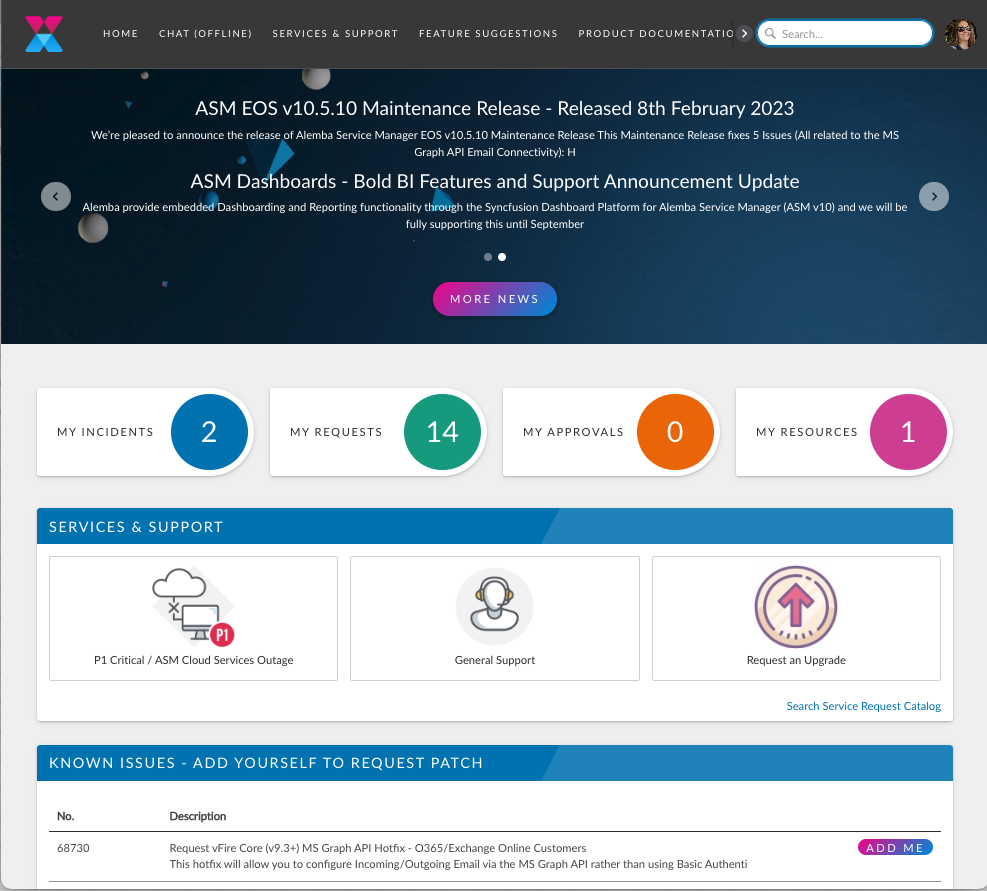
<figure><img src="https://content.gitbook.com/content/hlW9jKl7dcDggHAPhNU9/blobs/rVGmJGtsZEBDx8LTzcSB/Screenshot%202023-05-15%20at%207.35.36%20AM.png" alt=""><figcaption></figcaption></figure>

The Self Service Portal is highly configurable, and your system administrator can change the look and branding of the portal, as well as choose the columns that appear in tables such as My Incidents and Major Incidents.

You can drill down from the summary widgets on the home page to interrogate your incidents, requests, approvals and resources, and scroll down to view more summary information.

The **My Options** menu along the top or on the left (depending on configuration) offers a range of options, both standard and custom, so users may see the same options with different titles, or a range of custom options, designed specifically to meet their organization or department's needs.

The information displayed on the portal depends on the user login - their permissions and partition access - and the information held in the CMDB regarding the resource. Some resources are not visible in the portal, and this is determined by the system administrator, or whoever is responsible for maintaining the CMDB Item details. Likewise, some information is restricted to specific stakeholders or subscribers.

{% hint style="info" %}
As the portal is so configurable, you may find that you have options that are not documented in the online help. If you are having difficulties with these options, you should contact your system administrator.
{% endhint %}


# Logging on to Self Service Portal

This topic relates to options within the Self Service Portal. Self Service Portal is highly configurable, and you may not see all of the fields described, they may have different names, or your system administrator may have added further fields to meet your business needs.

To access Self Service Portal, you need to be a registered user with a valid User ID and Password.

Follow these steps:

1. Launch your browser (ASM is browser agnostic, however IE is no longer supported), type the URL into the address bar and select **Enter**. The **Self Service Log On** page appears.
2. Type your login ID and password.
3. **Login ID**s are not case sensitive. **Passwords** are case sensitive.
4. Click **OK**. The Self Service Portal Home Page appears.

### Troubleshooting

You may encounter the following common problems when attempting to log onto Self Service Portal.

<table data-header-hidden><thead><tr><th width="280.5"></th><th></th></tr></thead><tbody><tr><td>Forgotten User ID and Password</td><td>If you have forgotten your User ID or Password, you can request to retrieve them.</td></tr><tr><td>Unregistered User</td><td>You need to be a registered user to use Self Service Portal.</td></tr><tr><td>Password Expiry</td><td>This page appears after you have successfully logged onto Self Service Portal. Before you can proceed, you must type a new password as your current password has expired.</td></tr></tbody></table>


# Forgotten User ID and Password (Self Service Portal)

This topic relates to options within the Self Service Portal.

Self Service Portal is highly configurable, and you may not see all of the fields described, they may have different names, or your system administrator may have added further fields to meet your business needs.

If you have forgotten your Login ID or password, you can submit a request to retrieve them.

1. From **Self Service Portal Login** page, select the link **Forgot Password**&#x20;

<figure><img src="https://content.gitbook.com/content/hlW9jKl7dcDggHAPhNU9/blobs/XVyjGCZXUQA0bCerWeu9/Screenshot%202023-05-30%20at%2011.39.37%20AM.png" alt=""><figcaption></figcaption></figure>

2. The **Forgotten Password** page appears.

<figure><img src="https://content.gitbook.com/content/hlW9jKl7dcDggHAPhNU9/blobs/uf5WydbLJQgr4xWk1JOS/Screenshot%202023-05-30%20at%2011.41.04%20AM.png" alt=""><figcaption></figcaption></figure>

3. In the **Email** field, type the email address you provided when you first registered for using Self Service Portal.
4. Click **OK**. A confirmation appears. Your Login ID and Password are sent to the email address you entered. You can use these details to log in to Self Service Portal.

### Troubleshooting

<table data-header-hidden><thead><tr><th width="304.5"></th><th></th></tr></thead><tbody><tr><td>Your email address was not found. Ensure you have entered it correctly.</td><td><p>You may not be an existing registered user or you have typed an email address that was different from the one that was used during registration.</p><p>If you are unsure of the email address you typed during registration, contact your System Administrator.</p><p>If you have not registered, select the link to register.</p></td></tr></tbody></table>


# Password Expiry

This topic relates to options within the Self Service Portal.

Self Service Portal is highly configurable, and you may not see all of the fields described, they may have different names, or your system administrator may have added further fields to meet your business needs.

If your password has expired, the **Password Expiry** page appears after you have logged on. You must change your password before you can access Self Service Portal.

1. Type your old password in the **Old Password** field. This is the password you used to log on.
2. Type your new password in the **New Password** field.
3. Passwords are case sensitive.
4. Re-type your new password in the **New Password Confirm** field.
5. Click **OK**. A confirmation appears to acknowledge you have successfully updated your password.


# Self Service Portal Home Page

The Self Service Portal home page is highly configurable, so your screen may look different to the ones illustrated below, but the key elements will remain the same.

There are three Home Page layouts - default and classic, and ASM 10 Default.

* The **default layout** contains two columns of widgets, displaying summary information about your workload and latest news. If there are more entries in the widgets than can be displayed, you will see pagination options at the bottom of the widget, and you can scroll through the pages to view the entries.
* The **classic layout** has a single column of widgets, which expand and contract to accommodate the entries within it.
* The **ASM 10 Default layout (introduced in 10.2.2)** is similar to the **default** **layout**.  It is modularized and can stretch widgets across the width of the screen (2 columns) or divide them between the columns.

The layout for your Self Service Portal display is chosen by your system administrator in the Self Service Portal Systems window.

<figure><img src="https://content.gitbook.com/content/hlW9jKl7dcDggHAPhNU9/blobs/Oxg6re9FSnwAuVClJh7K/Screenshot%202023-03-22%20at%2011.24.31%20AM.png" alt=""><figcaption></figcaption></figure>

## Options/Menus

My Options and the menu at the top of the screen ([configured in My Options in System Administration](/asm-hermes/setup-and-configure-asm/configuring-your-system/system-administration-settings/self-service-portal/self-service-portal-my-options)) displays all of the menu options that your system administrator has made available. The menu names and color combinations have also been configured by your system administrator. **You may see** **small arrows to the right of some of your menu options**. This indicates that this item has a menu of sub-options.

<figure><img src="https://content.gitbook.com/content/hlW9jKl7dcDggHAPhNU9/blobs/A43GQeaE2AqAyULUtXwm/Screenshot%202023-03-10%20at%207.38.46%20AM.png" alt=""><figcaption></figcaption></figure>

## Widgets Typically Found on the Home Page

### My Items

{% hint style="info" %}
By default, the ASM Self-Service Portal Home page lists Incidents, Requests, Approvals, etc as separate widgets within the My Counts master widget.  Your system administrator has the ability to combine all counts for all ticket types for users on the portal into one widget, as seen below.   \*\*You may see it relabeled as "**My Tickets**" in some systems.
{% endhint %}

This widget shows a count of currently active incidents, requests, and approvals that have been forwarded to you.

<figure><img src="https://content.gitbook.com/content/hlW9jKl7dcDggHAPhNU9/blobs/glPjMgsmjyO2YvqYI3w8/Screenshot%202023-03-10%20at%207.41.27%20AM.png" alt=""><figcaption></figcaption></figure>

### NewsFeed

This widget shows the most recent messages on the Bulletin Board. Click the **More News** link to see the **News Feed** page, displaying more entries. You can drill down on each of the entries by clicking on them. Messages may contain file attachments and URL links. File attachments can be downloaded and saved to your local computer, and you can select the URL links.

<figure><img src="https://content.gitbook.com/content/hlW9jKl7dcDggHAPhNU9/blobs/ldKvfUtOBgLeTJZRL80k/Screenshot%202023-03-10%20at%207.42.22%20AM.png" alt=""><figcaption></figcaption></figure>

### Add-Me - Follow or Subscribe to published issues

#### Add Yourself to a Published Issue

To enhance collaboration and streamline issue resolution, you have the ability to add yourself to any published issue you have permission to access. By doing so, you ensure comprehensive tracking of the issue's impact and receive immediate updates and feedback, including the notification of resolution.

**How to Add Yourself:**

1. Navigate to the desired issue and open it to view more details.
2. Find the **Add Me** option within the **Add Me** widget.
3. Click **Add Me** to automatically clone the incident and assign it to yourself. This action removes the **Add Me** button, confirming your addition.

**Benefits:**

* **Direct Updates**: Get live feedback and status updates, eliminating the need for separate inquiries.
* **Contribute Easily**: Add notes, communicate with the support team, and attach relevant files as necessary.

**Note**: The **Add Me** widget is exclusively available to users with specific permissions, making it a targeted tool for those directly involved or impacted by issues.

By utilizing this feature, you streamline the tracking and resolution process, fostering a more efficient and responsive support system.

<figure><img src="https://content.gitbook.com/content/hlW9jKl7dcDggHAPhNU9/blobs/Q4uyB2mgefkwjszadHJx/Screenshot%202023-03-10%20at%207.44.21%20AM.png" alt=""><figcaption></figcaption></figure>

## Service Catalogue Widget

A new Service Catalog widget is available starting with the HERMES 10.2025.Q4 (10.6.9 Release), offering a clean, modern, and highly scannable layout for both Service Actions and Bundles. The updated design supports faster discovery, consistent navigation, and fewer clicks, providing a more intuitive request experience for end users.

{% embed url="<https://alemba.share.arcade.software/share/FCQE5O57lsLdTtKSGAww>" %}

**Important:** After upgrading to the HERMES 10.2025.Q4 (10.6.9 Release) onwards, you will need to configure images for the new Service Catalog widget.

***

#### **Service Portal Display Categories (Admin)**

The new widget uses **Display Categories** to generate card content. Administrators can manage these categories and upload the images that appear in the widget.

***

### **Building a Card-Based Service Catalog Widget**

This guide explains how to configure a card-style widget for the Self Service Portal (SSP). It includes an example setup for a Catalog widget that displays large, image-first cards similar to those shown in the screenshots.

<figure><img src="https://1375663122-files.gitbook.io/~/files/v0/b/gitbook-x-prod.appspot.com/o/spaces%2FhlW9jKl7dcDggHAPhNU9%2Fuploads%2FxFGhKZOSgeXx7Oy9RO7D%2Fimage.png?alt=media&amp;token=753996db-649b-48da-a293-26f4f1663ab2" alt=""><figcaption></figcaption></figure>

<figure><img src="https://1375663122-files.gitbook.io/~/files/v0/b/gitbook-x-prod.appspot.com/o/spaces%2FhlW9jKl7dcDggHAPhNU9%2Fuploads%2F0KBFRsJMfk7We8tvLtIF%2Fimage.png?alt=media&amp;token=57580f17-f563-42d5-99a0-7ccfd2e07db0" alt=""><figcaption></figcaption></figure>

#### **What You Will Create**

A responsive grid of category cards, each containing:

* **Image:** Category thumbnail
* **Title:** Category name
* **Optional description**
* **Click-through** to the selected catalog category
* **Optional option** to hide child categories

***

### **Prerequisites**

* Administrator access
* A set of catalog display categories (Admin > Self Service > Display Categories)
* One square image per category&#x20;

***

### **Configuration Steps**

1. Navigate to **Admin > CMDB > Self Service Portal Display Categories**.
2. Create or update the categories you want to present (e.g., *Networking*, *IT, Business Systems*, *Communications, etc.*).
3. For each category:
   * **Upload Image:** A recommended format is a 1:1 square image, anywhere from 125×125 to 250×250, in either PNG or SVG.
   * **Add Description (optional):** Keep it short, sentence-case
   * **Adjust Order:** Use *Move Up* / *Move Down* to control layout order. Use **A–Z** to alphabetize if preferred.
   * **Hide Children (optional):** Enable if selecting the card should open the category page directly without showing subcategories.
4. Save your changes.\
   These values (name, image, description, and hide-children setting) are automatically read by the widget.

***

### **Tips**

* Choose clear, simple iconography that communicates each category at a glance.
* Use consistent icon style and background.
* Avoid detailed photos, which don’t scale well to small tiles.
* Write concise category descriptions

#### New Alemba Service Catalog Icons

{% file src="/files/DdD2UFTmmgbjLptdt9Qj" %}

#### Original Alemba Service Catalog Icons

{% file src="/files/t3TCi6d1c5DbPtFqniXk" %}

Starting with the HERMES 10.2025.Q4 Release, Administrators can extend the Service Catalog using Service Actions, enabling flexible, multi-level catalogue structures or simple display of Service Action details as needed.

<figure><img src="https://1375663122-files.gitbook.io/~/files/v0/b/gitbook-x-prod.appspot.com/o/spaces%2FhlW9jKl7dcDggHAPhNU9%2Fuploads%2Fk3TpXVembuXvSQO9OJQ2%2Fimage.png?alt=media&amp;token=fd5e40bf-ddff-462b-a84d-df30baabc28f" alt=""><figcaption></figcaption></figure>

The new “Service Action” option lets administrators surface Service Action details and extend the Service Catalogue to additional navigation levels using a dedicated Service Catalogue Child CMDB link type.&#x20;

In the Templates and Actions sections, select Service Action from the dropdown and "Linked Items" radio button, and then add a link to the relevant Service action and select the Service Catalog-Child link type.&#x20;

This will extend the Service Catalogue Widgets Navigation levels to potentially unlimited Tiers by linking to Service Action and displaying its linked Children Service Actions ad Tier N+1 in the Service Catalogue Widget or to simply display the Service Action/Services Catalogue Information.

<figure><img src="https://1375663122-files.gitbook.io/~/files/v0/b/gitbook-x-prod.appspot.com/o/spaces%2FhlW9jKl7dcDggHAPhNU9%2Fuploads%2FHQVpoeL62Cspz5bZQBLa%2Fimage.png?alt=media&amp;token=396db3d1-63ad-48f0-be18-054ed54c800e" alt=""><figcaption></figcaption></figure>

### Most Popular Services/Promoted Items from the Service Catalog

Your System Administrator can promote items from the service catalog to appear on the first page of the portal.  This makes ordering quick and easy since it limits the amount of searching users need to do to find the item they need to order.  This widget is paginated and a link appears t the bottom to search the service catalog, should that be needed.

<figure><img src="https://content.gitbook.com/content/hlW9jKl7dcDggHAPhNU9/blobs/Me1vRiGEm8E572wg3Emn/Screenshot%202023-03-10%20at%207.46.07%20AM.png" alt=""><figcaption></figcaption></figure>

## Additional Widgets Available

{% hint style="info" %}
These capabilities were introduced in version 10.2
{% endhint %}

### Calls Awaiting Action by Your Organization

This widget is hidden by default and can be enabled via the screen designer.  The grid will show calls logged by anyone in your organization (subject to portal security settings) and where the Awaiting Action indicator on the Call Status is checked.

![Calls awaiting action](https://alemba.com/storage/app/media/Release%20notes/10-2/Calls%20awaiting%20action.png)

* New Grid Widget – Most Recent Calls

### Most Recent Calls

This widget is hidden by default and can be enabled via the screen designer.  The grid will show calls logged by anyone in your organization (subject to portal security settings) with newest calls at the top.

![Most recent calls](https://alemba.com/storage/app/media/Release%20notes/10-2/Most%20recent%20calls.png)

This widget uses the API for data access and uses server-side paging for optimal performance.

### Top FAQ's

The **Top FAQ** widget dynamically displays the **top 10 FAQ's by hit count** that you have access to vie&#x77;**.**  This makes getting to the most common questions quick and easy for the user.  To view the article they only need to click it.  A link to search the FAQ is also at the bottom of the widget.

<figure><img src="https://content.gitbook.com/content/hlW9jKl7dcDggHAPhNU9/blobs/tTQbhX2TadGupcUCiHbV/Screenshot%202023-03-10%20at%207.50.01%20AM.png" alt=""><figcaption></figcaption></figure>


# Self Administration in Self Service Portal

{% hint style="info" %}
This topic relates to options within the Self Service Portal. Self Service Portal is highly configurable, and you may not see all of the fields described, they may have different names, or your system administrator may have added further fields to meet your business needs.
{% endhint %}

The Self Service Portal Administration menu offers the following options:

* Update Contact Details
* Change Password
* Delegation Setup


# Updating Your Contact Details

You can update your contact details within Self Service Portal.

1. From your avatar, select **Update Profile**

<figure><img src="https://content.gitbook.com/content/hlW9jKl7dcDggHAPhNU9/blobs/vJJwqZ2y79VYqJrHtvk2/Screenshot%202023-03-22%20at%207.26.49%20AM.png" alt=""><figcaption></figcaption></figure>

2. In the **Update your Contact Details** page, check and update the stored details, as necessary.

<figure><img src="https://content.gitbook.com/content/hlW9jKl7dcDggHAPhNU9/blobs/eTe69NIoGCBCJKtWDJgK/Screenshot%202023-03-22%20at%207.27.19%20AM.png" alt=""><figcaption></figcaption></figure>

3. Click **OK**. A confirmation appears to acknowledge you have successfully updated your details.


# Changing Your Password

Self Service Portal enables you to change your password within the self administration section, if enabled for your organization.

1. From your avatar, select **Change Password**

<figure><img src="https://content.gitbook.com/content/hlW9jKl7dcDggHAPhNU9/blobs/vJJwqZ2y79VYqJrHtvk2/Screenshot%202023-03-22%20at%207.26.49%20AM.png" alt=""><figcaption></figcaption></figure>

2. In the **Change Your Password** page, type your old password, and then type and confirm your new password, remembering that passwords are case sensitive and must meet complexity requirements.  See your system administrator if you do not know what the password requirements are.

<figure><img src="https://content.gitbook.com/content/hlW9jKl7dcDggHAPhNU9/blobs/EoSlwXPq4OnlEfaxdQ8N/Screenshot%202023-03-10%20at%2010.53.01%20AM.png" alt=""><figcaption></figcaption></figure>

3. Click **OK**. A confirmation appears to acknowledge you have successfully updated your password.


# Delegating Work

You can delegate your work for a specified period of time from within Self Service Portal. This is particularly useful if you are going to be absent from your desk or are preparing to take holiday. The analyst you choose as a delegate must have the necessary permissions to manage your workload.

1. From the **My Options** menu, select **Delegation Setup**.

<figure><img src="https://content.gitbook.com/content/hlW9jKl7dcDggHAPhNU9/blobs/trI0pG3apED94rweZmBp/Screenshot%202023-03-22%20at%207.30.34%20AM.png" alt=""><figcaption></figcaption></figure>

2. In the **Delegation Setup** page, complete the details.

<table><thead><tr><th width="246.5">Activate Delegation</th><th>Select this checkbox to begin delegating work. This is available so that you can set up delegate details in advance, and then simply check the box when necessary.</th></tr></thead><tbody><tr><td>Delegate Name</td><td><p>Identify the analyst you want to use as a delegate. You can select a number of analysts, but they must have the necessary permissions to manage your workload.</p><p>Type part or all of the analyst's name, or use the  button to search for the analyst.</p></td></tr></tbody></table>

3. When you have identified the analyst, select **Add Delegate to Table**.
4. When you see the entry in the browse table, select the checkboxes to set the delegate settings.

<table><thead><tr><th width="242.5">Action Approvals</th><th>Select to allow the delegate to action approvals on your behalf.</th></tr></thead><tbody><tr><td>Notify Delegate</td><td>Select to send an email to the analyst informing them that they have been delegated work.</td></tr><tr><td>Active</td><td>Select to make the analyst an active delegate. This allows you to have a number of analysts saved as potential delegates, and select the ones that are most appropriate for the time period that you are delegating work.</td></tr><tr><td>Remove</td><td>Select this option to remove the analyst from the list of delegates.</td></tr></tbody></table>

5. Click **OK** when you have completed the details.

<figure><img src="https://content.gitbook.com/content/hlW9jKl7dcDggHAPhNU9/blobs/jY7FNFsXmnxcMhbAyGYH/Screenshot%202023-03-10%20at%2010.57.32%20AM.png" alt=""><figcaption></figcaption></figure>


# Logging and Reviewing Tickets and Tasks/Approvals

The Self Service Portal enables you to log Calls, Requests, and Service Requests (tickets) and assign them to support analysts or groups.

You can also search for past tickets that have been resolved, current tickets that are open and monitor the progress.&#x20;

Additional information such as a note or a file (object) can also be added.

## Ticket Types

In ASM, there are several types of tickets you can log.  While users tend to refer to all tickets they log as "Tickets", you may hear Support refer to them specifically by what they are and ASM does make slight distinctions.  Below is a glossary of terms and synonyms to help you:

1. **Call** - A call is typically an Incident, Problem or Known Error.  It can also be a Major Incident.  Sometime referred to as an IPK Call. **It indicates a break/Fix situation**.  The label "Call" is merely language held over from years past when tickets were created by users physically *calling* the Service Desk.  **In ASM, they are represented by a telephone Icon.  Wherever you see one, you can one-click log a ticket -** ![](https://content.gitbook.com/content/hlW9jKl7dcDggHAPhNU9/blobs/9wRk5kJvRmY08zkST7kS/image.png)
2. **Service Request** - A Service Request is also technically a call and some Service Desks refer to them as "Calls".  The difference really sits with reporting and metrics since a Service Request does not indicate a break/Fix situation, but rather an "I want or I need" situation.  Therefore the Service Level Agreements and response times will likely be different.  As a user, this is irrelevant to you for the most part, but it is a distinction important for the service desk to function efficiently.&#x20;
3. **Request** - A request is similar to a Service request.  The main difference being in that a Request will have sub tasks that sit within it.  For example, a new employee onboarding would be a request because within it, there are numerous sub-tasks that need to happen: Provisioning accounts, ordering equipment, setting up cubicles and payroll, etc.  For you as the user, you simply submit the ticket, but Support will receive numerous individual tasks (as tickets) as a result of your submission.  If they call you regarding the Request, they may not refer to it as a ticket, but rather the "Request".&#x20;
4. **Approvals and Tasks** - Approvals and Tasks are always a "child" of a parent Request as discussed above.  Sometimes these will be assigned to you!  **You will simply open it as you would any other ticket and take the appropriate action against it.**&#x20;

When you click any menu item to log a ticket, a template has already been configured to submit the correct ticket type.  You need only to fill out the form that appears and submit it.

## You can log a ticket several ways

1. By browsing your assigned equipment, you can click the Phone icon next to the name of the equipment you are having issues with and the system will log a call/incident - Break/Fix.  You will be presented with a short form to complete to let support know what is happening with that equipment. &#x20;
2. By initiating a chat with support.
3. By Asking a Question.
4. By using the Self-Diagnosis function.
5. By sending an Email.
6. By Clicking the menu option to "Contact Support "or "Log a Ticket".  Refer to your specific organization for information on what menu item they have configured to log a ticket if it is not self-evident.
7. From the Service Catalog, either on the home page promoted items, or by searching the service catalog. &#x20;
8. By cloning an existing ticket that you have previously logged.

{% hint style="warning" %}
These configurations are highly-specific to each organization.  Please refer to your System Administrator for help locating your options for logging a ticket.
{% endhint %}


# Using the Logging Forms in Self Service Portal

Below are some of the fields and Field types you may see on your submission screen.

Screens are highly configurable for each organization.  If you are unclear how to complete a form, please contact your System Administrator.  The majority of the fields in ASM are self-evident to their purpose and use, however, it may be helpful to understand some of the more salient details.

## Collapsable Sections

ASM has collapsable sections on all screens.  You can click the arrow on the left to expand or collapse the section:

<figure><img src="https://content.gitbook.com/content/hlW9jKl7dcDggHAPhNU9/blobs/RmRibfCyfbFKGxhZchAA/Screenshot%202023-03-10%20at%209.22.41%20AM.png" alt=""><figcaption></figcaption></figure>

## Control Buttons

At the bottom of every submission screen are buttons that allow you to control the progression of this ticket/call.  You can press **Continue**, when there are a series of forms to complete, **Save for Later** if you need to come back to it at a later time, or you can **Cancel**.

<figure><img src="https://content.gitbook.com/content/hlW9jKl7dcDggHAPhNU9/blobs/1oprofHiSuPtGvmVoz5x/Screenshot%202023-03-10%20at%209.24.18%20AM.png" alt=""><figcaption></figcaption></figure>

### Continue

ASM is able to bundle several requests.  For example, a New Starter request may have many moving parts and forms to complete before you can submit the order.  When this is the case, the top of the screen will display the number of forms left to complete,

<figure><img src="https://content.gitbook.com/content/hlW9jKl7dcDggHAPhNU9/blobs/NRxekvWSuRUkIka8asdA/Screenshot%202023-03-10%20at%209.28.10%20AM.png" alt=""><figcaption></figcaption></figure>

and the Control Button at the bottom of the screen labeled "**Continue**" will be visible.

### **Save for Later**

When completing large forms or forms that require additional information, it is helpful to be able to save the form and come back to it later to finish completing it.  Click the Save for Later button to save your form and come back later.  When you Save for Later, ASM will place the incomplete form into your shopping cart and save it there until you complete it, or cancel it.&#x20;

<figure><img src="https://content.gitbook.com/content/hlW9jKl7dcDggHAPhNU9/blobs/ZeuVyHVXWIKmSZavzqId/Screenshot%202023-03-22%20at%207.33.58%20AM.png" alt=""><figcaption></figcaption></figure>

### **Cancel**

The Cancel button lets you abandon the ticket or request.  It will take the ticket from an unsubmitted state to a deleted state. &#x20;

{% hint style="warning" %}
You cannot undo this action if you cancel a ticket by mistake.
{% endhint %}

## Search Fields

<figure><img src="https://content.gitbook.com/content/hlW9jKl7dcDggHAPhNU9/blobs/GOq60TyS2Z0tBP4Fbtec/image.png" alt=""><figcaption></figcaption></figure>

These fields will dynamically search as you type.  If you dont know what to enter, you can enter a series of percent symbols - %%% to form a wild card search.  You can typically enter data relevant to what the field is asking you to describe:

1. For Devices and other Assets: asset number, serial numbers, the item name or even its location. &#x20;
2. For People: Name, Telephone, Email, User ID, etc.
3. For Locations: State, Zip or the name
4. For tickets/calls or Requests, the associated reference number, location, or User
5. etc...

{% hint style="warning" %}
The data available to search against is configured by your System Administrator.   The lists obove only detail some examples of available search criteria.  You will need to ask your System Administrator [what has been configured for your organization](/asm-hermes/setup-and-configure-asm/configuring-your-system/system-administration-settings/system-settings-menu/user-and-analyst-search-field-settings).

Your system administrator determines which columns from the entity to display in the results popup, which columns to search within for matching values, whether to perform a 'starts with' or 'contains' type search, how many characters must be typed before the results are displayed, and how many results to show at one time.
{% endhint %}

This field performs a search as you type, presenting matching results which adjust as you continue typing in the field.&#x20;

You can press Enter to see the first *n* results in alphabetical order (where *n* is number of results defined by the Admin); or use the  button, which appears after you start typing, to do a search if you wish.

## Multi-Search Fields

Multi-Search fields work exactly the same as search fields, butyou can add multiple items to the list instead of just one.

## Drop-Down Fields

Drop Down fields may or may not be tiered.  They may also allow more than one selection.  Click on the arrow in the right-side of the field and select from the list.  You may also type directly into the field and the system will scroll to the matching item.

<figure><img src="https://content.gitbook.com/content/hlW9jKl7dcDggHAPhNU9/blobs/D3BhG8pgOZte3VxaTElN/Screenshot%202023-03-10%20at%209.09.32%20AM.png" alt=""><figcaption></figcaption></figure>

## Free Text and String Fields

There are 2 types of fields where you can enter annything you like.  Free text and String.

**Free Text fields** have no real data limit and are usually HTML editor enabled.  You can insrt pictures, and format just as you would is MS word.  For example, your Issue Description field is a free text field.

**String fields** have a maximum input length of 255 characters and are meant for shorter answers and descriptions.  They are always plain text.  You cannot format the text in a string field.  For example, a field for "Summary of the problem", would be a limited length string field.

## Number Fields

In some cases, your organization may need to collect numerical information.  Telephone numbers, asset numbers, etxc.  Many times too, these fields must be formatted exactly right so they will use a special field and place an input mask on it so that you enter the data exactly as the system needs to receive it.  If you are in a number field, you will not be able to type any alpha-numeric characters.

## Suggested Knowledge

ASM, if configured, will automatically float the most relevant knowledge articles in a window on the right side of your screen.  You can view the articles, give feedback and even use them to resolve your ticket.  Please see [Using Knowledge](/asm-hermes/setup-and-configure-asm/configuring-your-system/system-administration-settings/self-service-portal/suggested-knowledge-in-the-self-service-portal)[,](/asm-hermes/setup-and-configure-asm/configuring-your-system/system-administration-settings/self-service-portal/suggested-knowledge-in-the-self-service-portal) for more information.

## Submitting your Ticket

Once you have completed the submission form, click **Submit**.&#x20;

1. The Incident is forwarded to an analyst or group based on the details given.&#x20;
2. The system will display an acknowledgment with the automatically allocated unique Incident number and a summary of the Incident that you logged.
3. The date and time when the Incident was logged is automatically recorded and can be viewed in the Incident details.

{% hint style="info" %}
If you are an analyst logging an Incident via Self Service Portal, you will automatically be set as the Logging Analyst as well as the Current Analyst of the Incident. If your system is partitioned, the Incident will be logged in the partition specified in the URL of the page you are viewing.
{% endhint %}

Further options enable you to:

* Add a Note to Your Incident
* Attach one or more Object(s) to Your Incident


# Suggested Knowledge in the Self Service Portal

Suggested Knowledge promotes knowledge articles to users during call logging to achieve faster solutions for users and reduced workload for the Service Desk.

### Suggested Knowledge Articles

The twenty (20) most relevant articles are returned in Suggested Knowledge.

Knowledge articles are displayed in the Suggested Knowledge widget if they contain text matching the text entered into the call submission form's Description field. If the Description field is unpopulated, then the matching is performed on the Service, and Config Item fields. If there is no data populating any of the four standard fields, no knowledge articles are returned in Suggested Knowledge.

When matching on Description field, knowledge articles are returned which contain any words specified in the submission form's Description field, not necessarily in the same order. This does not include an exact phrase search. Nor will it retrieve text that has another form of the word or a synonym. For example, if entering “Join”, it will not retrieve “Joined” as a match.

<figure><img src="https://content.gitbook.com/content/hlW9jKl7dcDggHAPhNU9/blobs/x8nkBeIo620PiKFxr8qr/Screenshot%202023-03-10%20at%209.46.30%20AM.png" alt=""><figcaption><p>Click on the title of the article to see an expanded view</p></figcaption></figure>

### Acknowledging a knowledge article is helpful

Knowledge articles in the Self Service Portal contain a 'help factor' button which enables users to acknowledge the article solved their issue or answered their question. The label of the 'help factor' can be changed in ASM Designer and allows for a different label when the knowledge article is viewed from Suggested Knowledge (where users are logging incidents) and from Knowledge Search (where users are searching for answers to questions).

The default labels for the 'help factor' buttons are:

<table data-header-hidden><thead><tr><th width="283"></th><th></th></tr></thead><tbody><tr><td>Solved! Close my call</td><td>in knowledge articles accessed from Suggested Knowledge widget in the Self Service Portal.</td></tr><tr><td>This was useful</td><td>in knowledge articles accessed from Knowledge Search in the Self Service Portal.</td></tr></tbody></table>

When these buttons are used, the **Help Factor** rating of the knowledge article increases.

The **Help Factor** rating of a knowledge article is visible in the Info Panel of each knowledge article. This value represents the number of times that knowledge article deflected a call in the Self Service Portal or was used to resolve a call by the service desk.

<figure><img src="https://content.gitbook.com/content/hlW9jKl7dcDggHAPhNU9/blobs/CEmjhxZmJIxpgqnzF7hU/Screenshot%202023-03-10%20at%209.50.11%20AM.png" alt=""><figcaption></figcaption></figure>

### Calls Closed from Suggested Knowledge

When users select **Solved! Close my call**, the following happens:

* The call is submitted and automatically closed.
* Mandatory fields are ignored.
* The user is presented with a screen notifying them the call was submitted and closed, and the details of the call.
* SLA Agreements, Outages, and Reminders are not applied.
* User Surveys are not generated.


# Reviewing Your Tickets in the Self Service Portal

{% hint style="info" %}
This topic relates to options within the Self Service Portal. Self Service Portal is highly configurable, and you may not see all of the fields described, they may have different names, or your system administrator may have added further fields to meet your business needs.
{% endhint %}

You can review past and current tickets (requests, calls, approvals, and tasks) and assets from the Self Service Portal.  You will have a widget available for the items you have access to view.&#x20;

Viewing items is the same no matter what kind of item you want to view.  For example, to view all calls and requests you have logged and that are still open:&#x20;

1. On the main menu, select the **My Incidents or My Items** widget.

<figure><img src="https://content.gitbook.com/content/hlW9jKl7dcDggHAPhNU9/blobs/glPjMgsmjyO2YvqYI3w8/Screenshot%202023-03-10%20at%207.41.27%20AM.png" alt=""><figcaption></figcaption></figure>

2. The **Summary** window appears. If you are viewing a consolodated list, ticket will appear as follows:
   * Reference numbers prefixed with a 'C' represent Incidents/Tickets (Break/Fix)
   * Reference numbers prefixed with an 'R' represent Requests (I want/I need)

<figure><img src="https://content.gitbook.com/content/hlW9jKl7dcDggHAPhNU9/blobs/tj4BLZMbMnobN9gQTmmO/Screenshot%202023-03-10%20at%2010.08.00%20AM.png" alt=""><figcaption></figcaption></figure>

3. To open and review any item in the list, double-click it.

<figure><img src="https://content.gitbook.com/content/hlW9jKl7dcDggHAPhNU9/blobs/NduZaAJImYolQ3MdJnJO/Screenshot%202023-03-10%20at%2010.12.29%20AM.png" alt=""><figcaption></figcaption></figure>


# Cloning Tickets in Portal

End Users can now Clone their Calls in the Self Service Portal rather than reopen an existing Closed Call.

{% hint style="info" %}
Applicable to HERMES (ASM Version 10.6) and above
{% endhint %}

Users in the Self Service portal can choose to clone a ticket they have previously logged.  For example, if the same issue recurs and users have not been granted access to reopen tickets, they can clone the original ticket instead.  This effectively flags it as a recurring issue, but also maintains the service desk counts. &#x20;

Many organizations do not allow closed tickets to be reopened if the issue is recurring.  This is because it adversely impacts Key Performance Indicators and counts, but also the Service Level Agreements applied.  Often, a new ticket is needed even if it is the same issue.&#x20;

Once the user locates the ticket and opens it in review mode, they can simply click **"Clone"** to clone it to a new ticket.&#x20;

{% hint style="warning" %}

1. Users can only clone tickets where they are the "**User"**.  They cannot clone other's tickets even if they have access to see and browse them.
2. Tickets must be in any **open** or **closed/resolved** state.  Tickets that are **"new"** cannot be cloned.
   {% endhint %}

{% embed url="<https://vimeo.com/799499274/4185463f9a>" %}

## To Enable Call Cloning

{% hint style="info" %}

## Before you Start

You must have "**System Setup**" in your **General Access** Security Role.
{% endhint %}

1. Open the **System Administration** menu and navigate to the **Self Service Portal>Self Service Portal Roles.**
2. Click the box next to the option for **Clone Calls** for each Self Service Portal role you would like to allow to clone calls.

<figure><img src="https://content.gitbook.com/content/hlW9jKl7dcDggHAPhNU9/blobs/SfQ6rhZFCrbAPezpGErI/Screenshot%202023-03-22%20at%2012.21.41%20PM.png" alt=""><figcaption></figcaption></figure>

3. **Save** your changes.  Provide a reason if prompted to do so.


# Chasing Ticket or Request

You can Chase a ticket you have logged to the support organization,

In addition to using the conversation widget to chat with support (off-line conversations with Support), you can also chase your tickets.

When you chase a ticket, you are beginning an escalation process.  This is configured by the organization.  For example:

If the organization has defined the number of chases allowed is 3, and that a minimum of one hour must elapse between chases, you will be able to chase your ticket 3 times at no more than 1-hour intervals. &#x20;

Additionally, if the organization has configured it, your final chase may result in an automatic escalation. If this happens, a new ticket will be logged with your original ticket linked to it.  This new ticket will move over to the escalation team in order to get it resolved, or to assess next steps.

## Chase a Ticket

{% hint style="info" %}
In order to Chase tickets, your system Administrator must have Chase configured  in ASM and **your Self Service Portal Security Role must allow the capability**.
{% endhint %}

1. Locate the ticket you want to chase on the **Self Service Portal**.  There are a number of ways:
   * Using the **Global Search,** enter the ticket number
   * Using your **counts widget**, access the results table and browse to find the ticket you want to chase
   * Using the My Incidents Widget (if enabled), access the results table and browse to find the ticket you want to chase.
2. Open the ticket.  This places it in Review Mode.
3. Depending on how your system is configured, the menu may be located across the top, side or on the bottom of this screen.  Click the **Chase** button.

<figure><img src="https://1375663122-files.gitbook.io/~/files/v0/b/gitbook-x-prod.appspot.com/o/spaces%2FhlW9jKl7dcDggHAPhNU9%2Fuploads%2FVOzGXOYGRNp6AUszShCr%2FScreenshot%202024-03-20%20at%203.08.31%20PM.png?alt=media&amp;token=eea7e438-f87e-4f74-8fca-3895eccc82c2" alt=""><figcaption></figcaption></figure>

4. Complete the details
5. Click the **Chase** button
6. Or if you wish to cancel, click **Cancel**.


# Viewing an Approval Summary

From 9.6.0, users with the correct permissions can view a summary of all outstanding approval tasks, and action them if appropriate.

{% hint style="info" %}
Users must have Approval Summary selected in the Options Tab of their Self Service Portal role.
{% endhint %}

To open a request in Self Service go to Dashboard > My Counts > My Approvals widget or from the Menu Navigation selct the Review Past/Current Requests Search:

1. Select the My Approvals widget on the ASM Self Service home page. or Requests and then Review Past/Current Requests.
2. Specify the search criteria and select Search.
3. The Request Review Screen will show an additional widget for Approvals Summary . This will show all the Approval Tasks and User Approval Tasks for the request.&#x20;
4. The Approval Summary grid will show the Approval Status, Type, Task No.,Title, Approval Owner, Approval Comment, Date/Time Activated, Date/Time Completed fields.
5. The User can action the Approval Task from this grid if they have the correct permissions.

{% hint style="info" %}
This widget can be renamed in Screen Designer so may be called something else such as Request Approvals.
{% endhint %}

#### Approval Types

<table><thead><tr><th width="198.046875">Approval Type Icon</th><th>Approval Type Description</th></tr></thead><tbody><tr><td><div><figure><img src="https://1375663122-files.gitbook.io/~/files/v0/b/gitbook-x-prod.appspot.com/o/spaces%2FhlW9jKl7dcDggHAPhNU9%2Fuploads%2FW9OnaoMU9hUUx6XMpAQc%2Fapproval.png?alt=media&amp;token=0fa3c33a-6e49-44ee-9b60-39e6dcc5a210" alt=""><figcaption></figcaption></figure></div></td><td>Approval Task</td></tr><tr><td><div><figure><img src="https://1375663122-files.gitbook.io/~/files/v0/b/gitbook-x-prod.appspot.com/o/spaces%2FhlW9jKl7dcDggHAPhNU9%2Fuploads%2F6dKVK8M1nVoyYDNOxKoT%2Fuser-approval-task.png?alt=media&amp;token=b72bd36b-d0bd-485d-be9f-54c545a1c2c8" alt=""><figcaption></figcaption></figure></div></td><td>User Approval Task</td></tr></tbody></table>

#### Approval Status

<table><thead><tr><th width="196.38671875">Status Icon</th><th>Status Description</th></tr></thead><tbody><tr><td><div><figure><img src="https://1375663122-files.gitbook.io/~/files/v0/b/gitbook-x-prod.appspot.com/o/spaces%2FhlW9jKl7dcDggHAPhNU9%2Fuploads%2FAl389eH8LYlpWcxOm6Ds%2Fapproved.png?alt=media&amp;token=16422a5d-5e2e-4ec9-a820-b1fab8c2ee92" alt=""><figcaption></figcaption></figure></div></td><td>Approved</td></tr><tr><td><div><figure><img src="https://1375663122-files.gitbook.io/~/files/v0/b/gitbook-x-prod.appspot.com/o/spaces%2FhlW9jKl7dcDggHAPhNU9%2Fuploads%2FNviK2kvjZIuftfYK9cLD%2Frejected.png?alt=media&amp;token=148c4f65-6bcb-4360-beed-b55889743bc6" alt=""><figcaption></figcaption></figure></div></td><td>Rejected</td></tr><tr><td><div><figure><img src="https://1375663122-files.gitbook.io/~/files/v0/b/gitbook-x-prod.appspot.com/o/spaces%2FhlW9jKl7dcDggHAPhNU9%2Fuploads%2Fu5a28i8YLOoRoyKnwF29%2Fawaiting-approval.png?alt=media&amp;token=1c6519c8-e8de-4301-85bd-d184269543bb" alt=""><figcaption></figcaption></figure></div></td><td>Awaiting Approval</td></tr><tr><td><div><figure><img src="https://1375663122-files.gitbook.io/~/files/v0/b/gitbook-x-prod.appspot.com/o/spaces%2FhlW9jKl7dcDggHAPhNU9%2Fuploads%2FXc5czV5hHnxYPrNRGi6u%2Fnot-yet-active.png?alt=media&amp;token=fb0c96ca-88f2-4b5a-bb98-82efae08e4fe" alt=""><figcaption></figcaption></figure></div></td><td>Not Yet Active</td></tr><tr><td><div><figure><img src="https://1375663122-files.gitbook.io/~/files/v0/b/gitbook-x-prod.appspot.com/o/spaces%2FhlW9jKl7dcDggHAPhNU9%2Fuploads%2FQovr2DGo6Akr4bi6GCwx%2Fclosed-redundant.png?alt=media&amp;token=1bffe755-2884-4f58-a78a-5f56d50b90ee" alt=""><figcaption></figcaption></figure></div></td><td>Closed - Redundant</td></tr></tbody></table>

<br>


# Off-Line Conversations with Support

The conversation widget provides an easy way for the user and support to converse off-line and supports files transfers.

The Conversation Widget provides the ability to add an Attachment to the Call (Drop or Select files). It reveals in conversation form, the interactions between support and the user.

{% hint style="info" %}
This feature is available in ASM HERMES (ASM Version 10.6) and above
{% endhint %}

{% hint style="info" %}
The conversation is displayed in chronological order, with the oldest entries at the bottom.
{% endhint %}
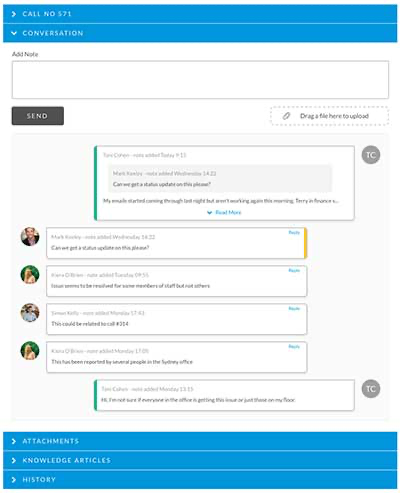
<figure><img src="https://content.gitbook.com/content/hlW9jKl7dcDggHAPhNU9/blobs/8YxMueeW4OW4WhjJRTzp/image.png" alt=""><figcaption></figcaption></figure>

{% embed url="<https://vimeo.com/799427082/a749a00436>" %}

## To view and conduct conversations

1. From the Self Service portal, [open any ticket](/asm-hermes/use-asm/using-the-self-service-portal/logging-and-reviewing-tickets-and-tasks-approvals/reviewing-your-tickets-in-the-self-service-portal)
2. Click the section for Conversation
3. **To contribute to the conversation**
   * **Add your note** and/or drop files into the drop zone or directly into the Note box.
   * Click send when you are ready.

<figure><img src="https://content.gitbook.com/content/hlW9jKl7dcDggHAPhNU9/blobs/3ePSDG1gdn746sI6MuAK/Screenshot%202023-03-22%20at%2012.55.18%20PM.png" alt=""><figcaption></figcaption></figure>

4. To View the conversation
   * Click the Conversation Section and view the details.  It is located just below the **Send** button in the widget.

<figure><img src="https://content.gitbook.com/content/hlW9jKl7dcDggHAPhNU9/blobs/uPWugjUvg7wHdWeMxFDz/Screenshot%202023-03-22%20at%2012.59.07%20PM.png" alt=""><figcaption></figcaption></figure>


# Closing Your Tickets

You can close your own tickets in ASM if the capability has been granted to you.

To Close your own ticket:

1. Log in to the Self Service Portal and locate the ticket you want to close
2. When the ticket review loads, click the "Close" button

<figure><img src="https://1375663122-files.gitbook.io/~/files/v0/b/gitbook-x-prod.appspot.com/o/spaces%2FhlW9jKl7dcDggHAPhNU9%2Fuploads%2FVfEULuPxzKGKFavhUYvH%2FScreenshot%202024-11-05%20at%208.00.40%20AM.jpg?alt=media&amp;token=f29540cc-9791-40c9-ac5a-4baeb65a7a96" alt=""><figcaption></figcaption></figure>

3. The Closure screen will load prompting you to specify the closure details.  Complete the fields with the most sensible values, and then click "Close" at the bottom of the screen.

<figure><img src="https://1375663122-files.gitbook.io/~/files/v0/b/gitbook-x-prod.appspot.com/o/spaces%2FhlW9jKl7dcDggHAPhNU9%2Fuploads%2FXh7PuTPRbd1FrarknucX%2FScreenshot%202024-11-05%20at%208.10.43%20AM.png?alt=media&amp;token=9f96b707-01a5-4932-9343-4e21556a4d68" alt=""><figcaption></figcaption></figure>


# Reopening Your Tickets

If enabled, you are able to reopen your tickets when specific parameters are met.  For example, many organizations will allow you to reopen a ticket that has been marked resolved, but not closed.

To reopen a ticket that has been closed/resolved, you simply need to locate the ticket and click "**Reopen**".

1. Select the entity you wish to reopen.
2. Click the "**Reopen**" button.

<figure><img src="https://1375663122-files.gitbook.io/~/files/v0/b/gitbook-x-prod.appspot.com/o/spaces%2FhlW9jKl7dcDggHAPhNU9%2Fuploads%2FFWKKL60OR8FQRvyLPrst%2FScreenshot%202024-11-05%20at%208.14.35%20AM.jpg?alt=media&amp;token=9f2bbab2-a91b-42ca-923c-db184340c3ba" alt=""><figcaption></figcaption></figure>

3. Enter a note that explains why this ticket needs to be reopened and then click "**Reopen**".

<figure><img src="https://1375663122-files.gitbook.io/~/files/v0/b/gitbook-x-prod.appspot.com/o/spaces%2FhlW9jKl7dcDggHAPhNU9%2Fuploads%2FpgsqtzE16pBCApuVF8P7%2FScreenshot%202024-11-05%20at%208.20.23%20AM.png?alt=media&amp;token=c200de2b-4dab-466e-8f45-eee4aec095c2" alt=""><figcaption></figcaption></figure>

## Locate Closed Tickets

Before you can reopen a closed ticket, you first need to locate it.  By default, the Self-Service Portal only displays your open tickets.  To get to the closed tickets, you will need to either put the ticket number in the global search, or perform a ticket search yourself.

{% hint style="info" %}
Some organizations may have added a home page widget for your recently closed tickets.  This is optional and may not always be present.
{% endhint %}

#### Option 1: Enter the ticket number directly in the Global Search

1. Enter the ticket number on the global search.
2. The Global search will return all ticket entities matching that number (Call, Requests, and Tasks).

#### Option 2: Search for Closed Tickets

You can also search for closed tickets using the portal ticket search for Incidents (Calls) or Requests.

<figure><img src="https://1375663122-files.gitbook.io/~/files/v0/b/gitbook-x-prod.appspot.com/o/spaces%2FhlW9jKl7dcDggHAPhNU9%2Fuploads%2FC3PYPsCL2YJb492fAvju%2FScreenshot%202024-11-05%20at%208.23.39%20AM.jpg?alt=media&amp;token=8e009a93-b049-4d0d-9854-a1bcef4af775" alt=""><figcaption><p>Example: Searching Incidents.  This could be labeled Ticket, Call, or whatever language your organization uses.</p></figcaption></figure>

1. Locate and open the Search you want, Calls or Requests.
2. Complete the search criteria to return a set of tickets that you can then review.

<figure><img src="https://1375663122-files.gitbook.io/~/files/v0/b/gitbook-x-prod.appspot.com/o/spaces%2FhlW9jKl7dcDggHAPhNU9%2Fuploads%2Fn3YSm4cBgmYeCBTvzwmU%2FScreenshot%202024-11-05%20at%208.27.28%20AM.png?alt=media&amp;token=371bacb8-fba9-4a7a-821f-e580d200d568" alt=""><figcaption></figcaption></figure>


# Cloning Your Tickets

In some cases, you will log a similar ticket many times.  Such as for Software patches, for example.  To make this easier, you can clone a ticket you have already logged and submit it as new.

{% hint style="info" %}
The Ticket must be open and not in a Resolved or Closed state.

The ability to Clone tickets os configured by your organization and may not be available to your profile.  If this is a function you believe you should have, please see you ASM System Admin.
{% endhint %}

To locate a ticket to clone, simply search for it in your open tickets.

1. Open the ticket you want to clone.
2. Click the "**Clone**" button

<figure><img src="https://1375663122-files.gitbook.io/~/files/v0/b/gitbook-x-prod.appspot.com/o/spaces%2FhlW9jKl7dcDggHAPhNU9%2Fuploads%2FLa1y53v7cYtiDTVUQXrx%2FScreenshot%202024-11-05%20at%208.39.59%20AM.jpg?alt=media&amp;token=e67450d3-37fe-4dfe-bbd9-392852ea5cd9" alt=""><figcaption></figcaption></figure>

3. A new ticket will load with all of the previously entered details.  Update that which is necessary, then, click "**Submit**".

<figure><img src="https://1375663122-files.gitbook.io/~/files/v0/b/gitbook-x-prod.appspot.com/o/spaces%2FhlW9jKl7dcDggHAPhNU9%2Fuploads%2Fa5xvyUvdc114ie6yPde9%2FScreenshot%202024-11-05%20at%208.42.00%20AM.png?alt=media&amp;token=9fb91bd4-35cb-4a30-a086-ce044383daed" alt=""><figcaption></figcaption></figure>


# Following Tickets

ASM allows Users with appropriate permissions to follow selected calls and requests.

{% hint style="info" %}
Available in HERMES 10.6.8.15097
{% endhint %}

You can add followers to a ticket as you log it, or you can follow items already logged that you also have access to to view.

{% hint style="info" %}
To use Follow functionality, you must have **Manage Stakeholder Calls** (to follow calls) and **Manage Stakeholder Requests** (to follow requests) options enabled on your Self Service Portal Security Role

<img src="https://1375663122-files.gitbook.io/~/files/v0/b/gitbook-x-prod.appspot.com/o/spaces%2FhlW9jKl7dcDggHAPhNU9%2Fuploads%2FgVxaM6SjQVX5BC9LxTsN%2FScreenshot%202025-02-18%20at%2013.31.20.png?alt=media&amp;token=1fed2f65-9a44-45a9-b74b-92934edebef9" alt="" data-size="original">
{% endhint %}

{% hint style="info" %}
Starting HERMES 10.2025.Q4 (10.6.9 GA Release) a Portal role permission was added to enable/disable the ability to see the unfollow button.
{% endhint %}

This setting enables the option to hide the "Follow" button for entities if you are the User.

e.g: When logging a Call on the SSP, if you are the User assigned to that Call, the Follow button will be hidden when this setting is enabled, preventing you from following your own Call.

<figure><img src="https://1375663122-files.gitbook.io/~/files/v0/b/gitbook-x-prod.appspot.com/o/spaces%2FhlW9jKl7dcDggHAPhNU9%2Fuploads%2FcjQ3hOMbwPjNgjitylpq%2Fimage.png?alt=media&amp;token=fec2e0c0-6126-48b6-9a54-f49635b6de62" alt=""><figcaption></figcaption></figure>

## Add Followers to Your Own Ticket

<figure><img src="https://docs.alemba.com/~gitbook/image?url=https%3A%2F%2F1375663122-files.gitbook.io%2F%7E%2Ffiles%2Fv0%2Fb%2Fgitbook-x-prod.appspot.com%2Fo%2Fspaces%252FhlW9jKl7dcDggHAPhNU9%252Fuploads%252FU2DB8lMDUoJ3UIXwNyhD%252Fimage.png%3Falt%3Dmedia%26token%3Dc4954821-d15c-4735-9dea-52022024ad13&#x26;width=768&#x26;dpr=4&#x26;quality=100&#x26;sign=8cdb3b06&#x26;sv=2" alt=""><figcaption></figcaption></figure>

### To add Followers via a **Submission screen**

1. Locate the Followers Selection Box.
2. Select "Followers" by searching and clicking on names from a list.&#x20;
3. Selected names will appear under the "Followers" field.&#x20;

### To Remove Followers via a **Submisison Screen**

1. Users can remove a Follower by clicking an "X" button next to their name in the Followers list.

### To Follow a call from a Search or Review - Follow Someone Else's Ticket

1. Click the "Follow" button located on the right side of the **Review** screen to start following the item.

<figure><img src="https://docs.alemba.com/~gitbook/image?url=https%3A%2F%2F1375663122-files.gitbook.io%2F%7E%2Ffiles%2Fv0%2Fb%2Fgitbook-x-prod.appspot.com%2Fo%2Fspaces%252FhlW9jKl7dcDggHAPhNU9%252Fuploads%252FtVvpV64nW6o2EJZgHWhD%252Fimage.png%3Falt%3Dmedia%26token%3D19f931f5-58d4-45d1-a144-0c0b06720cdd&#x26;width=768&#x26;dpr=4&#x26;quality=100&#x26;sign=ae14139&#x26;sv=2" alt=""><figcaption></figcaption></figure>

### Unfollow

1. If a User decides they no longer need updates, they can click "Unfollow" on the right side of the Call Review screen in the SSP to remove themselves as a Follower.
2. The same unfollowing action can be performed directly from the Incident/Request/Approval Summary screens by pressing the "Unfollow" icon in the grid.
3. For Users who were added as Followers during the creation of the Call/Request, the button will display "Unfollow" when they review the item.

### Viewing Your Followed Items

You can easily see your followed items by looking for the Followed Calls/Requests/Approvals bubble in any "My Counts" widget.&#x20;

1. Select the "Followed Calls" bubble
2. View the Followed Calls/Requests/Approvals in a list

The bubble background colors are configurable via the Counts widget, Skins in Designer.

Followed calls bubble and Awaiting Action Bubble

<figure><img src="https://docs.alemba.com/~gitbook/image?url=https%3A%2F%2F1375663122-files.gitbook.io%2F%7E%2Ffiles%2Fv0%2Fb%2Fgitbook-x-prod.appspot.com%2Fo%2Fspaces%252FhlW9jKl7dcDggHAPhNU9%252Fuploads%252FpZ76EaTRt69WWJ9eUMuG%252Fimage.png%3Falt%3Dmedia%26token%3D7e25f24d-fcfa-488c-b673-7a0328b1efa3&#x26;width=768&#x26;dpr=4&#x26;quality=100&#x26;sign=bb68692f&#x26;sv=2" alt=""><figcaption></figcaption></figure>

* My Incidents Count: Displays and drills down into the User's own Calls/Requests.
* Followed Calls Bubble: Displays count and drills into Calls/Requests/Approvals where the User is a Follower.
* Awaiting Action Bubble: Shows Calls in Awaiting Action statuses, as configured in System Administration > IPK Management > Call Status Titles.

### Unfollowing in a Grid View

1. Click the "Unfollow" indicator in the grid, to unfollow&#x20;

<figure><img src="https://docs.alemba.com/~gitbook/image?url=https%3A%2F%2F1375663122-files.gitbook.io%2F%7E%2Ffiles%2Fv0%2Fb%2Fgitbook-x-prod.appspot.com%2Fo%2Fspaces%252FhlW9jKl7dcDggHAPhNU9%252Fuploads%252FnMMLdUO9x4yHOAerraLT%252Fimage.png%3Falt%3Dmedia%26token%3Db0026c9f-c071-4726-b97f-d61a45d659e3&#x26;width=768&#x26;dpr=4&#x26;quality=100&#x26;sign=fc5139f9&#x26;sv=2" alt=""><figcaption></figcaption></figure>

### Searching for Followed Tickets

1. Start [a search](https://docs.alemba.com/asm-hermes-10.6.8/use-asm/using-the-self-service-portal/logging-and-reviewing-tickets-and-tasks-approvals/reviewing-your-tickets-in-the-self-service-portal)
   1. In the Review Past/Current Incidents/Requests/Approvals, search for Calls, Requests, or Approvals where you are a Follower
   2. Select the Followed radio button

### Follow and Find Items Awaiting Action

1. Search for and follow items Items Awaiting Action
2. This option displays items with statuses defind as "Awaiting Action"

Followed Incidents and Incidents Awaiting Action

<figure><img src="https://docs.alemba.com/~gitbook/image?url=https%3A%2F%2F1375663122-files.gitbook.io%2F%7E%2Ffiles%2Fv0%2Fb%2Fgitbook-x-prod.appspot.com%2Fo%2Fspaces%252FhlW9jKl7dcDggHAPhNU9%252Fuploads%252FdBvx42nOv77qk0hzUTvv%252Fimage.png%3Falt%3Dmedia%26token%3Df9d0437d-631c-4706-9f80-c29ddf4a0ffa&#x26;width=768&#x26;dpr=4&#x26;quality=100&#x26;sign=3ba72fd0&#x26;sv=2" alt=""><figcaption></figcaption></figure>


# Self-Help/Self-Diagnosis in Portal: Scripts

Call scripts provide a step-by-step approach to help a user resolve a call.

When Call Scripts have been enabled in the Self Service Portal, Users are able to access these scripts from the Self-Help Menu.

{% hint style="info" %}
**Anytime you use Self Help** *(e.g., Scripts, Knowledge, Chat)***, ASM will create a ticket for you.** Even if you resolve the issue on your own, a record of the interaction is captured.  This is helpful should you need to reopen it, or if you do not find a solution.  There is no need for you to log a separate ticket and repeat the same actions or statements again.
{% endhint %}

<figure><img src="https://1375663122-files.gitbook.io/~/files/v0/b/gitbook-x-prod.appspot.com/o/spaces%2FhlW9jKl7dcDggHAPhNU9%2Fuploads%2FvAQ9XD2b1AUnymEwBaTH%2FSSP%20Script%20Main%20Menu.jpg?alt=media&amp;token=6faf39f8-b722-4c9f-83a8-42d36e3a16e2" alt=""><figcaption></figcaption></figure>

1. Click the **Self Help Menu** in the **Links** bar
2. If a Script is available, you will see a menu option for **Self Diagnosis.**

{% hint style="info" %}
Organizations can re-label this option, so if you do not see Self Diagnosis, please check with your organization what it is labeled.
{% endhint %}

3. Click **Self Diagnosis**
4. Select from the list the call script to use - **Each row in the Script table corresponds to a question and potential Solution.**

<figure><img src="https://1375663122-files.gitbook.io/~/files/v0/b/gitbook-x-prod.appspot.com/o/spaces%2FhlW9jKl7dcDggHAPhNU9%2Fuploads%2FTTdL6XZ9MOAFg6lxndht%2FSSPScriptSelection.jpg?alt=media&amp;token=9166b144-ce8d-4256-a042-6ece7d4e68db" alt=""><figcaption></figcaption></figure>

5. Step through the script and record your actions and answers - **If you want to start over, clear the session using the "Reset" button to clear out previous answers and prevent the answers being written to the history of the Call.  You can also select to Start Over.**
6. For each option listed in the script, the AND/OR text field appears. The AND/OR field enables you to add additional information to your response. You can provide either a clarification to listed response you have chosen, or define a "different" option if none of the listed options fits your response. In each case, the text specified in the AND/OR field becomes part of the accumulated script dialog that can be passed on to any call logged from the script.
7. Click the **Next** button and continue completing the script. The selected questions and responses are displayed in the Dialog section. Advice based on your selection is also displayed. You may log an incident at the end if the advice does not resolve your issue.
8. When you have completed the script, click **Save** to commit the interaction to the History of the Call.

<figure><img src="https://1375663122-files.gitbook.io/~/files/v0/b/gitbook-x-prod.appspot.com/o/spaces%2FhlW9jKl7dcDggHAPhNU9%2Fuploads%2FmY5BItbGvx60WRFyKEsv%2FSSPScript%20Input.jpg?alt=media&amp;token=3fd91a18-1051-41ca-916a-ea3678c6d67c" alt=""><figcaption></figcaption></figure>


# Searching the Knowledge Bank in Self Service Portal

While you are logging a call, the Suggested Knowledge feature, if enabled, will spontaneously present related knowledge articles as you complete the details.

{% hint style="info" %}
You must have **Knowledge Bank Search** selected in the Options tab of your **Self Service Portal Role** to access this option.
{% endhint %}

To perform your Knowledge Bank search, follow these steps:

1. From the **My Options** menu, select **Self Help** and then **Search Knowledge Bank**.
2. The **Knowledge Search** page appears. Complete the details.

<table data-header-hidden><thead><tr><th width="193.5"></th><th></th></tr></thead><tbody><tr><td>Search Text</td><td><p>The field enables you to perform a free text search. The free text search instructs the system to search against the following fields for each knowledge type:</p><ul><li><strong>Abstracts</strong>: External Reference, Title, Abstract.</li><li><strong>FAQs</strong> (Frequently Asked Questions): External Reference, Questions, Symptoms, Answer.</li><li><strong>Calls</strong>: External Reference, Title Description, Solution.</li><li><strong>Known Issues</strong>: External Reference, Title, Problem, Workaround.</li></ul></td></tr><tr><td>All Words</td><td><p>Select to search for all the words you typed into the <strong>Search Text</strong> field. Knowledge entries with words that match all the text specified will be returned in this search.</p><p>If you search for Network Problems, and select <strong>All Words</strong>, the system will search for “Network Problems” and return results that contain the phrase “Network Problems”</p><p>This option does not take into account the sequence of the words specified. If you want to search for text in a knowledge entry in the sequence you entered them in the Search Text field, use the <strong>Exact</strong> option.</p></td></tr><tr><td>Any Words</td><td><p>Select to search on any of the words you typed into the <strong>Search Text</strong> field. Knowledge entries with one or more words that match the text specified will be returned in this search.</p><p>If you search for Network Problems, and select <strong>Any Words</strong>, the system will search for “Network Problems” and return results that contain the word "Network" or the word "Problems".</p></td></tr><tr><td>Exact</td><td>Select this option to search for knowledge entries with the word or words specified in the Search Text field. This option will return entries in which the body text contains any or all words as specified in the Search Text field, not necessarily in the same order. Selecting Exact will not retrieve text that has another form of the word or a synonym. For example, if you specify “Join” in text box, the search will not retrieve “Joined” as a match. Note that this type of search does not include an exact phrase search. To search for an exact phrase, the words for which you are searching must be specified within quotation marks.</td></tr><tr><td>Related</td><td>Select to search for Knowledge entries that contain synonyms or words that are similar to the text entered in the Search Text field will be returned in the search. For example, if you specify the search text as “Cloning”, the search will locate entries that have any form of the search text, such as “clone” and “cloned”.</td></tr><tr><td>Regular Expressions</td><td><p>Select this option to search for knowledge entries with regular expressions associated with the words specified in the Search Text field. Regular expressions include wildcard characters such as an underscore (_) to represent one character or percentage (%) to represent zero or more characters. Usage of regular expressions is specific to the database engine you are using: SQL Server or Oracle. Regular expressions are limited to searching for individual words and therefore exclude any punctuation and white space specified in the search text. The following wild card characters are supported for SQL Server and Oracle:</p><ul><li>% - To search for any string of zero or more characters.</li><li>_ - To search for any single character.</li><li>[] – Any single character within the specified range. For example, the range [a-f] or the set [abcdef].</li><li>[^] – Any single character not within the specified range. For example, not in the range [^a-f] or not in the set [^abcdef].</li></ul></td></tr></tbody></table>

3. Select the article(s) you want to search for. You can select one or a combination of the article type(s).

<table><thead><tr><th width="184.5">Article Number</th><th>To search for an article based on the article number, type the number in this field.</th></tr></thead><tbody><tr><td>Entry Type</td><td>Select an entry type from the list. This entry list is based on the article(s) selection.</td></tr><tr><td>Profile Type</td><td>Select an article profile type from the list. A sub-profile list appears if it is defined. Select a sub-profile from the <strong>Sub-Profile</strong> list.</td></tr><tr><td>Service</td><td>Select a service from the list.</td></tr><tr><td>Type</td><td>Select a Problem type from the list.  A lower type tier appears if it is defined. Select a sub-type from the <strong>Sub-Type</strong> list.</td></tr><tr><td>Updated Since</td><td>You can use this field to instruct the system to search for articles that have been updated or created since the date you specified.</td></tr><tr><td>Sort By</td><td>Select a sort option from the <strong>Sort By</strong> list. There are three options:</td></tr></tbody></table>

| Profile      | Sorts the matched results based on the profile                                                                                                                                                                                                                                    |
| ------------ | --------------------------------------------------------------------------------------------------------------------------------------------------------------------------------------------------------------------------------------------------------------------------------- |
| Most Recent  | Sorts the matched results by chronological date order starting with the most recent date                                                                                                                                                                                          |
| Search Score | Entries within the Knowledge Bank are assigned a search score based on the accuracy of the entry. The more search criteria the entry matches, the higher the search score. This can provide you with an indication on the relevance of the article based on your search criteria. |

4. Click to search. Your search results are displayed in a summary format based on the sort option you specified.
5. If your search does not yield any results, the following message appears “No Results Matching Criteria”.
6. Select a specific entry to view more information.


# Chat

Chat allows users to carry out a real time "chat" online with analysts. Calls are automatically logged when a Chat request is submitted and analysts can link chats to several calls.

To setup a chat integration (not using the native Alemba Chat) please see [External Chat Tool Integrations.](/asm-hermes/setup-and-configure-asm/configuring-your-system/system-administration-settings/preview-features-advanced-options/settings/external-chat-tool-integrations)

Depending on how your System Administrator has configured chat, you can chat realtime through the Alembot, the native chat interface, via Teams, or some other external communication platform capability.&#x20;

Whichever Chat capability is being used, the fundamental way you, the user, interacts with Chat is the same.

1. Initiate a Chat.
2. Receive suggestions for a fix (automated from the Alemba Chat bot).
3. Or Chat with a live agent.

As soon as you initiate a chat with support, a ticket is logged automatically for you in ASM.  The chat transcript is written to the record and any files exchanged are automatically added. &#x20;

{% embed url="<https://vimeo.com/477995958>" %}

## Chat for Users

{% hint style="info" %}
Users must have **Chat User** selected in the Options tab of their **Self Service Portal role**.
{% endhint %}

1. Once users have chat user permissions, they can see the **Chat** option in their Self Service My Options menu. If there is an analyst available, the item will appear as available. If there are no analysts available, either because they are offline or dealing with other users, the option title will reflect the status.
2. When the user selects the option, the **Chat Request** window appears. (If it selected when there are no analysts available, the **Description** field is grayed out.)
3. The user completes the description and selects to chat to an analyst.
4. This logs a call, which appears on the user's screen, and opens a Chat window showing the status of the chat, the number of available analysts and the user's place in any queue. This is updated as the status changes.
5. When the chat session is accepted by an analyst, the chat begins. Users and analysts can typeto a chat box at the bottom of the chat window.
6. The icons at the top of the chat window indicate the status of the chat. Typically, there will be a green dot, a minimize and a close icon.  When the analyst is typing, the green dot icon will display a small speech bubble.
7. Users can end the chat by closing the window. The details of the call logged as a result of the chat appears on the screen, and when the user selects the Chat option again, they can see the call in the list of **Recently Logged Calls**.


# Alembot - Chatbot

Alembot is an out-of-the-box virtual analyst that will empower customer self-service by responding to routine questions faster while meeting expectations.

The Chatbot enables self-service logging and resolution directly via the online portal. Customers can get solutions and resolve common issues fast without having to use legacy customer service channels.

<figure><img src="https://content.gitbook.com/content/hlW9jKl7dcDggHAPhNU9/blobs/4vsiBzDxpPkEHIETGL9x/image.png" alt=""><figcaption></figcaption></figure>

## Benefits&#x20;

Here’s a list of key areas where Alembot can drive value to both consumers and businesses:&#x20;

* Primary channel for customers to get solutions and resolve common issues fast without having to use legacy customer service channels and consequently, fewer cases get logged for the support analysts to resolve.&#x20;
* Answering FAQs (Frequently Asked Questions), providing relevant knowledge articles for user’s questions, e.g. “How to install printer/reset password”.&#x20;
* Automated call logging if the issue is not resolved or can be transferred to chat to a live analyst.&#x20;
* Personalize the chatbot by creating a custom name.&#x20;
* Provides feedback from the customers in terms of accommodating solutions for their questions.&#x20;
* Responds to customers instantly, there is no need to wait in the queue to chat to a live analyst.
* Increases analysts' efficiency, giving them time to focus on more complex or high value interactions with customers.&#x20;
* Multi-language Support&#x20;
* Increased Business availability 24/7. The Chatbot Widget in the Self-Service Portal The Chatbot widget is available and will be displayed on the bottom right corner of your Portal website and by clicking on the button, it will launch the Chatbot.

<figure><img src="https://content.gitbook.com/content/hlW9jKl7dcDggHAPhNU9/blobs/30JNugpAjjoOS7cCquJB/image.png" alt=""><figcaption></figcaption></figure>

## A conversation with the Chatbot typically includes

* Default personalised welcome message “Hello, I’m Alembot, your ASM virtual agent. Let me know what I can help you today.”
* User prompts with topic or question, in order to search the knowledge base e.g.: “I have an issue with my iPhone/ printer, etc.” “Information about pension scheme, etc.”.&#x20;
* Chatbot returns the first records that comes across, bringing the highest scored record back, but can also bring back multiple responses if the user didn't find helpful the first article.&#x20;
* Comes back with follow-up questions like: “Did this help”, “Is there anything else that I can help you with”.&#x20;
* If the users can’t resolve the issue with the information provided, they have the possibility to “Chat with an Analyst”, which will load the Alemba chat frame and will put the users in the chat queue ready to be picked up by the Analyst.&#x20;
* If the users can’t resolve the issue with the information provided, they also have the possibility to close the chat and by responding “No” to the question “Did this solve your problem?”, a call will be logged automatically, and the user will be notified.&#x20;
* Closing message to end the conversation

<figure><img src="https://content.gitbook.com/content/hlW9jKl7dcDggHAPhNU9/blobs/f0ZwKU5Ho2XSnr3RyQKC/image.png" alt=""><figcaption></figcaption></figure>


# Service Request Catalog

The Service Request Catalog is a listing of all services that are available to you. The Service Request Catalog menu option provides a search facility that enables you to search for and view available services. You can search for services and log an Incident against a service or request a service.

<figure><img src="https://content.gitbook.com/content/hlW9jKl7dcDggHAPhNU9/blobs/4eyLfcHzsGzfsj1LNaXc/Screenshot%202023-03-10%20at%2010.37.44%20AM.png" alt=""><figcaption></figcaption></figure>

Within Self Service Portal, Services have already been linked to workflows. This means that when you order Services, your system has already been configured to execute the appropriate request(s) that will be used to deliver your Service. You only have to complete and submit your order of Services; the appropriate request(s) will be logged to ensure appropriate Service Delivery.

Each service in the catalog will display the following information:

{% hint style="info" %}
Where there is no information against a field for a service, this field will not be displayed.
{% endhint %}

<table><thead><tr><th width="248.5">Service Ref</th><th>Reference number assigned to the service</th></tr></thead><tbody><tr><td>Description of Service</td><td>Describes the service in detail, and includes what the user who is subscribing to the service will get as part of the service offering</td></tr><tr><td>Date Service Introduced</td><td>This is the date from which the service has been available to users</td></tr><tr><td>Date Service Withdrawn</td><td>This is the date on which the service was taken off the Service Request Catalog, and since has been unavailable to users.</td></tr><tr><td>Availability/ Service Times</td><td>This is the duration for which the service will be available to use/access. For example, if a service provides online banking facility, the service would typically be available 24 x 7, which means 24 hours a day and 7 days a week.</td></tr><tr><td>Target Audience</td><td>This field identifies the type of users most likely to subscribe to the service. For example, an organization may provide a service for creating employee accounts. The target audience in this scenario would be all of the organization’s employees who need a new account created.</td></tr><tr><td>Support Arrangement</td><td>This field provides details of the analyst/department that is responsible for providing service support to users</td></tr><tr><td>Service Targets</td><td>This field displays the terms and conditions under which the service will be provided.</td></tr><tr><td>Training</td><td>This field describes any training related to this service, which may be of interest to subscribers.</td></tr><tr><td>Charging Arrangements</td><td>This field displays any costs associated with the provision of this service.</td></tr><tr><td>Approval Required</td><td>This field provides the details of the approval required for subscribing to a service.</td></tr><tr><td>Access</td><td>This field contains details of the users/departments that have access to this service.</td></tr><tr><td>Backup and Recover Arrangements</td><td>This identifies the backup arrangements at times when the service is unavailable.</td></tr><tr><td>Hyperlink</td><td>This field displays the address (link to) of the web site that provides details about this or a related service.</td></tr></tbody></table>

There are 3 types of searches you can generate if your security role permits it:

* Your Services
* Your Organization’s Services
* All Services

## Ordering From the Service Request Catalog <a href="#viewing" id="viewing"></a>

{% hint style="info" %}
A list of promoted or popular items is displayed on the home page.
{% endhint %}

1. Select the **Service Request Catalog** option, and then **Browse the Service Request Catalog**.
2. The **Service Request Catalog** page appears.

You can find the item you wish to order in a number of ways.

1. To view any of the item details, click on the item name. The details are displayed, and you can order from this page, or return to the summary page.
2. When you have identified the items you want to order, click on the Select button (It can be relabeled by your system Administrator to any name they choose.)

<figure><img src="https://content.gitbook.com/content/hlW9jKl7dcDggHAPhNU9/blobs/SPEcFFQLxs7cbidsm72T/Screenshot%202023-03-10%20at%2010.42.22%20AM.png" alt=""><figcaption></figcaption></figure>

3. [Complete the submission form](/asm-hermes/use-asm/using-the-self-service-portal/logging-and-reviewing-tickets-and-tasks-approvals/using-the-logging-forms-in-self-service-portal).
4. You can use this opportunity to make any changes, before selecting **Submit Order**.
5. Your ordered items will be listed on your home page.


# Your Surveys

Each organization configures the frequency and content of your Survey. You can help with Continual Improvement by completing surveys honestly and faithfully.

ASM can be configured to send automated surveys upon completion of any ticket in the system.  The parameters are defined by the system administrators.  Additionally, Analysts can send a survey manually against any ticket, if they feel it is important to do so.

### Why Complete User Surveys?

Completing user surveys is crucial for several reasons:

* **Feedback Loop**: It gives you a direct line to express your thoughts, suggestions, or criticisms, improving the products or services you use.
* **Impactful Change**: Your input can lead to real changes, enhancing user experience for yourself and others.

By taking a few moments to complete user surveys, you play an active role in shaping the future of the services you rely on.

You may receive surveys for calls and requests you have logged with Support.  These surveys may cone to you via email and can also be accessed on the Self Service Portal.

## Answering a Survey Via Email

When you receive a survey via email, you will find at the bottom an MMA URL.  This URL will take you directly to the Survey.  Simply answer the questions and click submit!

## Answering a Survey from the Portal

When you are viewing your completed tickets, whether they are calls or requests (Break/Fix vs. Requests for services or items) You may see that you have a survey waiting.  You can click the Survey button to complete the survey. &#x20;

{% hint style="info" %}
By Default, the portal is designed to show you what it open and active, and items that are closed/complete do not automatically display.  So, how are you supposed to look at those items and see if you have a survey? &#x20;

Simply Search for the ticket number you wnt to view by putting it in the global search field, or, do ticket search and view your completed items from a list.
{% endhint %}

### Locating Closed Tickets in the portal

There are 2 methods:

1. Enter the ticket number, if known, into the global Search&#x20;

<figure><img src="https://1375663122-files.gitbook.io/~/files/v0/b/gitbook-x-prod.appspot.com/o/spaces%2FhlW9jKl7dcDggHAPhNU9%2Fuploads%2FzrlZbeOQZSV9fbNUPjSa%2FScreenshot%202024-03-20%20at%203.23.12%20PM.png?alt=media&amp;token=03949a93-1b76-4026-a677-83939cf61035" alt=""><figcaption></figcaption></figure>

2. Access either My Requests or My Incidents and click the search option in the lower right corner

<figure><img src="https://1375663122-files.gitbook.io/~/files/v0/b/gitbook-x-prod.appspot.com/o/spaces%2FhlW9jKl7dcDggHAPhNU9%2Fuploads%2FVhl4KTGUAhzjCqIXZrsJ%2FScreenshot%202024-03-20%20at%203.24.41%20PM.png?alt=media&amp;token=ae98827d-caa3-4ffe-be27-e9c8e122721e" alt=""><figcaption></figcaption></figure>

3. On the Search page, select your parameters.  It is important to select for Resolved calls so you can see those that have been closed.

{% hint style="info" %}
You may not see certain options if they have not been granted your security role.
{% endhint %}

<figure><img src="https://1375663122-files.gitbook.io/~/files/v0/b/gitbook-x-prod.appspot.com/o/spaces%2FhlW9jKl7dcDggHAPhNU9%2Fuploads%2FbuzbIN7yu2dQBcfqLWx4%2FScreenshot%202024-03-20%20at%203.28.35%20PM.png?alt=media&amp;token=1cd23448-2ef6-4e87-95dd-b6bb18e7c739" alt=""><figcaption></figcaption></figure>

### Responding to A Survey from your Ticket

1. Once you have located the resolved ticket Click the item to open it in review mode
2. If there is a pending survey, the Survey link will be active

<figure><img src="https://1375663122-files.gitbook.io/~/files/v0/b/gitbook-x-prod.appspot.com/o/spaces%2FhlW9jKl7dcDggHAPhNU9%2Fuploads%2FoyleagCAlbajJkcxvp7H%2FScreenshot%202024-03-20%20at%203.31.29%20PM.png?alt=media&amp;token=70ea7517-3bae-4bcd-acbf-28bd6fbc6eab" alt=""><figcaption></figcaption></figure>

3. Click **Surveys**
4. The Surveys page loads and lists all of the Surveys you have open to you for this ticket.

<figure><img src="https://1375663122-files.gitbook.io/~/files/v0/b/gitbook-x-prod.appspot.com/o/spaces%2FhlW9jKl7dcDggHAPhNU9%2Fuploads%2FTF94iBE05JLRnU62CicS%2FScreenshot%202024-03-20%20at%203.35.24%20PM.png?alt=media&amp;token=5814a622-38e5-495a-93b4-b289e663ef5b" alt=""><figcaption></figcaption></figure>

3. Click an Incomplete Survey to open and Submit it.


# Using Nano

Nano focuses on the Agent's Experience and has been designed to deliver a streamlined experience empowering analysts and agents to get in and quickly and easily get work done.

### Arrive. Do. Leave.

Nano is excellent for the agent that may merely be triaging calls, logging calls, or updating calls.  In fact, apart from System Administrative functions and a few other more advanced activities found only in the Core application (AKA "Core"), most analysts/agents and team leads prefer to use Nano!  It is perfect for those that only ever login and, for example, update the status, add a note or action item, or perhaps reassign a ticket.  It supports well the actual business of working your queue without all the added features  and "noise" of the full application.  The included drag and drop Kan Ban view makes it quick and easy to manage the entire estate.

Nano provides a simplified interface and functions for those who:

* Work with calls - creating, updating and closing calls
* Work with requests - creating, updating, and completing requests
* Work with tasks and approvals - updating and completing tasks and approvals
* Send emails from calls, requests, or tasks
* Manage their workload using the Outstanding windows
* Review and edit Knowledge Articles, CMDB Items, and Person records

{% embed url="<https://vimeo.com/464059133>" %}

{% hint style="info" %}
NANO has no administrative functions.  It is not designed for power users or System Administrators.

To administer system settings, design templates, screens and reports, work with other entity types, or to perform Service Desk functions such as cloning and linking, Analysts and System Administrators must use ASM Core.
{% endhint %}

* See the [Nano Application](/asm-hermes/use-asm/using-nano/nano-application) for details on how to log into and use Nano.
* Read the [Nano Feature List](/asm-hermes/use-asm/using-nano/nano-feature-list) for the full set of functions available in Nano.

{% hint style="info" %}

## Important Points

1. Analysts may see a subset of these functions, dependent on the Security Roles assigned them by the system administrator.  To perform functions not included in this list, analysts must use ASM Core.
2. Nano is not available for Users and External Contacts, who should continue to use the Self Service Portal. An analyst who also has **User** or **External Contact** selected in their person record can still log into Nano and will be presented with the same options as other analysts in Nano with the same Security Roles.
3. Analysts who create and modify Contracts in ASM Core cannot work with Contracts in Nano because Contracts are not a function available in Nano.
4. Analysts who can create calls in ASM Core can also create calls in Nano because the analyst has the appropriate Security Role permissions and because the function is available in Nano.
   {% endhint %}

### Configuration Requirements before Using Nano

System Administrators should read the section on [**Minimum Configuration Recommendations**](/asm-hermes/setup-and-configure-asm/setting-up-your-system/configuring-nano/configuring-nano) in Configuring Nano before analysts start using Nano.

{% hint style="info" %}

## ASM Hermes 10.2025.Q4

Introduced as part of ASM Hermes 10.2025.Q4 (10.6.9 GA)
{% endhint %}

We’ve reimagined Nano’s UI, giving it a cleaner design and reorganising key functions into a dynamic action toolbar. This makes navigating and performing actions far more efficient keeping analysts focused on their work, not their tools. Nano continues to share many of the same capabilities as Core, while delivering them in a simplified, analyst-friendly format.

<div data-full-width="true"><figure><img src="https://1375663122-files.gitbook.io/~/files/v0/b/gitbook-x-prod.appspot.com/o/spaces%2FhlW9jKl7dcDggHAPhNU9%2Fuploads%2FcxGHE0PEdYJ1yYiz6kQ9%2Fimage.png?alt=media&amp;token=8210a2ff-af9a-4254-8aa2-bd9d5f868a71" alt=""><figcaption></figcaption></figure></div>

### Staying Informed at a glance

From the home screen, analysts can quickly view the latest news both end-user updates and internal items. A new Pin to Top option ensures important notices always stay visible.

### Smarter Call Handling

The call screen has been upgraded with a top-bar action panel, placing key actions Assign, Save, Cancel exactly where analysts need them. No more scrolling to the bottom of the page. We’re also introducing the Conversation Widget, mirroring what end users see in the Self-Service Portal. This sleek slide-out panel stays in view wherever you are on the screen. Calls can now also be linked directly from within the screen, making relationship management between calls even easier.

### Improved Workload Management

Managing workload in Nano is now more powerful than ever:

* Review
* Watch
* Bulk Forward
* Close

These options are now cleanly presented and only a click away. Analysts will also benefit from Core style workload and outstanding item views, replacing the previous tick-box and filter-based approach.

### Lightning-Fast Search

Searching in Nano has been supercharged. Analysts can now build search criteria as they type available across all search areas. It’s fast, accurate, and efficient. And with a single click, you can copy the OData query perfect for use with our new dashboarding tools or any external BI system.

### Enhanced Visibility with Breadcrumbs

We have redesigned the breadcrumb trail to make it cleaner, clearer, and more visible, helping analysts always understand exactly where they are within Nano. And other additional enhancements.

&#x20;

&#x20;


# Nano Feature List

This topic lists the features and functions available in Nano.

Analysts may see a subset of these functions, dependent on the Security Roles assigned them by the system administrator.

To perform functions not included in this list, analysts must use ASM Core.

Nano is not available for Users and External Contacts, who should continue to use the Self Service Portal. An analyst who also has **User** or **External Contact** selected in their person record can still log into Nano and will be presented with the same options as other analysts in Nano with the same Security Roles.

<details>

<summary>Single Sign On</summary>

Compatible with Integrated Security and SSO.

</details>

<details>

<summary>Home Page</summary>

Displays a scrolling bulletin board, and the number of calls, tasks, request the analyst has, and a workload total which combines all three.
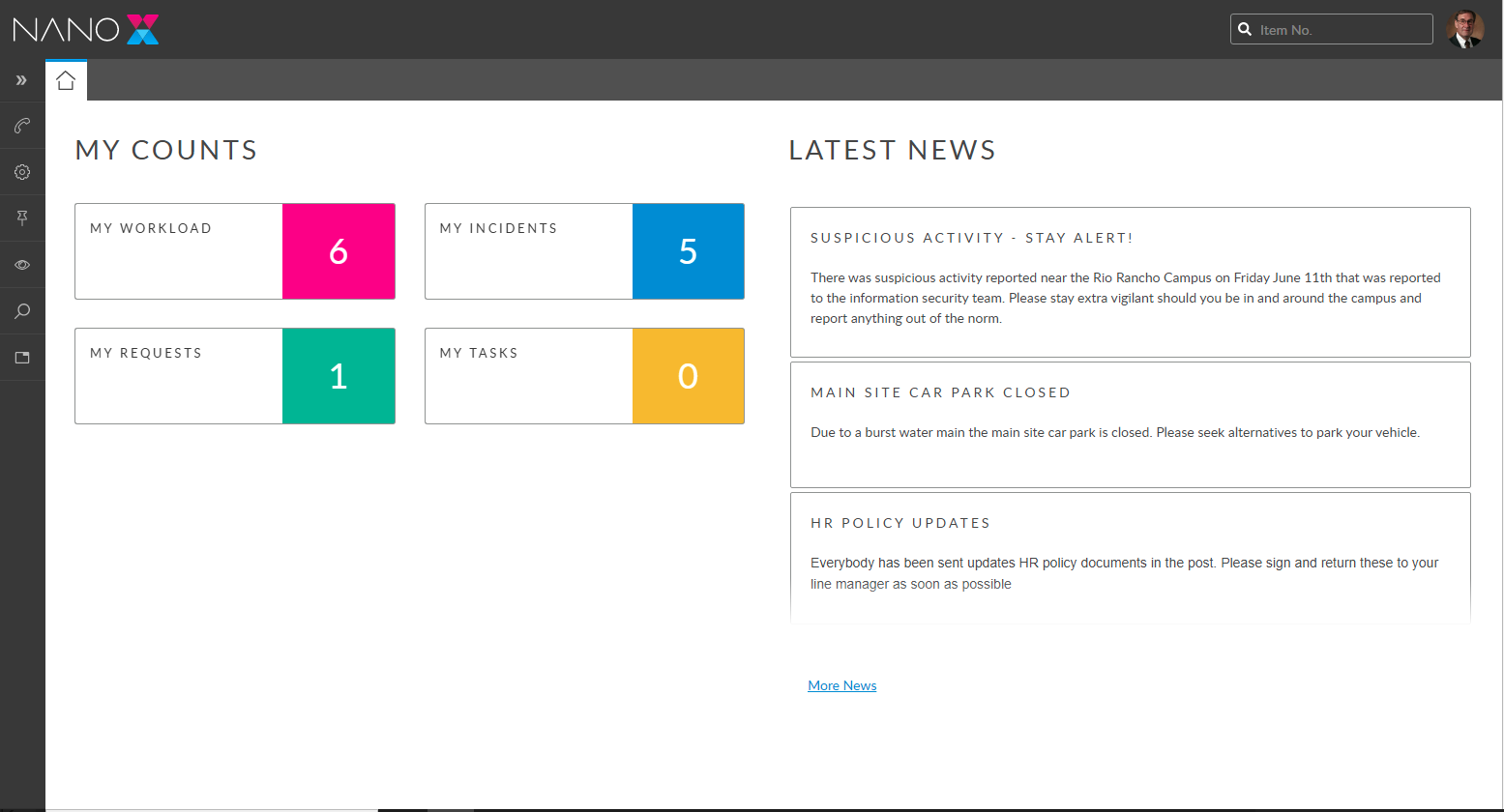
</details>

<figure><img src="https://content.gitbook.com/content/hlW9jKl7dcDggHAPhNU9/blobs/Vi7t58VWY2HTx4gqFO0s/image.png" alt=""><figcaption></figcaption></figure>

<details>

<summary>Create Calls</summary>

Create calls in Nano from the New Call menu option, which presents the available IPK Statuses and Streams, if they're configured.

</details>

<details>

<summary>Calls Outstanding</summary>

Calls Outstanding displays calls that require the analyst's attention.

* Filter the list by your calls, calls forwarded to you, calls forwarded to your group, and calls you forwarded
* In the filter you can toggle between suspended and unsuspended calls
* Show or hide the filter section
* Toggle between Kanban layout and table layout
* Configure the columns displayed by adding or removing columns and changing their order
* Right-click on call(s) to perform actions such as Add Note, Review, Email, Close, etc.

</details>

<details>

<summary>Call Details</summary>

Features and functions available on the Call Details window:

* View and update standard fields and fields added to the Nano screen in ASM Designer
* Save or Cancel changes to the details using the Save and Cancel buttons
* Close the call by changing the Status
* Stop and start the SLA clock, or resume service, by changing the Status
* Assign the call to another analyst or group by changing the Assign To value
* Email from the call
* Attach files to emails from the call
* Generate a Call Report
* View the full call history
* Add comments to the call
* Use the 'Visible to user' check box to make your comments visible in the Self Service Portal
* Attach files and objects to the call, view their details, or delete them from the call
* SLA indicators are visible at the top of screen to help meet your SLA targets
* Close the 'First Call Back' on SLAs using the 'User Updated' check box.
* Place a Watch on the call
* Time Spent settings for entering time against calls
* Reminder settings to set a reminder for yourself
* Suspend settings to suspend the call

</details>

<details>

<summary>Call Search</summary>

Search for calls that may not be displayed in Calls Outstanding.

* Use the Standard Search to find open or closed calls by call number or text search
* Use the Advanced Search to access all call search fields.
* Toggle between Kanban layout and table layout.
* Configure the columns displayed by adding or removing columns and changing their order.
* Right-click on a call(s) to perform actions such as Add Note, Review, Email, etc.

</details>

<details>

<summary>Tasks Outstanding</summary>

Tasks Outstanding displays tasks that require the analyst's attention.

* Filter the list by your tasks, tasks forwarded to you, tasks forwarded to your group, and tasks you forwarded
* In the filter you can toggle between suspended and unsuspended tasks, and toggle active vs inactive tasks
* Show or hide the filter section
* Toggle between Kanban layout and table layout
* Configure the columns by adding or removing columns and changing their order
* Right-click on a task(s) to perform actions such as Add Note, Review, Email, etc.

</details>

<details>

<summary>Task Details</summary>

Features and functions available on the Task Details window:

* View and update standard fields and fields added to the Nano screen in ASM Designer
* Save or Cancel changes to the details using the Save and Cancel buttons
* Approve or Reject approval tasks using the Approve and Reject buttons
* Close the task by changing the Status
* Stop and start the SLA clock by changing the Status
* Assign the task to another analyst or group by changing the Assign To value
* Email from the task
* Attach files to emails from the task
* Generate a Task Report
* View the full task history
* Add comments to the task
* Use the 'Visible to user' check box to make your comments visible in the Self Service Portal
* Attach files and objects to the task, view their details, or delete them from the task.
* View details and interact with all attachments on the request by selecting the 'All Request Attachments' checkbox
* Request Phase is visible at the top of the screen indicating the current phase in the request life cycle
* SLA indicators are visible at the top of screen to help meet your SLA targets
* Time Spent settings for entering time against tasks
* Reminder settings to set a reminder for yourself

</details>

<details>

<summary>Task Search</summary>

Search for tasks that may not be displayed in Tasks Outstanding

* Use the Standard Search to find tasks and/or approvals that are active, complete and/or inactive, by task number or text search
* Use the Advanced Search to access all task search fields
* Toggle between Kanban layout and table layout
* Configure the columns displayed by adding or removing columns and changing their order
* Right-click on a task(s) to perform actions such as Add Note, Review, Email, etc.

</details>

<details>

<summary>Create Requests</summary>

Create requests in Nano from the New Request menu option, which presents the available Workflow Processes and Templates.

</details>

<details>

<summary>Requests Outstanding</summary>

Requests Outstanding displays requests that require the analyst's attention.

* Filter the list by your requests, requests forwarded to you, requests forwarded to your group, and requests you forwarded
* In the filter you can toggle between suspended and unsuspended requests, and authorized vs unauthorized requests
* Show or hide the filter section
* Toggle between Kanban layout and table layout
* Configure the columns by adding or removing columns and changing their order
* Right-click on a request(s) to perform actions such as Add Note, Review, Email, etc.

</details>

<details>

<summary>Request Details</summary>

Features and functions available on the Request Details window:

* View and update standard fields and fields added to the Nano screen in ASM Designer
* Save or Cancel changes to the details using the Save and Cancel buttons
* Authorize or reject authorization on requests using the Authorize and Reject buttons
* Close the request by changing the Status
* Stop and start the SLA clock, or resume service, by changing the Status
* Assign the request to another analyst or group by changing the Assign To value
* Email from the request
* Attach files to emails from the request
* Generate a Request Report
* View the full request history
* View the Task Dependency Diagram
* Add comments to the request
* Use the 'Visible to user' check box to make your comments visible in the Self Service Portal
* Attach files and objects to the request, view their details, or delete them from the request
* View details and interact with files and objects attached to all tasks in the request
* SLA indicators are visible at the top of screen to help meet your SLA targets
* Reminder settings to set a reminder for yourself
* Suspend settings to suspend the request

</details>

<details>

<summary>Requests Search</summary>

Search for requests that may not be displayed in Request Outstanding

* Use the Standard Search to find requests that are active, completed, and/or unauthorized, by request number or text search
* Use the Advanced Search to access all request search fields
* Toggle between Kanban layout and table layout
* Configure the columns displayed by adding or removing columns and changing their order
* Right-click on a request(s) to perform actions such as Add Note, Review, Email, etc.

</details>

<details>

<summary>Workload Outstanding</summary>

Workload Outstanding displays all your work items (calls, tasks, and requests) in one place.

* Filter the list to show any combination of calls, tasks and/or requests that are currently with you, have been forwarded to you or your group, and work items you forwarded.
* In the filter you can toggle between suspended and unsuspended work items. Only active work items are displayed, there is no toggle for inactive ones
* Show or hide the filter section
* Configure the columns by adding or removing columns and changing their order
* Right-click on a work item(s) to perform actions such as Add Note, Review, Email, etc.

</details>

<details>

<summary>Knowledge</summary>

Knowledge Search

* Use the Standard Search to find knowledge articles by article number or text search
* Use the Advanced Search to access all knowledge search fields
* Configure the columns displayed by adding or removing columns and changing their order

Knowledge Details and functions:

* View and update standard fields and fields added to the Nano screen in ASM Designer
* Save or Cancel changes to the details using the Save and Cancel buttons

</details>

<details>

<summary>CMDB Items</summary>

CMDB Item Search

* Use the Standard Search to find Resources by Title, Ref, CMDB Item Type, or Organization
* Use the Advanced Search to access all CMDB Item search fields
* Configure the columns displayed by adding or removing columns and changing their order

CMDB Item Details and functions:

* View and update a subset of standard fields and fields added to the Nano screen in ASM Designer
* Save or Cancel changes to the details using the Save and Cancel buttons
* Generate a CMDB Item Report
* View the CMDB Linking Diagram

</details>

<details>

<summary>Person</summary>

Person Search

* Use the Standard Search to find Surname, First Name, Organization, or Location
* Use the Advanced Search to access all Person search fields
* Configure the columns displayed by adding or removing columns and changing their order

Person Details and functions:

* View and update a subset of standard fields and fields added to the Nano screen in ASM Designer
* Save or Cancel changes to the details using the Save and Cancel buttons

</details>

<details>

<summary>Bulletin Board</summary>

The **Bulletin Board** option displays a list of all active bulletins.

Use the **Bulletin View** option to display a scrolling banner of active bulletins.
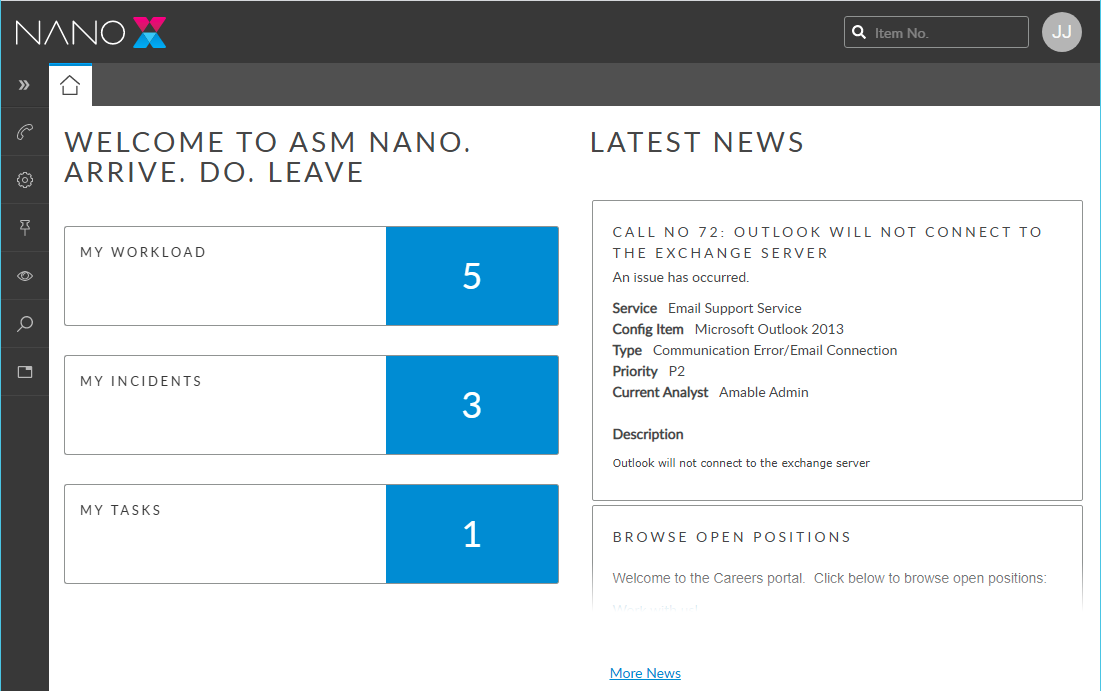
</details>


# NANO Video Tutorial - Quick Start

The below Video will allow you to explore NANO and many of the features available.

{% hint style="info" %}
ASM is highly configurable so what you see in the video may differ slightly from your own implementation.  If you have any questions, please contact Alemba Support or your System Administrator.
{% endhint %}

## Login to NANO and Configure your Workload

{% @arcade/embed flowId="H2LomiEUSHzlXGMAs7IS" url="<https://app.arcade.software/share/H2LomiEUSHzlXGMAs7IS>" %}

## Managing Your Tasks in NANO

{% hint style="info" %}
**Much of the functionality you will see in the following video extends to Calls and Requests.**
{% endhint %}

Tasks are tickets automatically assigned to you from Requests.  Requests and Tasks differ from Calls (break/fix tickets) in that they usually represent things like Change Requests or Service requests that have some level of automation sitting behind them. &#x20;

{% hint style="info" %}
Tasks are not usually "break/fix", but your organization's needs may require the use of requests for break/fix if there is any automation that needs to sit behind a specific fix process. &#x20;

**In ASM you don't typically "work" a request.  You work the tasks it generates and assigns.**
{% endhint %}

In the video below you will see:

* Using the KahnBan View
* Navigating and Managing Tasks
* Approving and rejecting Approvals
* Updating the tasks
* Viewing the dependency Diagram
* Viewing deep linked data
* Sending email from a task
* Pinning your task screen
* Printing an ad-hoc task report

{% @arcade/embed flowId="5A18jlwxGkyE0WYvpGyK" url="<https://app.arcade.software/share/5A18jlwxGkyE0WYvpGyK>" %}

## Managing Calls in NANO

{% hint style="info" %}
**Much of the functionality you will see in the following video extends to Tasks and Requests.**
{% endhint %}

A call is typically a break fix item.  In NANO, you can manage all of your call actions easily from any browser or mobile device.

In the video below you will see:&#x20;

* working with your call results screen - commonly referred to as your queue
* working with calls
* reassigning calls
* updating calls
* emailing from a call
* viewing deep linked details (CMDB, users, SLA, etc)
* Closing calls
* searching the matching knowledge
* searching matching calls

{% @arcade/embed flowId="ZHE8knv793koK5rdKlOr" url="<https://app.arcade.software/share/ZHE8knv793koK5rdKlOr>" %}

## NANO Menus

{% @arcade/embed flowId="vvfs5jW38FEPzpoZJoYy" url="<https://app.arcade.software/share/vvfs5jW38FEPzpoZJoYy>" %}


# Nano Application

{% hint style="info" %}
Read Introduction to Nano and the Nano Feature List before continuing.

System Administrators must follow the instructions in [Configuring Nano](/asm-hermes/setup-and-configure-asm/setting-up-your-system/configuring-nano) before analysts start using Nano.
{% endhint %}

This topic provides an overview for using Nano, including:

* Logging into Nano
* About the Nano Page Header
* Using the Menu
* Working with Calls
* Working with Requests
* Working with Tasks
* Working with Bulletins
* Working with Views (Calls, Tasks, Requests, Workload and Resource Manager)

## Logging into Nano <a href="#logging" id="logging"></a>

{% hint style="info" %}
You must have **Analyst** selected in your Person Record.
{% endhint %}

1. Analysts can log into Nano using the Nano URL.

Nano URL format `http://<server_name>/<virtual_directory>/Nano.aspx`

Replace `<server_name>` with your ASM web server, `<virtual_directory>` with your ASM virtual directory; and, if your ASM System uses SSL, replace `http` with `https`. &#x20;

For example:

`http://localhost/ASM/Nano.aspx`

2. The Nano login window appears. Enter the Login ID and Password configured in the analyst's Person Details.

<figure><img src="https://content.gitbook.com/content/hlW9jKl7dcDggHAPhNU9/blobs/A7A7HA05oWFqmeUzcMEG/Screenshot%202023-03-10%20at%2011.13.05%20AM.png" alt=""><figcaption></figcaption></figure>

{% hint style="info" %}
If Integrated Security is enabled in System Administration, or if SSO is enabled in Integration settings, the login window does not appear and the analyst is logged in automatically.

Logging into Nano consumes concurrent and named licenses in the same way as ASM Core. An analyst who logs into Nano while logged into ASM Core will be logged out of Core, and vice versa.

Session timeout periods in Nano are the same as for ASM Core.
{% endhint %}

## About the Nano Page Home Page <a href="#the" id="the"></a>

<figure><img src="https://content.gitbook.com/content/hlW9jKl7dcDggHAPhNU9/blobs/U1rP4BcXP5xJ7V2ZfqbU/Screenshot%202023-03-10%20at%2011.15.50%20AM.png" alt=""><figcaption></figcaption></figure>

### **Quick Search**&#x20;

<figure><img src="https://1375663122-files.gitbook.io/~/files/v0/b/gitbook-x-prod.appspot.com/o/spaces%2FhlW9jKl7dcDggHAPhNU9%2Fuploads%2FLr1w3lGwBWm0Ivyypdin%2FScreenshot%202024-09-20%20at%207.40.08%E2%80%AFAM.png?alt=media&amp;token=6927d1f1-42be-4945-a1f8-5fc0aeccfcfe" alt=""><figcaption></figcaption></figure>

Find a call, request, or task by entering its number into the input field and pressing Enter. If only one item matches the entered number, that item is opened for review. If more than one item matches, a list to choose from appears.

### **Menu** and Home Page

<figure><img src="https://1375663122-files.gitbook.io/~/files/v0/b/gitbook-x-prod.appspot.com/o/spaces%2FhlW9jKl7dcDggHAPhNU9%2Fuploads%2Fu0Ep3ek54VZgKnvUBEz4%2FScreenshot%202024-09-20%20at%207.40.45%E2%80%AFAM.png?alt=media&amp;token=41b37149-42a5-4f56-b320-0226b77ee7b3" alt=""><figcaption></figcaption></figure>

A menu of the functions available to the analyst in Nano. The functions displayed in the menu are dependent on the Security Roles assigned to the logged in analyst, and limited to the functions available in Nano.

Select the house to return to the Home page. The Home page contains a scrolling bulletin board, and the My Counts widget which shows the number of calls, tasks, requests the analyst has, as well as the workload total which combines all three.

### Using the Menu <a href="#myoptions" id="myoptions"></a>

<table data-header-hidden><thead><tr><th width="232.5"></th><th></th></tr></thead><tbody><tr><td>New Call<br><br><img src="https://1375663122-files.gitbook.io/~/files/v0/b/gitbook-x-prod.appspot.com/o/spaces%2FhlW9jKl7dcDggHAPhNU9%2Fuploads%2FucMrO8Zsb6sQtP4fL8mC%2Fimage.png?alt=media&amp;token=bac15397-c757-489d-9ade-5ca6e2b7e9e5" alt=""><br></td><td><p>Select the type of call to create then complete the call details.</p><p>The submenu displays the available call types, or IPK Statuses and Streams, if enabled.<br><img src="https://1375663122-files.gitbook.io/~/files/v0/b/gitbook-x-prod.appspot.com/o/spaces%2FhlW9jKl7dcDggHAPhNU9%2Fuploads%2FixuEYpom76U9dlEaIXkB%2Fimage.png?alt=media&amp;token=38963f8c-d7de-464d-b652-883001b9c1ad" alt=""></p></td></tr><tr><td>New Request<br><br><img src="https://1375663122-files.gitbook.io/~/files/v0/b/gitbook-x-prod.appspot.com/o/spaces%2FhlW9jKl7dcDggHAPhNU9%2Fuploads%2F7OzD7Y3m5NszBOl5fm5F%2FScreenshot%202024-09-20%20at%207.44.47%E2%80%AFAM.png?alt=media&amp;token=d175280c-4cc5-4398-b04c-0d16fcf4e4a0" alt=""></td><td><p>Select the type of request to create then complete the request details.</p><p>The submenu displays the available workflow templates; there may be multiple tiers.<br><br><img src="https://1375663122-files.gitbook.io/~/files/v0/b/gitbook-x-prod.appspot.com/o/spaces%2FhlW9jKl7dcDggHAPhNU9%2Fuploads%2FrRNOW2HvLsj5jidUcRi4%2FScreenshot%202024-09-20%20at%207.44.58%E2%80%AFAM.png?alt=media&amp;token=616de0c6-92e3-4ff3-89e4-5e2bcd72186a" alt=""></p></td></tr><tr><td>Bulletin<br><br><img src="https://1375663122-files.gitbook.io/~/files/v0/b/gitbook-x-prod.appspot.com/o/spaces%2FhlW9jKl7dcDggHAPhNU9%2Fuploads%2Fj0cxVObmRx0Rrm6JhYcH%2FScreenshot%202024-09-20%20at%207.46.21%E2%80%AFAM.png?alt=media&amp;token=ab3eec65-46af-4202-85db-4e7f46f0cef0" alt=""></td><td><p>Select a mode for viewing bulletin articles from the submenu:</p><ul><li><strong>Bulletin Board</strong> contains all active bulletins</li><li><strong>Bulletin View</strong> displays a banner at the top of the screen which scrolls through active bulletins.</li></ul><p><img src="https://1375663122-files.gitbook.io/~/files/v0/b/gitbook-x-prod.appspot.com/o/spaces%2FhlW9jKl7dcDggHAPhNU9%2Fuploads%2Fn2wKt2S9MZ1YUTZiwpu6%2FScreenshot%202024-09-20%20at%207.46.32%E2%80%AFAM.png?alt=media&amp;token=9e33e8de-04bc-4c66-afd3-bd4162822ecc" alt="" data-size="original"><br><br></p></td></tr><tr><td>View<br><br><img src="https://1375663122-files.gitbook.io/~/files/v0/b/gitbook-x-prod.appspot.com/o/spaces%2FhlW9jKl7dcDggHAPhNU9%2Fuploads%2Fk5u9t7vpfrw7eI3ItY5L%2FScreenshot%202024-09-20%20at%207.48.04%E2%80%AFAM.png?alt=media&amp;token=154c1bd3-1313-47be-ac17-a4aa74d4c196" alt=""></td><td><p>View work items requiring your attention. Select a type of work item, or see all in the Workload.</p><ul><li><strong>Calls Outstanding</strong> displays calls requiring your attention</li><li><strong>Requests Outstanding</strong> displays requests requiring your attention</li><li><strong>Tasks Outstanding</strong> displays tasks requiring your attention</li><li><strong>Workload Outstanding</strong> displays calls requests and tasks requiring your attention</li><li><strong>Resource manager</strong> displays the Resource Manager for the queues you are authorized to allocate work into</li></ul><p><img src="https://1375663122-files.gitbook.io/~/files/v0/b/gitbook-x-prod.appspot.com/o/spaces%2FhlW9jKl7dcDggHAPhNU9%2Fuploads%2Faupwg9XUecqavL5MIT85%2FScreenshot%202024-09-20%20at%207.48.17%E2%80%AFAM.png?alt=media&amp;token=7c72aa63-4fb7-4b7a-b601-4b7605926b0d" alt="" data-size="original"></p></td></tr><tr><td>Search<br><br><img src="https://1375663122-files.gitbook.io/~/files/v0/b/gitbook-x-prod.appspot.com/o/spaces%2FhlW9jKl7dcDggHAPhNU9%2Fuploads%2FFPHKr4O5ruC3JkMtHQHv%2FScreenshot%202024-09-20%20at%207.50.11%E2%80%AFAM.png?alt=media&amp;token=25d90da9-91df-4497-9b10-cb6a311532cc" alt=""></td><td><p>Select the entity to search for from the submenu</p><ul><li><strong>Call Search</strong> provides options to search for calls</li><li><strong>Request Search</strong> provides options to search for requests</li><li><strong>Task Search</strong> provides options to search for tasks</li><li><strong>Knowledge Search</strong> provides options to search for knowledge articles</li><li><strong>CMDB Search</strong> provides options to search for CMDB Items, such as Services, etc.</li><li><strong>People Search</strong> provides options to search for analysts, users, and external contacts</li></ul><p><img src="https://1375663122-files.gitbook.io/~/files/v0/b/gitbook-x-prod.appspot.com/o/spaces%2FhlW9jKl7dcDggHAPhNU9%2Fuploads%2FRO11IioJUt5bS2YsDBgw%2FScreenshot%202024-09-20%20at%207.50.24%E2%80%AFAM.png?alt=media&amp;token=5e540aba-4f10-4e64-b1df-1d319635e118" alt="" data-size="original"></p></td></tr></tbody></table>

## Standard Capability Across All Entities

<table data-header-hidden><thead><tr><th width="223.5"></th><th></th></tr></thead><tbody><tr><td>Log a new call/request, or bulletin</td><td><ol><li>On the menu select <strong>New [entity]</strong></li><li>Complete the Details</li><li>Press <strong>Save</strong>.</li></ol></td></tr><tr><td>Search</td><td><p>Method 1: Call Search</p><ol><li>On the menu select <strong>Search</strong>, then <strong>[Entity]</strong></li><li>Complete the Search fields.</li></ol><p>Method 2: Calls, Tasks Outstanding And Workload Outstanding,Outstanding</p><ol><li>On the menu select <strong>View</strong>, then <strong>[Entity] Outstanding</strong></li><li>Adjust the filters if needed.</li></ol><p>Method 3: Quick Search</p><ol><li>Type the reference number into the <strong>Quick Search</strong> field.</li><li>A list of matching records is displayed</li></ol></td></tr><tr><td>View details</td><td><p>Method 1: Quick Search</p><ol><li>Type the reference number into Quick Search</li><li>Select the ticket from the listed results.</li><li>The Details window is displayed.</li></ol><p>Method 2: Search or Workload Outstanding</p><ol><li>Search the table of results for the item you want to view</li><li>Open the item using any of these methods:</li></ol><ul><li>Double-click on the record; or</li><li>Right-click the record and select the Select Icon</li></ul><ol start="3"><li>The Details window is displayed.</li></ol><p>The window opens in edit mode or in review mode, depending on the method used to open the call, and the settings configured in your IPK Security Role.</p></td></tr><tr><td>Update</td><td><ol><li>Select and open the item you want to update</li><li>The Details window is displayed</li><li>If the item is in review mode, press <strong>Take Action</strong>.</li><li>Update the Details fields</li><li>Press <strong>Save</strong>.</li></ol></td></tr><tr><td>Assign a ticket</td><td><p>Method 1:  Details</p><ol><li>Select and open the item you want to assign</li><li>The Details window is displayed</li><li>In the <strong>Assigned To</strong> field select the analyst or group you want to assign to</li><li>Press <strong>Save</strong>.</li></ol><p>Method 2: Search or Workload Outstanding</p><ol><li>Search the table of results for the item you want to assign</li><li>Forward the item using any of these methods:</li></ol><ul><li>Select the record and select the Forward arrow in the toolbar; or</li><li>Right-click the record and select the Forward Icon</li></ul><ol start="3"><li>The <strong>Forward</strong> window is displayed</li><li>Complete the Forward details</li><li>Press <strong>OK</strong>.</li></ol></td></tr><tr><td>Close a Ticket</td><td><p>Method 1: Details</p><ol><li>Select and open the item you want to close</li><li>The Details window is displayed</li><li>Change the <strong>Status</strong> field to a closure status</li></ol><p>The selected status must have the <strong>Close</strong> setting enabled in System Admin Call /Request Status Titles.</p><ol start="4"><li>Press <strong>Save</strong>.</li></ol><p>Method 2: Search or Workload Outstanding</p><ol><li>Search the table of results for the item you want to close</li><li>Close the using any of these methods:</li></ol><ul><li>Select the record and select the Close icon in the toolbar; or</li><li>Right-click the record and select the Close icon</li></ul><ol start="3"><li>The <strong>Close</strong> window is displayed</li><li>Complete the Close details</li><li>Press <strong>OK</strong>.</li></ol><p>Method 3: Kanban in Search or Call and Task Workload</p><ol><li>In the Kanban, find the item you want to close</li><li>Drag the it to a column with a closure status</li><li>The <strong>Call Close</strong> window is displayed</li><li>Complete the Call Close details</li><li>Press <strong>OK</strong>.</li></ol></td></tr></tbody></table>

## About the SLA clock

The actions listed below affect the Service Level Agreements on the call.  Once an agreement is attached to a work item, it begins running against a ‘clock’. ASM continually monitors the amount of time the agreement has been in effect and checks if any events are scheduled to occur. An agreement may trigger a number of events such as escalations and finally a breach.

You can **stop the clock** and **restart the clock** if you have sufficient permissions. While the clock is stopped, no time will accumulate on the agreement and no escalation or agreement breach events will occur. This may be required, for instance, if you are waiting on further information from a user and cannot proceed until you get this information.

You can **Resume Service** if you have sufficient permissions, to immediately close all events on all agreements on the work item. This is useful if the immediate issue has been resolved, but you wish to keep the work item open.

Agreement events are closed when the work item is closed.

<table data-header-hidden><thead><tr><th width="223.5"></th><th></th></tr></thead><tbody><tr><td>Stop the clock</td><td><ol><li>Select and open the call for which you want to stop the clock</li><li>The Call Details window is displayed</li><li>Change the <strong>Status</strong> field to a status that pauses the clock</li><li>The selected status must have the <strong>Stop Clock</strong> setting enabled in System Admin Call Status Titles.</li><li>Press <strong>Save</strong>.</li></ol></td></tr><tr><td>Start the clock</td><td><ol><li>Select and open the call for which you want to start the clock</li><li>The Call Details window is displayed</li><li>Change the <strong>Status</strong> field to a status that does not pause the clock and does not resume service</li><li>The selected status must <strong>not</strong> have the <strong>Stop Clock</strong> setting or the <strong>Resume Service</strong> setting enabled in System Admin Call Status Titles.</li><li>Press <strong>Save</strong>.</li></ol></td></tr><tr><td>Resume Service</td><td><ol><li>Select and open the call for which you want to resume service</li><li>The Call Details window is displayed</li><li>Change the <strong>Status</strong> field to a status that resumes service</li><li>The selected status must have the <strong>Resume Service</strong> setting enabled in System Admin Call Status Titles.</li><li>Press <strong>Save</strong>.</li></ol></td></tr></tbody></table>

## Working with Calls <a href="#working2" id="working2"></a>

Nano provides a range of methods for working with calls to suit different working styles. Calls can be closed or assigned to another analyst or group from the Search and Outstanding windows as well as from the Call Details window. While other actions, such as updating can only be done from the Call Details window,

For detailed information, see these topics:

* Using the Call Details window - Explains how to open and update calls, the call details fields and their purpose, and how to use the Status field to perform actions on the call.
* Viewing Your Outstanding Calls - The Outstanding window displays calls requiring your attention. This topic shows you how to adjust the filters and perform actions on calls from the table of results.
* Searching for Calls - Learn how to search for calls and perform actions on them from the table of results.

## &#x20;Working with Requests

Nano provides a range of methods for working with requests to suit different working styles. Requests can be closed or assigned to another analyst or group from the Search and Outstanding windows as well as from the Request Details window. While other actions, such as updating, authorizing, or rejecting requests can only be done from the Request Details window,

For detailed information, see these topics:

* Using the Request Details Window - Explains how to open and update requests, the request details fields and their purpose, and how to use the Status field to perform actions on the request.
* Viewing your Outstanding Requests - The Outstanding window displays requests requiring your attention. This topic shows you how to adjust the filters and perform actions on requests from the table of results.
* Searching for Requests - Learn how to search for requests and perform actions on them from the table of results.

## Working with Tasks <a href="#working3" id="working3"></a>

Nano provides a range of methods for working with tasks to suit different working styles. Tasks can be closed, approved, rejected, or assigned to another analyst or group from the Search and Outstanding windows as well as from the Task Details window. While other actions, such as updating can only be done from the Task Details window,

For detailed information, see these topics:

* Using the Task Details Window - Explains how to open and update tasks, the task details fields and their purpose, and how to use the Status field to perform actions on the task.
* Viewing Your Outstanding Tasks - The Outstanding window displays tasks requiring your attention. This topic shows you how to adjust the filters and perform actions on tasks from the table of results.
* Searching for Tasks - Learn how to search for tasks and perform actions on them from the table of results.


# Viewing Your Workload in NANO

The Workload Outstanding window displays all work items requiring your attention. Depending on your Security Roles, this can include calls, request, and tasks.

<figure><img src="https://content.gitbook.com/content/hlW9jKl7dcDggHAPhNU9/blobs/wPvQsLOhOGnE7rD5LY8n/Screenshot%202023-03-21%20at%2012.26.39%20PM.png" alt=""><figcaption></figcaption></figure>

***My Workload*** displays the following:

* All your currently assigned items
* Items that have been forwarded to you
* Items forwarded to your group(s) &#x20;
* Workload will show you a list of all items that you have direct responsibility for and those you may need to take responsibility of to progress or meet SLA targets.

On the Workload Outstanding window you can:

<figure><img src="https://content.gitbook.com/content/hlW9jKl7dcDggHAPhNU9/blobs/XKVRf6TfPdAi0XMXtKCt/Screenshot%202023-03-21%20at%2012.27.44%20PM.png" alt=""><figcaption></figcaption></figure>

1. Show and hide the filters section.&#x20;

   <figure><img src="https://content.gitbook.com/content/hlW9jKl7dcDggHAPhNU9/blobs/99Yf9YiqzYvpLiJdKFnD/Screenshot%202023-03-21%20at%2012.28.27%20PM.png" alt=""><figcaption></figcaption></figure>
2. Filter your list of work items
   * Show any combination of calls, tasks, requests that are currently with you, have been forwarded to you or your group, and work items you forwarded.
   * Toggle between suspended and unsuspended work items.

<figure><img src="https://content.gitbook.com/content/hlW9jKl7dcDggHAPhNU9/blobs/QMFgszbM2DxwzMzMW8OL/Screenshot%202023-03-21%20at%2012.28.52%20PM.png" alt=""><figcaption></figcaption></figure>

3. Configure the columns by adding or removing columns and changing their order.

<figure><img src="https://content.gitbook.com/content/hlW9jKl7dcDggHAPhNU9/blobs/Lw7VQVsGbo3j6erTv213/Screenshot%202023-03-21%20at%2012.29.08%20PM.png" alt=""><figcaption></figcaption></figure>

4. Right-click on a work item(s) to perform actions such as Add Note, Action, Review, Email, etc.

<figure><img src="https://content.gitbook.com/content/hlW9jKl7dcDggHAPhNU9/blobs/DT9MhgKCEgKGmqayKb50/Screenshot%202023-03-21%20at%2012.33.19%20PM.png" alt=""><figcaption></figcaption></figure>

5. You can also use the Calls Outstanding, Requests Outstanding, and Tasks Outstanding windows to view those items separately, and access an expanded set of functions.

{% hint style="info" %}

### Before you start Working with Calls

The following settings must be enabled in the Options tab of your **IPK Management Security Role** to perform the listed actions:

* To view calls, enable **IPK Analyst**.
* To forward calls from the Search or Outstanding windows, enable **Bulk Forward Calls**.
* To close calls from the Search or Outstanding windows, enable **Bulk Close Calls**.
  {% endhint %}

{% hint style="info" %}

### Before you start Working with Requests

To view requests **Workflow Analyst** must be enabled in the Shared tab of your **Workflow Management Security Role**.

The following settings must be enabled in the Requests tab of your **Workflow Management Security Role** to perform the listed actions:

* To forward requests from the Search or Outstanding windows, enable **Request Bulk Forward**.
* To close requests from the Search or Outstanding windows, enable **Request Bulk Close**.
  {% endhint %}

{% hint style="info" %}

### Before you start Working with Tasks

To view tasks, **Workflow Analyst** must be enabled in the Shared tab of your **Workflow Management Security Role**.

The following settings must be enabled in the Tasks tab of your **Workflow Management Security Role** to perform the listed actions:

* To forward tasks from the Search or Outstanding windows, enable **Task Bulk Forward**.
* To close tasks from the Search or Outstanding windows, enable **Task Bulk Close**.
  {% endhint %}


# Viewing Bulletins

Nano includes a scrolling bulletin.  You can open any bulletin to see the details.

You can view bulletins in a number of ways:

* From the scroll bar at the top
* From the Home page, along the right-hand side of the screen
* Display a list of bulletins on a bulletin board

### Viewing Bulletins from the Home Page <a href="#viewing" id="viewing"></a>

<figure><img src="https://content.gitbook.com/content/hlW9jKl7dcDggHAPhNU9/blobs/wsITNNMG55wWArvbJO5L/Screenshot%202023-07-21%20at%206.30.12%20AM.png" alt=""><figcaption></figcaption></figure>

You can display a list of current bulletins on the bulletin board, and view any one of them in more detail.

{% @arcade/embed flowId="tY2qczgUT7MUvZd86qio" url="<https://app.arcade.software/share/tY2qczgUT7MUvZd86qio>" %}

{% hint style="info" %}
Bulletins can be restricted to certain groups and partitions. You will only be able to see those bulletins to which you have access.
{% endhint %}

1. Select the Bulletin Board.
2. From the submenu, select Bulletin Board. A list of bulletins is displayed in a browse table, in collapsed format. You can see the title of each bulletin, its priority and the date on which it was created. If you have this window on screen for some time, you can refresh the display to see the latest bulletins by selecting . You can also print the list of bulletins by selecting .
3. To view a bulletin's details, Click it. More detail is given, including the description text and a list of any attachments.

{% hint style="info" %}
\*\*If you have sufficient permissions, you can edit the bulletin from here.  Click the Edit button to switch to Edit Mode.
{% endhint %}


# Nano Matching Panel

Use the Matching Knowledge panel and Matching Calls panel to see knowledge articles and calls similar to the current call that may contain solutions or valuable information.

Calls and Knowledge Articles are matched on the Type, Service, and Configuration Item of the call being worked on by the analyst in Nano

### Enabling Matching Panel for Nano

1. Select > **Admin** > **System Administration**. The System Administration window appears.

   In the Explorer pane, expand **Preview Features/Advanced Options.**
2. Select **Settings** to display **Preview Features Settings** window.
3. Select the check box for **Nano Matching Panel**.
4. Select  to save the changes. Provide the Change Reasons if prompted to do so.

Analysts in Nano now see two buttons on the toolbar in the Call Details window.

### Using Nano Matching Panels

#### Matching Calls Panel

1. Analysts in Nano can open the Matching Calls panel by selecting it on the Call Details toolbar.\
   Calls that have a matching Configuration Item, Service, or Type are displayed in the panel.&#x20;

<figure><img src="https://content.gitbook.com/content/hlW9jKl7dcDggHAPhNU9/blobs/w5Axfe5DAheLIQbmbKHV/Screenshot%202023-03-21%20at%2012.19.27%20PM.png" alt=""><figcaption></figcaption></figure>

2. Calls with three (3) matching fields are listed first, followed by calls with two (2), and calls with one (1) matching field are listed last.

<figure><img src="https://content.gitbook.com/content/hlW9jKl7dcDggHAPhNU9/blobs/bf6CTq6b74f51sWDS7uW/Screenshot%202023-03-21%20at%2012.20.23%20PM.png" alt=""><figcaption></figcaption></figure>

3. To view details of the matching call Analysts select it from the list. The call details open in a new tab.

#### Matching Knowledge Panel

1. Analysts in Nano can open the Matching Knowledge panel by selecting it on the Call Details toolbar.

<figure><img src="https://content.gitbook.com/content/hlW9jKl7dcDggHAPhNU9/blobs/mHZSEtAmyvgV5DflbeGp/Screenshot%202023-03-21%20at%2012.19.27%20PM.png" alt=""><figcaption></figcaption></figure>

2. Knowledge articles that have a matching Service, or Type are displayed in the panel.&#x20;
3. KBs with two (2) matching fields are listed first, KBs with one (1) matching field are listed last.

<figure><img src="https://content.gitbook.com/content/hlW9jKl7dcDggHAPhNU9/blobs/2y5aWlkBPKT7VjseAyyG/Screenshot%202023-03-21%20at%2012.20.04%20PM.png" alt=""><figcaption></figcaption></figure>

4. To view details of the matching knowledge article, Analysts select it from the list. The knowledge details open in a new tab.

### &#x20;<a href="#portalset" id="portalset"></a>


# Using the Call, Request, and Task Details window

The Details window contains information relating to an issue that has been reported, a request or a task that has been assigned to you (the "Ticket").

**Logging form** involves identifying the user who has reported the incident, problem, known error or service request, recording the service and configuration item, classifying and prioritizing the issue, capturing its details, and finally assigning the ticket to a support analyst.

**Finding a ticket** involves using the Search or Outstanding windows, or by typing the record number into the Quick Search.

**Updating a ticket** can involve changing values in fields, such as the Priority or Service, adding comments, changing the status, or assigning to an analyst or group, and finally saving the changes.

**Closing a ticket** involves changing the value in the **Status** field to a status configured with the Close function by the System Administrator.

{% hint style="info" %}

### Before you start

To view calls, **IPK Analyst** must be selected in the Options tab of your **IPK Management Security Role**.

To create calls, **Log Calls** must be selected in the Options tab of your **IPK Management Security Role**.

To view requests **Workflow Analyst** must be selected in the Shared tab of your **Workflow Management Security Role**.

To create requests, **Create Request** must be selected in the Requests tab of your **Workflow Management Security Role**.
{% endhint %}

### Logging a Call or Request

1. On the menu, select **New Call** (the telephone icon) or **New Request** (A wheel Cog Icon).&#x20;
   * If IPK Status and IPK Stream is enabled, select an IPK Status and IPK Stream.
2. The Details window appears.
3. Complete the Details
4. Select **SAVE** when you are finished and to save the ticlet.&#x20;
   * The window will close or stay open depending on system configuration.
5. Select **CANCEL** to cancel your changes.

### Opening a Record

1. Open an existing call record using one of these methods:
   * On the menu, select **Search** and then **Call or Request or Task Search**. The Search window appears.
   * On the menu, select **View** and then **\[the record type you are searching] Outstanding**.&#x20;
   * If you know the number of the record you want to view, type it into the Quick Search field&#x20;
2. The **Details** window appears.
3. Complete or update the Details
4. Select **SAVE** to save the changes.&#x20;
   * The window will close or stay open depending on system configuration settings.
5. Select **CANCEL** to cancel the changes and close the window.
6. Select **SAVE** to save the changes.
7. Select **CANCEL** to cancel the changes and close the window.


# Nano Linking Calls and Request Widget

{% hint style="info" %}
Introduced as part of ASM Hermes 10.2025.Q4 (10.6.9 GA)
{% endhint %}

{% embed url="<https://alemba.share.arcade.software/share/uRhxwiSSlzVm1D8fQQ5I>" %}

## Introduction

We have introduced a new Linking widget in Nano to help you organise related tickets more effectively. You can now create clear parent/child relationships between calls and requests, see all related items in one place, and navigate between them with a single click.

<figure><img src="https://1375663122-files.gitbook.io/~/files/v0/b/gitbook-x-prod.appspot.com/o/spaces%2FhlW9jKl7dcDggHAPhNU9%2Fuploads%2FyF6kTye2aIF8HC2jx2ZT%2Fimage.png?alt=media&amp;token=76b8a351-a77f-4833-8f76-954d1e317676" alt=""><figcaption></figcaption></figure>

## What the Linking widget does

The Linking widget lets you:

* Link a ticket to:
  * One Parent Call
  * Multiple Child Calls
  * One Parent Request
* View all linked items on the Call and Request details screens
* Open linked tickets in a new tab by clicking on their pill
* Add or remove links without leaving the ticket you are working on

This gives you a simple, visual way to understand dependencies, follow related activity, and reduce duplicate work.

{% hint style="success" %}

## Key Benefits

Better traceability – see the full chain of related calls and requests in one place.

Clear hierarchy – distinguish easily between parent calls, child calls, and parent requests.

Faster triage – jump straight into related tickets from clickable pills.

Less duplication – quickly spot when multiple tickets relate to the same issue or request.
{% endhint %}

## Adding the Linked Widget

The Linking widget is available for you to drop and drag of within ASM Designer:

1. Add the widget by dropping and dragging the widget from the layout widget on to your screen

   <figure><img src="https://1375663122-files.gitbook.io/~/files/v0/b/gitbook-x-prod.appspot.com/o/spaces%2FhlW9jKl7dcDggHAPhNU9%2Fuploads%2Ft2jQWJA7JJNGFvzrXDIL%2Fimage.png?alt=media&amp;token=627e8678-1a49-43c5-aeae-5e9dfe7084b5" alt=""><figcaption></figcaption></figure>
2. This will show as a blank item on your design

   <figure><img src="https://1375663122-files.gitbook.io/~/files/v0/b/gitbook-x-prod.appspot.com/o/spaces%2FhlW9jKl7dcDggHAPhNU9%2Fuploads%2FQvMG1OTYBqZN8qLpFDQM%2Fimage.png?alt=media&amp;token=af62df11-dd2e-446d-b5dd-752729bf522b" alt=""><figcaption></figcaption></figure>
3. Select the black bar and then update the Widget ID with call-linking

   <figure><img src="https://1375663122-files.gitbook.io/~/files/v0/b/gitbook-x-prod.appspot.com/o/spaces%2FhlW9jKl7dcDggHAPhNU9%2Fuploads%2FXOU8nXJYT8vTqareDpWv%2Fimage.png?alt=media&amp;token=23404863-34a9-48e4-9624-2574fe70a68c" alt=""><figcaption></figcaption></figure>
4. Save your screen design

## Understanding the layout

Inside the Linking widget, linked items are grouped by relationship type:

#### Parent Call

* Shows the single call that is the parent of the current ticket.
* Only one parent call can be linked.

#### Child Calls

* Shows all calls that are children of the current ticket.
* You can link multiple child calls.

#### Parent Request

* Shows the single request that is the parent of the current ticket.
* Only one parent request can be linked.

Each linked item appears as a pill (label). Pills also include an icon to visually distinguish the different link types.

## Opening linked items

Clicking on a pill will open the related call or request. This opens in a new tab at the top of ASM Nano.

## Adding linked items

You can add links in two ways.

### Option 1 – Using the plus (+) icon

1. Hover over Parent Call, Child Calls, or Parent Request in the Linking widget.
2. A + icon appears next to the last item in that section.
3. Click the + icon.
4. A dialog opens, the relationship type is pre‑selected and greyed out based on the section you clicked (for example, Child Calls).
5. Use the search field to find the ticket you want to link (see “Searching for ticket to link” below).

### Option 2 – Using “Add Linked Item”

1. Click Add Linked Item.
2. A dialog opens with:
   1. A Type dropdown.
   2. A search text field.
3. Choose one of the available relationship types:
   1. Child Calls
   2. Parent Call
   3. Parent Request
4. Use the search field to find the ticket(s) you want to link.

## Searching for tickets to link

The Linking widget uses a search‑as‑you‑type experience:

1. Click into the search text field.
2. Start typing at least 3 characters.
3. A dropdown appears with up to 10 matching results.
4. Each result shows:
   1. Call/Request Title
   2. Number
   3. A short description snippet (up to around 160 characters).
5. Click a result to add it as a linked item.

## Removing (unlinking) items

You can remove a link at any time from the Linking widget:

* Find the pill you want to remove.
* Click the X inside the pill.


# Nano Search, Workload and Filters

{% hint style="info" %}
Introduced as part of ASM Hermes 10.2025.Q4 (10.6.9 GA)
{% endhint %}

{% embed url="<https://alemba.share.arcade.software/share/REv8CcAe2c5kVjz5aRZS>" %}

## Introduction

Nano Search has been enhanced to make it faster and easier to find, filter, and act on your workload. The updated interface introduces a new filter-as-you-type builder, clearer workload categorisation, improved visual indicators for column filters, and streamlined actions from the activity bar. These changes are designed to reduce clicks, improve clarity, and help you respond to calls and tasks more efficiently.

## What Nano Search does

The updated Nano Search interface now includes:

* Search bar at the top so you can quickly do a description contains search.
* Filter-as-you-type builder that lets you build criteria as you go and search using *contains* options for more flexible matching.
* Clear all filter options at the bottom of all search and workload options.
* Core style workload categorisation that aligns the Nano experience with the core workload view, while removing the older tickbox approach.
* Analyst-specific workload views that allow you to select an analyst and see their outstanding workload.
* Grid filtering on the workload grid so you can apply multiple filter criteria for a focused view of items.
* Column filter highlighting so any active column filter is clearly shown in red.
* Activity bar actions replacing the old right-click menu, putting common actions in a consistent, discoverable place.
* Bulk forward and Close by highlighting a number of items to bulk forward or close, based on permissions.

{% hint style="success" %}
Key Benefits

* Faster filtering and searching – Type directly into the new filter-as-you-type builder and use contains-based conditions to quickly narrow down your results.
* Reusable searches – Once you are happy with your filter criteria, you can save the search and reuse it as part of your saved searches, reducing set-up time.
* Consistent experience – The workload categorisation in Nano is now aligned with the core workload style, making it easier to move between views.
* More visible filters – Column filters stand out in red when they are active, making it obvious when the grid is narrowed and preventing confusion about missing items.
* Quicker reset to normal view – Use the Clear all filters option at the bottom of the grid to immediately return to the default view.
* Actions are no longer hidden or require a right click – Common actions such as review, notes, watching, emailing, printing, and OData export are grouped in the activity bar for easier access and bulk operations.
* Bulk forwarding and closure - speeding up analyst actions
  {% endhint %}

## Using the filter-as-you-type builder

1. Open Nano Search and locate the filter builder area above or alongside the results grid.
2. Start typing the value you want to filter on (for example, part of a reference, customer name, or status text).
3. Select the appropriate field and condition (such as *contains*) from the options provided.
4. Add additional criteria as needed. You can continue to type and choose new conditions to refine the results.
5. Review the results in the grid as you build your criteria. The grid updates in line with the filters you apply.

   <figure><img src="https://1375663122-files.gitbook.io/~/files/v0/b/gitbook-x-prod.appspot.com/o/spaces%2FhlW9jKl7dcDggHAPhNU9%2Fuploads%2FHcKpCbJ6rKbKPgHHEYBn%2Fimage.png?alt=media&amp;token=9a5f95cb-48da-49f8-ae70-ca86cce8cfdb" alt=""><figcaption></figcaption></figure>

## Steps for adding and saving a Nano search

Use these steps to create and save a reusable Nano search:

1. Open Nano Search from your workload area.
2. Use the filter-as-you-type builder and the left-hand filter options (Calls, Tasks, Requests, submission status, etc.) to define your criteria.
3. Apply grid filters by using the column headers in the results grid. Any active column filter will be highlighted in red so you can see it at a glance.
4. Once you are happy with the results, choose the option to save search.
5. Give the saved search a name that clearly describes its purpose (for example, “Escalated calls – this week” or “My suspended tasks”).
6. Save your changes. Your search is now available to reuse from the saved searches area without needing to rebuild the filters.

## Managing workload categories

A new option ![](https://1375663122-files.gitbook.io/~/files/v0/b/gitbook-x-prod.appspot.com/o/spaces%2FhlW9jKl7dcDggHAPhNU9%2Fuploads%2F7cWUbxN3VeAdm7Saz0Xs%2Fimage.png?alt=media\&token=6d2342f9-82f6-458c-8eea-ef2548530781) allows on the righthand side of the workload categories allows you uses the same core workload categorisation you are familiar with, without the older tickbox controls.

* View Outstanding Items
* Switch to Suspended Items
* See Escalated Items

<figure><img src="https://1375663122-files.gitbook.io/~/files/v0/b/gitbook-x-prod.appspot.com/o/spaces%2FhlW9jKl7dcDggHAPhNU9%2Fuploads%2FFwiC7bmfKvKyT1GcjKxC%2Funknown.png?alt=media&amp;token=2ad3ed09-22a2-4e92-abe3-065271c46228" alt=""><figcaption></figcaption></figure>

## Working with column filters

* When you apply a filter directly on a column, the column header will be highlighted in red to indicate that a filter is active.
* Use these visual cues to quickly understand why some items may not be visible in the grid.
* To remove filters, select the Clear all filters option at the bottom of the grid. This immediately returns the view to its default state.

## Using the activity bar actions

The actions that were previously available via right-click in the search and workload views are now located in the activity bar on the right-hand side of the screen. This makes actions more visible and consistent across the interface.

![](https://1375663122-files.gitbook.io/~/files/v0/b/gitbook-x-prod.appspot.com/o/spaces%2FhlW9jKl7dcDggHAPhNU9%2Fuploads%2FFLo7Ujx86Loq5q3KFDtb%2Funknown.png?alt=media\&token=c2d5e2d6-9d8a-4851-8e93-9fe5ce5b30ca)

From the activity bar you can:

* Select (Review) – Open the selected call or item for detailed review.
* Add note – Attach a note to the selected call for additional context or updates.
* Watch / Unwatch call – Start or stop watching a call so you receive relevant updates.
* Email – Send an email related to the selected call.
* Forward (bulk forward) – Forward multiple calls at once to another queue or team.
* Close (bulk) – Close multiple calls in a single action when your criteria are met.
* Open a print report – Generate a printable view of the current results.
* Copy OData URL – Copy the OData URL for the current search so you can use the data in external reporting tools.


# Nano How to Save a Search

{% hint style="info" %}
Introduced as part of ASM Hermes 10.2025.Q4 (10.6.9 GA)
{% endhint %}

{% embed url="<https://alemba.share.arcade.software/share/CXgglikUvEVgErhH4TY5>" %}

## Introduction

Saved searches in ASM Nano lets you store and quickly reuse your most common search criteria across Calls, Requests, Tasks, Knowledge, and CMDB records. This reduces repetitive work, speeds up everyday operations, and makes it easier to keep critical views at your fingertips.

## What this feature does

A new Save search icon is available in the top‑right of the Nano search screen. Once you have configured your filters and run a search, you can:

* Save the current search criteria with a meaningful name
* Access all saved searches from the Search menu
* Open a saved search in a new tab by double‑clicking it
* Pin favourite searches for quick access
* Edit, rename, or delete saved searches via the action tray

The behaviour is aligned with the existing Saved Reports experience in Core, so users familiar with that capability will find it intuitive in Nano.

{% hint style="success" %}
Key Benefits

* Save time and reduce effort Reuse complex filter sets instantly instead of rebuilding them every time, reducing clicks and handling time for common activities.
* Better visibility of critical work Keep important views (for example, high‑priority Calls, overdue Requests, or specific CI types) always one click away, supporting faster decisions and SLA adherence.
  {% endhint %}

<figure><img src="https://1375663122-files.gitbook.io/~/files/v0/b/gitbook-x-prod.appspot.com/o/spaces%2FhlW9jKl7dcDggHAPhNU9%2Fuploads%2Fp5XPqU0cMylsGgKz5hrU%2Fimage.png?alt=media&amp;token=e4d4e592-ee41-495e-82a0-8bf96df9e769" alt=""><figcaption></figcaption></figure>

## How to add a saved search

1. Go to Nano search Open ASM Nano and navigate to the area you want to search in (Calls, Requests, Tasks, Knowledge, or CMDB).
2. Set up your filters Use the search bar and available filters to define the criteria you want to reuse. For example:
   1. High‑priority open Calls assigned to your team
   2. Knowledge articles for a specific service
   3. CMDB records with a particular status or type
3. Run the search Confirm your filters and run the search so the results are displayed.
4. Click “Save search” In the top‑right corner of the search screen, select the Save search icon.
5. Name your saved search In the dialog that appears:
   1. Review the current criteria (these will be stored).
   2. Enter a clear, descriptive name (for example, *“My team – High priority open Calls”*).
   3. Select Ok to save.

      <figure><img src="https://1375663122-files.gitbook.io/~/files/v0/b/gitbook-x-prod.appspot.com/o/spaces%2FhlW9jKl7dcDggHAPhNU9%2Fuploads%2Fjoa9AVh8dSqWLBw62BGb%2Fimage.png?alt=media&amp;token=5ed9c9ab-6525-4e20-b685-695660bbe3d8" alt=""><figcaption></figcaption></figure>

## Access and use your saved search

{% hint style="info" %}
Nano Save searches are unique to Nano. Only the searches you save within Nano will be shown, they will also not be visible within ASM Core.
{% endhint %}

1. Open the Search menu and locate your new saved search in the list.
2. Double‑click it to open in a new tab with the stored filters applied.

<figure><img src="https://1375663122-files.gitbook.io/~/files/v0/b/gitbook-x-prod.appspot.com/o/spaces%2FhlW9jKl7dcDggHAPhNU9%2Fuploads%2F6oMjYhWkRzpQmfhQrx4w%2Fimage.png?alt=media&amp;token=45019c60-3af3-4833-a8e2-8454ea053719" alt=""><figcaption></figcaption></figure>

## Pin and manage saved searches

#### &#x20;Pin as a favourite Pin&#x20;

frequently used searches as a favourites so they are easy to find and open on system launch. To pin, open the saved search and select the pin icon on the tab next to the search name. Pinned searches are highlighted and remain readily accessible.

#### Rename a saved search

&#x20;In the saved searches table, highlight the entry you want to change. select the pencil icon in the action try. A rename box will opens where you can update the name. Enter the new name and select OK to confirm.

#### &#x20;Delete a saved search&#x20;

To remove a saved search, highlight it in the table and select the cross (delete) icon in the action tray. Choose OK to confirm deletion. This will permanently remove the saved search from the list.


# Working with Entities in Nano

{% hint style="info" %}

### Before you start

Read Introduction to Nano and the Nano Feature List before continuing.

Nano provides a range of methods for working with the resource types available in Nano, to suit different working styles.

This topic provides an overview of the methods available to perform actions on knowledge articles, person records, CMDB Items, Organizations, and Locations.
{% endhint %}

## Working with Knowledge Articles

<table data-header-hidden><thead><tr><th width="260"></th><th></th></tr></thead><tbody><tr><td>Search for knowledge</td><td><ol><li>On the menu select <strong>Search</strong>, then <strong>Knowledge Search</strong></li><li>Complete the Knowledge Search fields.</li><li>Knowledge articles matching your parameters are displayed</li></ol></td></tr><tr><td>View knowledge details</td><td><ol><li>From Knowledge Search, find the knowledge article and use any of these methods:</li></ol><ul><li>Double-click the knowledge article</li><li>Right-click the knowledge article and select </li></ul><ol><li>The Knowledge Details window appears.</li></ol></td></tr><tr><td>Update knowledge</td><td><ol><li>Open the Knowledge Details</li><li>select <strong>Edit</strong> to make the fields editable</li><li>Update the Knowledge Details fields</li><li>Then select <strong>Save</strong>. The Knowledge Save window appears</li><li>Complete the Knowledge Save fields</li><li>select <strong>OK</strong>.</li></ol></td></tr></tbody></table>

## Working with CMDB Items

<table data-header-hidden><thead><tr><th width="273"></th><th></th></tr></thead><tbody><tr><td>Search for a CMDB Item</td><td><ol><li>On the menu select <strong>Search</strong>, then <strong>CMDB Item Search</strong></li><li>Complete the CMDB Item Search fields.</li><li>CMDB Items matching your parameters are displayed</li></ol></td></tr><tr><td>View CMDB Item details</td><td><p>Method 1: CMDB Item Search</p><ol><li>Search the table of results for the CMDB Item you want to view</li><li>Open the record using any of these methods:</li></ol><ul><li>Double-click on the record; or</li><li>Right-click the record and select </li></ul><ol><li>The CMDB Details window appears.</li></ol><p>Method 2: Details of a call, request, or task</p><ol><li>On the details screen of the call, request, or task, find the CMDB Item field you want to view</li><li>To see the CMDB Item Details window, double-click on the CMDB Item name in the field</li><li>To see the CMDB Item Review window, click once on the CMDB Item name in the field</li></ol><ul><li>From here you can select  to open the CMDB Item Details window</li></ul></td></tr><tr><td>Update a CMDB Item</td><td><ol><li>Open the CMDB Item Details window</li><li>select <strong>Edit</strong> if the details window is in review mode</li><li>Update the CMDB Details fields</li><li>select <strong>Save</strong>.</li></ol></td></tr></tbody></table>

## Working with Person Records

<table data-header-hidden><thead><tr><th width="265"></th><th></th></tr></thead><tbody><tr><td>Search for a Person</td><td><ol><li>On the menu select <strong>Search</strong>, then <strong>Person Search</strong></li><li>Complete the Person Search fields.</li><li>Person records matching your parameters are displayed</li></ol></td></tr><tr><td>View Person details</td><td><p>Method 1: Person Search</p><ol><li>Search the table of results for the Person record you want to view</li><li>Open the record using any of these methods:</li></ol><ul><li>Double-click on the record; or</li><li>Right-click the record and select </li></ul><ol><li>The Person Details window appears.</li></ol><p>Method 2: Details of a call, request, or task or other entity with a Person field:</p><ol><li>On the details screen of the call, request, or task, find the Person field you want to view</li><li>To see the Person Details window, double-click on the Person's name in the field</li><li>To see the Person Review window, click once on the Person's name in the field</li></ol><ul><li>From here you can select  to open the Person Details window</li></ul></td></tr><tr><td>Update a Person</td><td><ol><li>Open the Person Details</li><li>select <strong>Edit</strong> if the details window is in review mode</li><li>Update the Person Details fields</li><li>select <strong>Save</strong>.</li></ol></td></tr></tbody></table>

## Working with Organization Records

<table data-header-hidden><thead><tr><th width="279"></th><th></th></tr></thead><tbody><tr><td>View Organization details</td><td><p>From the Details of a call, request, or task or other entity with an Organization field:</p><ol><li>On the details screen of the call, request, or task, find the Organization field you want to view</li><li>To see the Organization Details window, double-click on the Organization name in the field</li><li>To see the Organization Review window, click once on the Organization name in the field</li></ol><ul><li>From here you can select  to open the Organization Details window</li></ul></td></tr><tr><td>Update an Organization</td><td><ol><li>Open the Organization Details</li><li>select <strong>Edit</strong> if the details window is in review mode</li><li>Update the Organization Details fields</li><li>select <strong>Save</strong>.</li></ol></td></tr></tbody></table>

## Working with Location Records

<table data-header-hidden><thead><tr><th width="273"></th><th></th></tr></thead><tbody><tr><td>View Location details</td><td><p>From the Details of a call, request, or task or other entity with an Location field:</p><ol><li>On the details screen of the call, request, or task, find the Location field you want to view</li><li>To see the Location Details window, double-click on the Location name in the field</li><li>To see the Location Review window, click once on the Location name in the field</li></ol><ul><li>From here you can select  to open the Location Details window</li></ul></td></tr><tr><td>Update a Location</td><td><ol><li>Open the Location Details</li><li>select <strong>Edit</strong> if the details window is in review mode</li><li>Update the Location Details fields</li><li>select <strong>Save</strong>.</li></ol></td></tr></tbody></table>


# Followers

ASM allows users to follow items from the Self-Service Portal.  You can also add followers and view followers in ASM Nano.

### Add and View Followers

{% hint style="info" %}
The "Followers" field must be added to any screen set where "Following" is to be used".
{% endhint %}

Click on the Followers Search Field and then add desired followers to the ticket

<figure><img src="https://1375663122-files.gitbook.io/~/files/v0/b/gitbook-x-prod.appspot.com/o/spaces%2FhlW9jKl7dcDggHAPhNU9%2Fuploads%2F9dfElKLwxbyrh9PhKtnM%2FScreenshot%202025-02-18%20at%2014.09.37.png?alt=media&amp;token=6accc1fa-fdd8-4f1d-bb5c-ec12a7d0477f" alt=""><figcaption></figcaption></figure>

In NANO, you can view and add or remove followers, but there is no mechanism to email followers.  Followers receive updates automatically.

### Remove Followers

Click the 'X' next to the name of the individual you want to remove.


# Using Resource Manager in NANO

Resource Manager allows managers to visually see and manage the workload and allocation of tasks to people and teams they are responsible for managing.

{% hint style="info" %}

### Before you start

Your system must be using the Alemba API. This is installed by default for all systems running versions higher than 9.7.

You must have View Resource Manager selected in the Shared tab of your Workflow Management security role.

You must be identified as a Resource Manager for the relevant workflow group(s) in the Workflow Management Groups window.
{% endhint %}

**From the main menu, select View, and then Resource Manager.** The Resource Manager window consists of three panes:

* Resource Allocations Pane lists your resource managed teams and analysts, and a calendar view of all of the analysts' currently allocated tasks
* Unallocated Tasks Pane shows the resource managed tasks that have been allocated to your team(s) and are awaiting allocation
* Task Details Pane shows the details of the task currently selected in either the Unallocated Tasks or the Resource Allocations pane

Updates to information in any of the panes will be reflected in the other two.

### Resource Allocations Pane <a href="#resource" id="resource"></a>

This pane lists your resource managed teams and analysts down the left hand side, and a calendar view of all of the analysts' currently allocated tasks.

The calendar view displays the current month by default, with the current day/time in the middle, and indicated by a vertical blue line. Saturdays and Sundays are grayed out (but can still be used).

In this version of Resource Manager, working hours and calendars are not in use. One week is considered to be 168 hours, and tasks can be allocated for all of those hours.

You can click on any column header to center this date/time in the display.

#### Resource Allocations Toolbar

You will see a number of buttons and controls at the top of the Resource Allocations pane.<br>

They perform the following functions:

<table><thead><tr><th width="182">Save</th><th>saves all of the changes to resource allocation</th></tr></thead><tbody><tr><td>Refresh</td><td>cancels all of the changes made to task details or allocations since the last time you saved</td></tr><tr><td>Auto Scroll</td><td><p>Select to ensure that the optimum time frame for the task allocation is always displayed in the window when you start to allocate a task.</p><p>You may choose to deselect this option and manually choose the date display if, say, you want to allocate tasks in a different timeframe.</p></td></tr><tr><td>Group by Team</td><td><p>Select to group the displayed analysts in their resource managed workflow groups. If an analyst is a member of several workflow groups, they will appear in each group. Their task allocations will be displayed in each entry.</p><p>Deselect to display the analysts independent of their workflow groups. They will be displayed in alphabetical order.</p></td></tr><tr><td>Skill Filter</td><td><p>Select to show which analysts have the appropriate skill set to complete a selected task.</p><p>See Allocating Tasks According to Skills for more details.</p></td></tr><tr><td>Month/Week/Day View</td><td><p>You can change the granularity of the calendar, choosing between Month, Week and Day.</p><ul><li>In Month view, you can view the calendar in half day time slots, grouped by day.</li><li>In Week view, you can view the calendar in one hour slots, grouped by half day.</li><li>In Day view, you can view the calendar in 15 minute slots, grouped by hour.</li></ul></td></tr><tr><td>Today</td><td>Select to return the display to show today's date, if the current date is not displayed.</td></tr><tr><td></td><td>Use the left and right arrows to display the month/week/day before or after the current one, depending on the granularity of the display</td></tr><tr><td> (current date range)</td><td>Select to display a calendar drop down, from which you can choose a date (range) in the normal way</td></tr></tbody></table>

#### Analysts

All teams for which you are identified as a Resource Manager are displayed, broken down by analyst. The Resource Managed tasks that are allocated to each of the analysts are also displayed.

#### Allocated Tasks

When the task is allocated, it is represented by a colored bar in the analyst's calendar row. You can view a summary of the task details by hovering over it, or click on it to see more details in the Task Details pane. You can also double click on it to open the Task Details window in a separate tab.

Hover over the Info icon in the top toolbar to see a key to the different pattern styles used in the calendar.

### Unallocated Tasks Pane <a href="#unalloca" id="unalloca"></a>

The bottom pane in the window shows tasks that:

* have been identified as resource managed in the Task Details, either at workflow template level or within the specific request
* have been assigned or forwarded to the resource manager's team(s)
* have not been allocated to an analyst
* are not yet complete

It shows the following details, ordered by the task's Planned Start date. The information shown reflects details held on the Task Details window. Scroll across if all of the columns are not visible on your screen.

<table><thead><tr><th width="167">Task</th><th>Task Number</th></tr></thead><tbody><tr><td>Title</td><td>Task Title</td></tr><tr><td>From</td><td>Planned Start</td></tr><tr><td>To</td><td>Target Date</td></tr><tr><td>Length</td><td>Planned Time</td></tr><tr><td>Authorized</td><td>Status of the task. If this is not selected, the task may be suspended</td></tr><tr><td>Active</td><td>Active Task</td></tr><tr><td>Type</td><td>Task Type</td></tr><tr><td>Phase</td><td>Task Phase</td></tr><tr><td>Request</td><td>Request Number</td></tr><tr><td>Workflow</td><td>Request Screen Set</td></tr></tbody></table>

1. You can manipulate the information that is displayed in the columns by clicking on the column headers and selecting from the drop down options.
2. You can also group the details by the details in a particular column by dragging the column header to the space between the Unallocated Tasks heading, and the top of the browse table - This can be useful if you want to, say, group all of the tasks in the same request.
3. You can group by multiple columns, and sort the information within the groups by clicking the small arrows to the left of the name in the group tile -
4. To cancel the grouping, just click the **x** in the tile.

### Task Details Pane <a href="#task" id="task"></a>

When a task is selected in the Unallocated Tasks or Resource Allocations pane, the Task Details pane shows the task details.

The following information is shown:

<table><thead><tr><th width="205">Task Details</th><th>The upper section contains the task details. You can use the scroll bar to the right of the section to scroll up and down if all of the details are not visible on your screen.</th></tr></thead><tbody><tr><td>Request</td><td>Request Number and Description. Click on the request number to open the request in a new tab</td></tr><tr><td>Task</td><td>Task Number. Click on the number to open the task details in a new tab</td></tr><tr><td>Type</td><td>Task type</td></tr><tr><td>Authorized</td><td>Indicator whether the task is authorized</td></tr><tr><td>Active</td><td>Indicator whether the task is active</td></tr><tr><td>Window</td><td>Planned time for the task</td></tr><tr><td>From</td><td>Planned Start date/time</td></tr><tr><td>To</td><td>Target Date</td></tr><tr><td>Length</td><td>Planned time</td></tr><tr><td>Allocation</td><td>The lower section of the Task Details pane shows allocation information, as described below.</td></tr><tr><td>Team</td><td>The workflow group to whom the task is assigned</td></tr><tr><td>Work Start</td><td><p>The date on which the analyst is expected to start the task. This field is completed by either dropping the task on the calendar in the Resource Allocations pane, using the calendar keys, or keying in a date/time.</p><p>See Allocating tasks in Resource Manager for more details.</p></td></tr><tr><td>Work End</td><td>The date/time when the task is expected to be complete. This is automatically completed based on the Work Start and Duration details and is read only.</td></tr><tr><td>Duration</td><td>The length of time that the task is expected to take. This is an editable field, and the details are updated in the Task Details window accordingly.</td></tr></tbody></table>


# Viewing Your Outstanding Tasks

The Tasks Outstanding window displays all tasks requiring your attention. Those that have been forwarded to you or your group, or that you are working.

**This topic relates to the Nano interface.**

The Tasks Outstanding window also shows tasks you assigned to someone else that have not been picked up yet and allows you to display your work in a KahnBan view for easy drag and drop status changes and updates.

On the Tasks Outstanding window you can:

* Show and hide the filters section
* Filter your list of work items
  * Show tasks that are currently with you, have been forwarded to you or your group, and tasks you forwarded.
  * Toggle between active and inactive tasks .
  * Toggle between suspended and unsuspended tasks.
* Configure the columns by adding or removing columns and changing their order.
* Right-click on a task(s) to perform actions such as Add Note, Action, Review, Email, etc.

### Using the Tasks Outstanding Window

{% hint style="info" %}

### Before you start

To view tasks, Workflow Analyst must be enabled in the Shared tab of your Workflow Management Security Role.

The following settings must be enabled in the Tasks tab of your Workflow Management Security Role to perform the listed actions:

* To forward tasks from the Search or Outstanding windows, enable Task Bulk Forward.
* To close tasks from the Search or Outstanding windows, enable Task Bulk Close.
  {% endhint %}

1. Open the Tasks Outstanding window by selecting View from the menu and then Tasks Outstanding.
2. The Tasks Outstanding window opens with the default filters selected. To change the filters, select the Filter Icon. The Filters section is displayed.
3. Select and deselect filter options as needed
4. Records matching your parameters are displayed in the Results table.
   * Sort the table of results by clicking on a column header.
   * Change the columns in the table by selecting  from the toolbar to open Column Configuration window.
   * See Configuring Columns for more details.
5. To open the Task details, select the record(s) in the results table and double-click, or right-click and then select to open.
6. You can select multiple records by holding the CTRL key while select each row.
7. Right Click for additional options.


# Keyboard Shortcuts

In ASM Hermes 10.6.8 the Nano interface can now be navigated using Keyboard Shortcuts. There are future plans to extend the coverage of keyboard shortcuts and extend their use into ASM Core and Portal

* Ctrl + Alt + F = Focus quick search
* Ctrl + Alt + S = Save
* Ctrl + Alt + C = Cancel
* Ctrl + Alt + I = New Incident
* Ctrl + Alt + R = New Request for Change

The Nano Grid supports the following keyboard shortcuts:

<table><thead><tr><th width="140.5">SHORTCUT</th><th>DESCRIPTION</th></tr></thead><tbody><tr><td><code>Right Arrow</code></td><td>Moves the focus one cell to the right. If the focus is on the right-most cell in the row, the focus does not move.</td></tr><tr><td><code>Left Arrow</code></td><td>Moves the focus one cell to the left. If the focus is on the left-most cell in the row, the focus does not move.</td></tr><tr><td><code>Down Arrow</code></td><td>Moves the focus one cell down. If the focus is on the bottom-most cell in the column, the focus does not move.</td></tr><tr><td><code>Up Arrow</code></td><td>Moves the focus one cell up. If the focus is on the top-most cell in the column, the focus does not move.</td></tr><tr><td><code>Page Down</code></td><td>Scrolls to the next page of data. If paging is configured, loads the next page of data, if any.</td></tr><tr><td><code>Page Up</code></td><td>Scrolls to the previous page of data. If paging is configured, loads the previous page of data, if any.</td></tr><tr><td><code>Home</code></td><td>Moves the focus to the first focusable cell in the row.</td></tr><tr><td><code>End</code></td><td>Moves the focus to the last focusable cell in the row.</td></tr><tr><td><code>Space</code></td><td>Selects the row holding the currently focused cell.</td></tr><tr><td><code>Ctrl/Cmd(Mac)</code> &#x26; <code>Home</code></td><td>Moves the focus to the first cell in the first row.</td></tr><tr><td><code>Ctrl/Cmd(Mac)</code> &#x26; <code>End</code></td><td>Moves the focus to the last cell in the last row.</td></tr><tr><td><code>Ctrl/Cmd(Mac)</code> &#x26; <code>Space</code></td><td>Selects or deselects the current row, while persisting previously selected rows (only for selection mode "multiple").</td></tr><tr><td><code>Shift</code> &#x26; <code>Space</code></td><td>Performs range selection, selects all the rows between the last selected one (with SPACE or mouse click) and the one holding the focused cell.</td></tr><tr><td><code>Shift</code> &#x26; <code>Up Arrow</code></td><td>Selects the row above. When multiple selection is enabled, extends the selection to that row.</td></tr><tr><td><code>Shift</code> &#x26; <code>Down Arrow</code></td><td>Selects the row below. When multiple selection is enabled, extends the selection to that row.</td></tr></tbody></table>

The Grid column header cells support the following keyboard shortcuts:

| SHORTCUT                                  | DESCRIPTION                                                                                                                                                                                                                       |
| ----------------------------------------- | --------------------------------------------------------------------------------------------------------------------------------------------------------------------------------------------------------------------------------- |
| `Enter`                                   | If the column is sortable, triggers the action associated with clicking the header cell - either sorts the data by the respective field, changes the sorting direction, or unsorts, depending on current state and configuration. |
| `Alt` & `Down Arrow`                      | Opens the Filter or Column Menu when the respective header cell is focused. Traps the focus within the opened menu container.                                                                                                     |
| `Ctrl` & `Space` / `Cmd` & `Enter`(MacOS) | If the column is groupable, groups/ungroups the data by the column field.                                                                                                                                                         |
| `Ctrl`/`Cmd`(MacOS) & `RightArrow`        | Reorders the column with the next one (if such is available).                                                                                                                                                                     |
| `Ctrl`/`Cmd`(MacOS) & `LeftArrow`         | Reorders the column with the previous one (if such is available).                                                                                                                                                                 |

The Grid Filter Menu supports the following keyboard shortcuts<sup>\*</sup>:

| SHORTCUT             | DESCRIPTION                                                                                                                       |
| -------------------- | --------------------------------------------------------------------------------------------------------------------------------- |
| `Alt` & `Down Arrow` | Opens the Filter Menu when the respective header cell is focused. Traps the focus within the opened menu container.               |
| `Escape`             | Closes the Filter Menu and returns the focus to its parent header cell.                                                           |
| `Tab`                | Moves the focus to the next focusable menu element. When tabbing out of the last element, the first element is focused.           |
| `Shift` & `Tab`      | Moves the focus to the previous focusable menu element. When shift-tabbing out of the first element, the last element is focused. |
| `Enter`              | Triggers filtering by the current criteria and closes the menu when the filter is not empty.                                      |


# Using ASM Core

ASM Core offers a wide range of functionality which makes managing the Service Desk easier and more effective.

This section of the online help will document management of services and items, people, knowledge and bulletins.

It will also tell you how to use the audit trail feature to track data changes - what the change was, who made it and why.


---

[Next Page](https://docs.alemba.com/asm-hermes/llms-full.txt/1)