# Field Calculations

ASM can do two kinds of field Calculation:

* String Calculation using Drop-Down Fields.  For Example:
  * `if you ask a series of weighted questions, you might want the Priority or Risk to automatically be set to a specific value, such as "High" or "Critical".`
* Numeric Calculation using values from numeric or Drop-Down Fields.  For Example:
  * `A purchase order may have a Quantity and a Unit Price set of fields, and you will want the Total Amount to be calculated based on the values of the Quantity and Unit Price Fields.`

## Numeric Field Calculations

{% hint style="info" %}
Field Calculations were introduced are available in the 10.6.8 FEB, 2025 Maintenance Release and will be available in it, and all subsequent versions of ASM.
{% endhint %}

The "Calculation" property in Designer allows you to define calculations for numeric fields based on other numeric or dropdown field values using basic arithmetic operations.

<figure><img src="https://1375663122-files.gitbook.io/~/files/v0/b/gitbook-x-prod.appspot.com/o/spaces%2FhlW9jKl7dcDggHAPhNU9%2Fuploads%2F3nwY5EYNcWNa2qVzh2kh%2Fimage.png?alt=media&#x26;token=5e89e74f-6ee0-4f0d-a591-1fd38599e6ed" alt=""><figcaption><p>The Calculation property for numeric fields in Designer</p></figcaption></figure>

All existing numeric fields have a property in Designer that allows these fields to become calculated fields. The Calculation Field Configuration widget allows you to build a calculation expression that will auto populate the field value. The widget looks as below:

<figure><img src="https://1375663122-files.gitbook.io/~/files/v0/b/gitbook-x-prod.appspot.com/o/spaces%2FhlW9jKl7dcDggHAPhNU9%2Fuploads%2FkaMrXnyoOB4B5HeSrhM1%2Fimage.png?alt=media&#x26;token=d49f335a-56c4-49bf-abe9-89a0fca48cb4" alt=""><figcaption></figcaption></figure>

***Key Features:***

* Supports basic arithmetic operations: Addition (+), Subtraction (-), Multiplication (\*), and Division (/).
* Auto-populates numeric fields: When users update related fields, the numeric field updates automatically.
* &#x20;Dropdown field support: Dropdown fields can be used in calculations if their values are numeric.

### Configure a Calculated Field

1. **Open ASM Screen Designer** and select a **numeric field** where you want to create a calculation.
2. In the **Properties panel**, click the **Calculation** button to open the **Calculation Field Configuration** widget and begin building the expression.
3. The widget displays an **empty expression canvas** starting with an equals sign ("="). &#x20;

<figure><img src="https://1375663122-files.gitbook.io/~/files/v0/b/gitbook-x-prod.appspot.com/o/spaces%2FhlW9jKl7dcDggHAPhNU9%2Fuploads%2FiVMpzpliYg8hHa2CTx2v%2FScreenshot%202025-03-11%20at%2009.48.12.png?alt=media&#x26;token=fe3c2c2a-bd16-4b05-8865-4e932e8f9416" alt=""><figcaption></figcaption></figure>

4. Click the dropdown to select a field (numeric or dropdown), then click **Add field** to add it to the expression.

<figure><img src="https://1375663122-files.gitbook.io/~/files/v0/b/gitbook-x-prod.appspot.com/o/spaces%2FhlW9jKl7dcDggHAPhNU9%2Fuploads%2FoiBO8WBe6ePdYwDJDlhr%2FScreenshot%202025-03-11%20at%2009.49.41.png?alt=media&#x26;token=62f31780-aefb-4fba-b7de-e41ce5203cdf" alt=""><figcaption></figcaption></figure>

5. Choose an arithmetic operator (**Add**, **Subtract**, **Multiply**, **Divide**) and click it to add it to the expression.
6. Continue adding fields and operands to build the desired calculation.

{% hint style="warning" %}
Fields and operands always add to the right side of the currently selected item. **Clicking an item selects or deselects it.**
{% endhint %}

<figure><img src="https://1375663122-files.gitbook.io/~/files/v0/b/gitbook-x-prod.appspot.com/o/spaces%2FhlW9jKl7dcDggHAPhNU9%2Fuploads%2F3LrJQDoRhOj0Irs7J9kc%2FScreenshot%202025-03-11%20at%2009.51.10.png?alt=media&#x26;token=37f0b6da-63dc-40f4-83f9-6737d90d1088" alt=""><figcaption><p>Calculation field configuration</p></figcaption></figure>

7. Once the calculation is complete, click **SAVE**. The system applies the calculation to the field.

### Example

Example of a Calculation For a Total field that automatically calculates from Unit Price and Quantity:

The calculation expression is: `= Unit Price * Quantity`&#x20;

{% hint style="info" %}
The system will validate expressions in real time: Green border and a ✔️ icon in the top-right indicate a valid expression. Red border and a ⚠️ warning icon in the top-right indicate an invalid expression.&#x20;
{% endhint %}

<figure><img src="https://1375663122-files.gitbook.io/~/files/v0/b/gitbook-x-prod.appspot.com/o/spaces%2FhlW9jKl7dcDggHAPhNU9%2Fuploads%2FlxpRQCgqXBtLXIgCE9fx%2Fimage.png?alt=media&#x26;token=0065a554-9ee7-432a-8c56-c1ba3bf6c47b" alt=""><figcaption><p>Valid expression</p></figcaption></figure>

### **Saving "Draft" versions of Field Calculations**

**Invalid expressions can be saved as drafts**, but the **Calculation checkbox** should be unchecked before saving. Use the **SAVE DRAFT** button to save an incomplete expression.

<figure><img src="https://1375663122-files.gitbook.io/~/files/v0/b/gitbook-x-prod.appspot.com/o/spaces%2FhlW9jKl7dcDggHAPhNU9%2Fuploads%2FP76MnEC5jJDVoRQJfVhy%2Fimage.png?alt=media&#x26;token=1caca11f-6057-44c2-b186-cc5ab762c284" alt=""><figcaption><p>Invalid expression</p></figcaption></figure>

### **Validation Rules for Expressions**&#x20;

Valid expression examples`: = Field1 + Field2 + (Field3 - Field4) = Field1 * (Field2 + Field3) / Field4`

Invalid expression examples: `= Field1 + Field2 +` (Missing operator after the last field) `= Field1 (Field2 + Field3)` (Missing operator before the parenthesis)

{% hint style="warning" %}

### **Important Notes**&#x20;

A valid expression contains a field followed by an operand (e.g., Field + Operand).&#x20;

Parentheses must have operands before and after them.

***Limitations***&#x20;

* Numeric fields only: Calculations apply only to numeric fields.
* Calculation trigger: The calculation runs when a user tabs out of the related fields. It does not trigger while typing.&#x20;
* Dropdown fields: Only numeric dropdown values can be used in calculations.
* &#x20;Negative values: If the calculation results in a negative number and the field does not allow negatives, the value defaults to 0.
* &#x20;Decimal values: If the field does not allow decimals, values round to two decimal places.
  {% endhint %}

### **Additional Features**

#### View Calculation Code

Clicking the **VIEW CODE** button displays the code equivalent of the calculation. This allows copying expressions across different screens.

<figure><img src="https://1375663122-files.gitbook.io/~/files/v0/b/gitbook-x-prod.appspot.com/o/spaces%2FhlW9jKl7dcDggHAPhNU9%2Fuploads%2Fclt1rf1YyRGltnTdl5mg%2Fimage.png?alt=media&#x26;token=29197961-3f5f-4e72-9650-99e817af6ae0" alt=""><figcaption><p>Show Code</p></figcaption></figure>

#### Load Calculation

To apply an existing calculation to another field:

1. Copy the code from the expression (including the \[] brackets).
2. Select the target numeric field and **open the Calculation widget**.&#x20;
3. Click the **Settings icon** in the bottom toolbar and paste the copied code.&#x20;
4. Click **Commit**, then **Save** to apply the expression.

<figure><img src="https://1375663122-files.gitbook.io/~/files/v0/b/gitbook-x-prod.appspot.com/o/spaces%2FhlW9jKl7dcDggHAPhNU9%2Fuploads%2Fi9V66l808H2i44cN1F2B%2Fimage.png?alt=media&#x26;token=c51e5344-9e0b-4cd2-99f1-1c92fa904a84" alt=""><figcaption><p>Code view-copy the expression across different screens when needed</p></figcaption></figure>

#### Standalone Field Calculator Test Harness

For testing purposes, use the standalone widget tester: `https://<servername>/<systemname>/inwidgetstest.htm?widgetid=field-calculation-config`

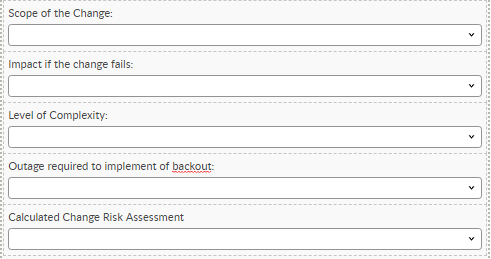
<figure><img src="https://content.gitbook.com/content/hlW9jKl7dcDggHAPhNU9/blobs/DokJ7C4MU47HtxtLTGR6/Screen%20Shot%202022-12-12%20at%2011.39.33%20AM.png" alt=""><figcaption><p>Example: In Screen Designer there are 4 fields, Drop-Down type, the combination of these selections automatically populates the fifth and final field <strong>"Calculated Change Risk Assessment"</strong></p></figcaption></figure>

### Create the Input Fields for your Calculated Field

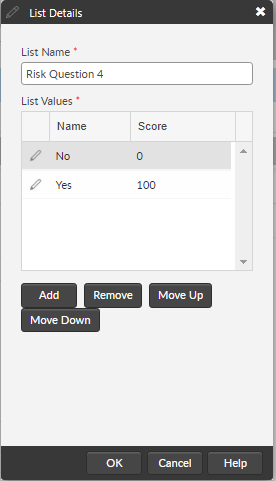
Create input fields for your calculated field.  They will all be single-select Drop Down fields and will need a weighting applied (Score).  For example:&#x20;

<figure><img src="https://content.gitbook.com/content/hlW9jKl7dcDggHAPhNU9/blobs/pVJMr5OgEkHjmtg1zBBW/Screen%20Shot%202022-12-12%20at%2011.42.37%20AM.png" alt=""><figcaption></figcaption></figure>

### Create your Calculated Field

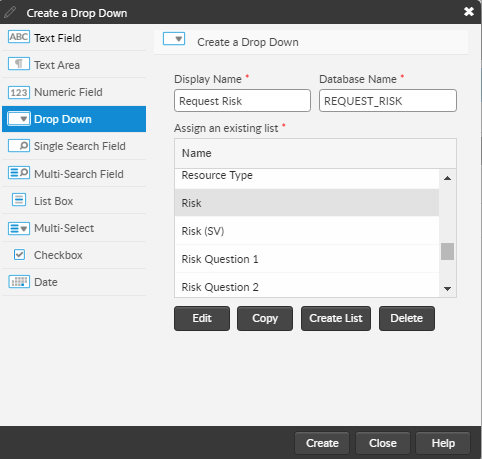
This will also be a single-select Drop Down field that should hold the value you want based on the values selected in other fields.  In this case, we have linked it to the System list value for Risk:

<figure><img src="https://content.gitbook.com/content/hlW9jKl7dcDggHAPhNU9/blobs/TtBfVgIJVtHiidJwb7HY/Screen%20Shot%202022-12-12%20at%2011.44.25%20AM.png" alt=""><figcaption></figcaption></figure>

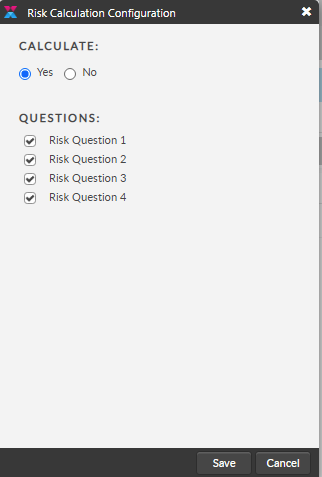
### Click the Calculated Field and Configure the calculator

Now all you need to do is configure your calculator.

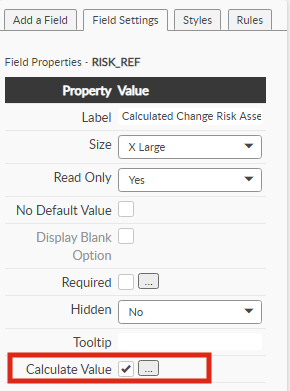
1. Click on the calculated field and then go to **Field Properties**
2. Click **Calculate Value** and then the Ellipsis. &#x20;
3. Select all the questions you want considered.

<figure><img src="https://content.gitbook.com/content/hlW9jKl7dcDggHAPhNU9/blobs/DmAHnh5bL04VDe2lq5t6/Screen%20Shot%202022-12-12%20at%2011.46.55%20AM.png" alt=""><figcaption></figcaption></figure>

<figure><img src="https://content.gitbook.com/content/hlW9jKl7dcDggHAPhNU9/blobs/Yh91MMiKvtQk9fOJ2NAs/Screen%20Shot%202022-12-12%20at%2011.47.50%20AM.png" alt=""><figcaption></figcaption></figure>

{% hint style="info" %}
**The importance of a good** [**naming convention**](https://docs.alemba.com/asm-hermes/setup-and-configure-asm/configuring-your-system/configuring-screens/building-screens-in-asm-designer/creating-a-custom-field) **is apparent.**  You will want to be sure to name the fields and lists in such a way as you can easily discern what they are.
{% endhint %}