# Styling the Self Service Portal

## Skins in the Self Service Portal

You can style your portal natively, without having to manipulate HTML or CSS:

* Create multiple skins, so that you can display different systems differently
* Create and configure Self Service Portal submit and review screens
* Rebrand the Self Service Portal template page (banner, menu bar, navigation bar, headings, text format)
* Change the font, color, and style of screen widgets, buttons, and the menu panel

Menu items in the My Options menu pane can be hidden, added to, and reordered in Self Service Portal My Options in System Admin.

## Creating/Cloning a Skin

Two skins are provided with ASM Core: Default and Classic. Additional skins can be created. All skins can have their fonts, colors, banners, and widget styles redesigned.

{% hint style="info" %}

### Before you start

To work with Self Service portal skins using ASM Designer, you must have **Designer** selected in your General Access Security Role.

To maintain an audit trail of changes made to screens, forms and message templates, Designer must be selected in the Auditing window.
{% endhint %}

1. Display the ASM Designer window if it is not already visible on screen.

   Select ≡ > **Admin** > **Designer**.

   This window consists of three tabs that display different views:

   <table><thead><tr><th width="180">Find a Screen</th><th>Can be used to search for and work with specific screens, forms or message templates, as well as create new in-house screens</th></tr></thead><tbody><tr><td>View screens</td><td>Displays details of currently selected screens and is used to modify screens</td></tr><tr><td>Skins</td><td>Enables you to create and modify skins for your Self Service Portal(s)</td></tr></tbody></table>
2. On the **Skins** tab, select the skin you want to clone from using the **Skin** drop down list in the top right corner of the window.
3. Select **Clone** at the bottom of the main pane.
4. Enter a name for your new skin and select **Ok**.
5. The new skin appears in the drop down list in the top right hand corner of the window and is ready to be redesigned.
6. To rename the skin select **Rename** at the bottom of the main pane, enter the new name and select **Ok**.
7. To delete the skin select **Delete** at the bottom of the main pane, enter the new name and select **Ok**.

If your system has **multiple portal systems**, you can apply a different skin to each one in Self Service Portal Systems in System Admin.

## Redesigning a Skin

1. Display the ASM Designer window if it is not already visible on screen.

   Select ≡ > **Admin** > **Designer**.
2. On the **Skins** tab, ensure that you are working on the correct skin by selecting from the drop down list in the top right corner of the window.
3. In the main part of the window, the **Self Service Portal Template** tab is selected, and displays a preview of the skin and all of its elements.
4. Select the element you want to modify, such as Global Font, Headings, Page Header, My Options, Widgets, and so on.
5. Beneath the list of elements, you can see a list of styles you may edit for the selected element. For example:

   * for **Global Font**, you can edit the Font Family, Font Color and Font Size
   * for **Page Header**, you can edit the banner image, banner background, image alignment, and so on
   * for **All Widgets**, you can edit Header Font family, color, size, and text spacing
   * for **Table Widgets**, you can edit alternate row striping, and border, header, font, background, and row color

   Use caution when selecting the largest available font sizes. On small browser windows, the largest font sizes may result in text truncating, wrapping, or displaying poorly.
6. Select the new styles, using the drop down lists. To upload a new banner image, see the section below.
7. Select the **Refresh** button or **Save** to view the changes.
8. Select **Save** at the bottom of the main pane to apply the changes, or **Restore Default** to revert to the original skin design. Type the change reasons if prompted to do so.

{% hint style="success" %}
**Best Practice**

When altering color schemes, capture the RGB values from your existing intranet sites so that you can match your colors exactly.
{% endhint %}

<figure><img src="https://content.gitbook.com/content/hlW9jKl7dcDggHAPhNU9/blobs/t0vVt3ubw0qXMtogvOkM/Screen%20Shot%202022-12-12%20at%2012.56.06%20PM.png" alt=""><figcaption></figcaption></figure>

## Uploading an Image for the Banner <a href="#uploadin" id="uploadin"></a>

By default, the Self Service Portal banner displays the ASM logo but you can replace this with your own logo.

{% hint style="info" %}

### Before you start

The image must be in a supported format. Designer supports JPEG, GIF, PNG, BMP and TIFF file formats.
{% endhint %}

1. Display the ASM Designer window if it is not already visible on screen.

   Select ≡ > **Admin** > **Designer**.

   This window consists of three tabs that display different views:

   <table><thead><tr><th width="175">Find a Screen</th><th>Can be used to search for and work with specific screens, forms or message templates, as well as create new in-house screens</th></tr></thead><tbody><tr><td>View screens</td><td>Displays details of currently selected screens and is used to modify screens</td></tr><tr><td>Skins</td><td>Enables you to create and modify skins for your Self Service Portal(s)</td></tr></tbody></table>
2. On the **Skins** tab, ensure that you are working on the correct skin by selecting from the drop down list in the top right hand corner of the window.
3. In the main part of the window, the **Self Service Portal Template** tab is selected, and displays a preview of the skin and all of its elements.
4. Select **Page Header** in the list box and complete the details, selecting  to preview the effect after each change:

<table><thead><tr><th width="261">Banner Background Color</th><th>Select the color for the background from the drop down list</th></tr></thead><tbody><tr><td>Banner Minimum Height</td><td>Select the minimum height for the banner. If the image height and padding is larger than the selected value, the banner will automatically expand to accommodate.</td></tr><tr><td>Banner Image Padding</td><td>Select the number of pixels to add as padding for the image. The image is centered within the padding.</td></tr><tr><td>Show Main Image</td><td>Choose whether to show or hide the banner</td></tr><tr><td>Main Image Alignment</td><td>Choose whether you want the logo to appear on the left or right hand side of the banner</td></tr><tr><td>Banner Main Image</td><td><p>Select <strong>Browse</strong> and navigate to the image you want to use.</p><p>Select <strong>Open</strong> to see the name of the file in the field.</p></td></tr></tbody></table>

5\.  Select the **Refresh** button or **Save** to view the changes.

6\.  Select **Save** at the bottom of the main pane to apply the changes, or **Restore Default** to revert to the original portal template. Type the change reasons if prompted to do so.

{% hint style="info" %}
If you want to rebrand the splash screen and default banner images that are not accessible through screen designer you can:

**For Cloud Systems** - Contact support and supply the following images: Footer Banner Image, Home Banner Image, and login poster image.

**For On-Premise systems**, replace the following files in the Root System Directory (C:\Program Files\Alemba\\\[ASM System] where \[ASM System] is your ASM system Name.  *Note, older systems may be called vFire*:

* `LiteFooterBanner.jpg`
* `LiteHomeBanner.jpg`
* `login-poster.jpg`
  {% endhint %}

{% hint style="success" %}
**Best Practice**

If you are in an on-premise system and decide to replace these files, always rename the original files as follows so that you can revert back if necessary:

* `LiteFooterBanner_Old.jpg`
* `LiteHomeBanner_Old.jpg`
* `login-poster_Old.jpg`
  {% endhint %}

## Displaying the Self Service Portal Template History

You can display the history of changes to the Self Service Portal template, which will record the dates of changes, the nature of the change, and the analyst who made the changes.

1. Display the ASM Designer window if it is not already visible on screen.

   Select ≡ > **Admin** > **Designer**.

   This window consists of three tabs that display different views:

   <table><thead><tr><th width="186">Find a Screen</th><th>Can be used to search for and work with specific screens, forms or message templates, as well as create new in-house screens</th></tr></thead><tbody><tr><td>View screens</td><td>Displays details of currently selected screens and is used to modify screens</td></tr><tr><td>Skins</td><td>Enables you to create and modify skins for your Self Service Portal(s)</td></tr></tbody></table>
2. Select the **Skins** tab.
3. On the **Self Service Portal Template** tab, select the **Self Service Portal Template History**.
4. A list of changes appears, along with the name of the Analyst and the date of the changes. To see more detail, select the arrow to the left of the Analyst name.
5. If you wish to export the history to an Excel file for reporting or auditing purposes, select **Export History** at the bottom of the window and specify the file location in the **Save As** dialog box.

## Change the Size of Tiles in the Service Catalog

To change the size of the Request Tiles in the Portal, you need access to Designer in Core.

1. Display the ASM Designer window if it is not already visible on screen.

   Select ≡ > **Admin** > **Designer**.

   This window consists of three tabs that display different views:

   <table><thead><tr><th width="186">Find a Screen</th><th>Can be used to search for and work with specific screens, forms or message templates, as well as create new in-house screens</th></tr></thead><tbody><tr><td>View screens</td><td>Displays details of currently selected screens and is used to modify screens</td></tr><tr><td>Skins</td><td>Enables you to create and modify skins for your Self Service Portal(s)</td></tr></tbody></table>
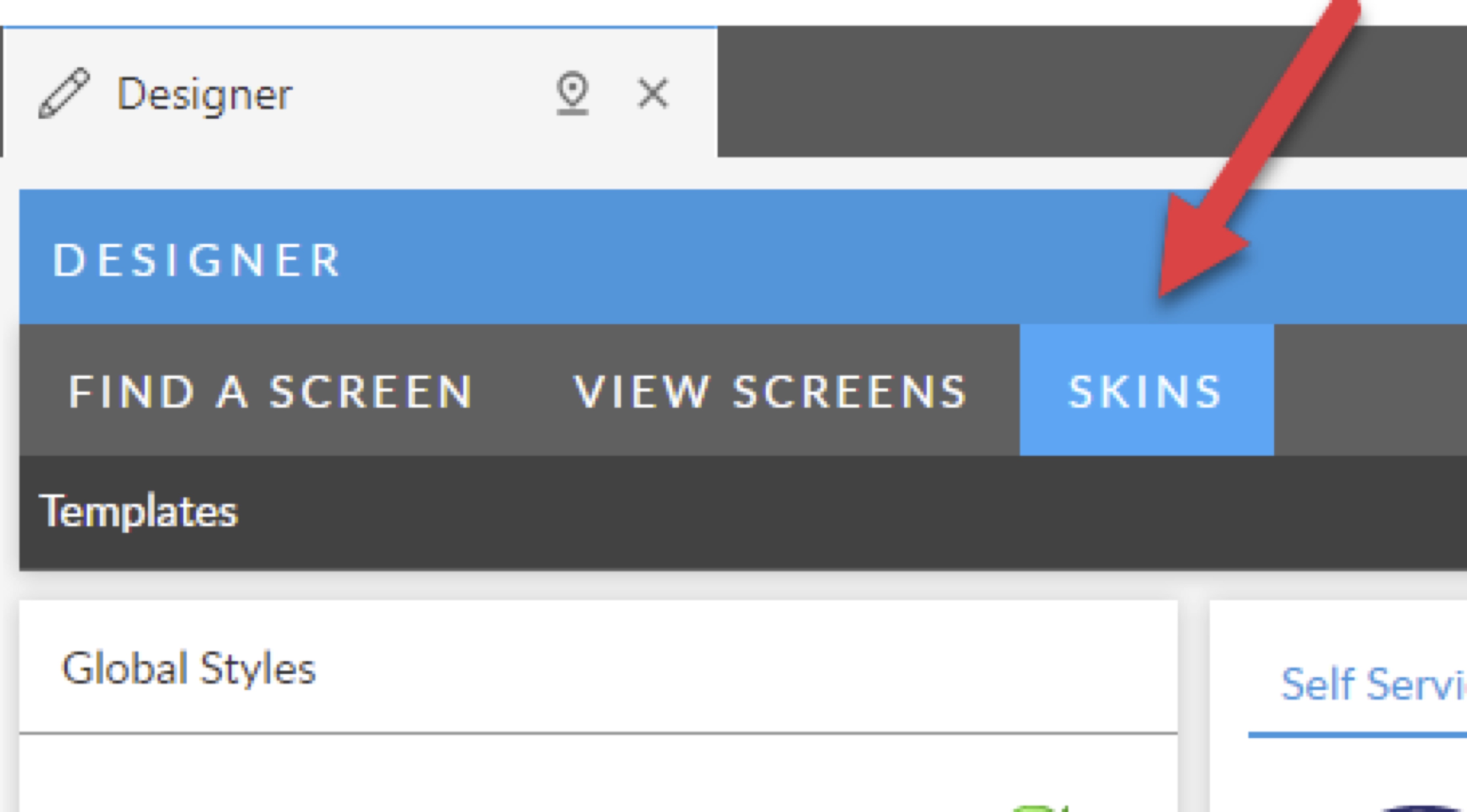
2. Select the **Skins** tab.

<figure><img src="https://1375663122-files.gitbook.io/~/files/v0/b/gitbook-x-prod.appspot.com/o/spaces%2FhlW9jKl7dcDggHAPhNU9%2Fuploads%2FesKVgAzShkGCZjJsdVis%2FSkins.jpg?alt=media&#x26;token=2bbb73f7-7751-4de3-af56-8e6b7e286f44" alt=""><figcaption></figcaption></figure>

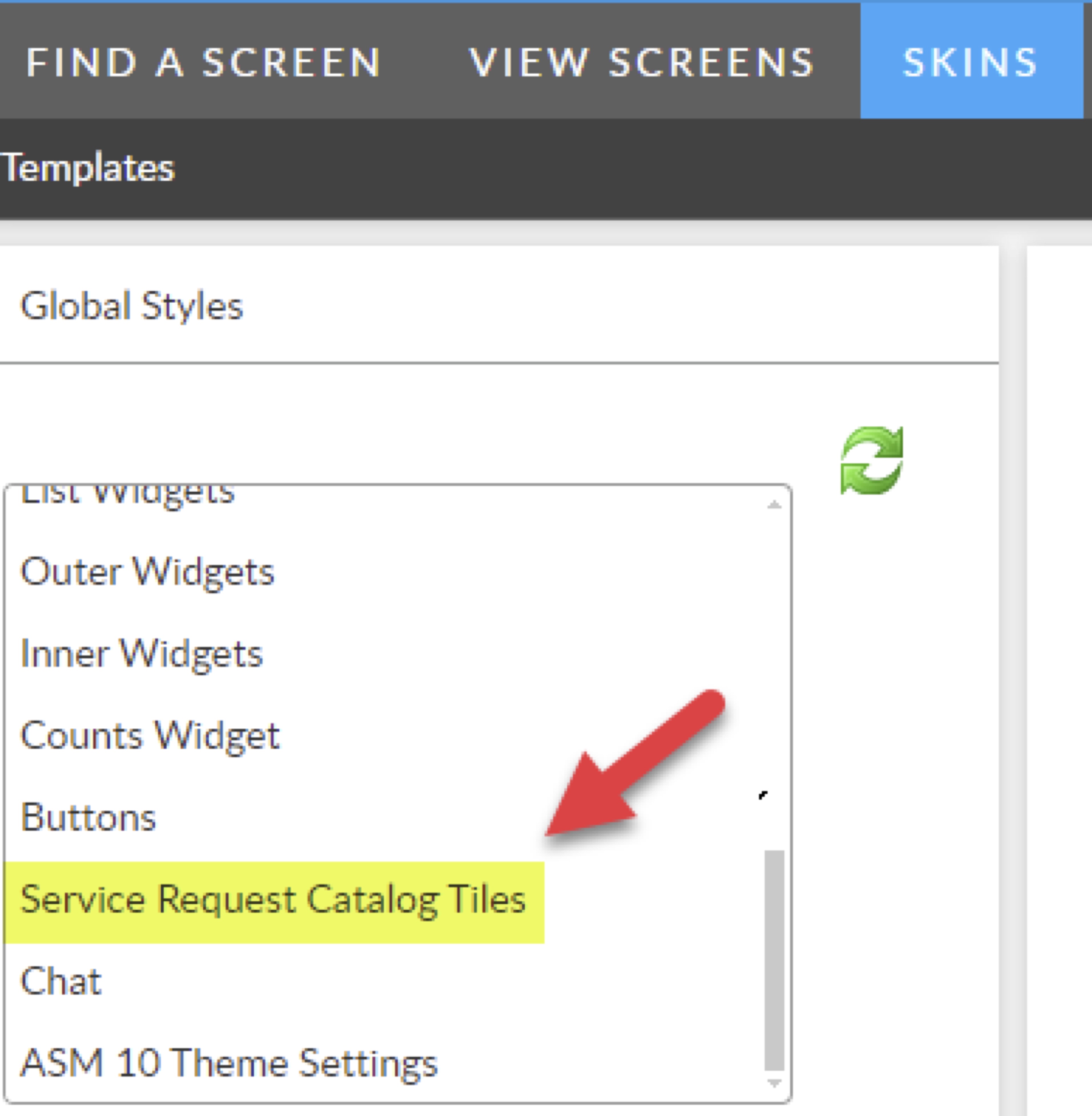
3. Scroll down the menu on left side to **Service Request Catalog Tiles** and select

<figure><img src="https://1375663122-files.gitbook.io/~/files/v0/b/gitbook-x-prod.appspot.com/o/spaces%2FhlW9jKl7dcDggHAPhNU9%2Fuploads%2FTRkGflMSCE3nWBn0IunI%2FSRT.jpg?alt=media&#x26;token=43f5fc2c-95a1-43c8-96f2-7e4847a334e3" alt=""><figcaption></figcaption></figure>

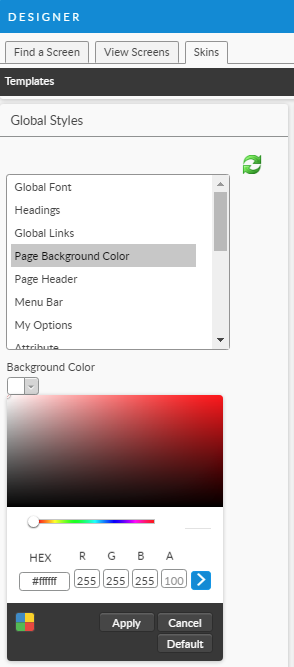
4. Adjust Tile Width to desired size to control

<figure><img src="https://1375663122-files.gitbook.io/~/files/v0/b/gitbook-x-prod.appspot.com/o/spaces%2FhlW9jKl7dcDggHAPhNU9%2Fuploads%2FGVHuss223f4ZiqsDgZ6a%2Ftilewidth.jpg?alt=media&#x26;token=7b2dfc77-57b6-4efe-b999-4601e7de0839" alt=""><figcaption></figcaption></figure>

&#x20;

5\.        Select **Save** at bottom of screen to save changes

6\.        Refresh Portal to see if new Tile size is what you want

7\.        If more adjustments are needed, repeat Step 4 and 5 until desired effects are achieved