> For the complete documentation index, see [llms.txt](https://docs.alemba.com/asm-hermes/llms.txt). Markdown versions of documentation pages are available by appending `.md` to page URLs; this page is available as [Markdown](https://docs.alemba.com/asm-hermes/setup-and-configure-asm/configuring-your-system/system-administration-settings/availability/schedule-definition.md).
# Schedule Definition
You can have many different sets of availability schedules, so that different schedules can be applied to different items within the CMDB.
### Creating an Availability Schedule
You can create a schedule and apply it to several CMDB items, or you can copy an existing one and modify it to meet your requirements.
{% hint style="info" %}
### Before you start
You must have **Availability Setup** enabled within your General Access Security Role in order to configure any Availability administration settings.
{% endhint %}
1. Select Menu then **Admin**, and then select **System Administration**. The System Administration window is displayed. In the Explorer pane, select **Availability**.
2. Select **Schedule Definition** to display the window. The top of the window shows existing schedules in a browse table. The lower part of the window displays a calendar grid representing the weekly availability commitment. There is a row for each day of the week and a column for each hour of a 24 hour day, starting at midnight. The selected schedule details are displayed. The legend to the right of the calendar explains the hours allocated to different types of availability.
3. Select the **New** icon. A blank row is inserted in the browse table and the grid clears.
4. Type a name for the availability schedule in the browse table beneath **Schedule Name**.
5. Define the times for the schedule. This can be done in either of the following two ways:
* Drag your mouse across the grid to select multiple hours.
* Use the date pickers below the grid to quickly select hours across multiple days. Pick a start day from the list on the left, and an end day on the next day list to choose the day range. Then, use the hour date pickers to choose a start and end hour. Those chosen hours will be automatically selected.
6. Select an availability type from the legend on the right. The availability types are as follows:
| **Contracted Availability represents time when the CMDB item is expected and required to be available.** | **Targets are set in place to determine the uptime that must be achieved during these periods.** |
| ---------------------------------------------------------------------------------------------------------------------------------- | ------------------------------------------------------------------------------------------------------------------- |
|  | Time during which the CMDB item is required to be available |
| 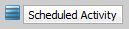 | Time set aside for the performance of regular tasks such as backups, system startups and maintenance |
| **Uncontracted Availability includes times when the service is likely to be available but there is no contractual obligation.** | **Whether the item is up or down will still be tracked by ASM Core but this is not an issue for the Service Desk.** |
|  | Time when the item is not required but probably is available |
| 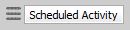 | Time when the item is not required to be available and regular updates or maintenance activities are scheduled |
The colors for the selected hours will be highlighted in the grid.
> For example, if you select **Availability Required**, the selected hours will be highlighted in blue. Alternatively, if you select **Availability Not Required**, the selected hours will be highlighted in white.
Select the Save icon to save the changes. Provide the Change Reasons if prompted to do so.
### Displaying Availability Schedules
1. Select Menu then **Admin**, and then select **System Administration**. The System Administration window is displayed. In the Explorer pane, select **Availability**.
2. Select **Schedule Definition** to display the window. The top of the window shows existing schedules in a browse table. The lower part of the window displays a calendar grid representing the weekly availability commitment. There is a row for each day of the week and a column for each hour of a 24 hour day, starting at midnight. The selected schedule details are displayed. The legend to the right of the calendar explains the hours allocated to different types of availability.
3. Select the schedule you want to view to display the details in the grid.
### Copying an Availability Schedule
1. Select Menu then **Admin**, and then select **System Administration**. The System Administration window is displayed. In the Explorer pane, select **Availability**.
2. Select **Schedule Definition** to display the window.
3. Select the schedule you want to copy.
4. Select the Copy icon .
5. If you want to add the schedule to an existing one, select it from the browse table.
6. Select the Paste icon to paste the schedule hours. If required, you can modify the hours.
7. Select the Save icon to save the changes. Provide the Change Reasons if prompted to do so.
### Updating an Availability Schedule
1. Select Menu then **Admin**, and then select **System Administration**. The System Administration window is displayed. In the Explorer pane, select **Availability**.
2. Select **Schedule Definition** to display the window.
3. Select the schedule entry you want to modify.
4. Type the new name or redefine the schedule time periods for the schedule you selected.
5. Select the Save icon to save the changes. Provide the Change Reasons if prompted to do so.
### Deleting an Availability Schedule
{% hint style="danger" %}
You cannot reverse this procedure. If you delete an outage type by mistake, you will have to recreate it by creating a new availability schedule.
{% endhint %}
1. Select Menu then **Admin**, and then select **System Administration**. The System Administration window is displayed. In the Explorer pane, select **Availability**.
2. Select **Schedule Definition** to display the window.
3. Select the schedule entry you want to delete.
4. Select the Delete icon.
5. Select the Save icon to save the changes. Provide the Change Reasons if prompted to do so.