> For the complete documentation index, see [llms.txt](https://docs.alemba.com/asm-hermes/llms.txt). Markdown versions of documentation pages are available by appending `.md` to page URLs; this page is available as [Markdown](https://docs.alemba.com/asm-hermes/setup-and-configure-asm/configuring-your-system/system-administration-settings/ipk-and-workflow/incident-problem-and-known-error-ipk-management/link-screen-set-to-reasons.md).
# Link Screen Set to Reasons
Call closure reasons can be linked to either Screen Sets or Types. When reasons are linked to screen sets, only those reasons associated with a particular screen set are available from the Reasons
{% hint style="info" %}
Reason to Screen Set linking is limited to ASM Core and does not extend to call closure through HTML Only, API, or the Connectors
{% endhint %}
## Enabling Closure Reason to Screen Set Linking
{% hint style="info" %}
### Before you start
You must have **IPK Set Up** selected in the Admin tab of your **General Access security role**.
{% endhint %}
1. Select **Admin** > **System Administration**. The System Administration window appears.
2. In the Explorer pane, expand **IPK Management**.
3. Under the **IPK Management** menu group, select **IPK Settings (Partitioned)** to open the window.
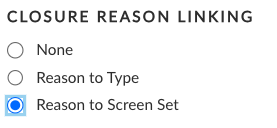
4. Find the section titled **Closure Reason Linking** and select **Reason to Screen Set**.
5. Save the changes.
6. Provide the Change Reasons if prompted to do so.
## Configuring Links Between Reasons and Screen Sets
1. Select ≡ > **Admin** > **System Administration**. The System Administration window appears.
2. In the Explorer pane, expand **IPK Management**.
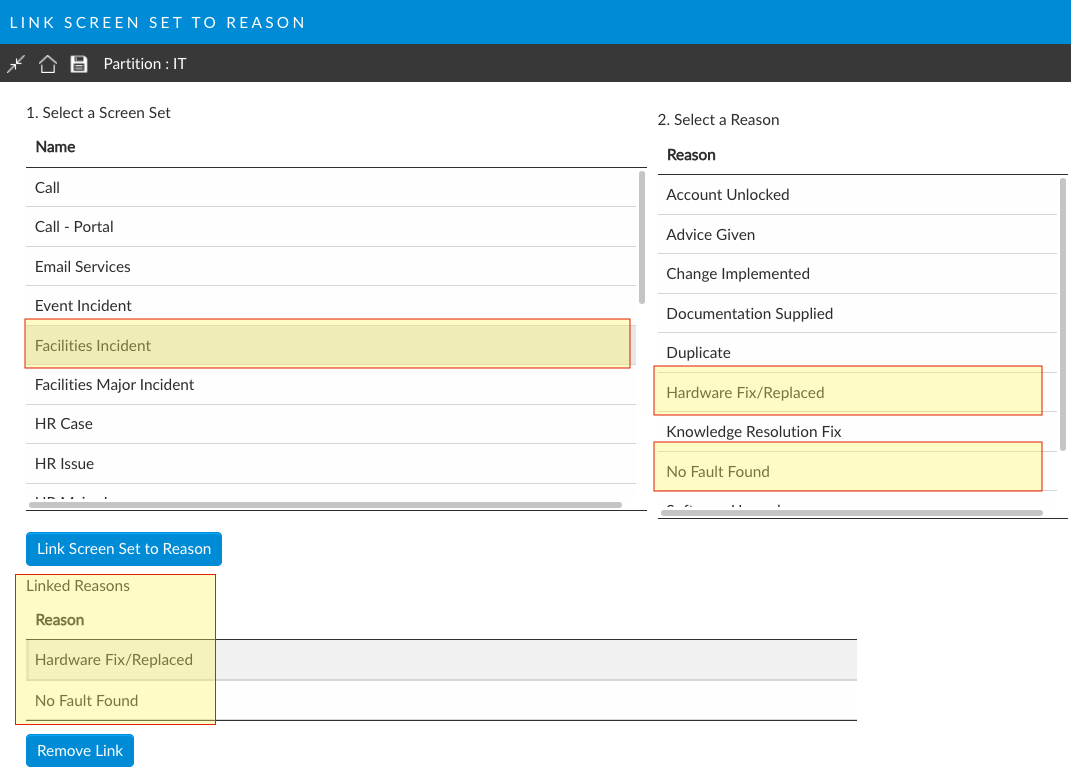
3. Under the **IPK Management** menu group, select **Link Screen Set to Reason** to open the window. Two tables are displayed at the top of the window; one showing all of the screen sets you have access to, and the other listing all of the available reasons. (These are defined by the system administrator in the Reasons window.)
4. From the **Select a Screen Set** table, select the screen set you want to work with. You may need to scroll down to find it. When you select a screen set, the reasons already linked to it are displayed in the **Linked Reasons** table towards the bottom of the window.
5. From the **Select a Reason** table, select a reason you want to be available to this screen set.
6. Select **Link Screen Set to Reason** to add the the reason to the Linked Reasons table.
7. Continue to add reasons to the screen set as needed.
8. Save the changes.
9. Provide the Change Reasons if prompted to do so.
## Removing Links Between Reasons and Screen Sets
{% hint style="info" %}
### Before you start
If you delete a link and the reason is currently in use, it will remain as a reason on existing calls but you cannot use it again.
{% endhint %}
1. Under the **IPK Management** menu group, select **Link Screen Set to Reason** to open the window.
2. From the **Linked Reasons** table, select the reason you wish to unlink.
3. Select **Remove Link**.
4. Save the changes. Provide the Change Reasons if prompted to do so.