# Quick Solutions

These "quick solutions" can be defined for commonly logged calls, such as a locked account or forgotten password, where the same details are required every time. Using Quick Solutions speeds up the process of logging and completing common calls.

Analysts can select a quick solution by selecting the Quick Solutions explorer option on the Call Details window, and selecting the required solutions from the displayed Select Quick Solution window. The Quick Solutions displayed will be the ones linked to the type they have chosen. If there are no Quick Solutions linked to the call’s issue type, all the Quick Solutions in the system will be displayed. You can define multiple Quick Solutions for a type.

### Creating a Quick Solution

{% hint style="info" %}

### Before you start

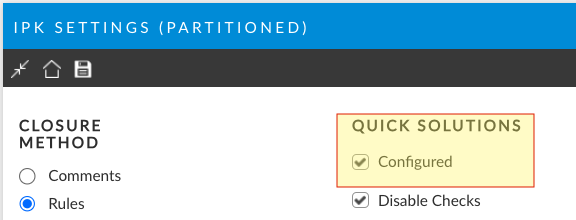
1. **Configured** must be selected under **Quick Solutions** in the IPK Settings (Partitioned) windows.&#x20;

<img src="https://1375663122-files.gitbook.io/~/files/v0/b/gitbook-x-prod.appspot.com/o/spaces%2FhlW9jKl7dcDggHAPhNU9%2Fuploads%2FzKqtIp3jByS7bDD7RyUq%2FScreenshot%202024-03-05%20at%202.16.18%20PM.png?alt=media&#x26;token=06546fc2-811c-413d-bbad-c67bdcd07459" alt="" data-size="original">

2. If you select **Disable Checks** in the same window, a call to which a quick solution has been applied can be closed immediately, bypassing validation checks such as User Required, CI Required, Service Required and Type Required. This means that even if mandatory fields are left incomplete, the call can still be closed.

3. The **issue types** must be defined in the Type Tiers window.
   {% endhint %}

4. Select ≡ > **Admin** > **System Administration**. The System Administration window appears.

5. In the Explorer pane, expand **IPK Management**.

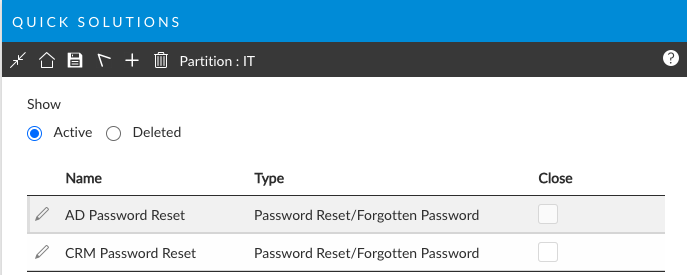
6. Select **Quick Solutions** to open the window. A browse table at the top of the window shows all existing quick solutions. To view any that have been deleted, select the **Deleted** radio button..

<figure><img src="https://1375663122-files.gitbook.io/~/files/v0/b/gitbook-x-prod.appspot.com/o/spaces%2FhlW9jKl7dcDggHAPhNU9%2Fuploads%2FKbG8Ekbrv32u6bCrJzBe%2FScreenshot%202024-03-22%20at%2012.36.14%20PM.png?alt=media&#x26;token=74cef04f-4a13-49ca-9fa5-c0d22576f660" alt=""><figcaption></figcaption></figure>

4. Select **Add** (Plus Icon). A row is inserted in the browse table and the Quick Solution configuration Window appears.

<figure><img src="https://1375663122-files.gitbook.io/~/files/v0/b/gitbook-x-prod.appspot.com/o/spaces%2FhlW9jKl7dcDggHAPhNU9%2Fuploads%2F7hDztf0yEqIjDyMamtle%2FScreenshot%202024-03-22%20at%2012.36.53%20PM.png?alt=media&#x26;token=f811f5e2-2b3d-40ce-aa90-be8afccd3457" alt=""><figcaption></figcaption></figure>

5. In the **Name** field, type a descriptive title for the quick solution (that is, the issue commonly logged).
6. **Select the Type** from the Type Tier list this solution will apply to.  This will be recorded as the issue type for the call to which this quick solution is applied.  By default, the default type (Unspecified) is selected.
7. To close the call to which the quick solution is applied immediately on applying the quick solution, select the **Close checkbox**.
8. In the Quick Description field, type the description the issue for this quick solution that will populate the Description in the Call Details window.
9. In the Quick Solution field, type the description of the solution that will populate the Actions and Solutions in the Call Details window.
10. If you want this action to be visible in the Self Service Portal, tick the **Visible in Self Service Portal** box.
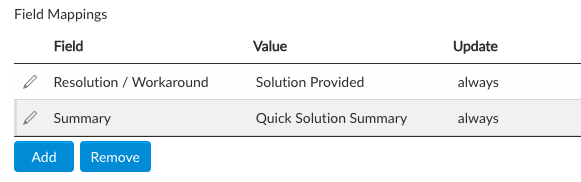
11. Map in any fields in the **field mapping** section you need in order to populate the call details for closure including reason, etc.

<figure><img src="https://1375663122-files.gitbook.io/~/files/v0/b/gitbook-x-prod.appspot.com/o/spaces%2FhlW9jKl7dcDggHAPhNU9%2Fuploads%2FY8VB2wXJ0Jeo9N5AqtVt%2FScreenshot%202024-03-22%20at%2012.38.58%20PM.png?alt=media&#x26;token=5f2170f7-7a0c-4e8e-82c7-19dcc7b68cb3" alt=""><figcaption><p>Example Field mappings - all fields are available including extension/custom fields</p></figcaption></figure>

12. Save the changes.&#x20;
13. Provide the Change Reasons if prompted to do so.

{% hint style="info" %}
**A Quick Solution can be linked to the Type “default”, and need not be assigned a name. If configured this way, the Quick Solution will be linked to all calls.**
{% endhint %}

### Deleting a Quick Solution

{% hint style="warning" %}

### Before you start

**Configured** must be selected under **Quick Solutions** in the IPK Settings (Partitioned) windows.&#x20;

If you select **Disable Checks** in the same window, a call to which a quick solution has been applied can be closed immediately, bypassing validation checks such as User Required, CI Required, Service Required and Type Required. This means that even if mandatory fields are left incomplete, the call can still be closed.
{% endhint %}

1. Select ≡ > **Admin** > **System Administration**. The System Administration window appears.&#x20;
2. In the Explorer pane, expand **IPK Management**.
3. Select **Quick Solutions** to open the window. A browse table at the top of the window shows all existing quick solutions. To view any that have been deleted, select the **Deleted** radio button.
4. Select an entry in the browse table.
5. Select **Delete**. This moves the quick solution from the Active list to the Deleted list and it is no longer available to Analysts closing a call.
6. Save the changes.&#x20;
7. Provide the Change Reasons if prompted to do so.

### Restoring a Deleted Quick Solution

1. Select ≡ > **Admin** > **System Administration**. The System Administration window appears.&#x20;
2. In the Explorer pane, expand **IPK Management**.
3. Select **Quick Solutions** to open the window. A browse table at the top of the window shows all existing quick solutions. To view any that have been deleted, select the **Deleted** radio button.
4. Select the entry you wish to restore.
5. Select **Undelete**. This moves the quick solution to the Active list again and will make it available in the system for analysts to apply to calls.
6. Save the changes. Provide the Change Reasons if prompted to do so.
