> For the complete documentation index, see [llms.txt](https://docs.alemba.com/asm-hermes/llms.txt). Markdown versions of documentation pages are available by appending `.md` to page URLs; this page is available as [Markdown](https://docs.alemba.com/asm-hermes/setup-and-configure-asm/configuring-your-system/system-administration-settings/knowledge-bank/knowledge-entry-types.md).
# Knowledge Entry Types
Knowledge Entry Types allow you to specify what kind of knowledge base article you are creating. They answer the question: What kind of Abstract is it? What kind of FAQ is it?
## What is the Difference Between Knowledge Entry Types and Knowledge Base Types?
Understanding the distinction between Knowledge Entry Types and Knowledge Base Types is crucial in organizing and accessing your information effectively.
* **Knowledge Entry Types** refer to the categorization within Knowledge Base Articles that specify the nature or format of the content. They help in defining the kind of information being added or accessed, for example, “Technical Support Abstracts,” “User Manuals,” or “FAQs.” These types allow for finer granularity in classifying and retrieving knowledge entries.
* **Knowledge Base Types**, on the other hand, represent broader categories or the primary classification of the knowledge base. They set the foundation of the knowledge management system, such as “Technical Documentation,” “Customer Support,” or “Product Documentation.” Knowledge Base Types serve as the main pillars under which Knowledge Entry Types are organized.
In essence, Knowledge Base Types provide the high-level organization of the knowledge management system, while Knowledge Entry Types offer a more detailed and specific classification within those broader categories. This layered approach ensures that information is easily navigable and accessible.
## What Kind is it?
You can create as many **Knowledge Entry Types** as you want to support answering the question "*What Kind is it*", but it is an unnecessary layer of detail in ***most*** cases.
**Where might Entry Types be helpful? Some examples:**
1. Within the Abstract Knowledge Base Type, you might have Entry Types for Legal Abstracts, Facilities Abstracts, HR Abstracts, IT Support Abstract, etc...
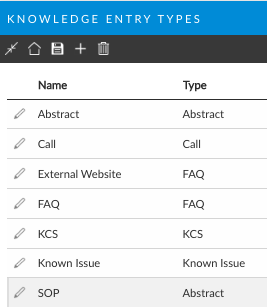
2. Here is another example of a configuration of **Knowledge Entry Types**
> For example, you can create an entry type of “Technical Support Abstracts” and map it to the base type of “Abstract”. The entry type will be available when Analysts create a knowledge entry as a sub-tier of the base type.
As you can see in the examples, they answer the question of ***what kind of Knowledge Base Article Type is it?***
## Creating Knowledge Entry Types
{% hint style="warning" %}
## Caution
Consider how many types you will want to have and avoid creating a type list that could be ambiguous. Alternatively, also avoid a list that is too detailed. Each situation can cause confusion. It is perhaps easiest to think of how you would want your knowledge KPI and reports organized, and set your types accordingly.
{% endhint %}
{% hint style="info" %}
## Before you start
You must have **Knowledge Bank Set Up** enabled within your General Access Security Role to work with knowledge entry types.
{% endhint %}
1. Select **System Administration**.
2. In the Explorer pane, expand **Knowledge Bank**.
3. Select **Knowledge Entry Types**. The Knowledge Entry Types window appears, with a list of existing entry types displayed. This could be empty when you first configure the system (*Rapid Start systems are preconfigured with standard ITIL Types*).
4. Select .
5. Type the name of the knowledge entry type in the **Name** column.
6. Select the type you want to base it on from the drop down list in the **Type** column. (You may like to adjust the column widths to see all of the columns.)
7. Repeat for each knowledge entry type you want to create.
8. Select  to save the changes. Provide the Change Reasons if prompted to do so.
## Renaming a Knowledge Entry Type
1. Select **System Administration**.
2. In the Explorer pane, expand **Knowledge Bank**.
3. Select **Knowledge Entry Types**.
4. Select the knowledge entry type you want to rename.
5. Overwrite with the name you want to use.
6. Select  to save the changes. Provide the Change Reasons if prompted to do so.
## Deleting a Knowledge Entry Type
{% hint style="danger" %}
## Warning
You cannot reverse this procedure. If you delete a Knowledge Entry Type by mistake, you cannot restore it and will need to create a new Entry Type.
You can create a new Knowledge Entry Type with the same name as a deleted one. However, this may cause the appearance of duplicated data in reports if knowledge entries in your system are linked to both the deleted value and active value.
{% endhint %}
{% hint style="warning" %}
## Caution
Knowledge entries created under deleted Entry Types remain linked to that deleted value until an active value is selected in the Knowledge Entry's Detail window. **You cannot do this in bulk.**
**If you delete a Knowledge Entry Type that is being used on 2, 200, or 2000 Knowledge articles, you will have to update each one manually from the deleted Knowledge Entry Type.**
{% endhint %}
1. Select the Menu button , then **Admin**, and then select **System Administration**. The System Administration window is displayed, with a menu of options available.
2. In the Explorer pane, expand **Knowledge Bank**.
3. Select **Knowledge Entry Types**.
4. Select the knowledge entry type you want to delete.
5. Select **Delete**. The entry disappears from the browse table but it is not yet deleted.
6. Select  to save the changes. Provide the Change Reasons if prompted to do so.
###