> For the complete documentation index, see [llms.txt](https://docs.alemba.com/asm-hermes/llms.txt). Markdown versions of documentation pages are available by appending `.md` to page URLs; this page is available as [Markdown](https://docs.alemba.com/asm-hermes/setup-and-configure-asm/configuring-your-system/system-administration-settings/self-service-portal/catalog-promoted-items.md).
# Catalog Promoted Items
System administrators can select catalog items to be 'promoted' (displayed automatically) on each portal system when a user first goes into the Service Request Catalog in Self Service Portal.
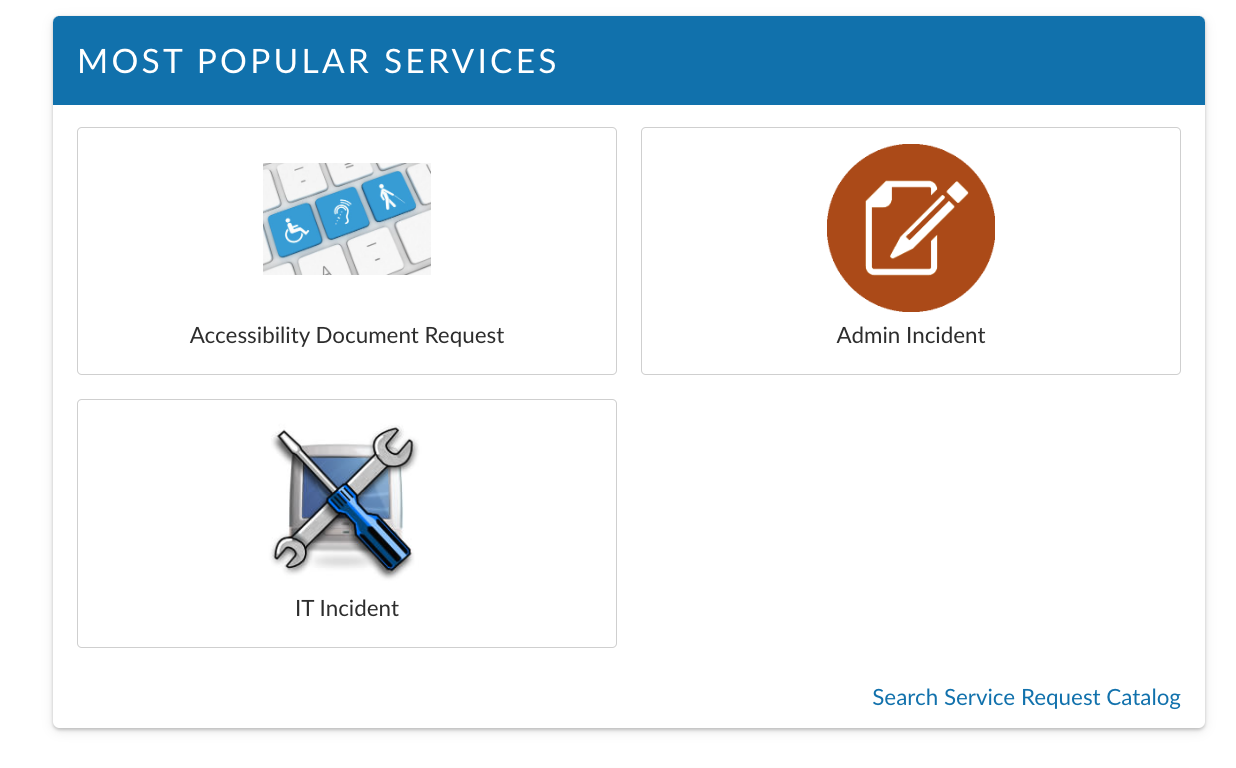
Service Actions can be promoted in the Self Service Portal so that they are automatically displayed to users when they initially browse the Service Request Catalog. Once the user runs a search in the Service Request Catalog, the promoted items will be replaced by items matching the user's search criteria.
Catalog Promoted Items, tiles in a size 'Small" widget window. It can also span the width of the page.
Use this function if you have a large number of service actions and bundles in your Service Request Catalog and you want a select few to appear on the home page of the Service Request Catalog, making the process of finding popular items easier for users.
### Configuring Field Settings
{% hint style="info" %}
### Before you start
You must have **Self Service Portal Setup** enabled within your General Access Security Role in order to configure any Self Service administration settings.
{% endhint %}
1. Select **Admin** > **System Administration**. The System Administration window appears.
2. In the Explorer pane, expand **Self Service Portal**.
3. Select **Catalog Promoted Items** to open the **Service Request Catalog - Promoted Items** window.
1. Use the **drop-down picker** control to choose the Self Service Portal system to configure with promoted items.
2. Select the checkbox **Enable Promoted Items** to reveal the configuration options for that portal system.
3. Use the **Service Action Search field** to search for and select the item you want to promote.
4. Select **Add** to add the item to the browse table below.
5. To change the order of items, select an item in the browse table then use **Up** and **Down** sorting buttons.
6. The order in which items are displayed in the browse table determines the order in which those items are displayed in the **Browse the Service Request Catalog** window.
7. To delete an item from the browse table, select the item then select **Delete**.
8. To disable all promoted items for a portal system, unselect **Enable Promoted Items**.
9. Select the **Save** icon to save the changes. Provide the Change Reasons if prompted to do so.
### Troubleshooting
If the items are not visible in the portal, check the following:
Users must:
* Does the user have access to the relevant partitions?
* Does the user have the subscriber or stakeholder permissions in the Self Service Portal Role - CMDB Tab of their **Self Service Portal role**?
* Is the CMDB item **visible in the portal**?
* Are the relevant **subscriber/stakeholder options** selected in the tabs at the bottom of the CMDB Item Details window?