> For the complete documentation index, see [llms.txt](https://docs.alemba.com/asm-hermes/llms.txt). Markdown versions of documentation pages are available by appending `.md` to page URLs; this page is available as [Markdown](https://docs.alemba.com/asm-hermes/use-asm/using-asm-core/getting-started/the-asm-core-window/configuring-search-results.md).
# Configuring search results
Search results are usually displayed in a browse table. Much of it functions as expected and is similar to many spreadsheet applications. You can change how the information appears in a browse table as follows:
* Change a column width
* Select a column heading to sort the information in ascending or descending order
* Filter items in one or more columns
* Select which columns to display
* Change the background and text colors
You can also export the search results to a PDF or Excel file or display them as a graph.
Using the right-click shortcut menu, you can:
* Print all the records
* Copy the current row or all rows to the clipboard and paste it into an external application
* Action a call
* Review a call
* Export the search results to a PDF or Excel file
Administrators can change the maximum number of results that are returned, and how often search results are refreshed. For information about the [**Browse Refresh Interval**](/asm-hermes/setup-and-configure-asm/configuring-your-system/system-administration-settings/system-settings-menu/browse-limits.md), see **System Settings**.
You can **Select All Records** using the right-click menu, or **CTRL-A (windows), or CMD-A (Mac)**. To select multiple results, select and hold **CTRL (Windows)/CMD (Mac)** and select each of the items in turn. Or select and hold **SHIFT** and select a range.
## Selecting which columns to display
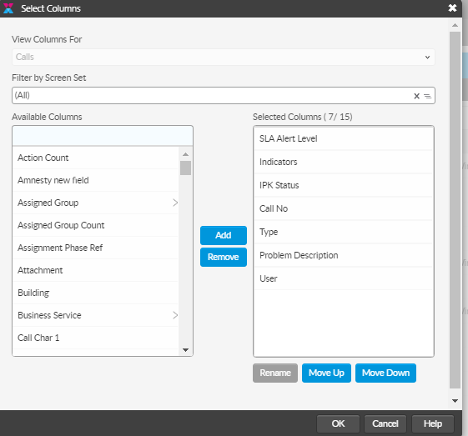
You can select which columns are displayed in a browse table. These changes are for personal use only and will not affect other analysts.
1. Select  to display the **Select Columns** window.
2. In the **View Columns For** field, select the entity type, for example Requests or Calls.
On some windows, this option is grayed out if there is no choice. For example on the **Call Search** window, **Calls** is the only option.
3. If required, in the **Filter by Screen Set** field, select the multi-tier selector button to find and filter by a relevant screen set.
4. If required, in the **Available Columns** list, select one or more columns that you want to display in your search results, then select **Add** to include them in the **Selected Columns** list.
You can select multiple columns using SHIFT-select for consecutive columns, or CTRL-select for non-consecutive columns. Alternatively, you can double-click a column title to include it in the list. You can display up to 15 columns.
5. If you want to remove a column from the **Selected Columns** list, select the unwanted column, then select **Remove**. Alternatively, you can double-click a column title to remove it from the list.
6. If you want to change the order in which the columns appear in the results table, in the **Selected Columns** list, select a column and select **Move Up** or **Move Down** to change its position.
7. Select **OK** to save the changes and apply your changes to the browse table.
## Choosing background and text colors
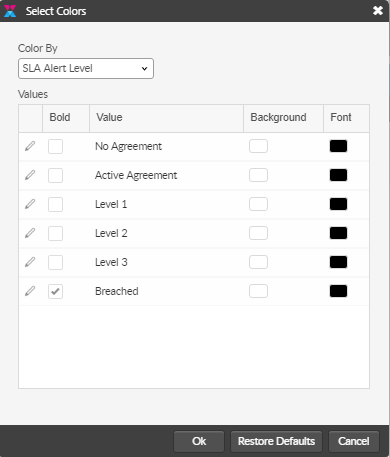
You can color code the records in call, task and request search results and most outstanding browse tables. These changes are for personal use only and will not affect other analysts.
1. In the browse table, select  to view the **Select Colors** window.
2. In the **Color By** drop-down list, select the criteria you want to color code by.
The Color By list contains list-based columns (such as Call Priority) from the Selected Columns list. Your selection dynamically populates the Values table.
3. In the **Values** table, select alongside the value you want to edit.
4. If required, select the **Bold** checkbox to make the value text appear bold.
5. If required, select a **Background** color from the drop-down list, then click **Apply**.
6. If required, select a **Font** color from the drop-down list, then click **Apply**.
7. Select **OK** to save the value.
8. If required, repeat for other values.
9. Select **OK** to apply your changes to the displayed results.
10. Select **Restore Defaults** to restore the original settings.
## Take action on calls
If the browse table contains calls, you can take action on a listed call. You must have the correct privileges in order to see this option.
1. Right-click the specific call, then select **Action**.
2. You can also highlight the call and click 
3. The call appears, enabling you to perform actions on it.
{% hint style="warning" %}
**Taking Action** transfers ownership of the ticket to the person "Taking Action". **In core you can add a note to tickets without actioning them.** If you intend only to post an update, for exampe, it is not necessary to take the ticket away from the assigned analyst.
**To put a note or update or any other communication on a ticket without transferring ownership: Highlight/Select the ticket from the browse table and select the Add Note Icon**  **.** You can add notes to multiple tickets at one time using this method.
**\*\*In Nano** you can make other changes/update additional fields in addition to adding notes, without taking over the ticket, if this permission has been granted.
{% endhint %}
## Review calls
If the browse table contains calls, you can review a past or current call. You must have the correct privileges in order to see this option.
1. Right-click the specific call, then select **Review** to view the call.
2. You can also highlight call and click 
3. The call appears in read-only mode allowing you to view the details, but not make changes.