# Creating an Outage from a Call

**Outages that are created from a call** are always unplanned and are logged as a result of a user having an issue with a configuration item or service against which you can log an outage.&#x20;

**Outages that are created from requests or tasks** are always planned, and you can inform your users about planned outages when you schedule them through requests or tasks. This information can be posted to the Bulletin Board. Planned outages can be logged against only those CMDB items that are linked to the request. You can also create outages against all items that are dependent on the linked item.

Outages that have been created from requests and tasks can be viewed by selecting the Outages and Change Windows explorer option. Outages logged through tasks also appear on the Outages and Change Windows window.

{% hint style="warning" %}
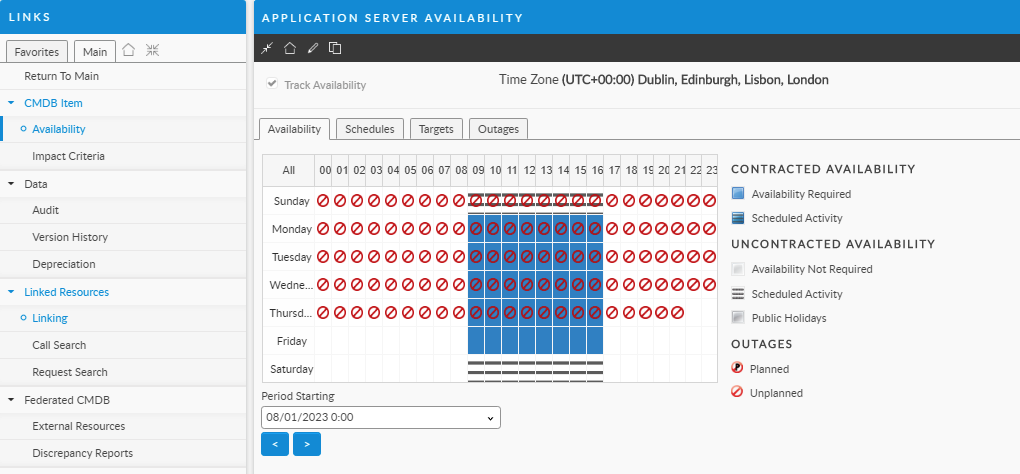
Outages can only be tracked if you are using Availability Management, and if the selected CMDB item has availability tracking enabled.  From the CMDB item, click Availability in the Links (Explorer) menu:&#x20;
{% endhint %}

<figure><img src="/files/TgDzGbtAqYwXOw4CoDEE" alt=""><figcaption></figcaption></figure>

{% hint style="info" %}

### Before you start

The CMDB items must have availability tracking enabled
{% endhint %}

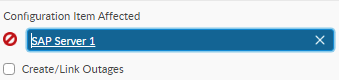
1. Ensure you have selected a service or configuration item in the Service or Configuration Item field. The Create Link/Outages option then appears below the Service or Configuration Item field.&#x20;

   <figure><img src="/files/u3dOzaCVyOZOZfkEjtkh" alt=""><figcaption></figcaption></figure>
2. Select **Create/Link Outages**.

{% hint style="info" %}
If **Auto-create outages** is configured, but the CMDB item does not have availability tracking enabled, the Create Outage option will be selected by default. However, analysts will not be prompted to enter outage details and therefore no outage will be created against the CMDB item.
{% endhint %}

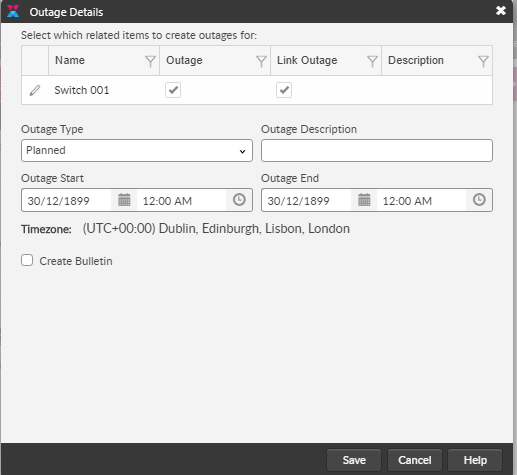
When you save, forward or defer the request or task, the **Outage Details** window appears.&#x20;

<figure><img src="/files/9KlvAwZH2908X6GtTFb1" alt=""><figcaption></figcaption></figure>

The browse table displays the names of all the CMDB items selected in the **Linked CIs** or **Linked Services** field, and the **Outage** and **Link Outage** options selected. The **Outage** option indicates that an outage will be logged against the selected config item(s).&#x20;

The **Link Outage** option links this call to outages against CMDB items which are linked to and dependent on the selected item(s). The **Description** column displays the current description of the outage. On creating an outage, the description cannot be added directly into the browse table, but must be specified in the **Outage Description** field.

<table data-header-hidden><thead><tr><th width="253"></th><th></th></tr></thead><tbody><tr><td>Outage Type</td><td>From the list, select the reason for the outage. The values for this list are configured by the system administrator in the Outage Types window.</td></tr><tr><td>Outage Start</td><td>Select the date and time from when the item has not been available.</td></tr><tr><td>Outage End</td><td>Select the expected date and time when the item will be available again.</td></tr><tr><td>Outage Description</td><td>Type any relevant comments about the outage.</td></tr></tbody></table>

1. If you want to broadcast the details of the outage to other analysts, select the **Create Bulletin**.
2. Click **Save**. If youhave selected **Create Bulletin**, the **Bulletin** window appears with the details of the outage including the request number of the request from which the outage is created. You can add to this message if you want.
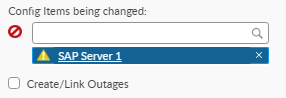
3. If an outage is running on a CMDB item, the outage icon appears in the **Linked CIs** or **Linked Services** field.&#x20;

   <figure><img src="/files/nA9QJLAlYMMZ5p2Jbk9X" alt=""><figcaption></figcaption></figure>
4. Move your cursor over the icon to view the description (tool-tip) of the outage.


---

# Agent Instructions: Querying This Documentation

If you need additional information that is not directly available in this page, you can query the documentation dynamically by asking a question.

Perform an HTTP GET request on the current page URL with the `ask` query parameter:

```
GET https://docs.alemba.com/asm-hermes/use-asm/using-asm-core/managing-your-tickets-calls-and-ipk/creating-an-outage-from-a-call.md?ask=<question>
```

The question should be specific, self-contained, and written in natural language.
The response will contain a direct answer to the question and relevant excerpts and sources from the documentation.

Use this mechanism when the answer is not explicitly present in the current page, you need clarification or additional context, or you want to retrieve related documentation sections.