> For the complete documentation index, see [llms.txt](https://docs.alemba.com/asm-hermes/llms.txt). Markdown versions of documentation pages are available by appending `.md` to page URLs; this page is available as [Markdown](https://docs.alemba.com/asm-hermes/use-asm/using-asm-core/ordering-service-actions-within-asm-core.md).
# Ordering Service Actions within ASM Core
Analysts can order Service Actions from within ASM Core on behalf of Users.
{% hint style="info" %}
### Before you start
You must have **Workflow Analyst** selected in the Shared tab of your **Workflow Management security role**.
Analysts can override User subscriber group when logging a request for a User.
{% endhint %}
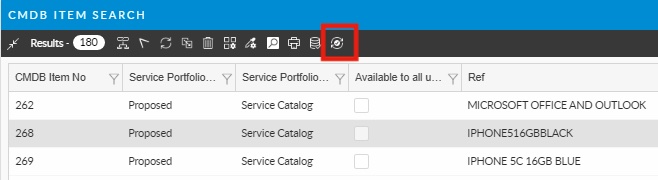
1. Display the **CMDB Search** window and **click to highlight the service action you want to order.**
{% hint style="info" %}
You can also order from within the **Service Action Details** window.

{% endhint %}
2. Select the Service Order icon from the toolbar. 
3. The **Request Details** windows appears if you select the button from a **CMDB Item Search** window, and the **Call Logging** window appears if you are working in a **Service Action Details** window. The windows displayed will be based on the template specified in the Service Action Details window.
4. Complete the details, specifying the quantity if you wish to order multiple quantities.
5. Save the details, by selecting **Internal**, **External** (for Calls), **Defer**, **Save** or **Submit** (for Requests).
6. The service order is created as if it was ordered from the Self Service Portal, including the automatic allocation of a unique number.
## Ordering multiple quantities
You can order multiple quantities of the same service action, assuming that the service action and your permissions allow it.
{% hint style="danger" %}
The **Service Order Item Quantity** field must be added to the Call/Request screen set in **Designer** and be editable if the Service Action has **Order Multiple Quantities** selected.
{% endhint %}