> For the complete documentation index, see [llms.txt](https://docs.alemba.com/asm-hermes/llms.txt). Markdown versions of documentation pages are available by appending `.md` to page URLs; this page is available as [Markdown](https://docs.alemba.com/asm-hermes/use-asm/using-the-self-service-portal/logging-and-reviewing-tickets-and-tasks-approvals/off-line-conversations-with-support.md).
# Off-Line Conversations with Support
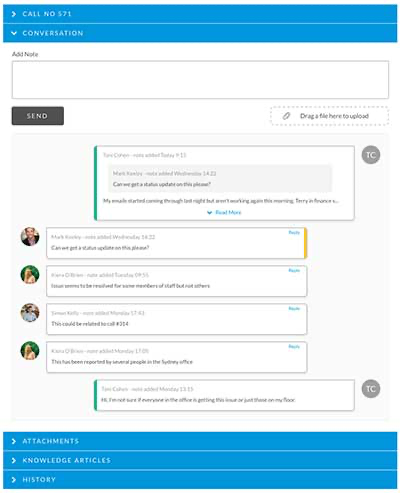
The conversation widget provides an easy way for the user and support to converse off-line and supports files transfers.
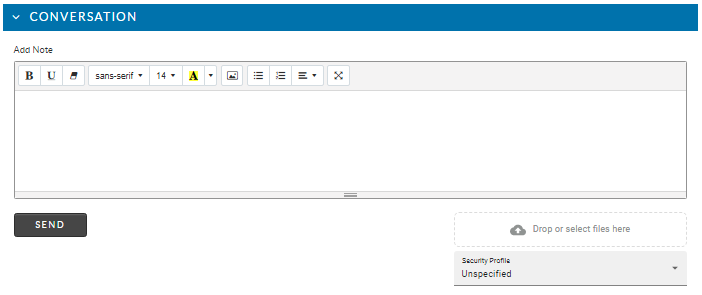
The Conversation Widget provides the ability to add an Attachment to the Call (Drop or Select files). It reveals in conversation form, the interactions between support and the user.
{% hint style="info" %}
This feature is available in ASM HERMES (ASM Version 10.6) and above
{% endhint %}
{% hint style="info" %}
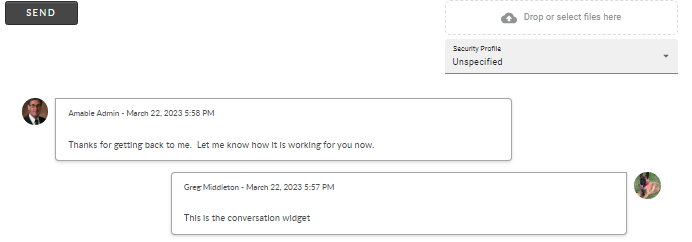
The conversation is displayed in chronological order, with the oldest entries at the bottom.
{% endhint %}
{% embed url="" %}
## To view and conduct conversations
1. From the Self Service portal, [open any ticket](/asm-hermes/use-asm/using-the-self-service-portal/logging-and-reviewing-tickets-and-tasks-approvals/reviewing-your-tickets-in-the-self-service-portal.md)
2. Click the section for Conversation
3. **To contribute to the conversation**
* **Add your note** and/or drop files into the drop zone or directly into the Note box.
* Click send when you are ready.
4. To View the conversation
* Click the Conversation Section and view the details. It is located just below the **Send** button in the widget.