> For the complete documentation index, see [llms.txt](https://docs.alemba.com/asm-hermes/llms.txt). Markdown versions of documentation pages are available by appending `.md` to page URLs; this page is available as [Markdown](https://docs.alemba.com/asm-hermes/use-asm/using-the-self-service-portal/self-administration-in-self-service-portal/changing-your-password.md).
# Changing Your Password
Self Service Portal enables you to change your password within the self administration section, if enabled for your organization.
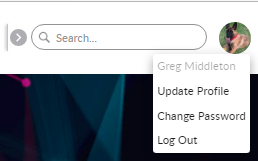
1. From your avatar, select **Change Password**
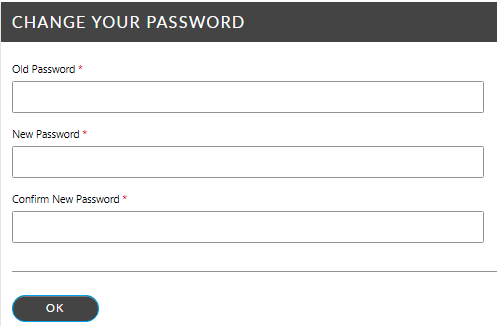
2. In the **Change Your Password** page, type your old password, and then type and confirm your new password, remembering that passwords are case sensitive and must meet complexity requirements. See your system administrator if you do not know what the password requirements are.
3. Click **OK**. A confirmation appears to acknowledge you have successfully updated your password.