# Delegating Work

You can delegate your work for a specified period of time from within Self Service Portal. This is particularly useful if you are going to be absent from your desk or are preparing to take holiday. The analyst you choose as a delegate must have the necessary permissions to manage your workload.

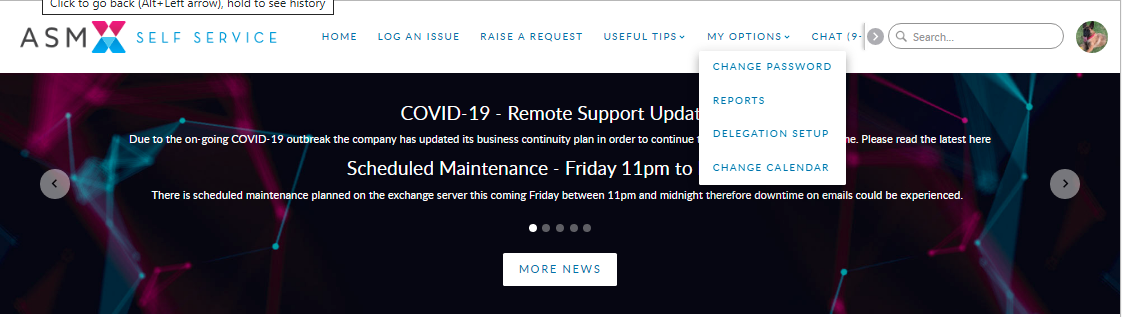
1. From the **My Options** menu, select **Delegation Setup**.

<figure><img src="/files/AB4DaDXwzDoADm3YulEP" alt=""><figcaption></figcaption></figure>

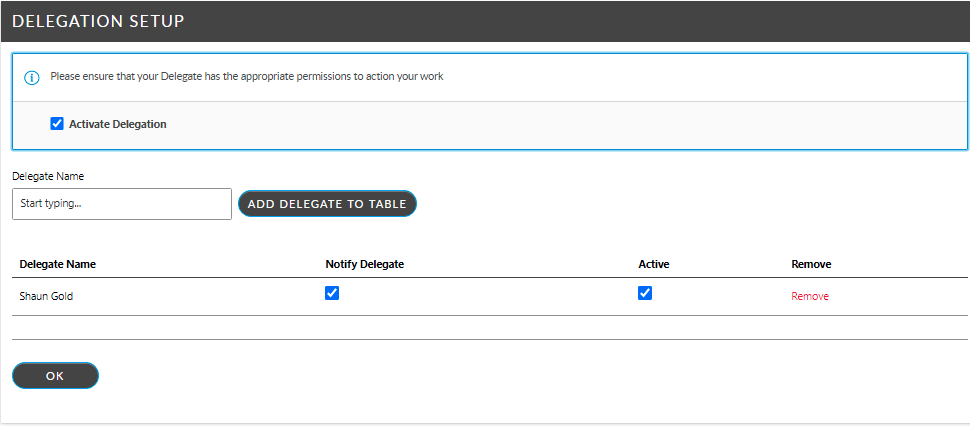
2. In the **Delegation Setup** page, complete the details.

<table><thead><tr><th width="246.5">Activate Delegation</th><th>Select this checkbox to begin delegating work. This is available so that you can set up delegate details in advance, and then simply check the box when necessary.</th></tr></thead><tbody><tr><td>Delegate Name</td><td><p>Identify the analyst you want to use as a delegate. You can select a number of analysts, but they must have the necessary permissions to manage your workload.</p><p>Type part or all of the analyst's name, or use the  button to search for the analyst.</p></td></tr></tbody></table>

3. When you have identified the analyst, select **Add Delegate to Table**.
4. When you see the entry in the browse table, select the checkboxes to set the delegate settings.

<table><thead><tr><th width="242.5">Action Approvals</th><th>Select to allow the delegate to action approvals on your behalf.</th></tr></thead><tbody><tr><td>Notify Delegate</td><td>Select to send an email to the analyst informing them that they have been delegated work.</td></tr><tr><td>Active</td><td>Select to make the analyst an active delegate. This allows you to have a number of analysts saved as potential delegates, and select the ones that are most appropriate for the time period that you are delegating work.</td></tr><tr><td>Remove</td><td>Select this option to remove the analyst from the list of delegates.</td></tr></tbody></table>

5. Click **OK** when you have completed the details.

<figure><img src="/files/5Z0aJlf1KDiq1vU04lYl" alt=""><figcaption></figcaption></figure>


---

# Agent Instructions: Querying This Documentation

If you need additional information that is not directly available in this page, you can query the documentation dynamically by asking a question.

Perform an HTTP GET request on the current page URL with the `ask` query parameter:

```
GET https://docs.alemba.com/asm-hermes/use-asm/using-the-self-service-portal/self-administration-in-self-service-portal/delegating-work.md?ask=<question>
```

The question should be specific, self-contained, and written in natural language.
The response will contain a direct answer to the question and relevant excerpts and sources from the documentation.

Use this mechanism when the answer is not explicitly present in the current page, you need clarification or additional context, or you want to retrieve related documentation sections.