# System Settings

{% hint style="info" %}

### Before you start

You must have **System Set Up** selected in the Admin tab of your **General Access security role**.
{% endhint %}

1. Select the Menu button, then **Admin**, then select **System Administration**.  The System Administration window appears.
2. In the Explorer pane, expand **System**, then select **System Settings**. The **System Settings** window appears, providing options to enable certain functionality that is common across ASM Core.

## General Settings

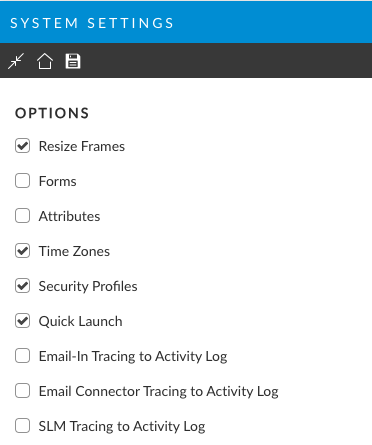
<figure><img src="/files/n9SkQaDjpMZtzljlEZxo" alt=""><figcaption></figcaption></figure>

<table><thead><tr><th width="166"></th><th></th></tr></thead><tbody><tr><td>Resize Frames</td><td>Allows analysts to adjust the width of the Explorer, wherever it appears</td></tr><tr><td>Forms</td><td>Enables service desk forms to be added to calls, CMDB items, requests and other entities. Analysts can use these forms to record additional information about the entity.</td></tr><tr><td>Attributes</td><td>Allows additional data to be defined for entities including CMDB items, calls, requests, tasks, and agreements.</td></tr><tr><td>Time Zones</td><td><p>Enables setting a time zone for the ASM Core server and for different entities in ASM Core, such as CMDB items and agreements.</p><p>This enables the Server Time Zone option in the <strong>System</strong> group in Explorer pane of the <strong>Administration</strong> window</p></td></tr><tr><td>Security Profiles</td><td><p>Enable creation of security profiles for calls, requests, and tasks.</p><p>This enables the Security Profiles Explorer option in the <strong>System</strong> group in the Explorer pane of the <strong>Administration</strong> window. It also makes the Security drop down list available in the call, request and task details windows.</p></td></tr><tr><td>Quick Launch</td><td><p>This enables the Quick Launch option in the <strong>System</strong> group in Explorer pane of the <strong>Administration</strong> window.</p><p>The URL will launch in your default browser.</p></td></tr><tr><td>Email-In Tracing to Activity Log</td><td>Enables emails tracing - helpful for troubleshooting.</td></tr><tr><td>Email connector tracing to activity log</td><td>Enables tracing of all email connector activity to the activity log.</td></tr><tr><td>SLM tracing to activity log</td><td>Enables tracing of all SLM activity to the activity log</td></tr><tr><td>Expire Event Messages</td><td>Selects the interval at which activity log messages should be deleted from the system. The options are:</td></tr></tbody></table>

| Never       | To retain all messages in the system                                         |
| ----------- | ---------------------------------------------------------------------------- |
| Weekly      | To delete all messages that are a week (or more) old                         |
| Fortnightly | To delete all messages that have been in the system for 15 days or more      |
| Monthly     | To delete all messages that have been in the system a month or longer        |
| Quarterly   | To delete all messages that have been in the system for three months or more |

## Browse and Search Refresh Intervals

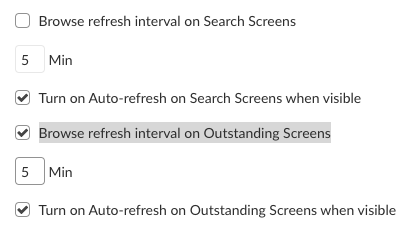
<figure><img src="/files/EEf92ndSFhMYPxganHVz" alt=""><figcaption></figcaption></figure>

|                                                          |                                                                                                                                                                                                                                                                                                                                                                                                                     |
| -------------------------------------------------------- | ------------------------------------------------------------------------------------------------------------------------------------------------------------------------------------------------------------------------------------------------------------------------------------------------------------------------------------------------------------------------------------------------------------------- |
| Browse Refresh Interval on **Search** Screens            | <p>Specifies the frequency (in minutes) at which you want the system to automatically refresh the data on a Search Screen.  If this is enabled, when the browse refresh interval is reached, the screens will refresh. </p><p></p><p>For performance reasons, only <strong>Refresh Interval</strong> values of 5 or higher should be entered for the interval.  The interval must be at least five (5) minutes.</p> |
| Turn On Auto-refresh on Search Screens when visible      | If on, when the browse refresh interval is reached, the screens will refresh only on visible screens, that is, the screens that have focus.  For performance improvement, you may only want to refresh visible screens.                                                                                                                                                                                             |
| Browse refresh interval on **Outstanding** Screens       | Specifies the frequency (in minutes) at which you want the system to automatically refresh the data on Outstanding or open Screens.  If this is enabled, when the browse refresh interval is reached, the screens will refresh.                                                                                                                                                                                     |
| Turn on Auto-refresh on Outstanding Screens when visible | If on, when the browse refresh interval is reached, the screens will refresh only on visible screens, that is, the screens that have focus.  For performance improvement, you may only want to refresh visible screens.                                                                                                                                                                                             |

## Attachments, Objects, Minimum Search Inputs
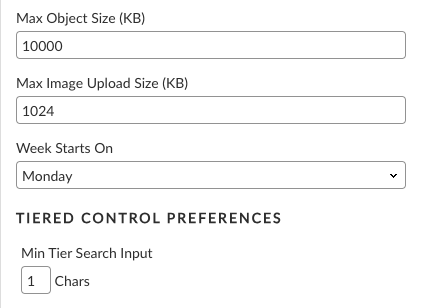
<figure><img src="/files/WULvik6h0ZEsgEKRFWNK" alt=""><figcaption></figcaption></figure>

|                            |                                                                                                                                                                                                                                                                                             |
| -------------------------- | ------------------------------------------------------------------------------------------------------------------------------------------------------------------------------------------------------------------------------------------------------------------------------------------- |
| Max Object Size (KB)       | <p>The size of objects that can be uploaded. The default is 100 KB.</p><p>The maximum value that can be entered is 2097151; however, large uploads may timeout before completion.</p><p>Changing the maximum object size may require Modifying Web.config and IIS.</p>                      |
| Max Image Upload Size (KB) | <p>The size of images that can be inserted into HTML text fields. The default is 100 KB.</p><p>The maximum value that can be entered is 2097151; however, large uploads may timeout before completion.</p><p>Changing the maximum object size may require Modifying Web.config and IIS.</p> |
| Week Starts On             | The default start day for reporting if the Analyst selects “Group by week”. This is Monday unless changed.                                                                                                                                                                                  |
| Min Tier Search Input      | Specify the number of characters that are required to trigger a search when users are using the multi tier selector function. See Typing a search string to find a multi-tier item for more details.                                                                                        |

3. Select to **save** the changes.&#x20;
4. Provide the Change Reasons if prompted to do so.


---

# Agent Instructions: Querying This Documentation

If you need additional information that is not directly available in this page, you can query the documentation dynamically by asking a question.

Perform an HTTP GET request on the current page URL with the `ask` query parameter:

```
GET https://docs.alemba.com/asm/asm-hermes/setup-and-configure-asm/configuring-your-system/system-administration-settings/system-settings-menu/system-settings.md?ask=<question>
```

The question should be specific, self-contained, and written in natural language.
The response will contain a direct answer to the question and relevant excerpts and sources from the documentation.

Use this mechanism when the answer is not explicitly present in the current page, you need clarification or additional context, or you want to retrieve related documentation sections.