> For the complete documentation index, see [llms.txt](https://docs.alemba.com/asm/llms.txt). Markdown versions of documentation pages are available by appending `.md` to page URLs; this page is available as [Markdown](https://docs.alemba.com/asm/asm-hermes/setup-and-configure-asm/installation-and-patching/installation-guide-for-syncfusion-dashboards/part-5-syncfusion-server-patching-the-scheduler-service.md).
# Part 5-Syncfusion Server Patching the Scheduler Service
There is a known issue with the scheduler service. As part of your initial configuration, or if you are experiencing difficulty with the scheduler, you will need to patch the service.
## Patching the Scheduler Service
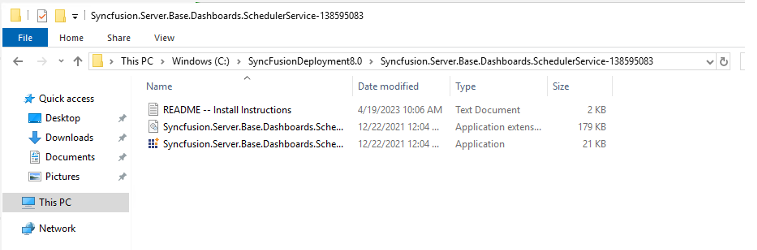
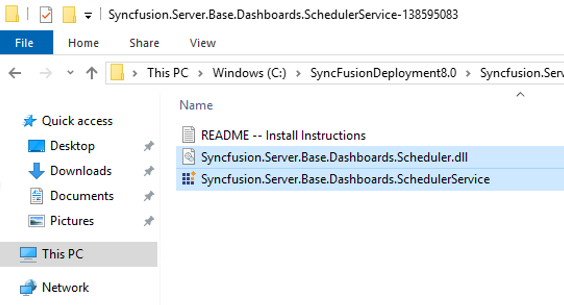
In the **SyncfusionDeploymentX.X** folder, there is a SyncFusion.Server.Base.Dashboards.SchedulerServicexxxxxxx folder. This contains a patch for scheduled reports not sending.
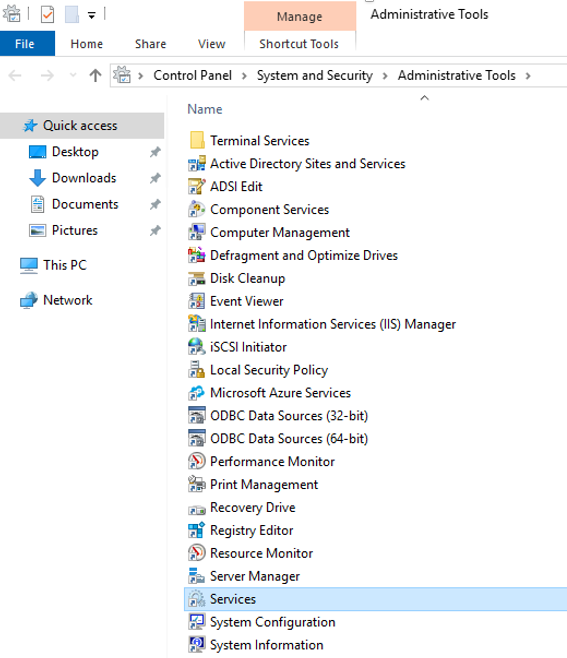
1. Go to **Start Menu > Windows Administrative Tools**
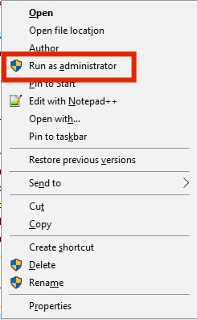
2. Right-click on **Services** and select **Run As Administrator.**
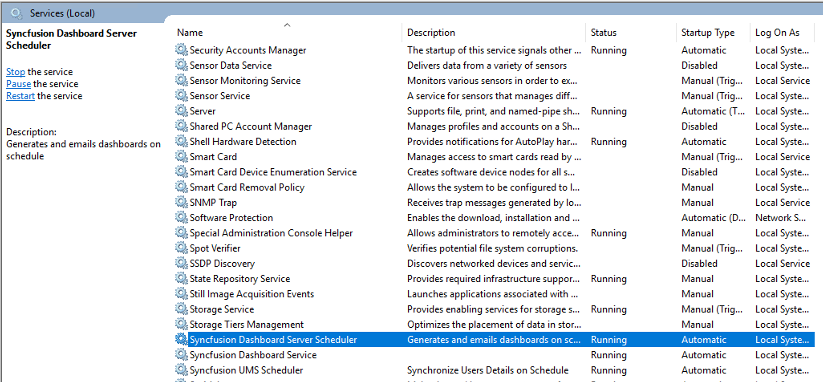
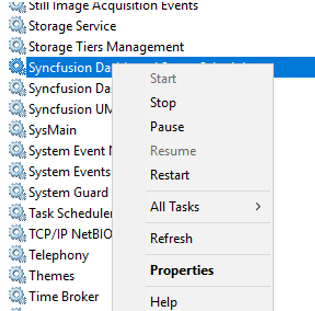
3. In the Services screen, scroll down to the **Syncfusion services**.
4. Right click each service and **Stop**.
5. Repeat for all 3 services.
6. Access the folder that contains the patch
7. Copy the the 2 *Syncfusion.Server.Base.Dashboards*…. files
8. Navigate to: **C:\Syncfusion\Dashboard Server\SchedulreServiceInstaller** folder.
9. Backup the 2 files with the same name as above (you can append the name to \[name].\[file extension].OLD)
10. Paste the new files in the folder.
11. Select **Replace**, when prompted.
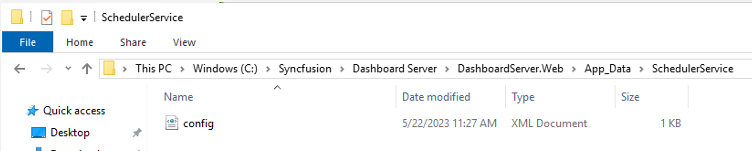
12. Navigate to C:\Syncfusion\DashboardServer\DashboardServer.Web\App\_Data\SchedulerService
13. Right-click on the Config file.
14. Select **Edit**
OR
14. Edit with a text editor, such as Notepad++
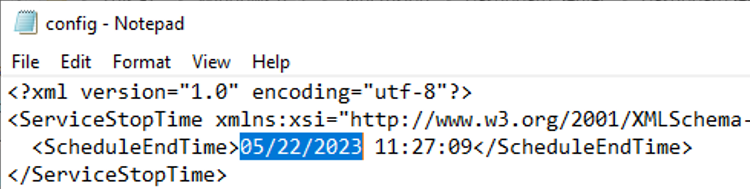
15. Find the line of code beginning with
```
```
16. Modify the date to a date in the past.
17. **Save** the changes to the file.
18. **Restart the Services** that were stopped at the beginning of this section.
19. If your patch was successful, **the config file should disappear** from the following folder: