> For the complete documentation index, see [llms.txt](https://docs.alemba.com/asm/llms.txt). Markdown versions of documentation pages are available by appending `.md` to page URLs; this page is available as [Markdown](https://docs.alemba.com/asm/asm-hermes/integrate/managing-integration/microsoft-teams-chat-integration.md).
# Microsoft Teams Chat Integration
Microsoft Teams Chat Integration with ASM
## **Configure Azure**
### **Register the Application**
1. Sign into the Azure Portal using an account with administrator permissions.
{% hint style="danger" %}
You must use an account in the **same Microsoft 365 subscription** **(tenant)** as you intend to register the app with.
**Each chat analyst needs to be added to the security of the app registration when setting up the integration.** Failure to do so, will cause issues in chat behavior for the Analyst that has not been added.
{% endhint %}
2. In the Azure Portal select **Azure Active Directory**, go to **App registrations** in the Menu and click on **Add a New Registration**.

3. Register the application and enter your application’s registration information:
* In the Name section, enter an application name that will be displayed to the users and press Register.
* Add a client secret and click on New Client secret. Give a description for the client secret and set the client expiry date by providing a custom date or set a predefined expiry period. Remember to make a note of the expiry date as MS Teams will stop working once expired. Press on Add.

### Set App Permissions
Select the **API Permissions tab**-Request API Permissions **Add Chat.Read Permission**.
* Press on Add permission, select Microsoft Graph, select Delegated Permissions.
* Expand the Chat section and select the **Chat.Read Permission**.
* Select **Add permission**.
* Select **Grant Admin consent** for the domain and press **Yes** to grant permission.


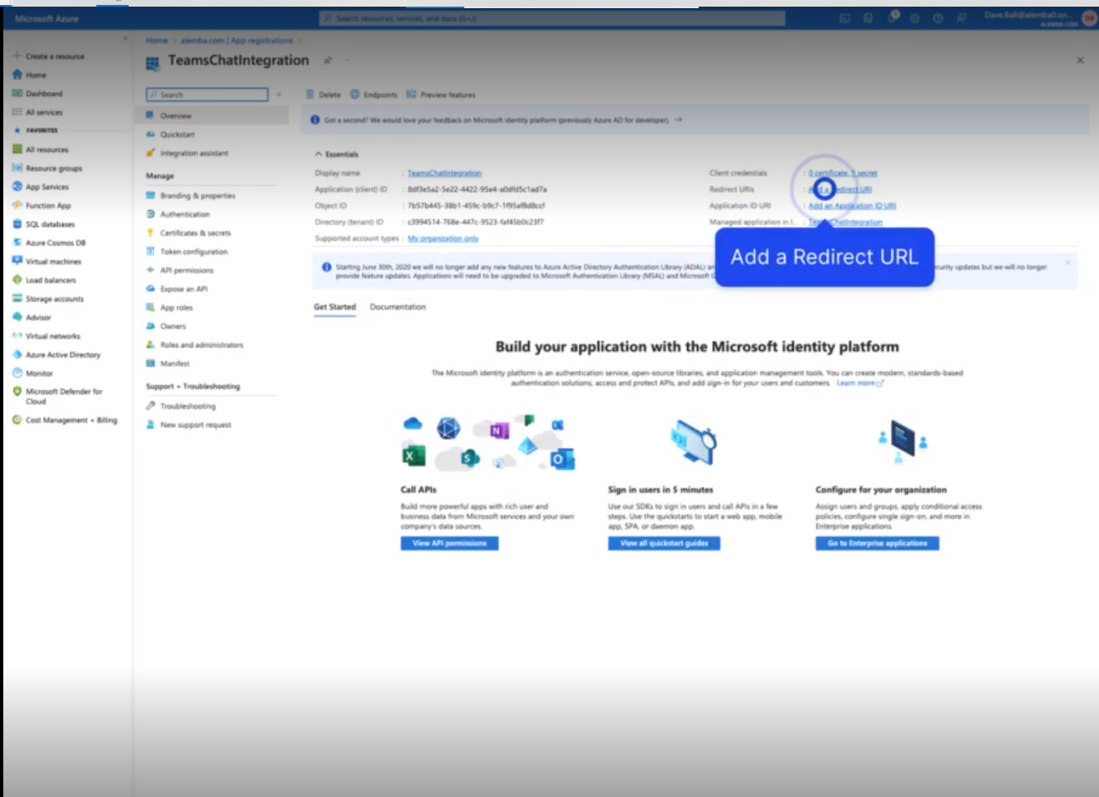
### Add a Redirect URL
Review the App Registration details.
1. Add a redirect URL.
2. Press on **Add a Platform** and then press on **Web** and enter the redirect URL.
{% hint style="info" %}
ASM uses the authorization code flow to access the Microsoft Graph API on behalf of the logged in user->
The Azure administrator should register an application in Azure AD and will require the redirect URL for ASM.
e.g. https\://{asm-server-url}/{asm-system-name}/oauth2callback.htm
{% endhint %}

### Certificates and secrets
**Note the Client ID, Tennant Id and Client secret** as you will need these values later in the ASM configuration.

## **Configure Chat in ASM**
### Configuration
1. RBAC: Grant **Integration Setup** to the Chat Analysts **General Access** Security Role
2. Access **System Administration>Preview Features> Settings** and change the Chat Type to Teams.
{% hint style="info" %}
For some versions of ASM, **Preview Features** is also call **Advanced Features**
{% endhint %}
3. Insert all the values for Teams Service account from Azure; Tenant ID, Client ID and Client secret and then restart IIS.
1. Generic office 365 account to add –create and configure that (generic email account)
2. In the App Registration Certificates & secrets section: copy the Secret
3. In the App Registration Overview section: copy the Application (Client) ID and the Directory (Tenant ID)

### Test the Configuration
1. Start Chat from Portal
2. Answer Chat
3. Take Action on the call
4. Click Start Chat
5. Click **Open Microsoft Teams** when prompted
6. A new chat is started where the subject is your Call number
7. Click End Chat when the conversation has ended
8. The conversation should be added to the history of the call