> For the complete documentation index, see [llms.txt](https://docs.alemba.com/asm/llms.txt). Markdown versions of documentation pages are available by appending `.md` to page URLs; this page is available as [Markdown](https://docs.alemba.com/asm/asm-hermes/setup-and-configure-asm/configuring-your-system/system-administration-settings/ipk-and-workflow/incident-problem-and-known-error-ipk-management/quick-forms.md).
# Quick Forms
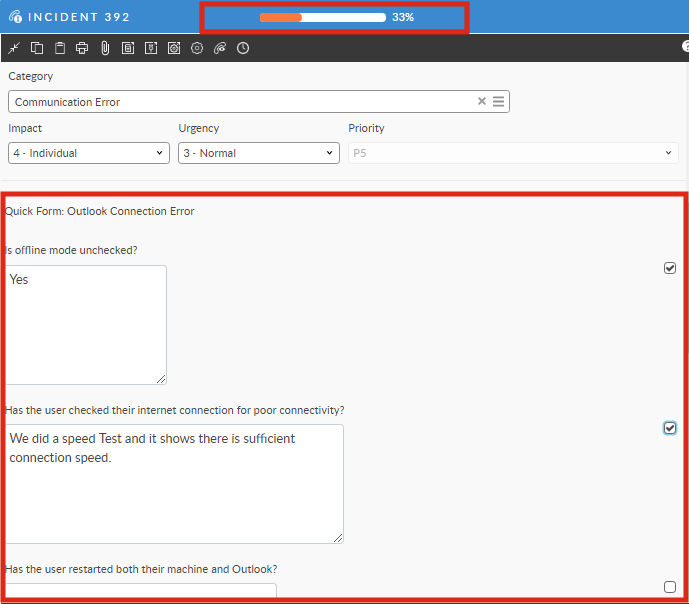
Quick Forms are linked to Types Tiers and display a list of pre-defined questions in the Call Details screen when the linked Type is selected.
Quick Forms are linked to Types Tiers and display a list of pre-defined questions in the Call Details screen when the linked Type is selected. Completing a question in the Quick Form advances the progress bar at the top of the Call Details window. Use Quick Forms to improve time to call resolution, ensure important information is captured, and support new staff while they get up to speed. For information on how to use Quick forms, see **Using Quick Forms**.
{% hint style="info" %}
Although Quick forms are primarily used for triage and troubleshooting to ensure consistency, they can also be used to build out other processes where consistency is required and the learning curve needs to be kept as small as possible.
{% endhint %}
> For Example, a Cloud Service Provider (CSP) has a standard process for restoring a database for their customers that must be followed because it impacts the agreements they have with their customers, particularly those with enhanced SLAs. The SLA was not being met much of the time because of gaps in the process. The process involves several teams that get assigned at specific points and this was causing the targets to be missed. They did not wish to use workflow because of the break/fix nature of these tickets. To do so would have impacted KPI and reporting as they had it structured. To solve the problem, they built the process into a **quick form** and manage it from the quick form template. It was **linked to the** *VIP Database Restore* **Call Type-Tier.**
>
> This ensures no one needs to remember a separate process for these kinds of tickets and the process is always followed exactly the same way, every time that kind of ticket is logged. The prompts even tell the agent what team to send the ticket to based on specific criteria, who to call or who to email. Each subsequent assignee can see the notes on each part of the process and is able to begin their part of actioning the ticket with a clear view of everything that has already been accomplished. This CSP is now meeting their SLA's for high priority Database restoration and the OLA between the groups are also being met.
## Configuring Quick Forms
{% hint style="info" %}
You must have **Quick Forms** on your **IPK Management Security** role to be able to manage quick forms in ASM
{% endhint %}
### Creating a Quick Form
1. Select menu > **Admin** > **System Administration**. The System Administration window appears.
2. In the Explorer pane, expand **IPK Management.**
3. Select **Quick Forms** to display the window.
4. All existing Quick Forms are displayed. There are no forms on first time configuring the system.
5. To create a new quick form, selective **New** icon beside **Form Lists**. 
6. A new row is added. Type a name for the quick form.
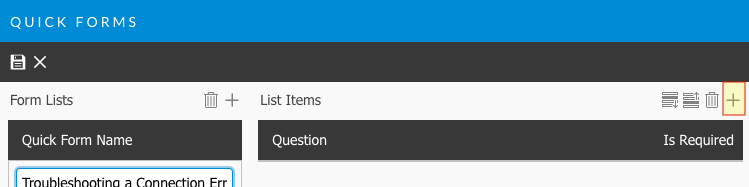
7. To add questions to the quick form, select the form on the left, and then select the **New** Icon beside **List Items**.
8. A new row is added. Type the question in the row. This question will appear in the call details.
9. Select the **Is Required** check box if the question's answer needs to be verified by the analyst.
{% hint style="info" %}
**When you mark a Quick Form List Item as "Required", it is only required to close the Call.**
{% endhint %}
1. To change the question order, select a question and then press the **Up** or **Down** icon to move the question up or down. 
2. Select the **Save** icon to save the changes. Provide the Change Reasons if prompted to do so.
### Linking a Quick Form to Type Tiers
{% @arcade/embed flowId="bZoDnDIXQB2xcoD6fwW5" url="" %}
1. Select Menu > **Admin** > **System Administration**. The System Administration window appears.
In the Explorer pane, expand **IPK Settings.**
2. Select **Link Types to Quick Forms** to view the window.
3. Existing links between Quick Forms and Type Tiers are displayed. There are no links on first time configuration.
4. Select a Type Tier from the list on the left, and then select a Quick Form from the list on the right.
5. Press **Link Type to Form** to link the Type and Quick Form. The linked items appear in the **Linked Types** table.
6. To remove a link, select the linked items in the Linked Types table and then press **Remove Link**.