> For the complete documentation index, see [llms.txt](https://docs.alemba.com/asm/llms.txt). Markdown versions of documentation pages are available by appending `.md` to page URLs; this page is available as [Markdown](https://docs.alemba.com/asm/asm-hermes/setup-and-configure-asm/setting-up-your-system/setup-email/setting-up-incoming-and-outgoing-email.md).
# Setting Up Incoming and Outgoing Email
Administrators can set up incoming and outgoing email accounts on the Email Settings window, accessible from the System Administration.
Incoming and Outgoing Email run through the ASM Messaging Service – this is a polling service that operates under the ASM Core application - which checks these accounts at regular one-minute intervals.
In the case of incoming emails, the service analyzes the subject heading of the email(s) it picks up and acts according to any key words found in the subject line. Click [here](/asm/asm-hermes/setup-and-configure-asm/setting-up-your-system/setup-email/setting-up-incoming-and-outgoing-email/about-incoming-email/recognized-incoming-email-subject-headings.md) to see which subject lines are accepted or rejected by ASM Core.
In the case of outgoing emails, if an instruction to send an email has been put into the message table, an email is sent through one of the configured outgoing servers. For details on how to send emails from ASM Core, click [here](/asm/asm-hermes/use-asm/using-asm-core/sending-an-email.md).
A number of settings must be configured to use incoming and outgoing emails in ASM Core.
* [Starting the ASM Messaging Service](#start_ASM_service)
* [Configuring the ASM Core Email Settings](#configure_email_settings)
* [Configuring Email Notifications](#configure_email_notifications)
* [Configuring or Designing Email Templates](#design_email_templates)
* [Mapping Email Templates to Message Types](#map_email_templates)
* [Email Options for IPK and Workflow Groups](#email_options_for_ipk_and_workflow_groups)
### Starting the ASM Messaging Service
In order to use incoming and outgoing email, the ASM Core Messaging service must be running on the web server where your ASM System is installed.
If unsure whether the messaging service is running, the system or network administrator can start the service manually:
1. On the web server, open the **Services** window using the correct method for your version of Windows Server.
2. The Services window displays a list of all the services available on the web server.
3. From the list of services, right-click the **ASMMessaging Service** so that a menu appears. If the menu option **Stop** is enabled, your ASM Messaging Service is already running.
4. If your messaging service is not running, click the **Start** option from the right-click menu.
{% hint style="warning" %}
The ASM Core Administrative Service should also be running
{% endhint %}
### Configuring the ASM Core Email Settings
Your ASM System can be configured to check for one or more incoming mail accounts, and set up one or more outgoing mail accounts which will be used to send emails from ASM Core to analysts, Users, external suppliers, groups or stakeholders.
Once you have determined that the ASM Core messaging service is running, add and configure the incoming and outgoing email servers in ASM Core using the Email Settings window in System Administration.
### Configuring Email Notifications
You can configure when and how email, pager and system messages should be sent from ASM Core, including how system messages ‘pop up’ on an Analyst’s window.
These settings are configured using the [Messaging](/asm/asm-hermes/setup-and-configure-asm/configuring-your-system/system-administration-settings/system-settings-menu/messaging.md) window in System Administration, and relate to both incoming and outgoing emails.
### Configuring or Designing Email Templates
The email messages that ASM Core sends out are formatted according to a number of standard HTML message templates included with ASM Core. There are separate templates for each of the different situations in which emails can be sent, such as call forwarding, email request manager, etc. These templates are pre-formatted and include all necessary fields based on the specific template.
To modify email templates and create new ones, ASM Core recommends using the ASM Core [ASM Designer](https://github.com/andriabradac/ASM-Sync/blob/10.6.8/setup-and-configure-asm/setting-up-your-system/setup-email/setting-up-incoming-and-outgoing-email/broken-reference/README.md).
All message templates created or edited with the ASM Designer are automatically available from ASM Core and appear on the Message Type Map window.
### Mapping Email Templates to Message Types
For a message (email) template to be used, it must be linked to a given event in ASM Core – for example, the forwarding of a call. You can therefore assign different email templates for notifying a User about the state of a call, notifying an analyst about the breach of a service level agreement, or notifying an external contact that an approval task has been forwarded to them.
ASM Core also enables you to assign multiple templates to the same message type, for example, for use through different partitions.
The process of assigning templates to message types is performed on the Message Types window.
For a list of all message types and the system event they're connected to, click [here](/asm/asm-hermes/setup-and-configure-asm/configuring-your-system/system-administration-settings/system-settings-menu/message-types/message-type-definitions.md).
### Email Options for IPK and Workflow Groups
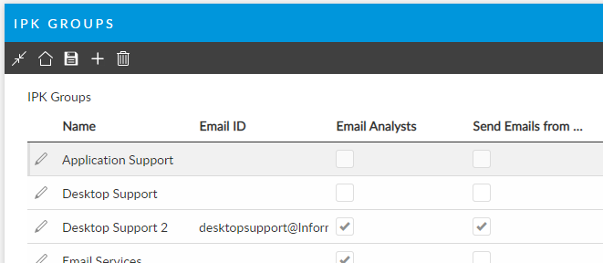
Depending on how you set up the Email ID and Email Analysts options for your IPK Groups and Workflow Groups, emails will be sent to either the group email ID, the email ID of each analyst in that group, or both.
{% hint style="info" %}
**Analyst’s Default Group Email ID - What happens?**
When Analysts send an email from ASM, **the system will set the senders email address to the analysts default IPK or Workflow group email address** as appropriate when
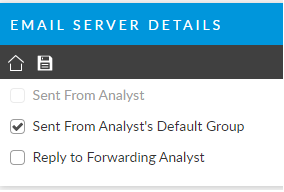
1. The "Send Emails from this Group" checkbox is selected in the [email server details](/asm/asm-hermes/setup-and-configure-asm/setting-up-your-system/setup-email/setting-up-incoming-and-outgoing-email.md)
 2. AND the group has an email address
 {% endhint %}