> For the complete documentation index, see [llms.txt](https://docs.alemba.com/asm/llms.txt). Markdown versions of documentation pages are available by appending `.md` to page URLs; this page is available as [Markdown](https://docs.alemba.com/asm/asm-hermes/use-asm/using-asm-core/sending-ad-hoc-surveys.md).
# Sending Ad-Hoc Surveys
You can send Surveys against any resolved/Closed Call or Request in ASM
{% hint style="info" %}
You must have **Send User Surveys Manually** enabled in your **IPK and Workflow Management** Security Roles.
{% endhint %}
There are several reasons why sending Ad-Hoc User Surveys, as opposed to relying solely on automated surveys, can be beneficial:
* **Customization**: Ad-Hoc surveys allow for customization to target specific user feedback at the right time, providing more relevant data.
* **Immediate Feedback**: They are ideal for gathering immediate feedback after a specific event or interaction, ensuring the feedback is timely and accurate.
* **Higher Response Rates**: Users are more likely to respond to surveys that are relevant to recent interactions, thus potentially increasing response rates.
* **Gap Identification**: They help in identifying gaps in the automated survey process by targeting areas that automated surveys may not cover.
* **Flexibility**: Provides flexibility in survey timing and content, adapting quickly to new priorities or changes in the service.
Sending Ad-Hoc User Surveys complements the automated survey process, leading to a more comprehensive understanding of user satisfaction and areas for improvement.
{% hint style="success" %}
#### Continuous Improvement: Best Practice
The ITIL (Information Technology Infrastructure Library) framework emphasizes the importance of having dedicated Closure Groups (See **Closure Groups** for more information) within the IT service management process. These groups are responsible for several critical tasks:
1. **Checking Closed Tickets:** They ensure that all the solutions provided and the steps taken to resolve the issues are thoroughly documented and meet the established service quality standards.
2. **Validating Resolutions:** Validation involves confirming that the resolutions have indeed solved the problems from the users' perspectives, ensuring that the services are restored to their desired operational statuses.
3. **Continuous Improvement:** By analyzing the resolutions and the problems, Closure Groups identify trends, recurring issues, and areas lacking in service provision, contributing to the continuous improvement of IT services.
{% endhint %}
#### For Incidents (Break/Fix) Closure Groups could be the Ideal Team to Manage Ad-Hoc User Surveys
Closure Groups are in a unique position to send ad-hoc user surveys for several reasons:
* **Direct Insight:** They have direct insight into the issues that were resolved, the solutions provided, and any potential areas of user dissatisfaction.
* **Targeted Feedback:** This allows them to tailor surveys to gather specific feedback on the resolution process, the effectiveness of the solutions, and the overall user satisfaction, leading to more meaningful and actionable data.
* **Quality Assurance:** Collecting feedback on recently closed tickets ensures that the service meets or exceeds user expectations, and any gap in service delivery can be quickly identified and rectified.
* **Enhanced User Experience:** Regular feedback through ad-hoc surveys demonstrates a commitment to user satisfaction and continuous improvement, enhancing the overall user experience.
Incorporating ad-hoc user surveys into the closure process, as managed by Closure Groups, leverages a structured opportunity to refine IT services continuously and ensure they are aligned with user needs and expectations.
{% hint style="success" %}
**Implementation in the Real-World**
To implement Closure Groups with Ad-Hoc Surveys you will need to keep these things in mind:
* [ ] You need to create the Closure Group in **System Administration>Security>IPK Groups**
* [ ] You need at least 1 person in the group
* [ ] You need a **Security Role** for the Closure Analysts that allows the agents to **Call Close and Send User Surveys Manually** and any other relevant rights this group should have.
* [ ] Configure IPK Settings (Partitioned) for the Closure Method - **Rules**
* [ ] Configure the Closure Rules
* [ ] Configure Your manual User Surveys (**IPK Management>User Surveys**)
* [ ] Socialize the Analysts in the User Group on the Call Close process for your organization and on where and how to send User Surveys Manually.
{% endhint %}
## About: Ad-Hoc User Survey
If enabled, you can send user surveys manually. When you send a User Survey Manually, the user will be notified they have a survey and if configured, the email will contain an MMA URL that will take the user directly to the survey.
{% hint style="warning" %}
* You cannot send a **manual Survey** for a call that has already had a survey sent. However, if configured, you can send a reminder to the User to complete the survey.
* If the Survey Icon is Red,  this indicates a survey has been sent but has not yet been answered.
* If the Survey icon is green  , this indicates a survey has been sent and has been completed.
* If the Survey Icon is grey,  no survey has been issued for this ticket.
{% endhint %}
You can send a manual Survey 2 ways:
1. From the Ticket or Request itself
**OR**
2. From the Search Results, in bulk or individually
{% hint style="info" %}
**Sending Surveys in Bulk**
When sending surveys in Bulk, you will get a confirmation message in the lower right corner of your screen stating what tickets surveys have been issued against:
The indicator column will update to reflect there are open surveys:
{% endhint %}
## Send a Survey
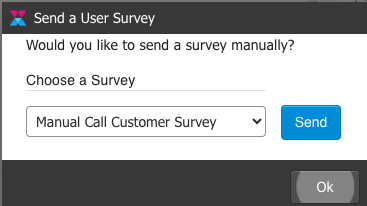
1. When you **click the Survey Icon** from either the the ticket's menu or the Search Results menu, you are presented with a window to select the survey to send.
2. Select from the list the survey you want to send. Your organization will configure these options. Ensure you seect a Request Survey for Requests and a Call survey for calls.
3. Click **Send**
**If you try to send a survey for a call that already has an open survey against it, you will be prompted instead to send a reminder.** If Reminders are configured, you will be prompted to confirm that a reminder for the survey will be sent. Click **OK**.


 The indicator column will update to reflect there are open surveys:
 {% endhint %}
## Send a Survey
1. When you **click the Survey Icon** from either the the ticket's menu or the Search Results menu, you are presented with a window to select the survey to send.
{% endhint %}
## Send a Survey
1. When you **click the Survey Icon** from either the the ticket's menu or the Search Results menu, you are presented with a window to select the survey to send.