> For the complete documentation index, see [llms.txt](https://docs.alemba.com/asm-eos-10.5/llms.txt). Markdown versions of documentation pages are available by appending `.md` to page URLs; this page is available as [Markdown](https://docs.alemba.com/asm-eos-10.5/asm-gaia-10.4/setup-and-configure-asm/designing-configuring-your-system/configuring-screens/building-screens-in-asm-designer/deleting-fields.md).
# Deleting Fields
Using ASM Designer, you can remove a field from a screen. (The field will still be available within the screen set.)
You can also "unlink" a field from an entire screen set, in which case it will no longer appear as an available field.
### Removing a Field from a Screen
* The field is still available in the list of fields associated with the selected screen set and may be inserted again.
* If you remove a non data field, such as a section or layout grid, this also removes all the fields in the non data field.
* The **Forward To** field on a Request Submission Form cannot be hidden or removed as it is a mandatory field. However, this field is automatically hidden on the submission form viewed on the Self Service Portal when a **Forward To** analyst or group is assigned on the Workflow Template associated with this submission form.
{% hint style="info" %}
### Before you start
1. Before editing screens, we strongly recommend that you undertake appropriate training on ASM Designer.
2. Exercise caution when using ASM Designer to modify screen designs which have been customized by Alemba® Professional Services. Contact your Alemba® account manager if you are uncertain about whether your actions will impact these customizations.
3. To delete fields from a screen using ASM Designer, you must have **Designer** selected in your General Access Security Role.
4. To maintain an audit trail of changes made to screens, forms and message templates, Designer must be selected in the Auditing window.
{% endhint %}
5. When the screen is open, select the field you want to delete. The **Field Settings** tab is automatically selected in the left hand pane.
6. Right-click on the field and select **Delete**. Alternatively, select the field and then select at the bottom of the left hand pane.
7. If you are deleting a custom field associated with another screen set, the field is removed from the current screen only. It will still appear on other screens in which it has been added, however, it will no longer be available in the list of available fields.
8. In the Confirm Deletion warning box, select **Yes** to confirm the deletion.
9. Select **Save** at the bottom of the window to save changes to the current screen. **Save All** saves changes to all open screens. If auditing is turned on, the Change Reasons window will display, prompting you to add a change reason.
10. If you wish to undo the deletion, select the **Undo** button in the top right corner of the window. Save the changes once more.
### Deleting a Custom Field from ASM, Globally
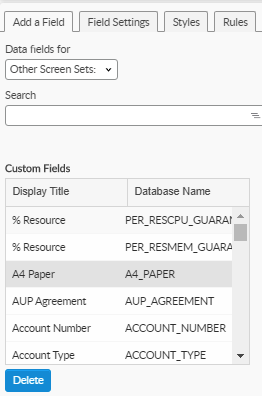
You can delete a field globally by accessing the field through the 'Other Screen Sets" option **Data Fields For** drop-down. When deleting field through this method, they are deleted from the database.
{% hint style="danger" %}
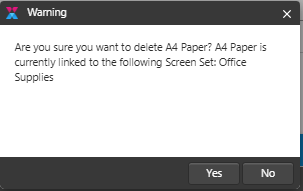
You cannot undo this operation. Ensure the field is not being used on other screen sets or you will receive a warning message. This message will advise what other screen sets are using the field.
{% endhint %}
### Unlinking a Field from a Screen Set
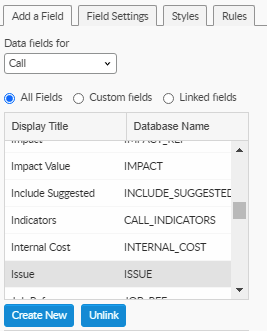
If you want to remove a custom field entirely from the current screen set (as opposed to simply deleting the field you added to a screen), display a screen within the screen set and remove the custom field clicking "**Unlink**".
The field is removed from the current screen and the list of available fields. However, it will still appear on other screens in which it has already been added.