> For the complete documentation index, see [llms.txt](https://docs.alemba.com/asm-eos-10.5/llms.txt). Markdown versions of documentation pages are available by appending `.md` to page URLs; this page is available as [Markdown](https://docs.alemba.com/asm-eos-10.5/setup-and-configure-asm/installation-and-upgrade/installation-guide-for-syncfusion-dashboards/part-2-syncfusion-server-check-https-binding-has-been-configured.md).
# Part 2-Syncfusion Server Check HTTPS Binding has been Configured
## Syncfusion Server **Check HTTPS Binding has been Configured**
Checking that the HTTPS binding has been configured in ISS (Optional, but should be checked for Cloud Systems)
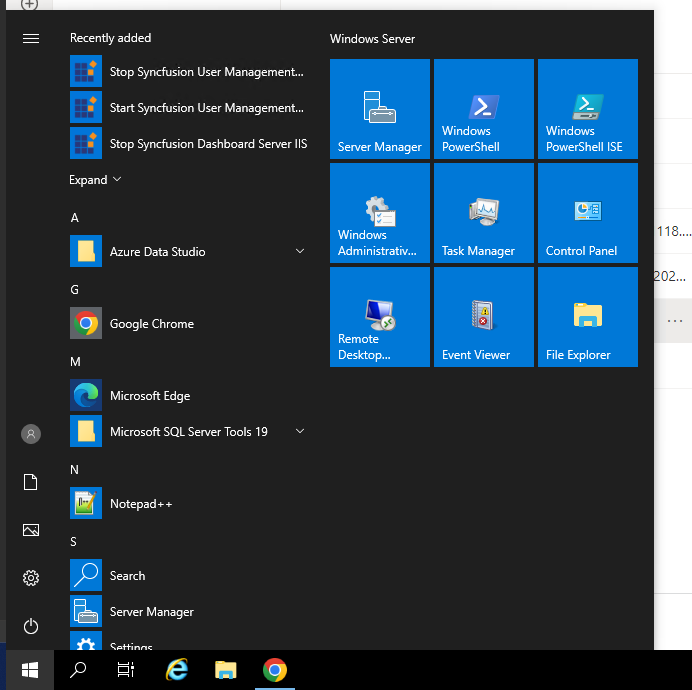
1\. Go to Start Menu > Windows Administrative Tools
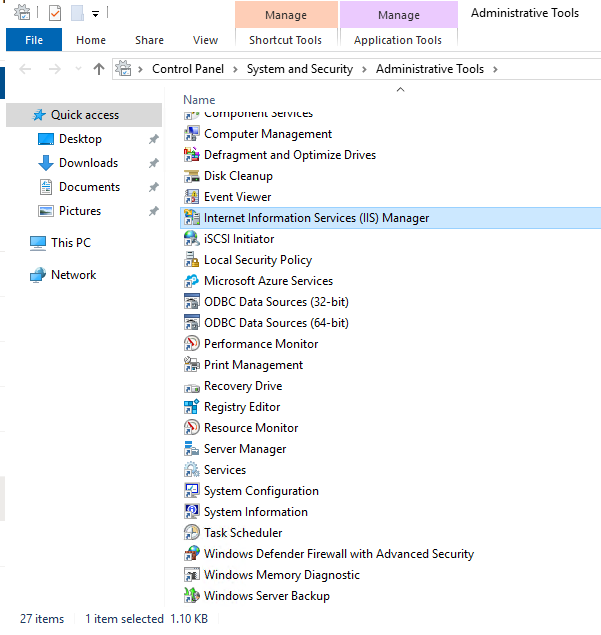
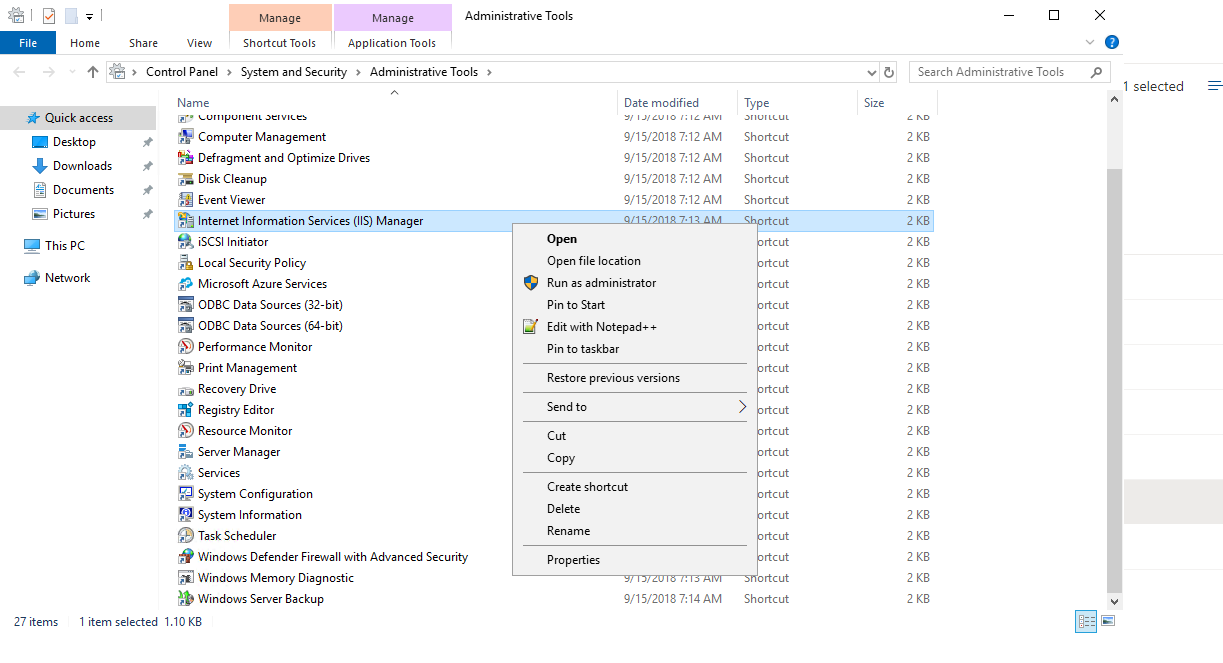
2. Right click Internet Information Services (IIS) Manager
3. Click **Run as Administrator**
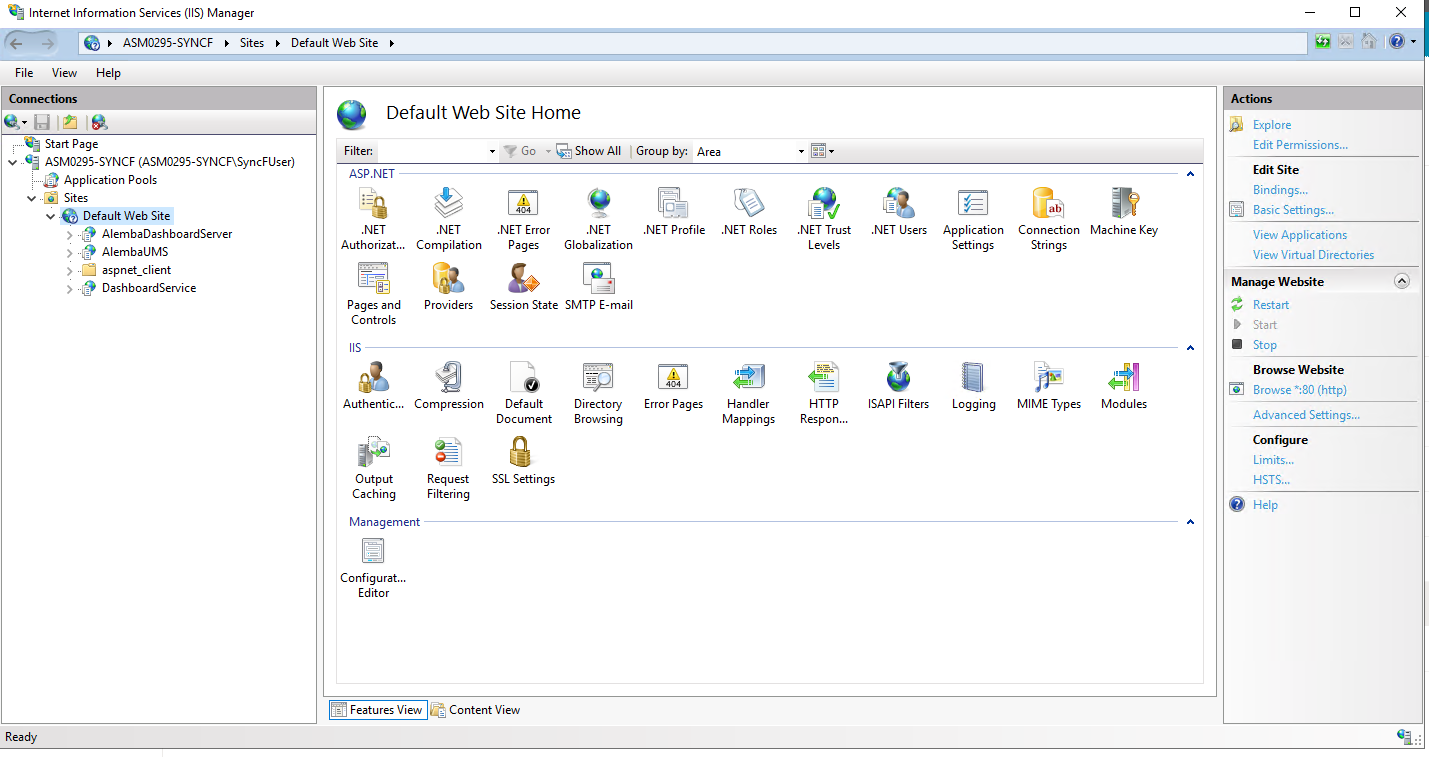
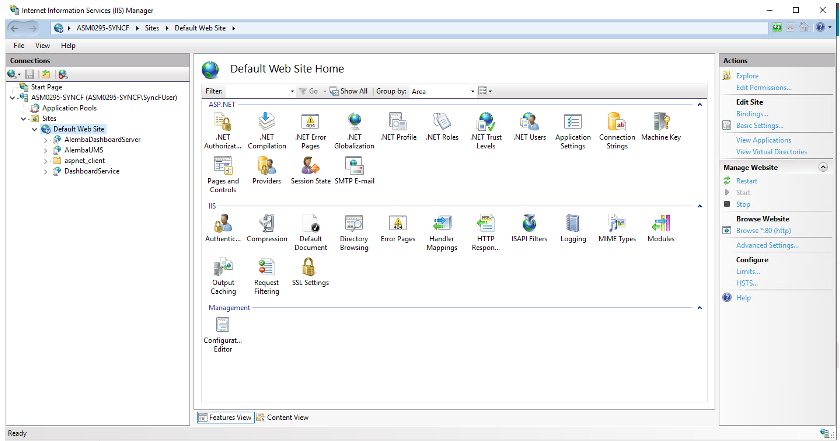
4. In IIS, on the left-hand side, right click on **Default Web Site** and select **Edit Bindings**
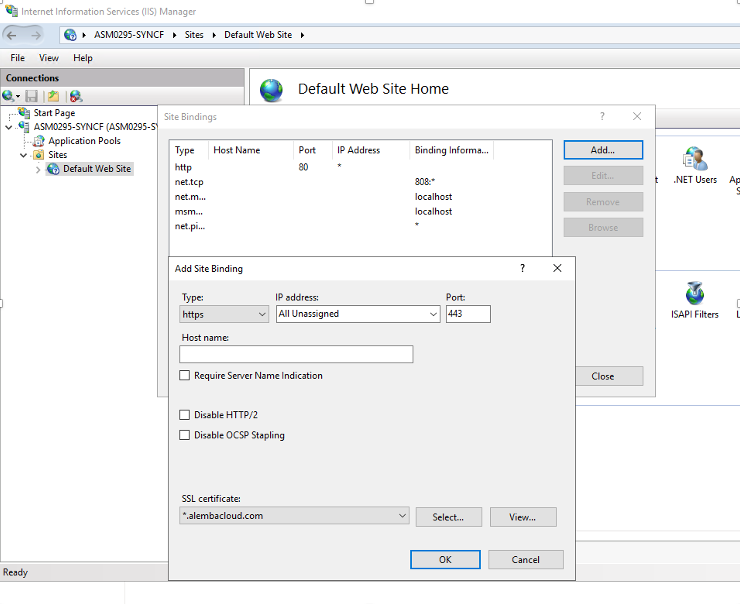
5. **If in the new window, no HTTPS binding is defined,** click **Add** and configure as per below:
{% hint style="info" %}
The SSL Certificate name might differ depending if you are an Alemba Cloud customer or an on premise customer.
{% endhint %}
6. Select in the top left hand corner, **Type**, as **https** and select the **SSL certificate**
7. Click **OK.**
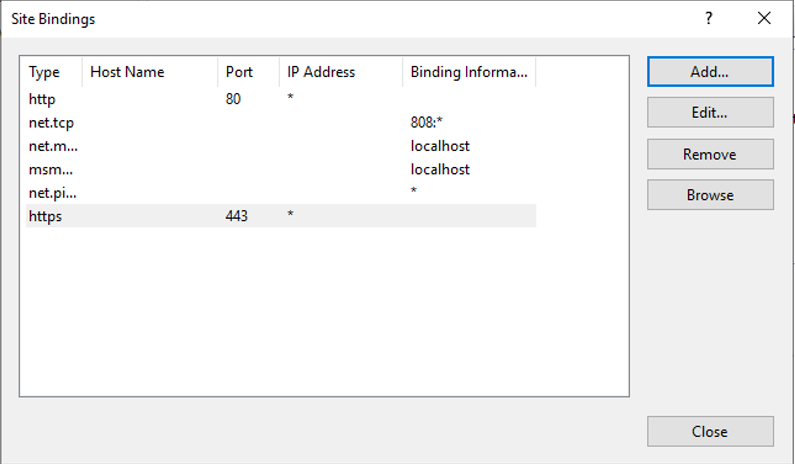
8. **Verify your Site Bindings look like the image below**
9. Click **Close** on the above and close IIS config manager.