> For the complete documentation index, see [llms.txt](https://docs.alemba.com/asm-eos-10.5/llms.txt). Markdown versions of documentation pages are available by appending `.md` to page URLs; this page is available as [Markdown](https://docs.alemba.com/asm-eos-10.5/use-asm/using-nano/nano-application/viewing-your-workload-in-nano.md).
# Viewing Your Workload in NANO
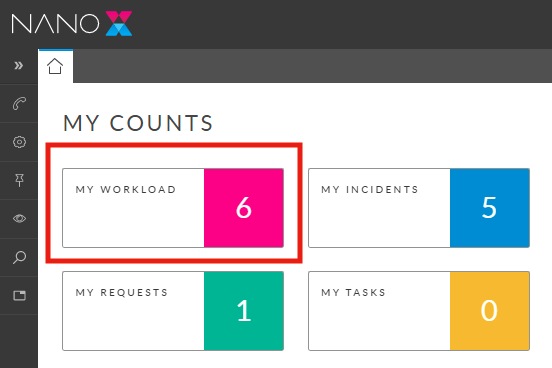
The Workload Outstanding window displays all work items requiring your attention. Depending on your Security Roles, this can include calls, request, and tasks.
On the Workload Outstanding window you can:
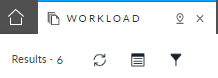
1. Show and hide the filters section.
2. Filter your list of work items
* Show any combination of calls, tasks, requests that are currently with you, have been forwarded to you or your group, and work items you forwarded.
* Toggle between suspended and unsuspended work items.
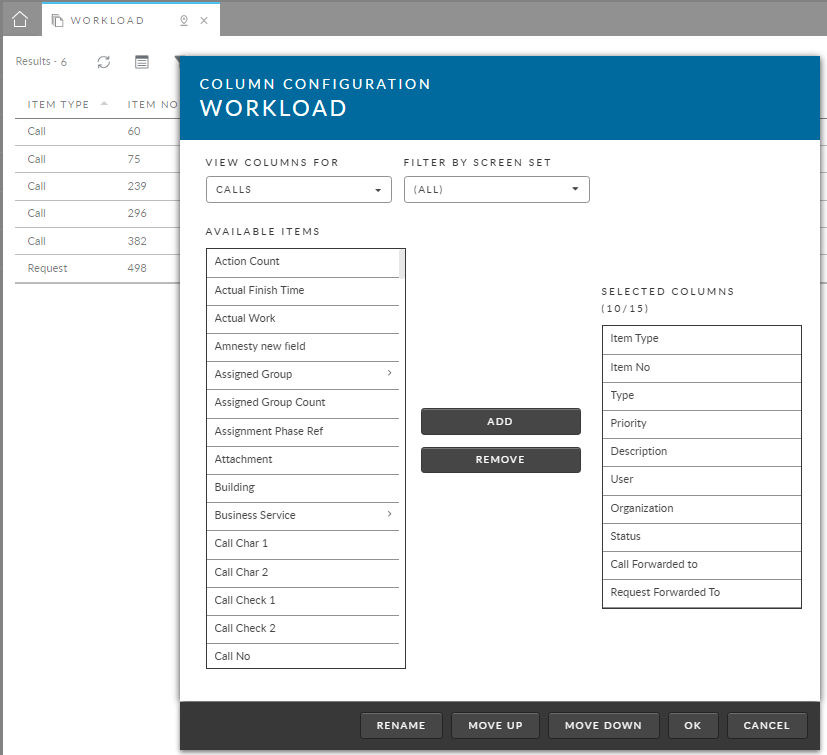
3. Configure the columns by adding or removing columns and changing their order.
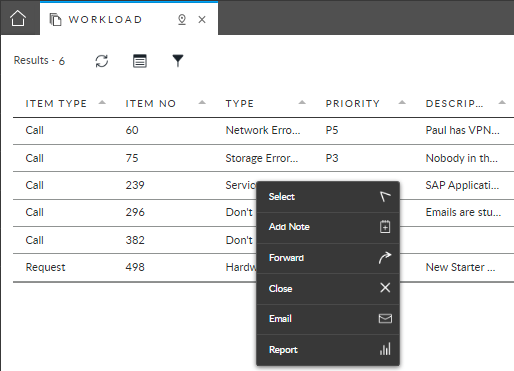
4. Right-click on a work item(s) to perform actions such as Add Note, Action, Review, Email, etc.
5. You can also use the Calls Outstanding, Requests Outstanding, and Tasks Outstanding windows to view those items separately, and access an expanded set of functions.
{% hint style="info" %}
### Before you start Working with Calls
The following settings must be enabled in the Options tab of your **IPK Management Security Role** to perform the listed actions:
* To view calls, enable **IPK Analyst**.
* To forward calls from the Search or Outstanding windows, enable **Bulk Forward Calls**.
* To close calls from the Search or Outstanding windows, enable **Bulk Close Calls**.
{% endhint %}
{% hint style="info" %}
### Before you start Working with Requests
To view requests **Workflow Analyst** must be enabled in the Shared tab of your **Workflow Management Security Role**.
The following settings must be enabled in the Requests tab of your **Workflow Management Security Role** to perform the listed actions:
* To forward requests from the Search or Outstanding windows, enable **Request Bulk Forward**.
* To close requests from the Search or Outstanding windows, enable **Request Bulk Close**.
{% endhint %}
{% hint style="info" %}
### Before you start Working with Tasks
To view tasks, **Workflow Analyst** must be enabled in the Shared tab of your **Workflow Management Security Role**.
The following settings must be enabled in the Tasks tab of your **Workflow Management Security Role** to perform the listed actions:
* To forward tasks from the Search or Outstanding windows, enable **Task Bulk Forward**.
* To close tasks from the Search or Outstanding windows, enable **Task Bulk Close**.
{% endhint %}