# Viewing Search Results in Graphs

1. Search on the entity.
2. When the results are displayed in a browse table on the Search results window, select the  button.
3. The results are displayed in a bar chart and the following options are available:<br>

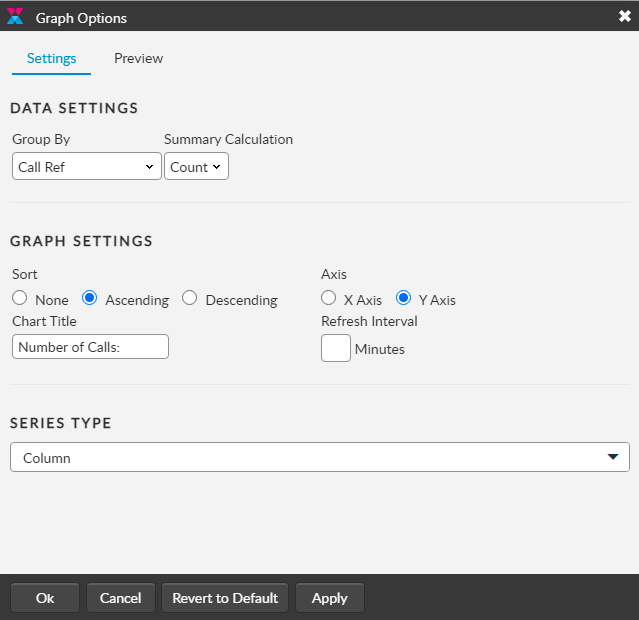
<table><thead><tr><th width="237">Select</th><th>To...</th></tr></thead><tbody><tr><td><img src="https://content.gitbook.com/content/hlW9jKl7dcDggHAPhNU9/blobs/D0Oy8xSoTrnD9wuHNNmP/image.png" alt=""></td><td>Display the results in a table format</td></tr><tr><td><img src="https://content.gitbook.com/content/hlW9jKl7dcDggHAPhNU9/blobs/BnjRVtVUQ6ByYt0QnBXM/image.png" alt=""></td><td><p>Choose between different graph formats (<strong>Series Type)</strong>, eg Bar, Line, Pie, and settings.</p><p>Use <strong>Group By</strong> to select the search criterion on which the graph is based.</p><p><strong>Graph Settings</strong> organize the data.</p></td></tr><tr><td><img src="https://content.gitbook.com/content/hlW9jKl7dcDggHAPhNU9/blobs/udqz7usrFG2fTInHkkT3/image.png" alt=""></td><td>Print the graph</td></tr></tbody></table>

<figure><img src="https://content.gitbook.com/content/hlW9jKl7dcDggHAPhNU9/blobs/wwrsdWK2G9DZHPILw8T4/image.png" alt=""><figcaption></figcaption></figure>

4. Select from the options or double-click any section of the graph to open a new search window with search criteria based on the chosen section.